
MFA Passkeys
1. What is a Passkey?
A passkey is a modern, phishing-resistant way to sign in without using a password!
- Instead of something you know (like a password), a passkey uses something you have (your phone or device) and something you are (Face ID, Fingerprint, or device PIN)
- The credential is stored securely on your device and is never shared with the website or service that you're signing into. Because of this, passkeys can't be reused, stolen by fake websites, or guessed.
- Passkeys are based on industry security standards (FIDO2). Your device proves to Microsoft that it's really you, without ever sending a password across the internet.
- If the site is not legitimate, the passkey simply won't work, and there's nothing for the attacker to steal.
- Your device becomes your key, and your identity stays locked inside it!
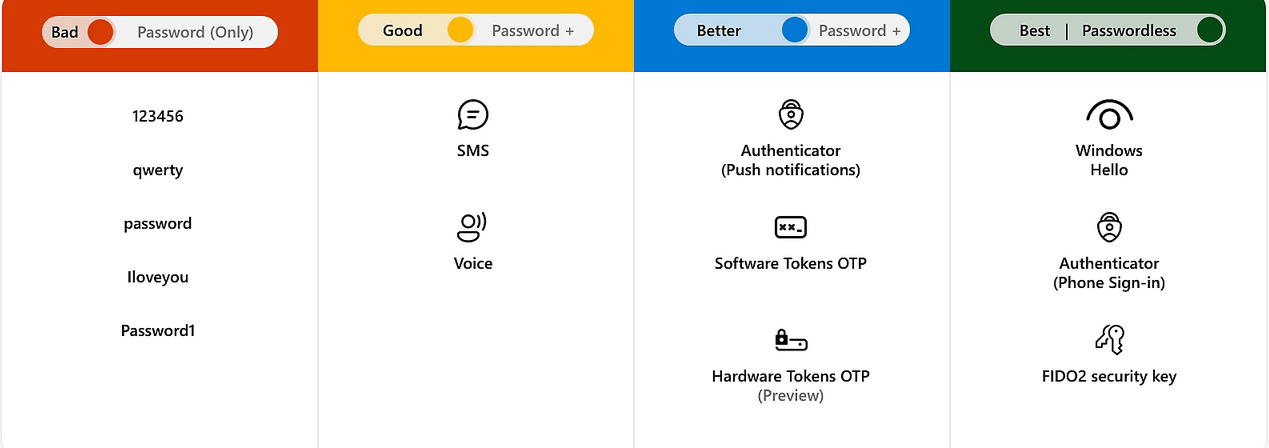
- Did you know that passwords are the weakest link in modern security? They are often:
- Reused
- Phished
- Leaked in breaches
- Guessed
- Microsoft's goal with passwordless sign-in is to:
- Eliminate passwords as an attack target - No passwords means nothing to phish, reuse, or brute-force.
- Reduce account takeovers and phishing - Passkeys only work on the real Microsoft sign-in and approved services. Fake sites can't trick your device into handing over a credential.
- Make sign-ins faster and simpler - Approving with Face ID, fingerprint, or a device PIN is quicker than typing passwords and codes.
- Improve both security and user experience - Stronger security without extra steps, fewer account lockouts.
Passkeys are part of Microsoft's move to a passwordless future where accounts are protected by your device and biometrics instead of passwords that can be stolen, guessed, or phished
2. Syncable Passkeys
A passkey lets you sign in without typing your password each time. It uses your device's built-in security, such as Face ID, fingerprint, screen lock, or device PIN.
We recommend saving your passkey to:
- Apple Passwords (if you use iPhone)
- Google Password Manager (if you use Android)
3. Before you Begin
| Make sure you have: | Do not create a passkey on: |
|
Your Piedmont email address |
A public computer |
|
Your current password |
A shared family computer |
|
You current MFA method |
A classroom or lab computer |
|
A personal phone or computer that only you use |
A friend's phone |
4. Enable Passkey Syncing (iOS/MacOS)
- Confirm your iCloud keychain is enabled
- Open Settings
- Select your Name / Apple ID at the top
- Tap iCloud
- Tap Passwords and Keychain
- Confirm that the setting Sync this iPhone or Sync this iPad is enabled
- On Mac:
- Open System Settings
- Click your Apple Account
- Click iCloud
- Ensure Passwords is set to Sync
5. Create a Passkey
- Open a web browser and visit https://myaccount.microsoft.com
- Expand My Account
- Select Security Info
- You will be prompted to login using MFA.
- Once logged in, select Add sign-in method
- Select Passkey
- Select Next and follow through the on-screen prompts
6. Sign in with Passkey
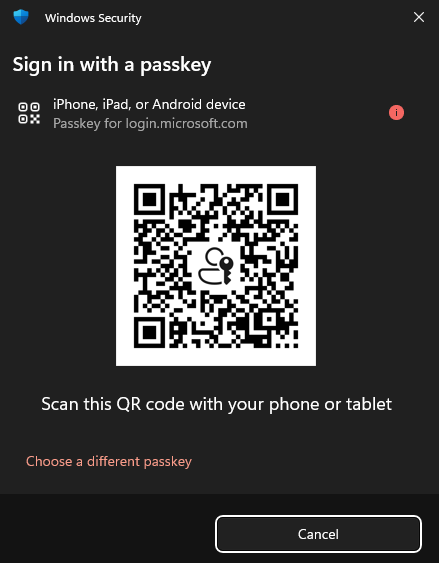
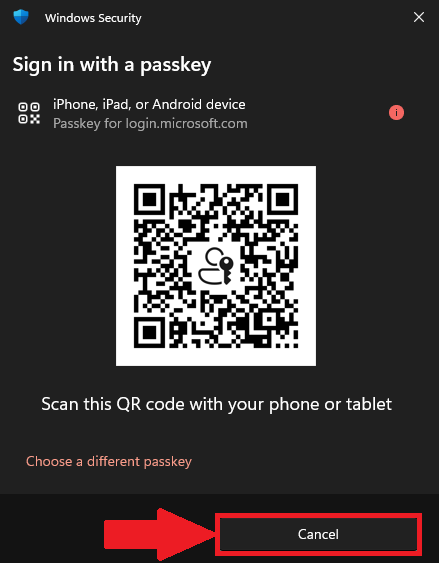
- When you login using your Piedmont credentials, you will receive a new popup window in place of Microsoft Authenticator
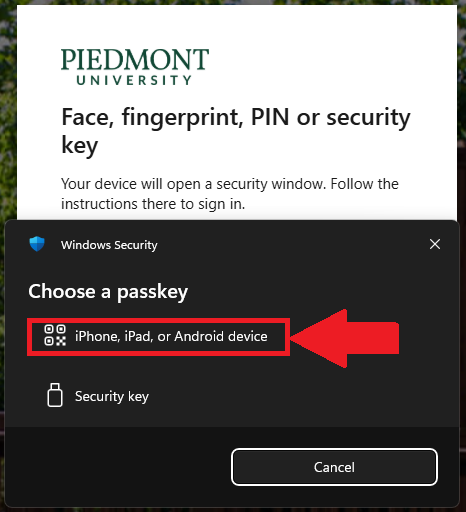
- Select iPhone, iPad, or Android device.
- Use your mobile device to scan the QR Code on your computer, select Sign in with Passkey
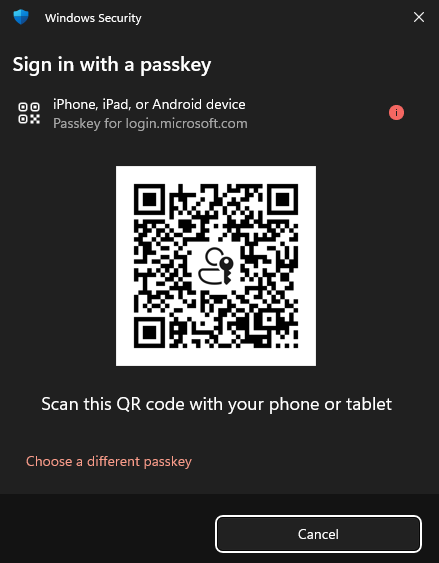
- On your mobile device, a message will appear "Sign in to login.microsoft.com" on the other device with your passkey for "@piedmont.edu" saved in Passwords?
- Choose Use Passkey
- Your mobile device will prompt for Face ID or biometrics.
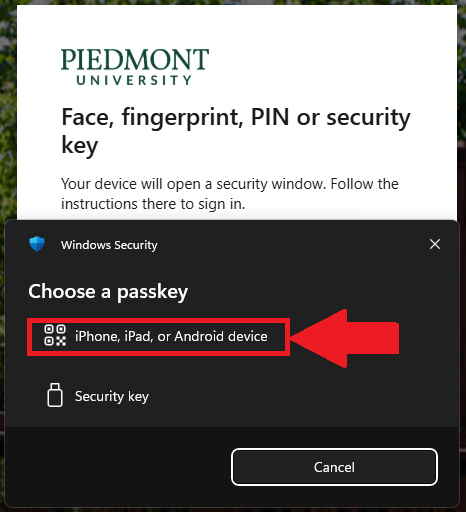
7. Sign in using Microsoft Authentiactor
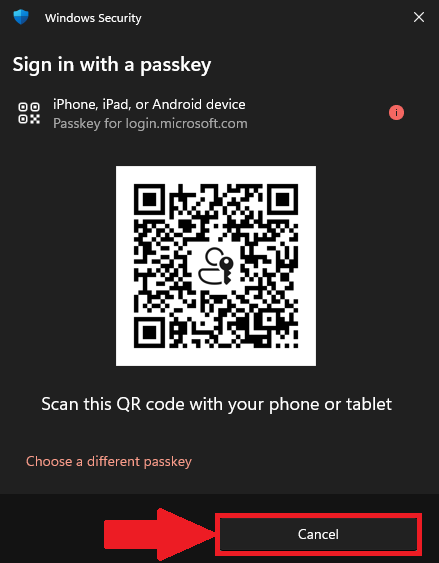
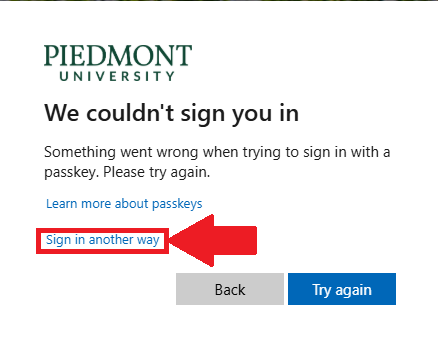
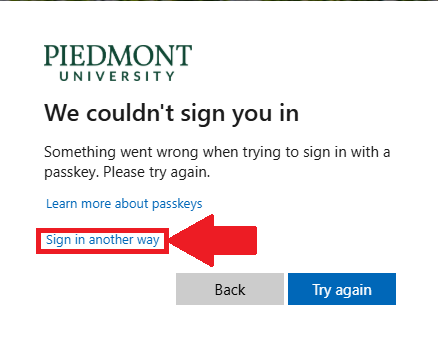
- In some cases you may need to use the original MFA through the Authenticator app, to do so, select the 'X' or 'Cancel' button and select Sign in Another way
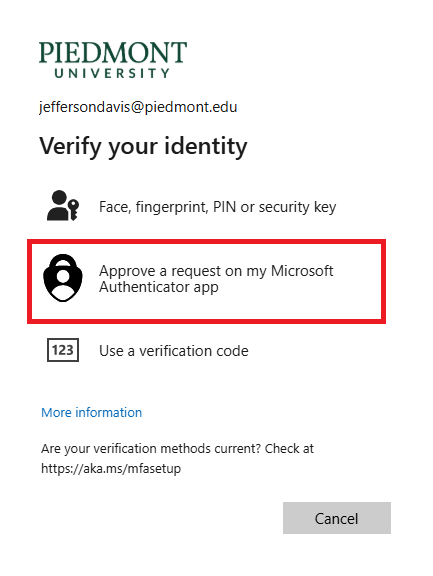
- Select Approve a request on my Microsoft Authenticator app to complete original MFA steps.
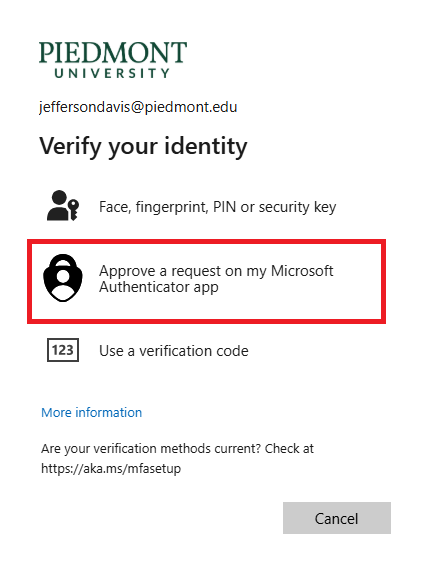
- Follow the on-screen instructions to approve the Authenticator request.
8. What happens when you get a new phone?
- If your passkey was saved to Apple Passwords or Google Password Manager, it may become available again after you:
- Sign into your new phone with the same Apple or Google account
- Enable iCloud Password or Google Password Manager sync
- Set up Face ID, fingerprint, screen lock, or device PIN
- Login to your Lions email using https://www.office.com or selfservice.piedmont.edu
- Select the saved passkey when prompted
If your passkey does not appear, you will need to Contact IT for assistance.
9. Security Notes
- Your passkey is only as secure as your Apple or Google account. Use a password manager!
- Use a strong password on your Apple or Google account. Do not reuse passwords!
- Keep account recovery options up to date on your Apple or Google account
- Never share your phone PIN, Apple password, Google password, or Device unlock code
- Do not save passkeys on shared or public devices
10. Next Steps
Review what you can do to help keep Piedmont secure here!
Need Help?
If you encounter an error or need assistance with this guide, please contact the IT Department and include a screenshot with a brief description of the issue.
Contact the IT Department Here
No comments to display
No comments to display