Student Resources
Essential tools and walkthroughs to help students get the most out of their campus devices and services.
(Don't forget to sign in to see all of the available articles!)
- Adobe
- Piedmont Wi-Fi
- What network do I join?
- Recommended WiFi Settings
- iPhone VPN Settings
- iPhone Hotspot Settings
- Get Connected - Lions Wi-Fi
- Get Connected - Lions Secure
- Get Connected - Event Guest
- Get Connected - Campus Visitor
- Android VPN Settings
- Android Hotspot Settings
- Change your Password
- Contact IT!
- Exit Windows S Mode
- Student Software
- Piedmont App
- Multi-Factor Authentication (MFA)
- BACK TO SCHOOL!
- Manage your Lions Email
- Student Printing Instructions
- Suspicous Emails (Phishing)
- Piedmont Computer Labs
- Microsoft Teams
Adobe
This guide provides step-by-step instructions for students on how to sign in to Adobe Creative Cloud using their personal email address or through third-party options such as Apple, Facebook, or Gmail on university computers.
Piedmont Wi-Fi
This knowledge base article provides step-by-step instructions for connecting personal and university-issued devices to Piedmont University's WiFi network.
What network do I join?
1. What Network do I join?
| Network Name | Who Should Use This | Typical Devices | Instructions |
| Lions | Faculty, Staff, and Students | Personal Laptops, Phones, and Tablets | Get Connected - Lions Wi-Fi |
| Lions Guest | Campus visitors and event guests | Any visitor device | |
| Lions Secure | University-owned devices | Work laptops, desktops, and managed devices | Get Connected - Lions Secure |
Don't forget to review the Recommended Wi-Fi Settings!
Recommended WiFi Settings
Randomized MAC addresses are a privacy feature designed to prevent device tracking across networks. While this is useful in public or unsecured networks, it creates problems on campus networks like Piedmont University's. Please complete this on your Mac or PC and iPhone or Android before joining the network.
1. Disable MAC Randomization (iOS)
- Open Settings
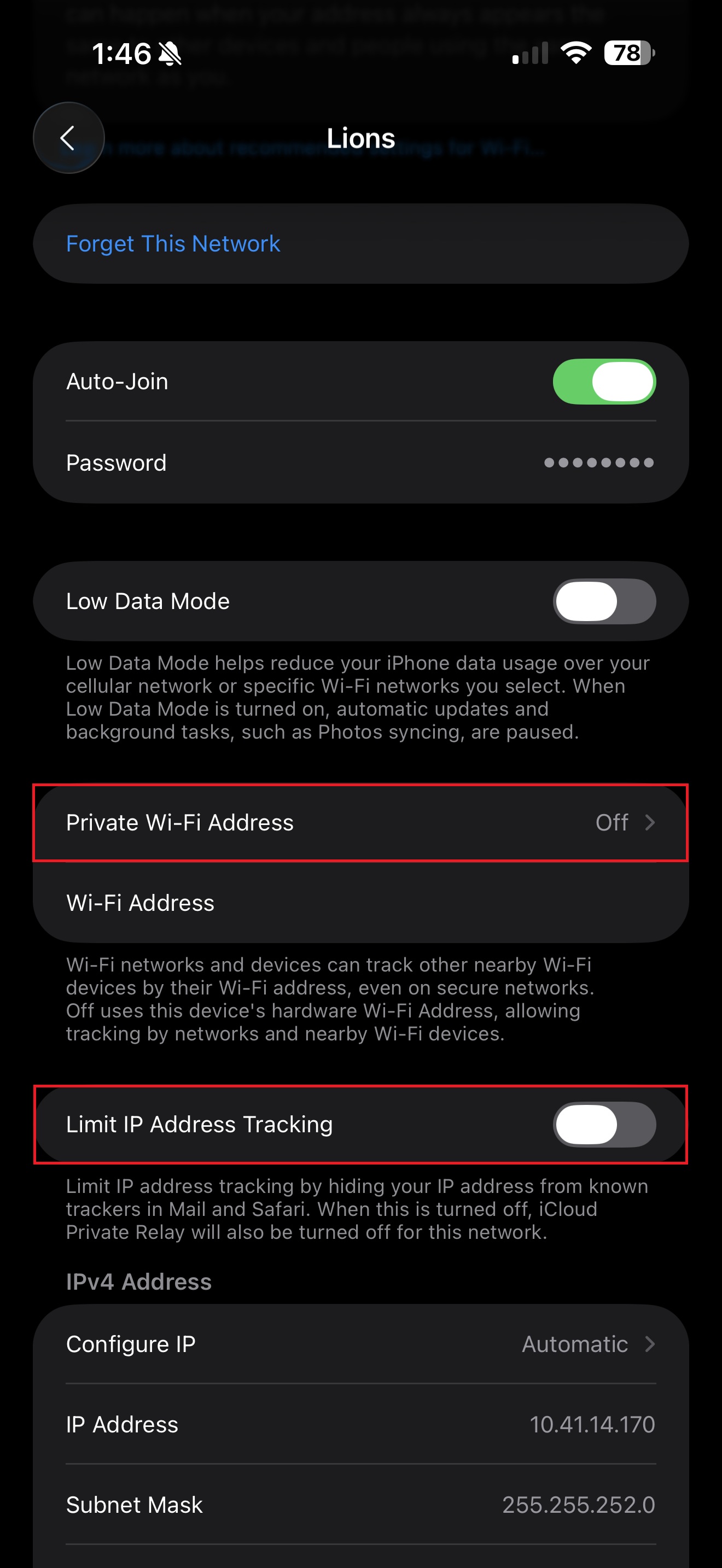
- Connect to the desired Wi-Fi network, then tap the info i icon next PC-WiFi
- Select Private Wi-Fi Address and select the OFF option.
- Additionally, Limit IP Address Tracking should be OFF.
- This disables Apple’s Private Relay for the Lions network specifically.
If 'Limit IP Address Tracking' is enabled, the WebPrint website will not load.

- This disables Apple’s Private Relay for the Lions network specifically.
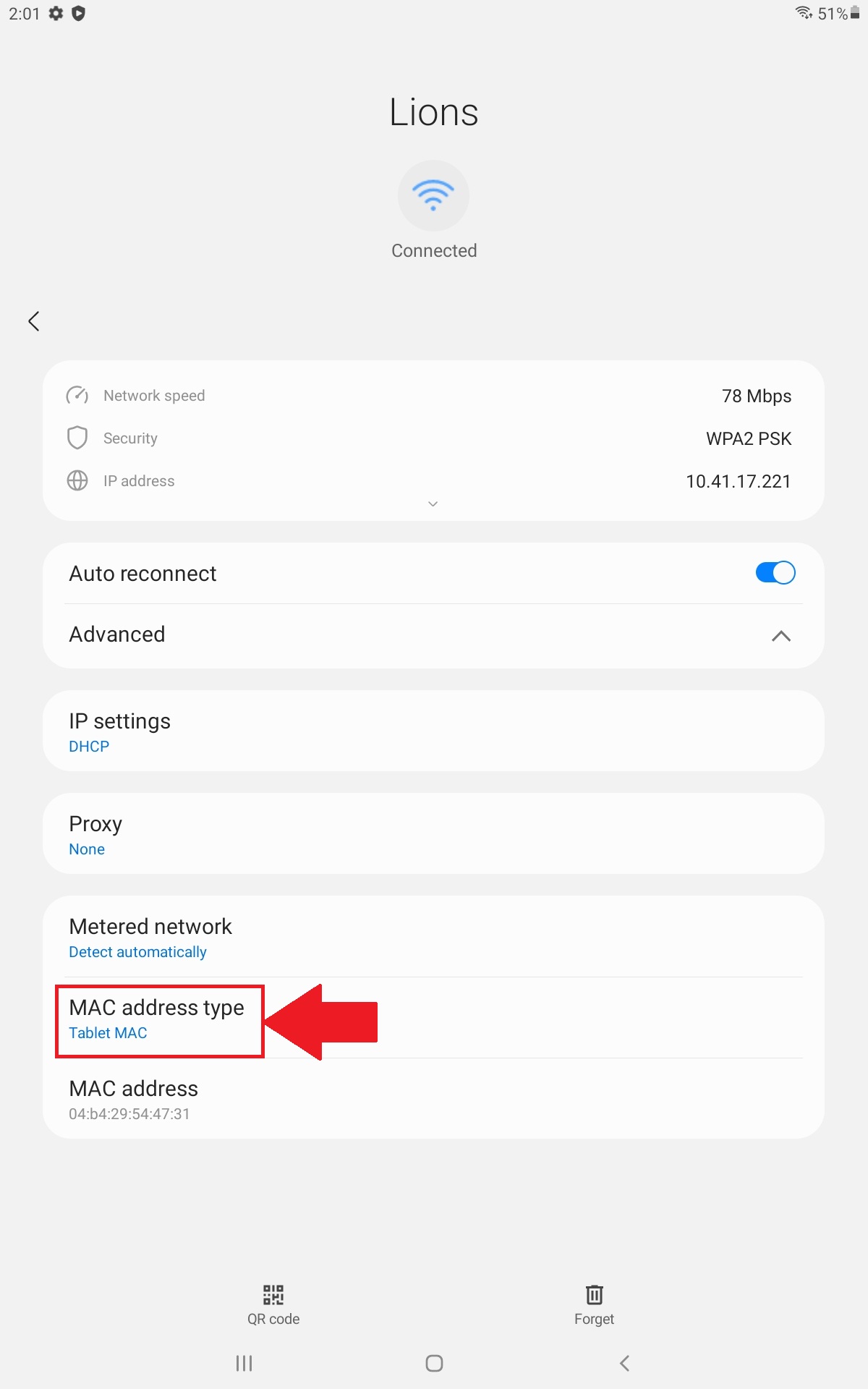
2. Disable MAC Randomization (Android)
- Open Settings
- Connect to the desired Wi-Fi network, then tap the settings gear icon next to PC-WiFi
- Select the dropdown menu next to Advanced
- Under MAC Address type, ensure Device MAC or Tablet MAC is selected.

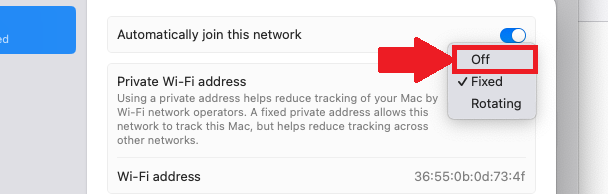
3. Disable Rotating Mac Address (MacOS)
- Open Settings
- Select WiFi
- Connect to the desired Wi-Fi network, then tap the info 'i' icon next to Lions
- Select Private Wi-Fi Address
- Toggle to OFF

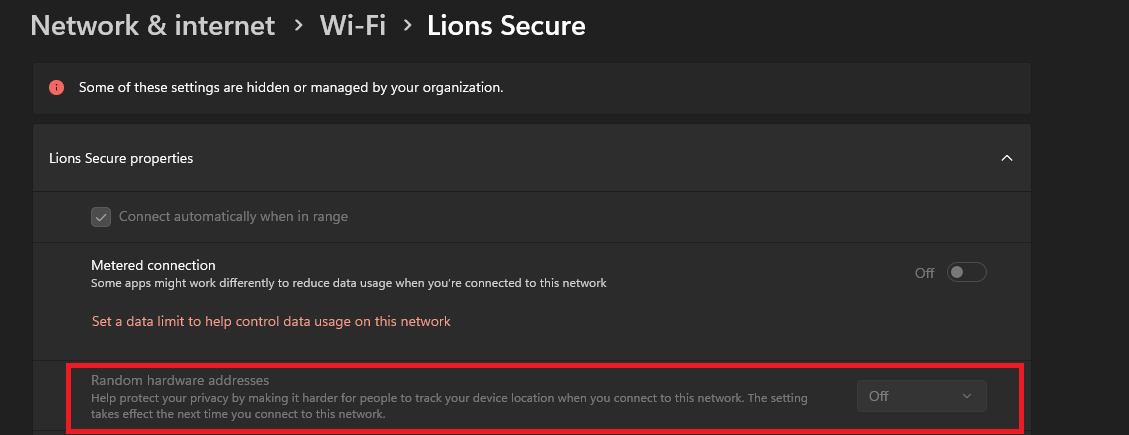
4. Disable Private Wi-Fi Address (Windows)
- Open Settings
- Select Network & Internet
- Select Wi-Fi
- Select Lions
- Ensure the Drop-down next to Random Hardware Addresses is set to OFF

Need Help?
If you encounter an error or need assistance with this guide, please contact the IT Department and include a screenshot with a brief description of the issue.
Contact the IT Department Here
iPhone VPN Settings
If you're experiencing connectivity issues, it may be due to personal hotspots or VPNs interfering with our network. Follow these simple steps to disable your VPN on iOS and Android devices to restore seamless access to campus Wi-Fi.

- Open Settings
- Under VPN, toggle the active VPN connection to OFF

Need Help?
If you encounter an error or need assistance with this guide, please contact the IT Department and include a screenshot with a brief description of the issue.
Contact the IT Department Here
iPhone Hotspot Settings
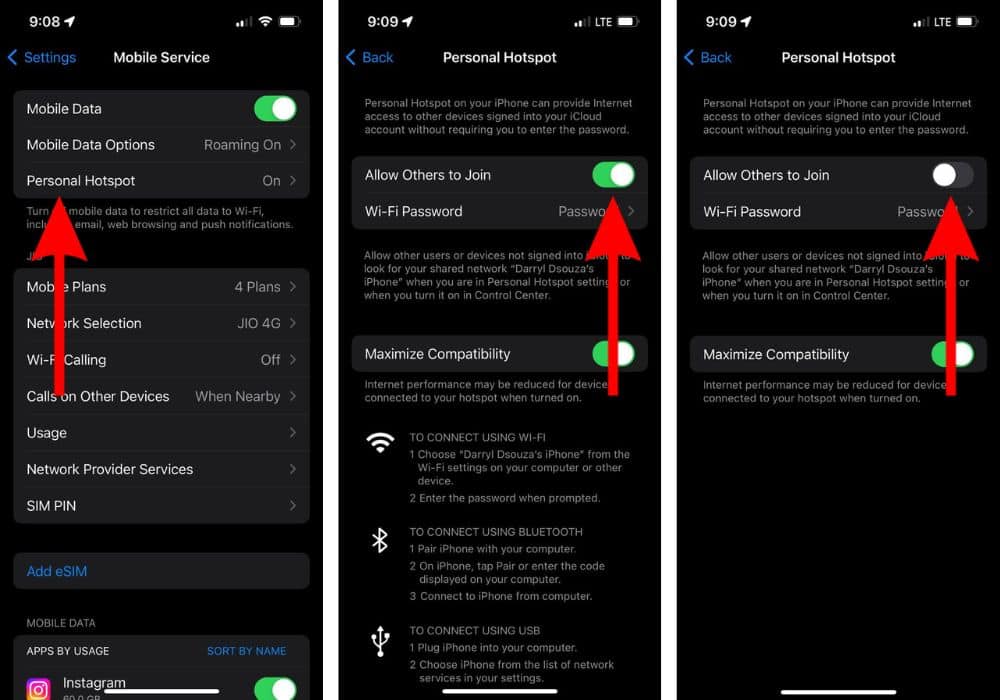
At Piedmont University, we utilize a Wireless Intrusion Prevention System (WIPS) to ensure secure and reliable Wi-Fi connectivity across campus. If you're experiencing connectivity issues, it may be due to personal hotspots or VPNs interfering with our network. Follow these simple steps to disable your hotspot on iOS and Android devices to restore seamless access to campus Wi-Fi.
- Open Settings
- Tap Personal Hotspot
- Toggle Allow Others to Join switch to OFF
Need Help?
If you encounter an error or need assistance with this guide, please contact the IT Department and include a screenshot with a brief description of the issue.
Contact the IT Department Here
Get Connected - Lions Wi-Fi
1. Personal Wi-Fi Password
If you need WiFi during this process, connect to the Lions Guest network using the instructions above.
You can enroll up to 8 Devices on the Lions Network. If you need to remove/reset the amount of devices that you have, please contact the IT Helpdesk!
Mobile Instructions (iOS/Android)
- Scan the QR Code OR Open a Web browser and visit https://cloudpath.piedmont.edu/
- Review the Terms and Conditions, Check the box next to I agree to the Terms & Conditions, should you agree.
- Select Start
- Login using your @piedmont.edu or @lions.piedmont.edu credentials
- The Personal WiFi Password is shown on the next page, you can use this WiFi password as the Network password in the Network Settings section of your device.
- Your phone will now be connect to Lions
Whenever you connect, a copy of your WiFi password will be sent to your Piedmont or LIONS email address
If you do not disable MAC Randomization, you will quickly use your 8 slots for enrolled network devices.
Please review the recommended WiFi settings to disable 'MAC Randomization' after completing these steps.
How to disable MAC Randomization
Laptop Instructions (PC/MacOS)
- Open a Web browser and visit https://cloudpath.piedmont.edu/ (you may do this from your phone/tablet as well)
- Review the Terms and Conditions, Check the box next to I agree to the Terms & Conditions, should you agree.
- Select Start
- Login using your @piedmont.edu or @lions.piedmont.edu credentials
- Underneath the QR code that is displayed, you will be provided a Personal WiFi Password
- Open the Network Settings on your Mac or PC device; Select the Lions network, and enter your Personal WiFi Password
- Press Connect/Join, you will now be connected to Lions
Whenever you connect, a copy of your WiFi password will be sent to your Piedmont or LIONS email address
Console Instructions (Xbox/Playstation/Switch)
- Open the Network Settings on your console
- Complete the steps above to obtain your Personal WiFi Password
- Enter your Personal WiFi Password as the network password.
- You will now be connected to Lions on your console.
Need Help?
If you encounter an error or need assistance with this guide, please contact the IT Department and include a screenshot with a brief description of the issue.
Contact the IT Department Here
Get Connected - Lions Secure
Lions Secure Network
How to Connect:
- Your Piedmont issued device will automatically be connected to Lions Secure. Should your device not connect, please contact the IT Department.
If you encounter an error or need assistance with this guide, please contact the IT Department and include a screenshot with a brief description of the issue.
Contact the IT Department Here
Get Connected - Event Guest
Lions Guest - Event Guest
Lions Guest Network connection will expire after 5 days. After this, you will need to re-enroll your device.
How to Connect:
-
Navigate to the WiFi section of your system settings
-
Join the Network labeled Lions Guest
-
A webpage will open, review the Terms and Conditions, Check the box next to I agree to the Terms & Conditions, should you agree.
-
Select Start
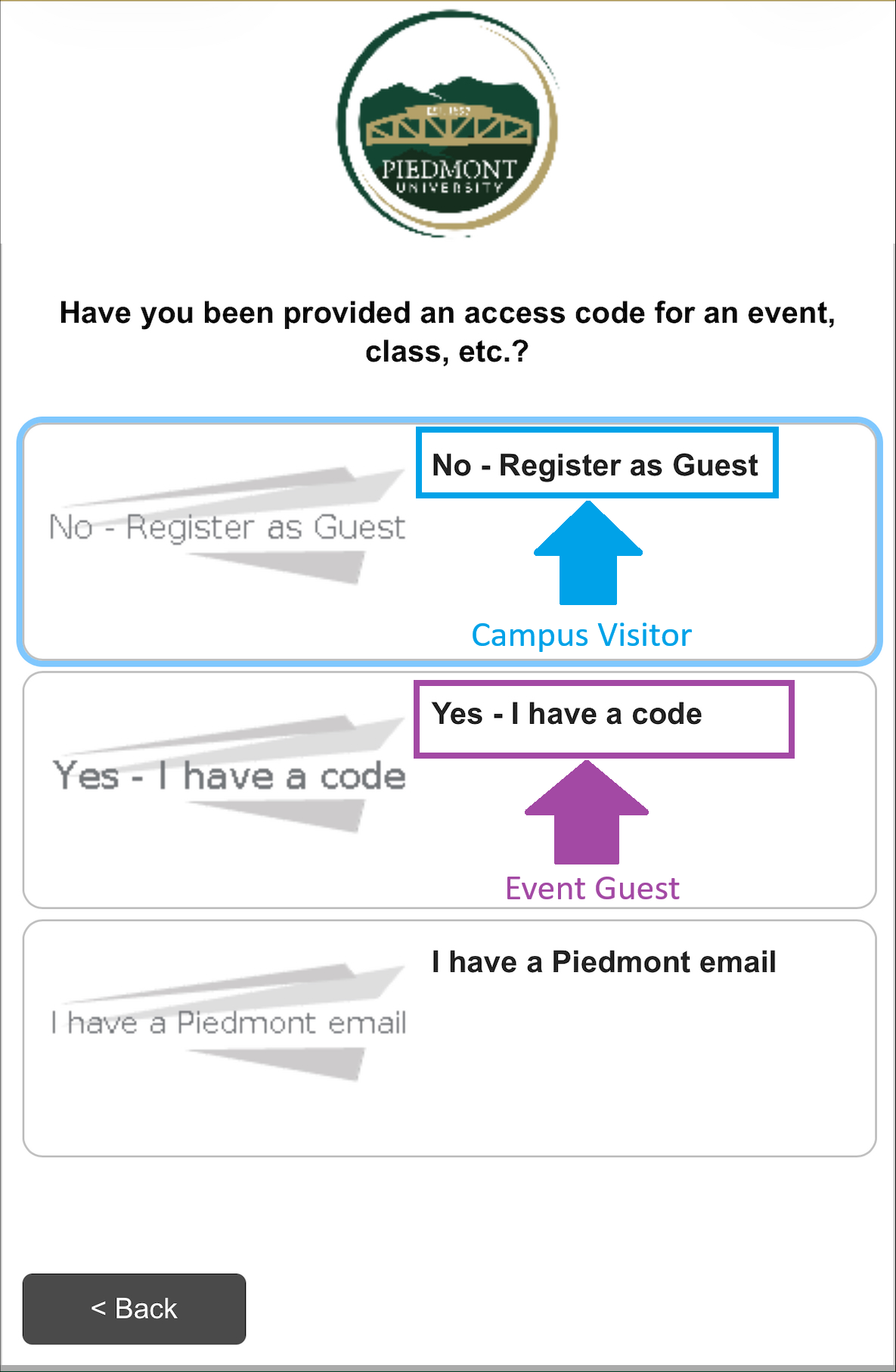
- The next screen will prompt, Have you been provided an access code for an event, class, etc.?
- No - Register as Guest
- Type in the WiFi password you were given in the Voucher field and select Continue
- You will now be connected to Lions Guest
- Yes - I have a code
- Proceed to step 6
- I have a Piedmont Email
- Proceed to Section 3 - Connecting to the Lions Network

- Proceed to Section 3 - Connecting to the Lions Network
- No - Register as Guest
-
Enter an email address or Phone number where you will receive a security code.
-
After entering your information, please solve the Captcha
-
Select Send
Should you leave the webpage, copy the Wireless Verification Code sent to your email or text message, Rejoin the Lions Guest network and select I already have a verification code.
-
Enter your Wireless Verification Code, solve the Captcha, and select Continue
-
You will now be connected to Lions Guest
Please review the recommended WiFi settings to disable 'MAC Randomization' after completing these steps.
How to disable MAC Randomization
Get Connected - Campus Visitor
Lions Guest - Visitor Access
Lions Guest Network connection will expire after 24 hours. After this, you will need to re-enroll your device.
How to Connect:
Android VPN Settings
If you're experiencing connectivity issues, it may be due to personal hotspots or VPNs interfering with our network. Follow these simple steps to disable your VPN on iOS and Android devices to restore seamless access to campus Wi-Fi.

- Open Settings
- Tap Connections or Network & Internet
- Select VPN (Or go to Advanced > VPN)
- Tap the active VPN connection and select Disconnect or toggle it to OFF

Android Hotspot Settings
At Piedmont University, we utilize a Wireless Intrusion Prevention System (WIPS) to ensure secure and reliable Wi-Fi connectivity across campus. If you're experiencing connectivity issues, it may be due to personal hotspots or VPNs interfering with our network. Follow these simple steps to disable your hotspot on iOS and Android devices to restore seamless access to campus Wi-Fi.
- Open Settings
- Tap Connections or Network & Internet (Varies by device)
- Select Mobile Hotspot and Tethering
- Toggle Mobile Hotspot to OFF

Change your Password
This user-friendly guide provides step-by-step instructions for resetting your Piedmont University password through Microsoft's platform. Whether you've forgotten your password or simply need to update it, this guide will walk you through the process effortlessly, ensuring seamless access to all University services and resources.
Password Reset
1. Change your Password
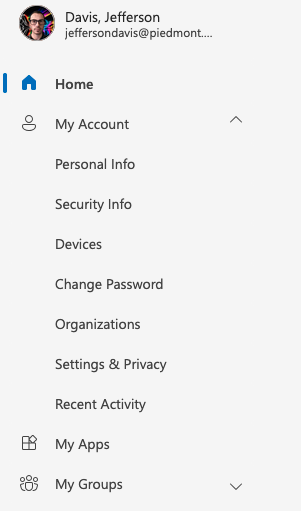
Manage your Piedmont email by visiting https://myaccount.microsoft.com
- Sign in with your LIONS Piedmont Email Address
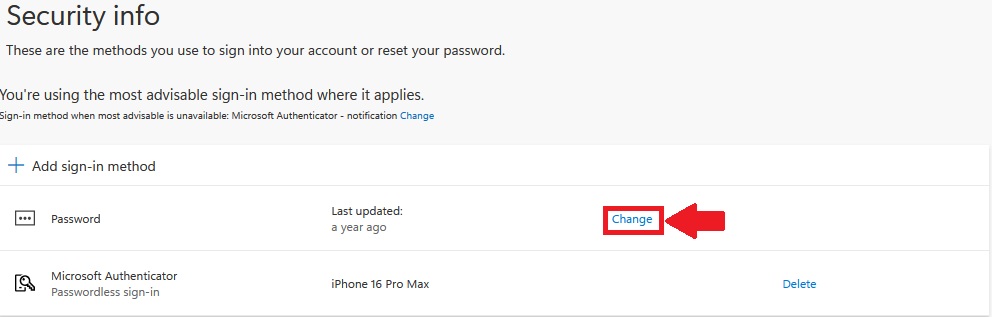
- Expand the arrow next to Security Info

- You will be prompted to complete MFA on your account
- Select Change next to Password
4. Enter your Old Password
5. Enter your new password
6. Confirm your new password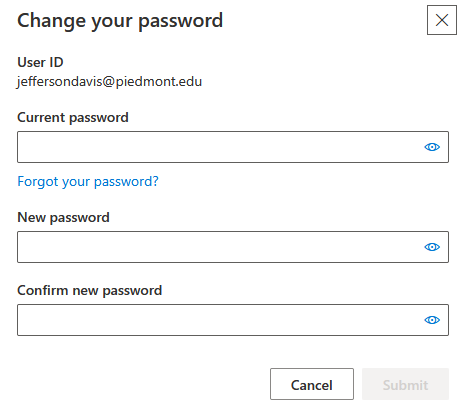
7. Select Submit to change your password
When creating a password you may receive an error about Password Complexity Requirements. This means your password does not meat one of the below requirements:
Password Requirements
Must be at least 12 characters long.
Must have at least one capital letter.
Must have at least one lower case letter.
Must have at least one number.
Special characters are optional. (Example - !, @, #, $, %, ^)
Must have a minimum age of 1 day before it can be changed.
Users cannot use the last 24 passwords they have used.
Passwords are non-expiring.
Contact IT!
This guide provides instructions for submitting an IT ticket to the university's IT Help Desk. It includes steps for accessing the Help Desk portal, logging in, submitting a ticket, and providing detailed information. The guide also outlines alternative contact methods and how to check the status of submitted tickets, helping users efficiently communicate their IT support needs.
By Email

- Send an email explaining your issue to ITSupport@piedmont.edu
- Please provide a very detailed description of the issue.
- If possible, please include screenshots.
By Phone

- Call us at (706) 894-4205
- Account/Login related issues MUST call the Helpdesk
- You cannot submit Account/Login related issues on behalf of someone else
- Please be prepared to provide personal/contact information
By Web

- Open a web browser and visit: https://itsupport.piedmont.edu
- Enter your full @Piedmont.edu or @Lions.Piedmont.edu email and password
- Select Log in
- Select Create a Case
- Please enter your contact information and issue description
Exit Windows S Mode
This document provides a detailed guide for students on how to exit Windows S Mode on their devices. It includes step-by-step instructions for navigating the Microsoft support page, accessing the Microsoft Store, and successfully switching out of S Mode. Additionally, it addresses common issues such as the absence of the 'Get' button, with troubleshooting steps to disconnect from a work or school account, allowing students to complete the process independently.
Exiting Windows S Mode
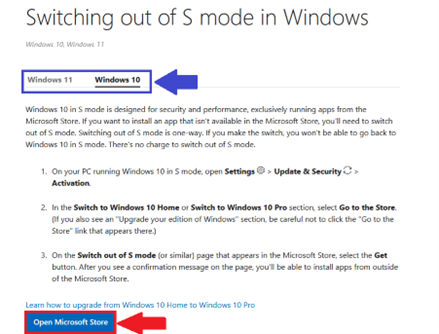
- Open a Web Browser and visit https://support.microsoft.com/en-US/Windows/Experience/Platform-variants/switching-out-of-s-mode-in-windows
- Choose your Operating System (Windows 10/Windows 11)
- Select Open Microsoft Store

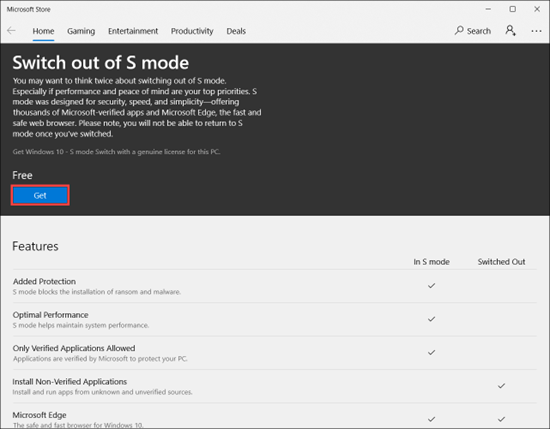
- Select Get to switch out of Windows S mode

Need Help?
If you encounter an error or need assistance with this guide, please contact the IT Department and include a screenshot with a brief description of the issue.
Contact the IT Department Here
Troubleshooting
‘Get’ button does not appear
If you see a message: Check with your IT or system Administrator, please follow the steps below.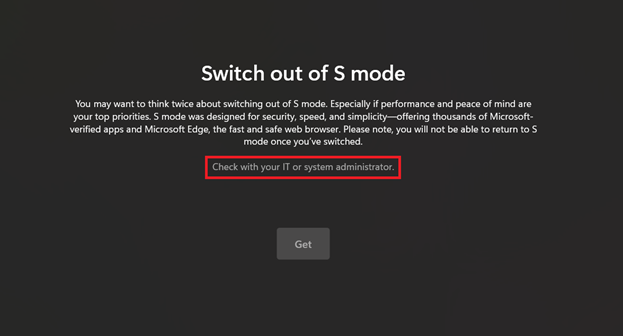
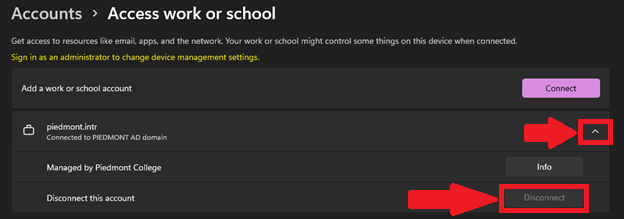
- Open Windows Settings
- Select Accounts
- Select Access Work or School
- Select the drop-down next to piedmont.intr
- Select Disconnect

- Please proceed to try the first section again.
Need Help?
If you encounter an error or need assistance with this guide, please contact the IT Department and include a screenshot with a brief description of the issue.
Contact the IT Department Here
Student Software
This document provides step-by-step instructions on how to install Office 365 applications on various devices. The guide is designed to make the installation process simple and straightforward, ensuring that all faculty/staff/students can access the necessary tools for their academic work.
Adobe Portfolio Setup
Note: Use a personal email address to create a free account with Adobe
-
On a tablet, smartphone, or PC, visit https://www.adobe.com/files/cloud-documents
-
Sign in with the same email address you used to sign in to Adobe Creative Cloud.
-
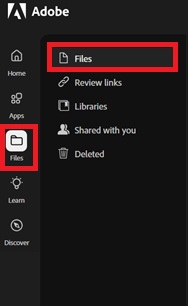
In the left column, select Files.
-
Here you can view and manage the items in your portfolio.
Note: We strongly recommend against using your student email. This ensures continued access to Adobe Creative Cloud services and projects after leaving the university!
Need Help?
If you encounter an error or need assistance with this guide, please contact the IT Department and include a screenshot with a brief description of the issue.
Contact the IT Department Here
Office365 Install (Windows 11)
- In a web browser of your choice, visit
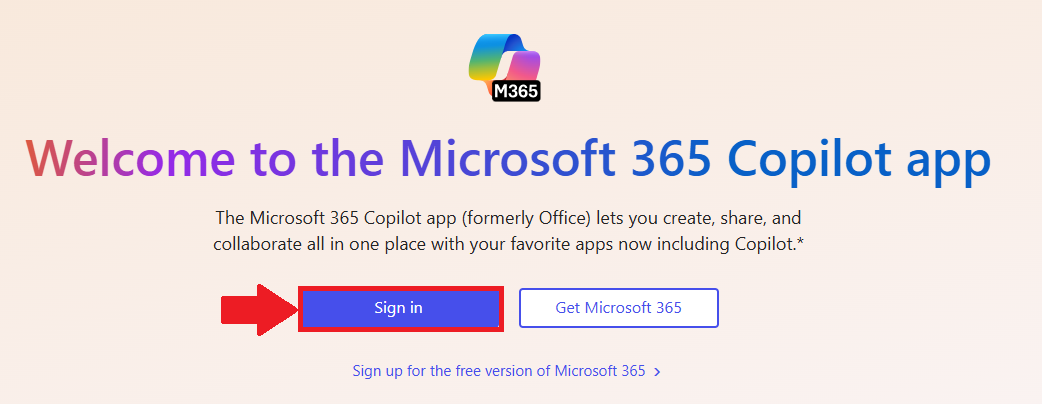
www.office.com - Select Sign in

- Login with your
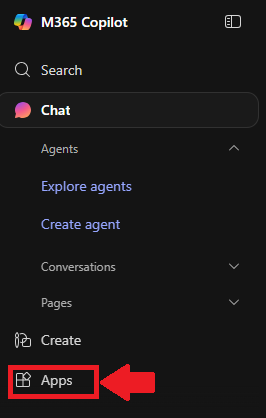
@lions.piedmont.eduemail - Select Apps from the column on the left of the screen

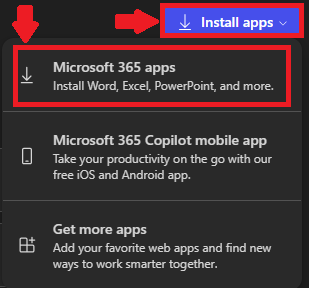
- In the top-right corner, select Install Apps
- Select Microsoft 365 Apps

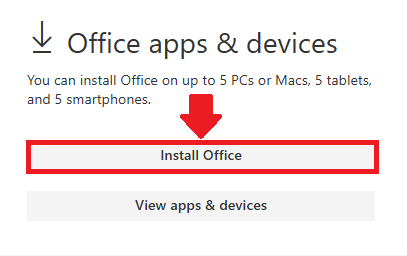
- A new tab will open, select Install Office

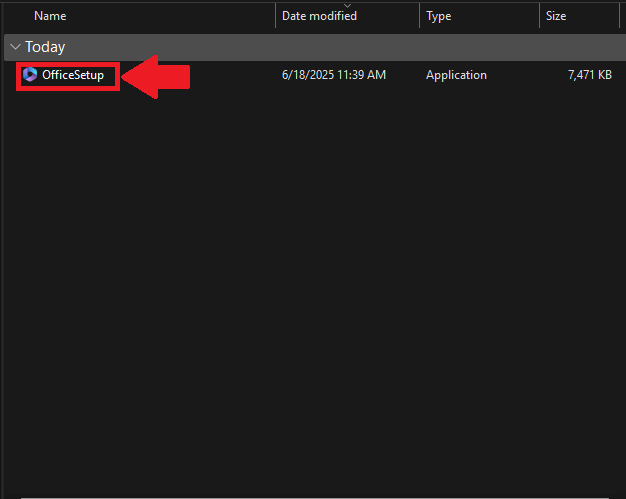
- Your computer will now download OfficeSetup.exe
- Launch the file from your Downloads folder and select Yes to any prompts that appear

- Office 365 will now install
Piedmont App
Download the Piedmont University App to stay connected with campus life.
Access campus events, important announcements, and essential resources—right from your mobile device. Stay informed and engaged, wherever you are.
Piedmont App (Android)
1. Open the Google Play Store:
- Locate the Google Play Store icon on your Android device and tap to open it.
2. Access the Search Function:
- Tap on the magnifying glass icon (Search) at the top of the screen.
- A search bar will appear.
3. Search for the App:
- Enter “Piedmont University” into the search bar.
- Tap the search icon on the keyboard to initiate the search.
4. Install the App:
- Find the Piedmont University app in the search results and tap on it to view its details.
- Tap “Install” to begin downloading the app.
- You may need to accept the app permissions request to proceed with the installation.
5. Open the App:
- After installation, you can open the app directly from the Google Play Store by tapping “Open,”
or locate the app icon on your device’s home screen or app drawer and tap to launch it.

Piedmont App (iOS)
- Open the App Store:
- Locate the App Store icon on your iOS device and tap to open it.
2. Access the Search Function:
- Tap on the "Search" tab at the bottom of the App Store.
- A search bar appears at the top of the screen.
3. Search for the App:
- Type “Piedmont University” into the search bar.
Press "Search" on your keyboard.
4. Install the App:
- Locate the Piedmont University app in the search results.
- Tap the app to view its details.
- Tap “Install” to begin downloading the app. You might be prompted to enter your Apple ID password or to use Face ID/Touch ID to authorize the installation.
5. Open the App:
- Once installed, you can open the app directly from the App Store by tapping “Open,”
- or find the app icon on your device’s home screen and tap to launch.

Multi-Factor Authentication (MFA)
This guide provides step-by-step instructions for users on how to reset their multi-factor authentication (MFA) using the Microsoft Authenticator app. It offers a user-friendly walkthrough, ensuring a seamless and secure process to regain access to their accounts while maintaining the highest level of security.
Setting Up Microsoft Authenticator
When signing in you may see this message.
This message indicates that you must reconfigure your Multi-Factor Authentication. Follow through the on-screen prompts until you reach a page with a QR Code
Once you reach this page, please proceed to the next steps on your mobile device.

Delete previous sign-in method
This section is only necessary if you have previously set up Microsoft Authenticator.
- To set up MFA again you must delete the previous account to receive MFA notifications.
- Open Microsoft Authenticator
- Select your
@piedmont.eduor@lions.piedmont.eduaccount
- Select the gear icon in the top right corner

- Select Remove Account

- Press Continue and/or This app only to finish removing the account


Set up Microsoft Authenticator
- Open the Microsoft Authenticator app on your iOS or Android device
- If you do not have Microsoft Authenticator installed, please download it from the iOS App Store or Google Play Store
- Open the app, allow notifications (if prompted)
- Select Add account from the '+' icon in the upper-right
- Then select Work or school account
On your Computer:
- On the Set up your account page, select Next

- The Scan the QR code page appears

- Use your mobile device to scan the provided QR code with the Microsoft Authenticator app
- Select Next on your computer
- A 2 digit number is displayed on the computer
On your Mobile Device:
- A notification is sent to your mobile device prompting for a 2 digit number
- On your mobile device, enter the 2 digit number, show on the computer, in the Microsoft Authenticator app
- Select Done on your computer
- Your security info is now updated to use the Microsoft Authenticator app by default to verify your identity when using two-step verification or password reset.
Our Helpdesk Team is happy to provide assistance with this process! Just give us a call at 706-894-4205!
Next Steps
Once you've set up Microsoft Authenticator, we recommend reviewing our documentation for Passkeys which you can find here!
Need Help?
If you encounter an error or need assistance with this guide, please contact the IT Department and include a screenshot with a brief description of the issue.
Contact the IT Department Here
MFA Passkeys
1. What is a Passkey?
A passkey is a modern, phishing-resistant way to sign in without using a password!
- Instead of something you know (like a password), a passkey uses something you have (your phone or device) and something you are (Face ID, Fingerprint, or device PIN)
- The credential is stored securely on your device and is never shared with the website or service that you're signing into. Because of this, passkeys can't be reused, stolen by fake websites, or guessed.
- Passkeys are based on industry security standards (FIDO2). Your device proves to Microsoft that it's really you, without ever sending a password across the internet.
- If the site is not legitimate, the passkey simply won't work, and there's nothing for the attacker to steal.
- Your device becomes your key, and your identity stays locked inside it!
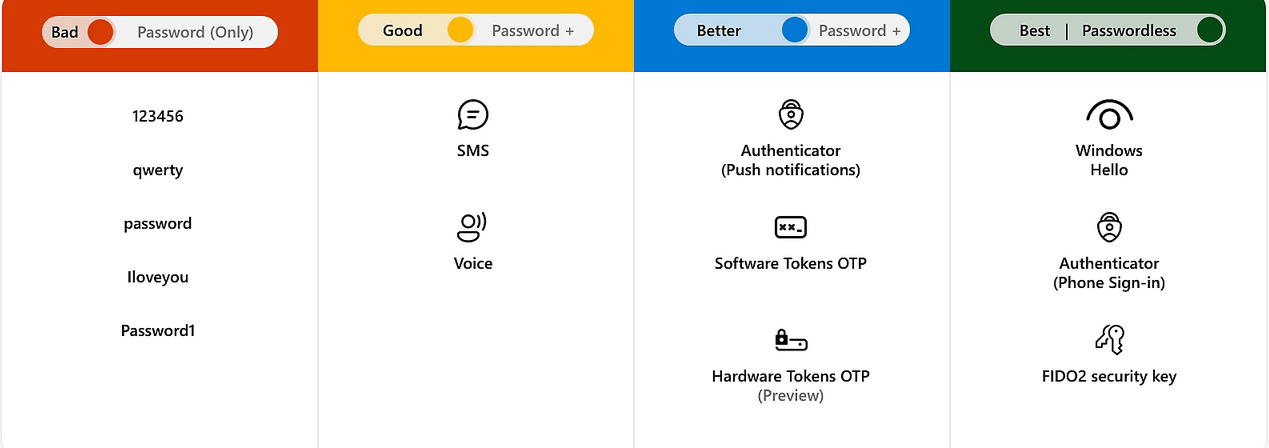
- Did you know that passwords are the weakest link in modern security? They are often:
- Reused
- Phished
- Leaked in breaches
- Guessed
- Microsoft's goal with passwordless sign-in is to:
- Eliminate passwords as an attack target - No passwords means nothing to phish, reuse, or brute-force.
- Reduce account takeovers and phishing - Passkeys only work on the real Microsoft sign-in and approved services. Fake sites can't trick your device into handing over a credential.
- Make sign-ins faster and simpler - Approving with Face ID, fingerprint, or a device PIN is quicker than typing passwords and codes.
- Improve both security and user experience - Stronger security without extra steps, fewer account lockouts.
Passkeys are part of Microsoft's move to a passwordless future where accounts are protected by your device and biometrics instead of passwords that can be stolen, guessed, or phished
2. Syncable Passkeys
A passkey lets you sign in without typing your password each time. It uses your device's built-in security, such as Face ID, fingerprint, screen lock, or device PIN.
We recommend saving your passkey to:
- Apple Passwords (if you use iPhone)
- Google Password Manager (if you use Android)
3. Before you Begin
| Make sure you have: | Do not create a passkey on: |
|
Your Piedmont email address |
A public computer |
|
Your current password |
A shared family computer |
|
You current MFA method |
A classroom or lab computer |
|
A personal phone or computer that only you use |
A friend's phone |
4. Enable Passkey Syncing (iOS/MacOS)
- Confirm your iCloud keychain is enabled
- Open Settings
- Select your Name / Apple ID at the top
- Tap iCloud
- Tap Passwords and Keychain
- Confirm that the setting Sync this iPhone or Sync this iPad is enabled
- On Mac:
- Open System Settings
- Click your Apple Account
- Click iCloud
- Ensure Passwords is set to Sync
5. Create a Passkey
- Open a web browser and visit https://myaccount.microsoft.com
- Expand My Account
- Select Security Info
- You will be prompted to login using MFA.
- Once logged in, select Add sign-in method
- Select Passkey
- Select Next and follow through the on-screen prompts
6. Sign in with Passkey
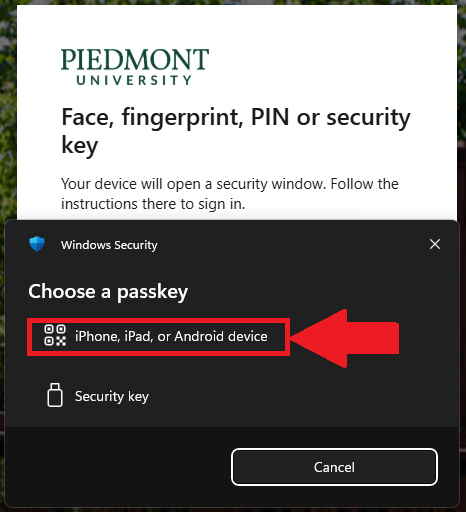
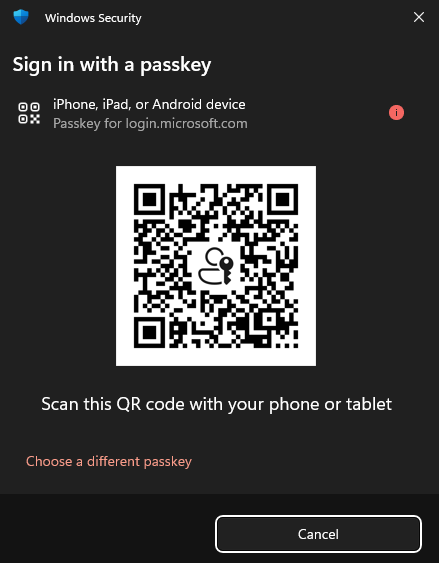
- When you login using your Piedmont credentials, you will receive a new popup window in place of Microsoft Authenticator

- Select iPhone, iPad, or Android device.
- Use your mobile device to scan the QR Code on your computer, select Sign in with Passkey

- On your mobile device, a message will appear "Sign in to login.microsoft.com" on the other device with your passkey for "@piedmont.edu" saved in Passwords?
- Choose Use Passkey
- Your mobile device will prompt for Face ID or biometrics.
7. Sign in using Microsoft Authentiactor
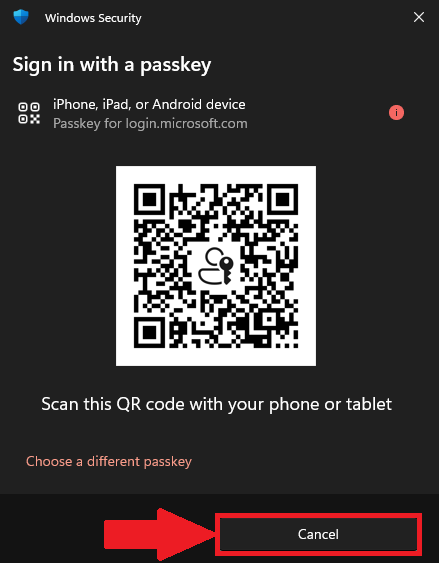
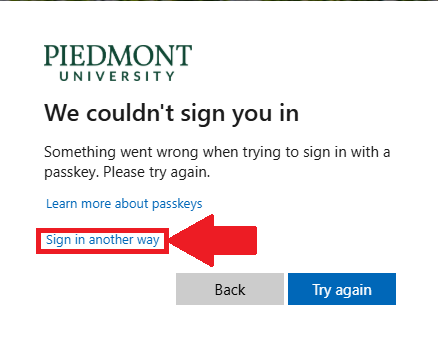
- In some cases you may need to use the original MFA through the Authenticator app, to do so, select the 'X' or 'Cancel' button and select Sign in Another way


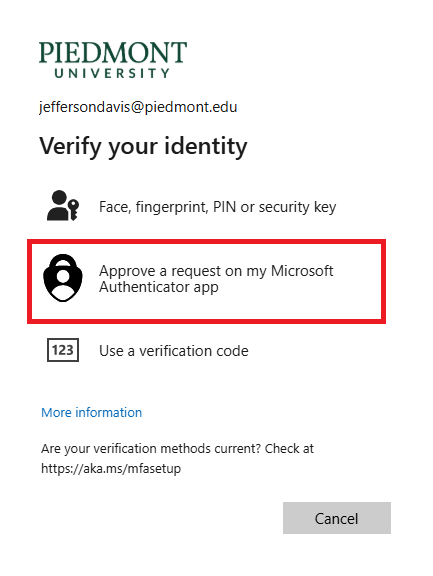
- Select Approve a request on my Microsoft Authenticator app to complete original MFA steps.

- Follow the on-screen instructions to approve the Authenticator request.
8. What happens when you get a new phone?
- If your passkey was saved to Apple Passwords or Google Password Manager, it may become available again after you:
- Sign into your new phone with the same Apple or Google account
- Enable iCloud Password or Google Password Manager sync
- Set up Face ID, fingerprint, screen lock, or device PIN
- Login to your Lions email using https://www.office.com or selfservice.piedmont.edu
- Select the saved passkey when prompted
If your passkey does not appear, you will need to Contact IT for assistance.
9. Security Notes
- Your passkey is only as secure as your Apple or Google account. Use a password manager!
- Use a strong password on your Apple or Google account. Do not reuse passwords!
- Keep account recovery options up to date on your Apple or Google account
- Never share your phone PIN, Apple password, Google password, or Device unlock code
- Do not save passkeys on shared or public devices
10. Next Steps
Review what you can do to help keep Piedmont secure here!
Need Help?
If you encounter an error or need assistance with this guide, please contact the IT Department and include a screenshot with a brief description of the issue.
Contact the IT Department Here
Lost Phone / Can't Access Account
1. Can't login due to MFA
If you lost or replaced your phone or no longer have access to your MFA method, you may not be able to Sign in to your Piedmont account.
This guide explains how to manage your sign in methods so that you can access your account.
- This guide is helpful when:
- You lost your phone
- You got a new phone
- Your phone was stolen
- Your phone was reset or wiped
- You deleted Microsoft Authenticator
- Microsoft Authenticator no longer show your Piedmont account
- You changed phone numbers
- You do not receive a text field to enter the 2-digit MFA number in Microsoft Authenticator
- You cannot access any of your sign-in methods
2. Manage your sign in Methods
You can only complete this section if you have access to at least 1 MFA method. (Passkey or Authenticator)
- You can add or remove MFA sign in methods by visiting https://myaccount.microsoft.com and logging in using your Piedmont email.
- Visit https://myaccount.microsoft.com and login using your Piedmont email
- In the left column, expand My Account
- Select Security Info
- You will be prompted to login using MFA
If you do not have access to your MFA method you will be required to contact the IT Department so that we may assist you.
- Here you can manage your Sign-in Methods. If you got a new phone, you would need to delete the method labeled 'Microsoft Authenticator'.
- Once deleted, select Add Sign-in Method and follow the on-screen instructions to add the Microsoft Authenticator App to your new device.
- You can find instructions for setting up Microsoft Authenticator here!
3. Submit a Ticket to IT
If you cannot access your MFA methods you must submit a ticket to IT so that we may assist you in accessing your account again.
- When submitting a ticket, please include
- Your Full name
- Your Piedmont Email address
- a brief explanation of what happened
- Any screenshots of errors that you may receive.
Need Help?
If you encounter an error or need assistance with this guide, please contact the IT Department and include a screenshot with a brief description of the issue.
Contact the IT Department Here
BACK TO SCHOOL!
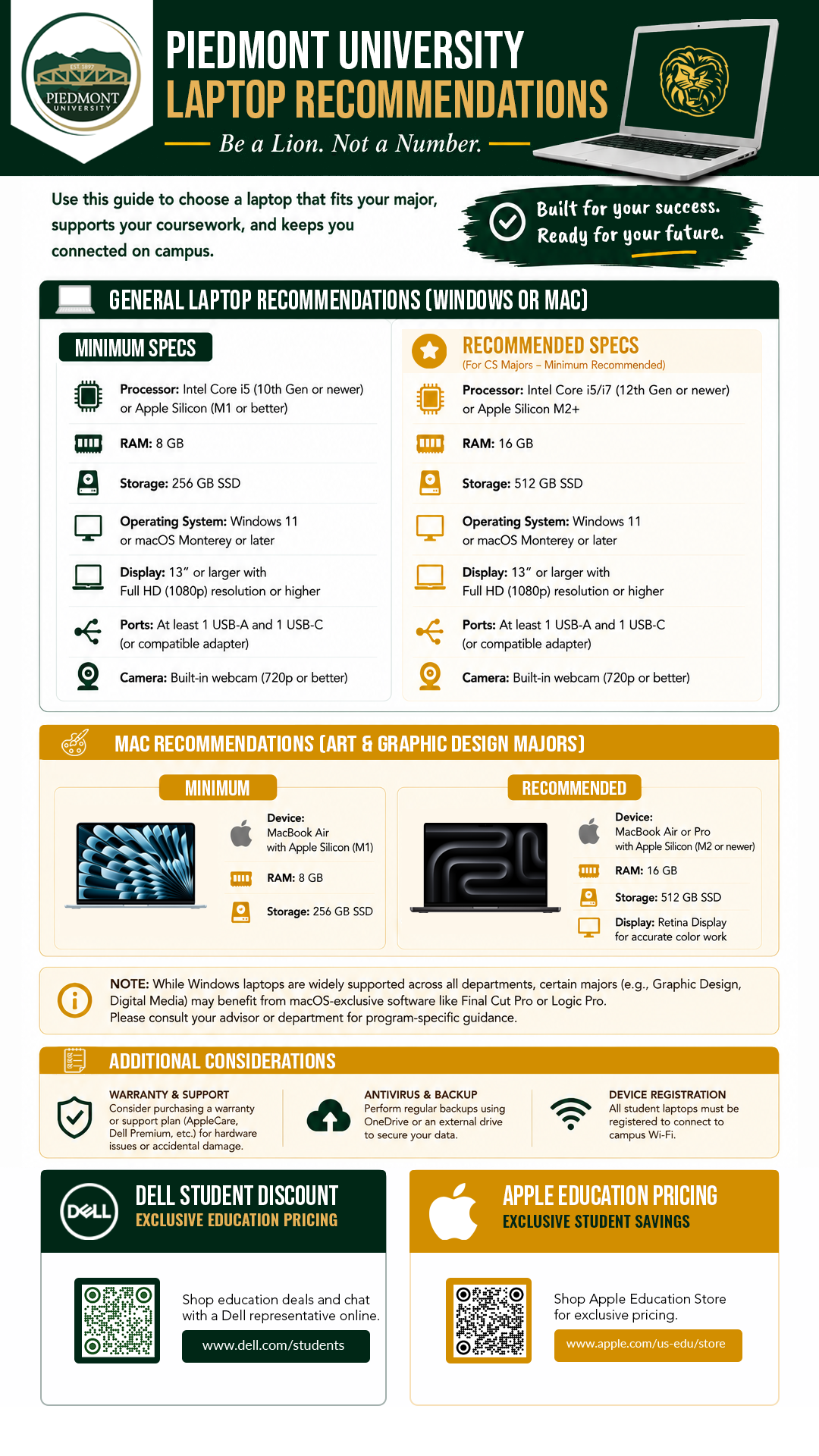
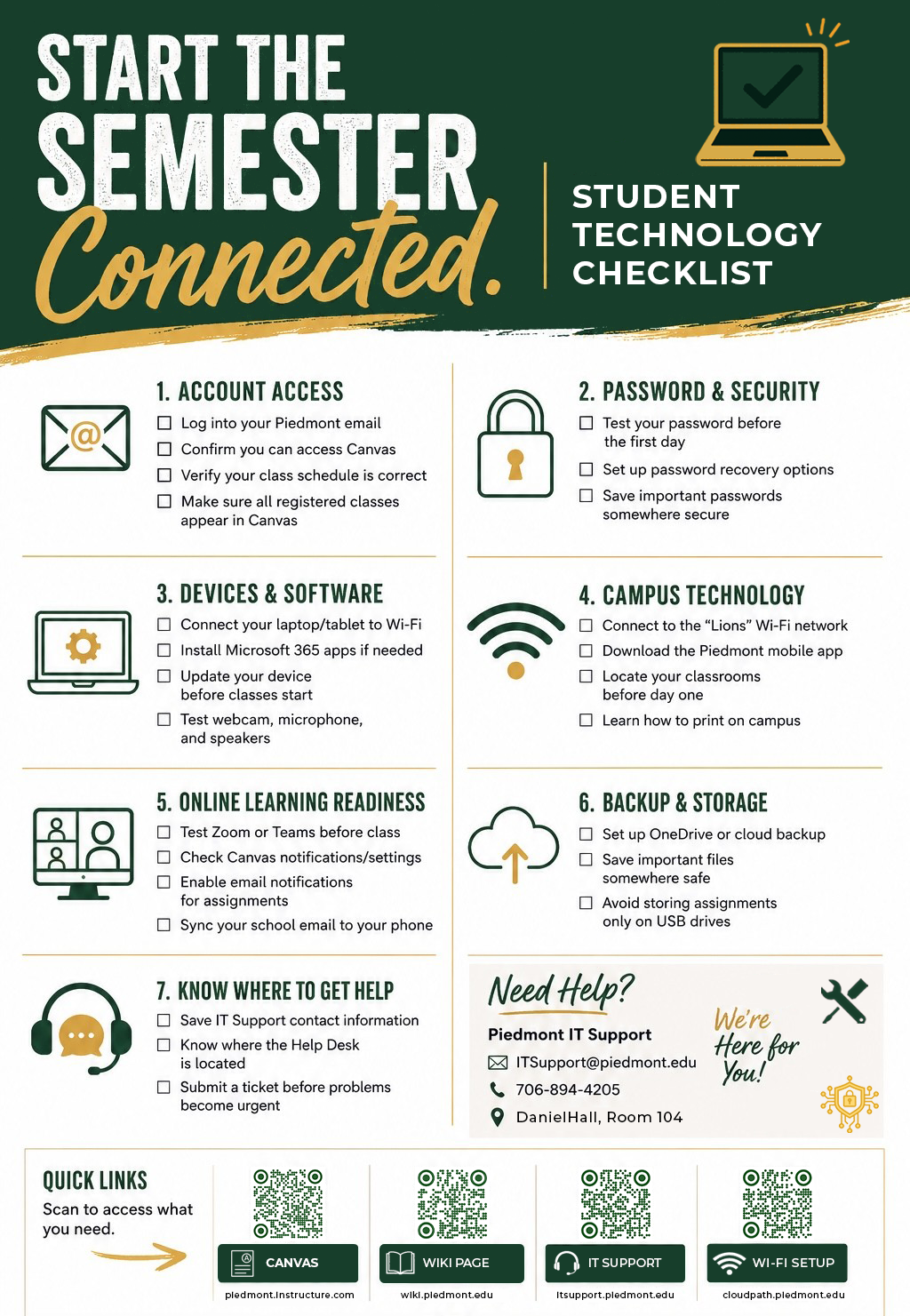
Get ready for a successful semester with the Piedmont IT Department!
Laptop Recommendations
Student Checklist
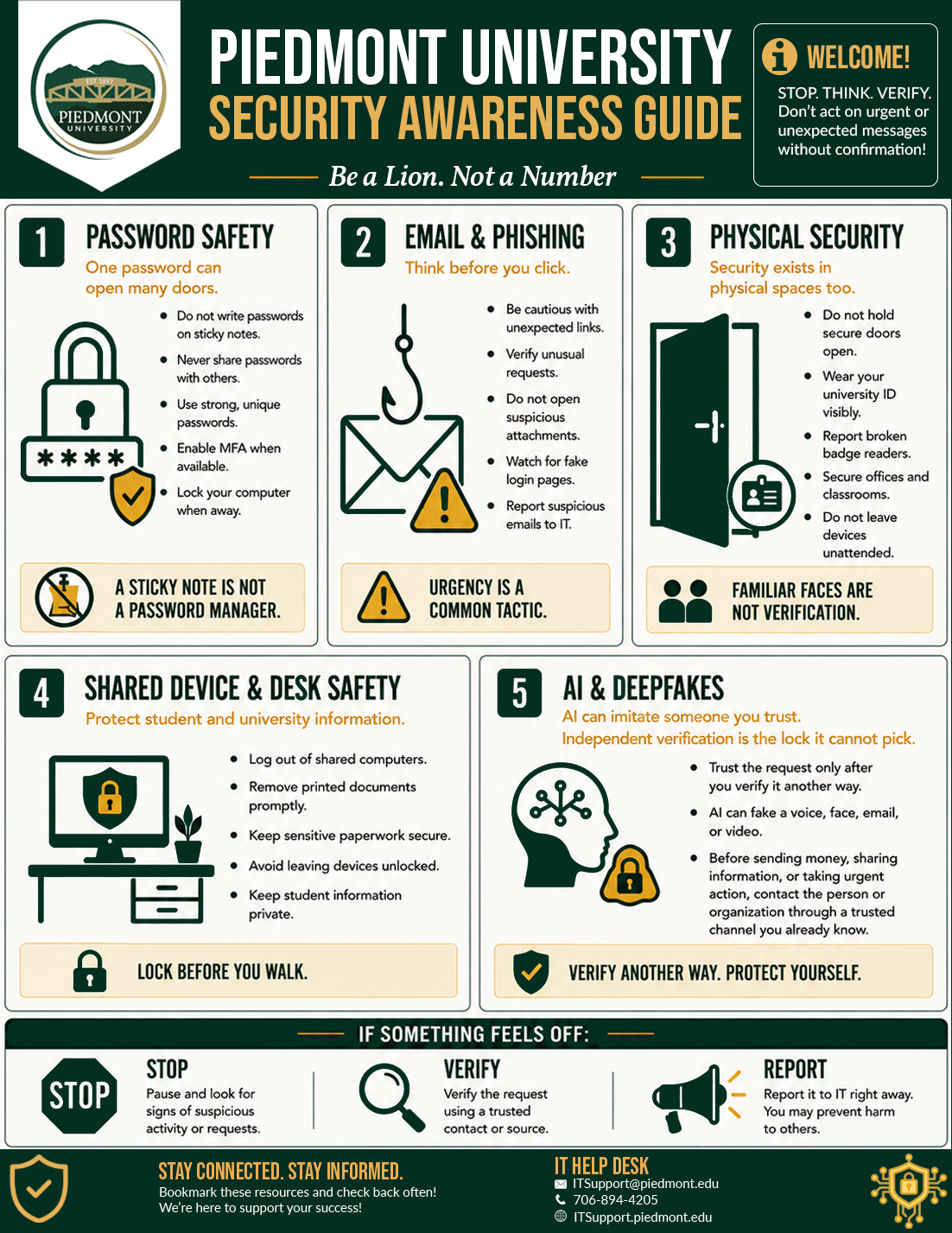
Keep Piedmont Secure!
IT Assistance
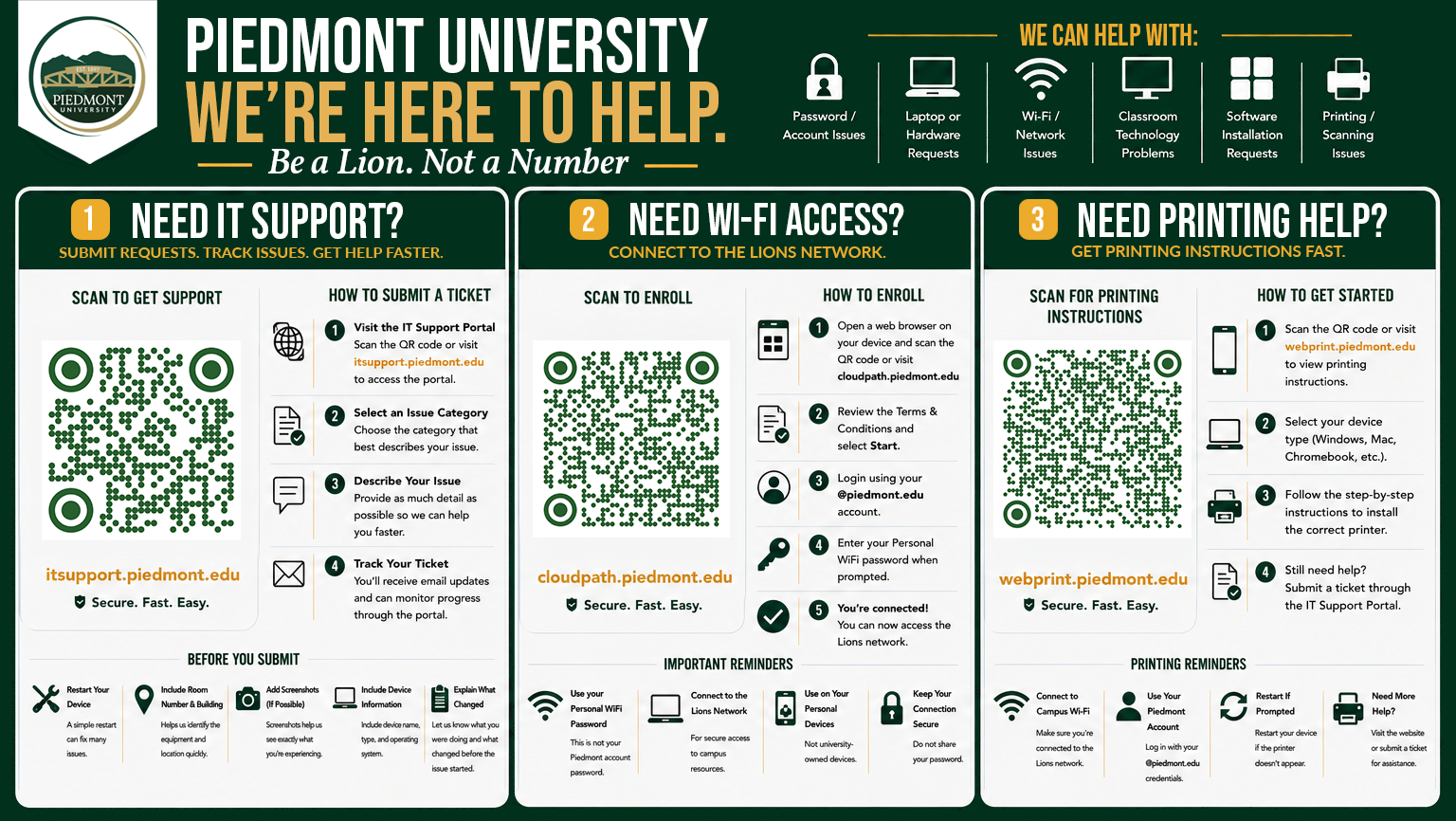
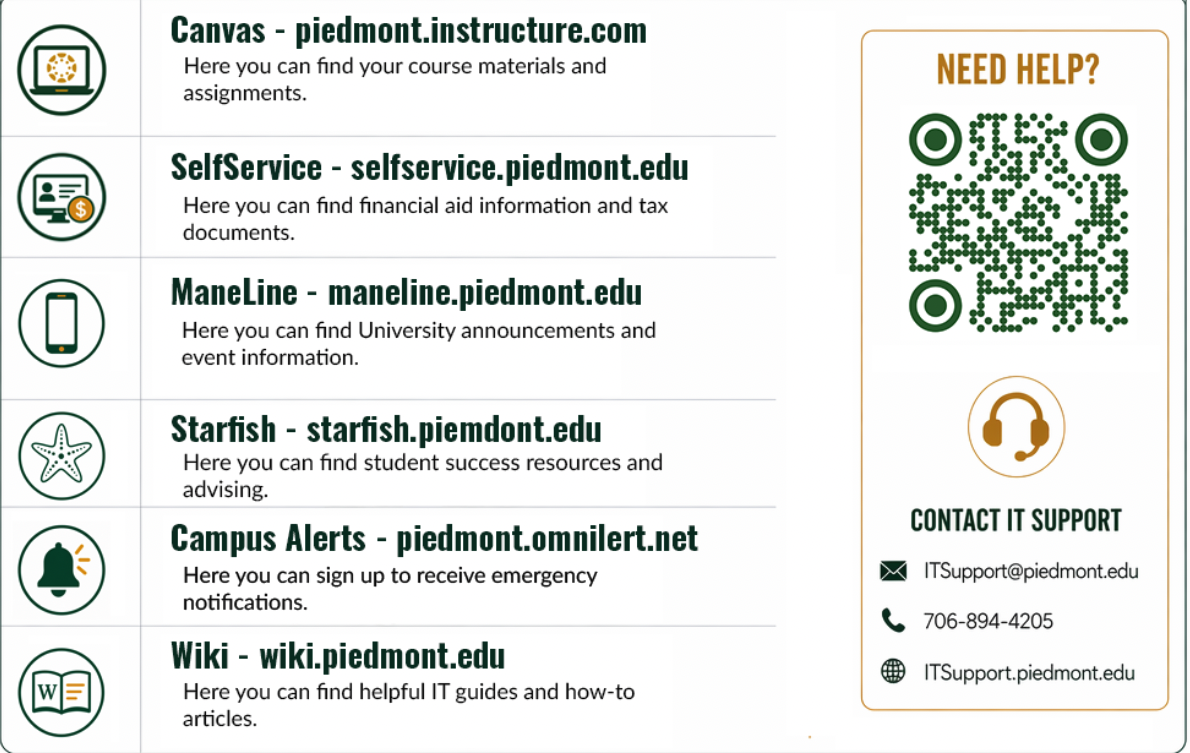
Quick Links
Manage your Lions Email
A quick-start guide for new students at Piedmont University, covering email setup, login instructions, password information, and essential campus resources.
Activating your LIONS Account
Your Email and User name
All current students must log in to their SSO before using other Piedmont sites and services.
Your email address is made up of the first initial of your first name followed by your complete last name, the month and day of your birth, and @lions.piedmont.edu at the end.
The birthdate will always be 4 digits — whether it's 0106 (January 6th) or 1217 (December 17th).
Your Piedmont username is the local part of your email address — that is, the part that precedes the @lions.piedmont.edu.
Example:
The user jsmith0106@lions.piedmont.edu has the username jsmith0106.
Your Password
Initial passwords have been set to the last four digits of the student’s SSN with 'Piedmont' at the end.
The 'P' in 'Piedmont' is capitalized.
If you do not have an SSN, your password will include the last four digits of your Student ID.
Example:
If the last four digits of your SSN are 1234, your password is 1234Piedmont
You will be required to change your password upon logging in for the first time.
Password Requirements
Must be at least 12 characters long.
Must have at least one capital letter.
Must have at least one lower case letter.
Must have at least one number.
Special characters are optional. (Example - !, @, #, $, %, ^)
Must have a minimum age of 1 day before it can be changed.
Users cannot use the last 24 passwords they have used.
Passwords are non-expiring.
Logging In
- On a laptop, PC, or tablet, visit:
https://www.office.com - Select Sign in
- Enter your full Piedmont Email address
- Enter your Initial Password and select Login
- If you don't have an SSN or your password isn't working, please contact the IT Helpdesk
- You will be prompted to Update your password
- Follow through the on-screen prompts to create your own password
- After you change your password you will be prompted that More information is Required
- Select Next and follow through the on-screen prompts to set up Microsoft Authenticator
Student Printing Instructions
Welcome to WebPrint. This How-To document contains step-by-step instructions on using our Student Printing Services, WebPrint, through the web-based interface.
How to Print Like a Lion
IMPORTANT NOTE: You cannot access WebPrint from an off-campus location. Your device must be connected to the Piedmont network.
1. Log onto WebPrint
-
Open any browser (Edge, Chrome, Firefox, etc.) and go to: webprint.piedmont.edu
If the webpage does not load, you may need to review your device Wi-Fi settings
Printing is not supported from a mobile device.
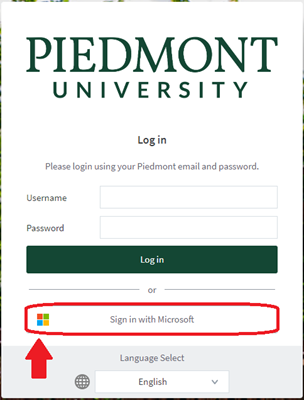
On the Login Page
-
Choose a Login Method:
(Recommended) Click the “Sign in With Microsoft” button to use Single-Sign-On using your Piedmont Email.
-
Enter your full
@lions.piedmont.eduemail address and password
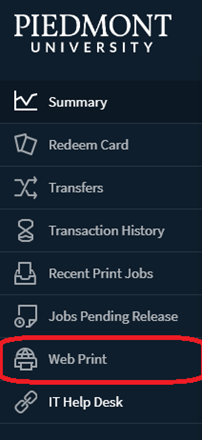
Once you log in, your home screen will be displayed. On the home screen, the left-side navigation panel contains six links. The links are:
Summary: Lists summary statistics for your account
Transfers: Transfer printing funds to another Piedmont student
Transaction History: View a detailed list of all transactions
Recent Print Jobs: View details of all recent print jobs
Jobs Pending Release: View status of print jobs
Web Print: Upload a document into the WebPrint queue
2. Print a Document
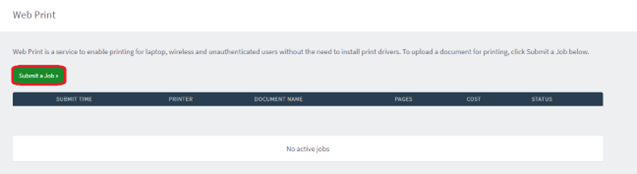
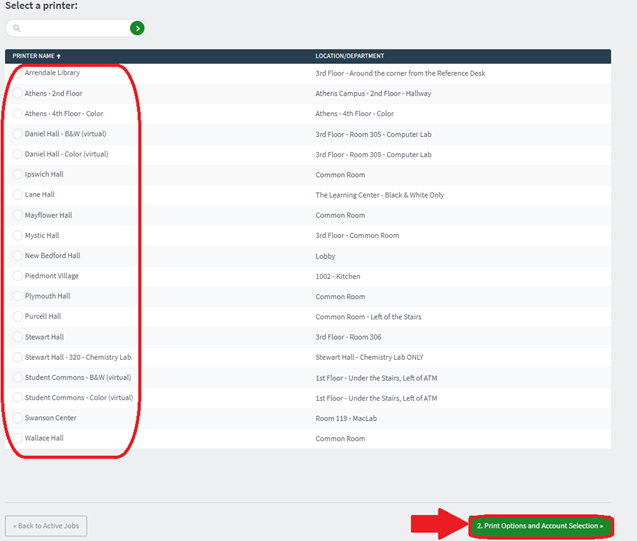
- In the Left Column, click the “Web Print” link

- Click the “Submit a job” button

On the “Select a printer” screen:
Each semester, Students receive $25 in printing credit:
B&W = $0.05 per page
Color = $0.25 per page
-
Once you've chosen a printer, click “Print Options and Account Selection”

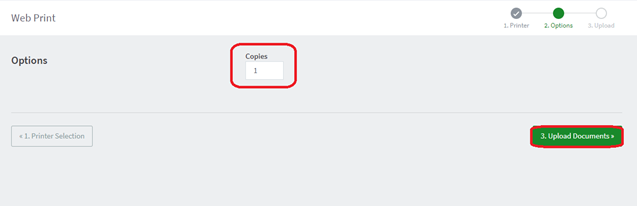
- On the “Options” page
- Select number of copies
- Click “Upload Documents”

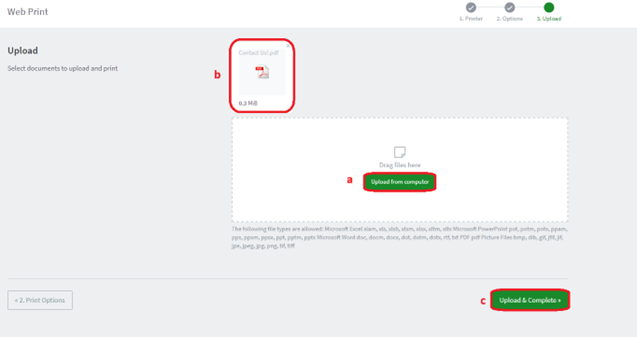
- On the “Upload” page
- Upload a document from your computer
- Once upload is complete, the document icon will display
- Click “Upload & Complete”

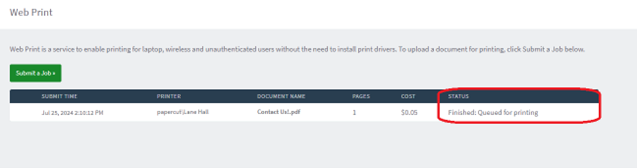
- On the “Web Print” page
- Verify print info is correct: printer location, document name, “Held in a queue”
- Status will change to “Queueing”

- Once printing is complete, the page will auto-refresh and the print job row will disappear

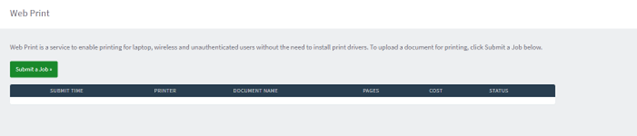
At this point, you will have successfully printed your document. You may now log out of your WebPrint account.
Suspicous Emails (Phishing)
This guide provides clear, step-by-step instructions for identifying and reporting phishing emails using Microsoft Outlook (2016, 2024, and Outlook Web App). It outlines the proper use of the built-in reporting tools, explains how to safely handle suspicious messages, and offers best practices to protect yourself and the university from email-based threats.
Handling Suspicious Emails
“I think I’ve received a Phishing email! What should I do?!”
Do not click on Links or open Attachments
Avoid Interacting with any content in the email
Verify the Sender
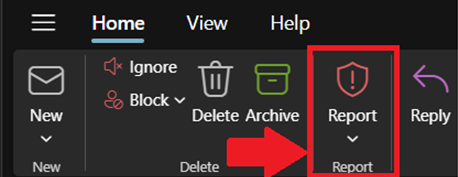
Use the Report Phishing button in Outlook to report phishing emails to the IT Department
Outlook (New) Click this link to view instructions
Remove the phishing email from your inbox and trash folders after reporting it to IT
Identifying Phishing
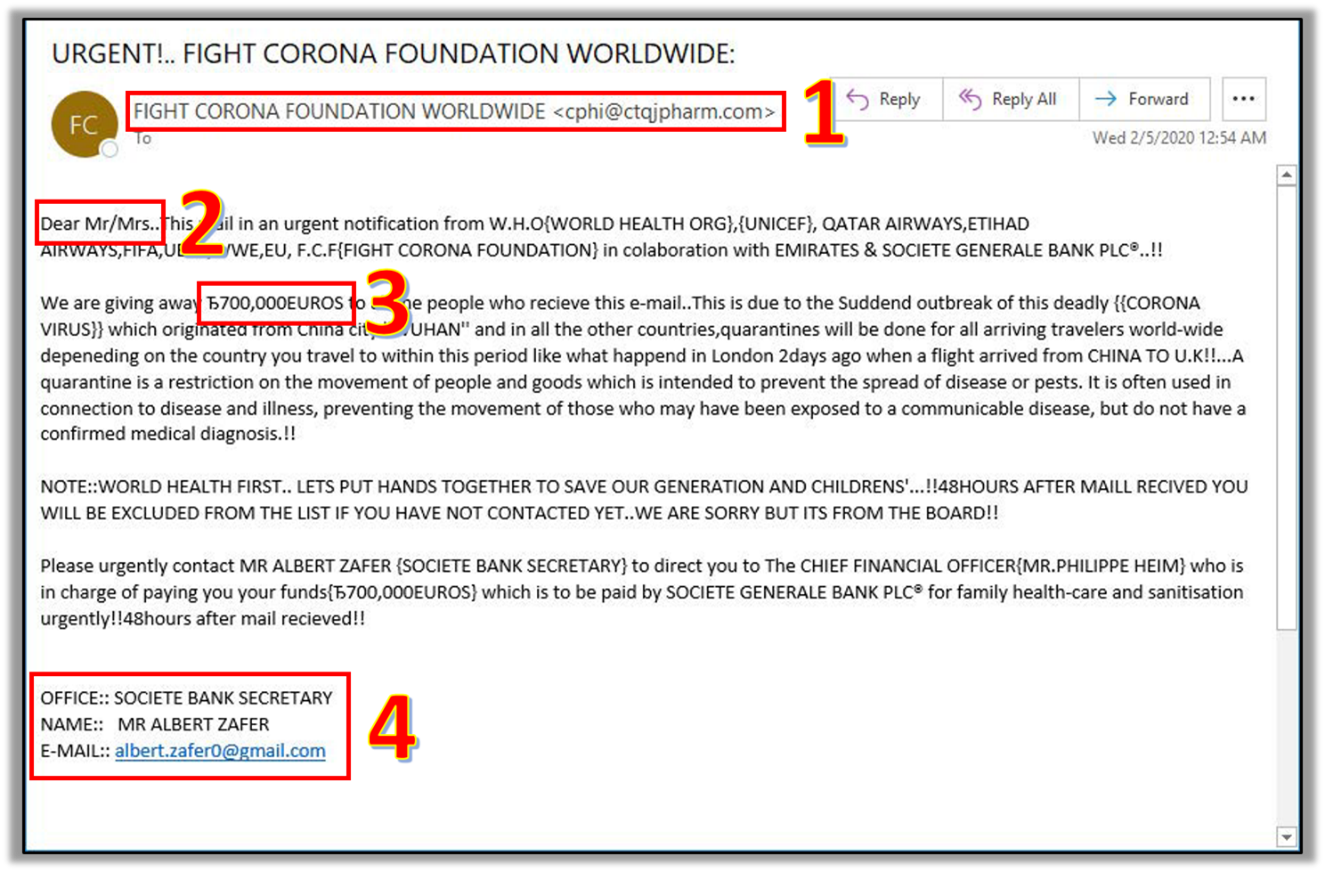
1. Suspicious Senders
- Check the Sender’s email address
- Look for subtle misspellings or unusual domain names
2. Generic Greetings
- Be cautious of generic greetings
- Phishing emails often use greetings like “Dear Customer” instead of your actual name
3. Urgent or Threatening Language
- Beware of emails that create a sense of urgency or fear
- Phrases like
“Your account will be suspended,”
“Immediate action required,” or
“URGENT”
- May also promise rewards of some kind
4. Mismatched URLs
- Ensure the URLs in the email match the legitimate website
- Hover over links to see the actual URL
 Poor Grammar and Spelling
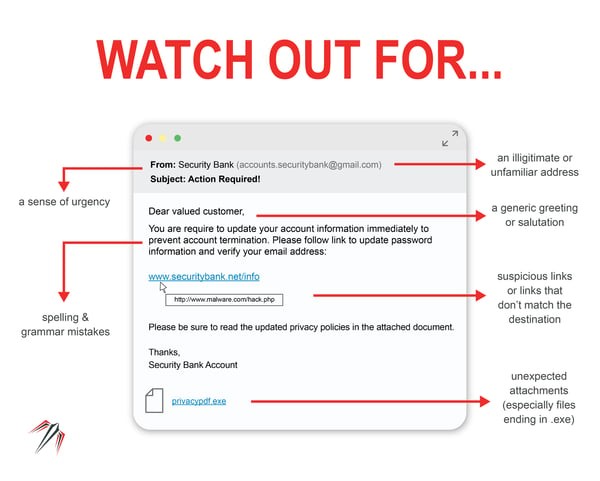
- Look for spelling and grammatical errors
- Phishing emails often contain typos and awkward phrasing
- This is often due to attackers using Google Translate to translate into English
Unexpected Attachments or Links
- Do not open unexpected attachments or click on suspicious links
- A link might say ‘www.yourbank.com’ but actually lead to a different website
- Do not open an attachment if it is a
.exe(Windows) or.dmg(MacOS)
Request for Personal Information
- Legitimate organizations will not ask for sensitive information via email
- Emails asking for passwords, Social Security numbers, or credit card details are likely phishing attempts
If you Suspect an email is Phishing
If you suspect that an email is a phishing attempt, please refer to Handling Suspicious Emails and follow the instructions to report the email to the IT Department.
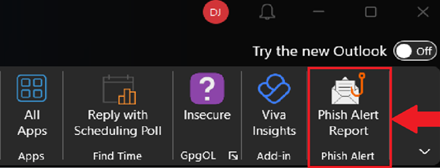
Outlook (Classic)

- Navigate to Inbox
- Select the email you wish to report, and ensure the email is highlighted
- Under the Home tab, In the far-right corner, select Phish Alert Report
- The email is reported to the IT Department for review

Outlook (New)

- Navigate to Inbox
- Select the email you wish to report, and ensure the email is highlighted
- Select the Home tab
- Use the Report button (located next to Reply) to report the email
- A popup will appear asking if you’re sure you’d like to report the email. Select Report
- The email is reported to the IT Department for review
- These instructions also apply to Outlook Web Online (OWA)

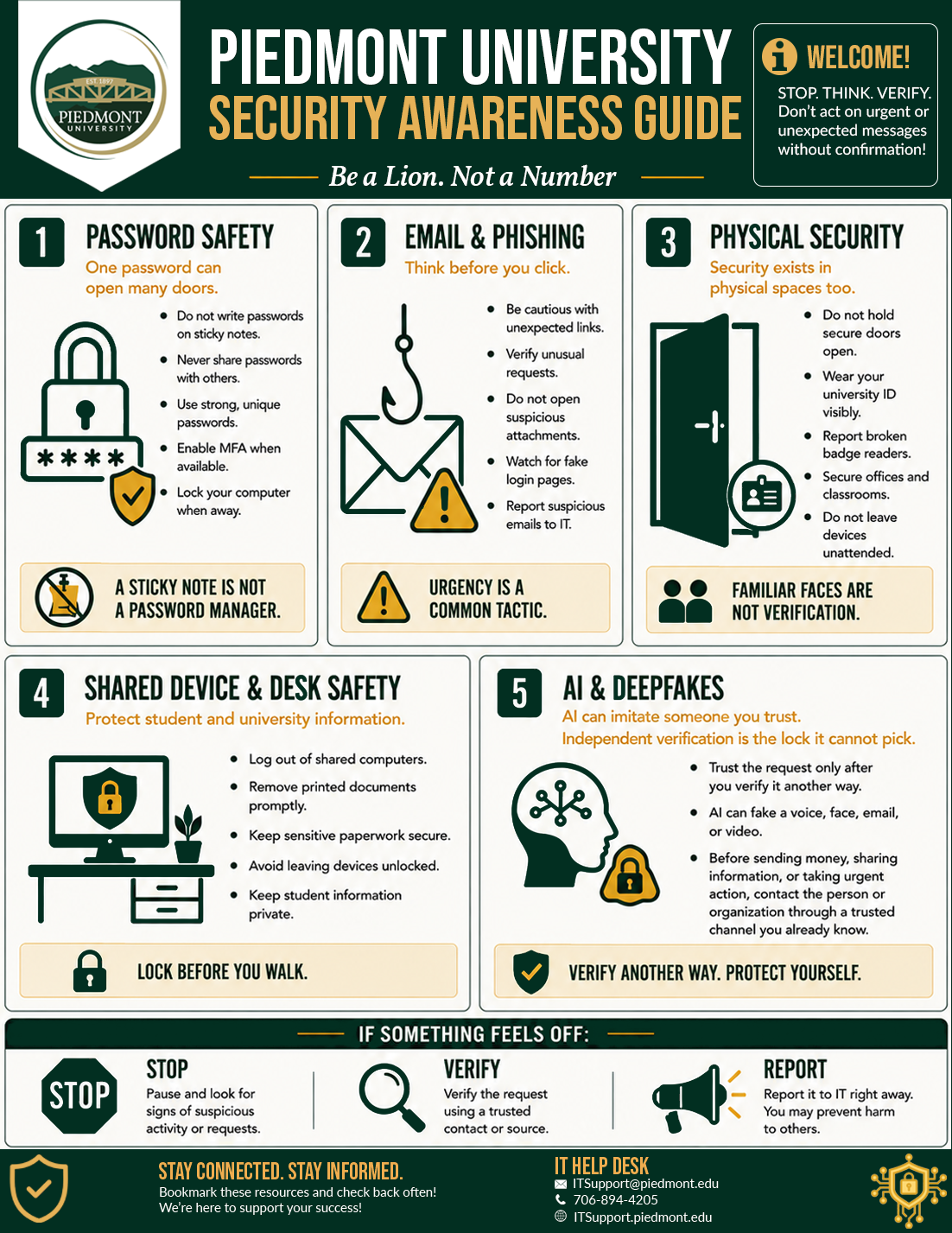
Security Awareness
Piedmont Computer Labs
Computer Lab Instructions
1. Logging in - Guest Account
Any files or changes made to this computer will be deleted at logoff. Please make sure you are logged in and saving your files to OneDrive.
- When using the Lab computers at Piedmont University, you will need to login using the Guest account.
2. Accessing your Files - OneDrive
You must login to OneDrive to save your files!
Windows Instructions
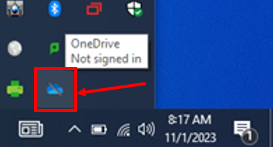
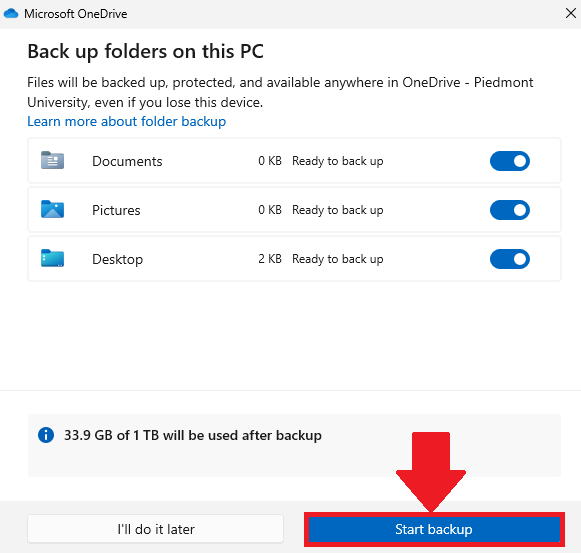
- Open OneDrive from the Shortcuts toolbar, located in the bottom right corner, next to the date & time.

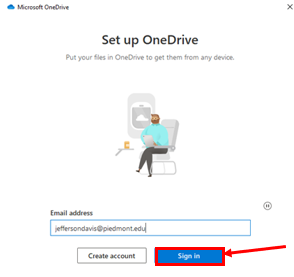
- Select Sign in

- Enter your full Lions email address and select Sign in
- Follow through the on-screen prompts to finish signing in , Select Start Backup to complete the process
- This ensures that you can access your files and that any files created on the lab computer will be saved.

- This ensures that you can access your files and that any files created on the lab computer will be saved.
MacOS Instructions
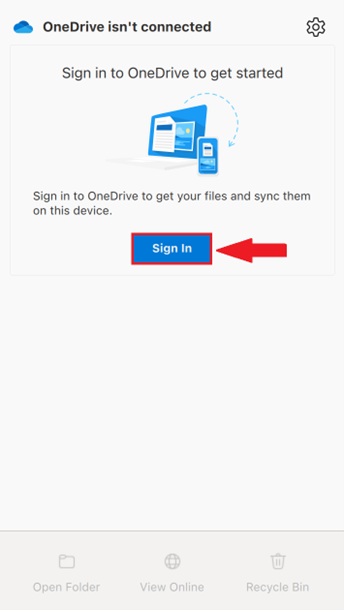
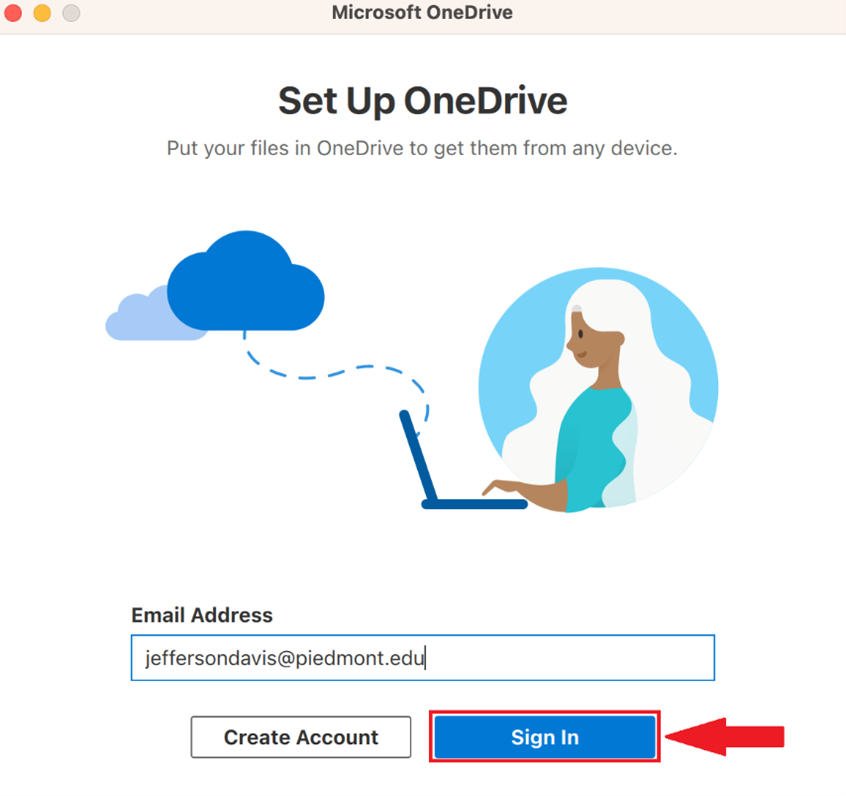
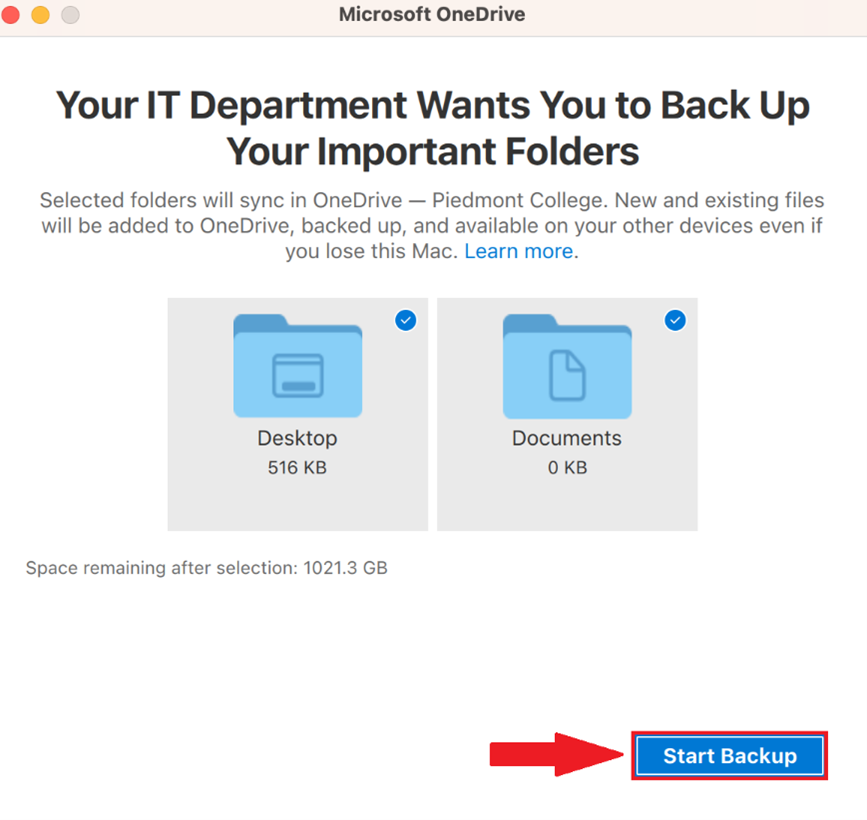
- Open OneDrive from the menu bar, located at the top of the screen

- Select Sign in

- Enter your full Lions email address and select Sign in

- Follow through the on-screen prompts to finish signing in , Select Start Backup to complete the process
- This ensures that you can access your files and that any files created on the lab computer will be saved.

3. Adobe Applications
Login using your personal email address so that you can access your portfolio after you graduate!
Installing Applications (Photoshop/Lightroom/Etc.)
-
Open the Adobe Creative Cloud Desktop Application


-
Launching Adobe Creative Cloud for the first time will open a web browser page asking you to sign in to Adobe.
-
Please sign in with your personal email address and select Continue
You will need to create an Adobe account using a personal email if it is your first time using Adobe Creative Cloud
-
Return to Adobe Creative Cloud, Select Apps and scroll down to the section Available in your plan.
-
Select the Install button to begin downloading the application.


Accessing your Portfolio
- On a tablet, smartphone, or PC, visit: https://assets.adobe.com/cloud-documents
- Sign in with the same email address you used to sign in to Adobe Creative Cloud.
- In the left column, select Files
- Here you can view and manage the items in your portfolio.
4. Logging Off
- When you are done using the PC, don't forget to sign out of the guest account to remove your files from the lab computer. This prepares the lab computer for the next student and frees up some system resources!
Microsoft Teams
Manage Teams Meetings
1. Create a Teams Meeting
- Open a Web Browser and navigate to https://teams.microsoft.com/
- You can also use the Desktop App version of Microsoft Teams
- Login using your @lions.piedmont.edu credentials
- Navigate to the Calendar column

- Select New

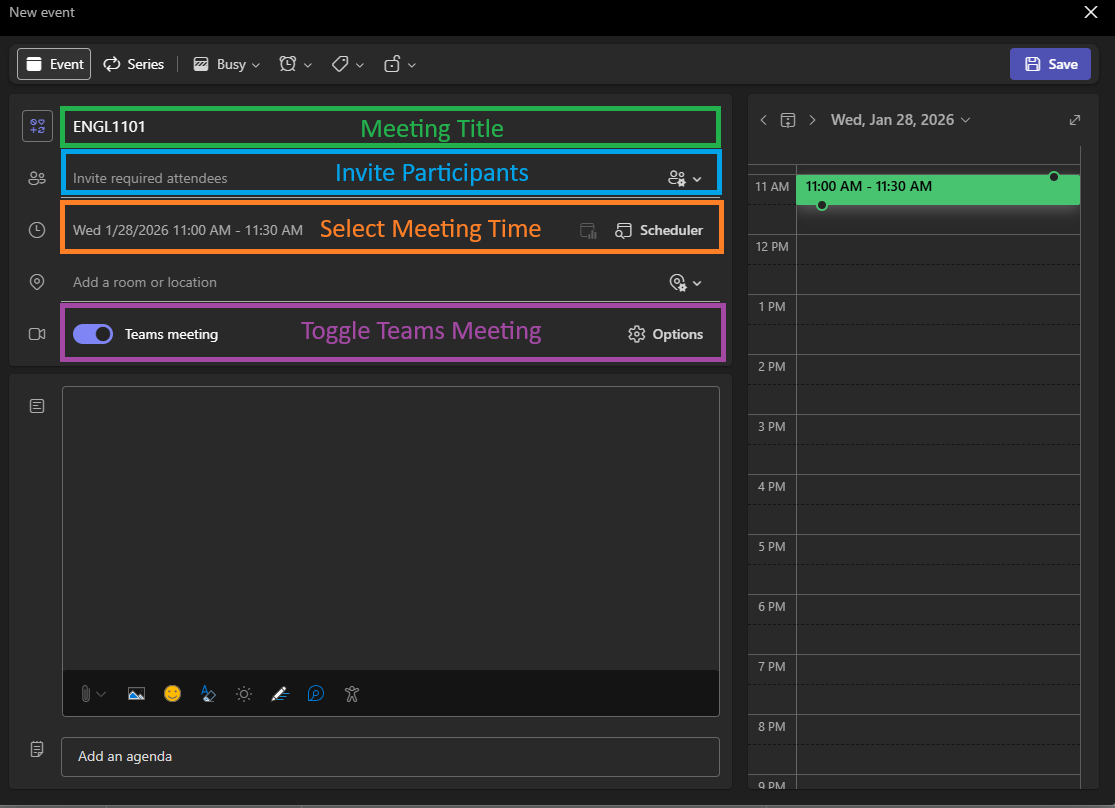
- The New Event popup appears, Fill out the fields for Add Title, Invite Required Attendees, and be sure to Toggle Teams Meeting
- The Event Title will generally be the name of the Class .
- For the Invite Required Attendees field, type in the student's Lions email address to add them to the meeting.
- For the Scheduler Field, select the Date & Time for when the meeting will take place.
- [OPTIONAL]: Add a meeting room/location if you're hosting a hybrid meeting of in-person and online guests. (Example: DanielHall-310)
- Be sure to Toggle Teams Meeting, so that a URL for the meeting is created.
- Finally, select Save in the top-right corner to create the meeting

- A Meeting will be created and invites will be sent to the participants.


2. Join a Teams Meeting
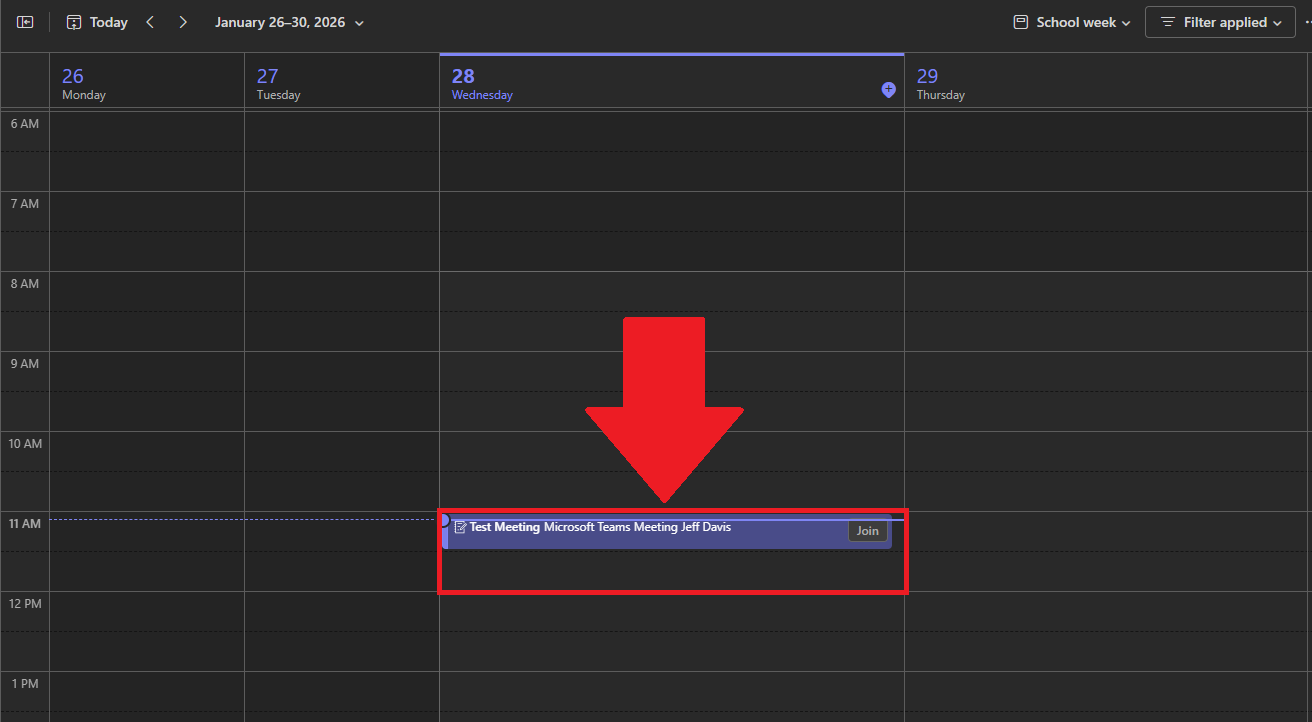
A meeting created with Attendees will send an email invite to the participant's Outlook but you can also view the invite on the Teams Calendar
- Open a Web Browser and navigate to https://teams.microsoft.com/
- You can also use the Desktop App version of Microsoft Teams
- Login using your @lions.piedmont.edu credentials
- Navigate to the Calendar column
- Scroll to the Date/Time that the Teams Meeting would take place, you should see the meeting on your Teams Calendar.

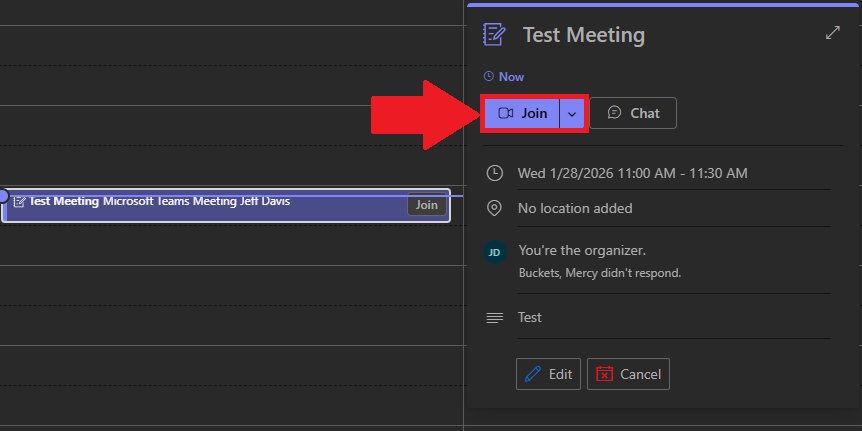
- Select the Meeting, and select Join

- Follow through the on-screen prompts to select your Audio and Video equipment as you would normally do so if you were using Zoom.
3. Meeting ID and Passcode
You can complete the following as either a host or attendee
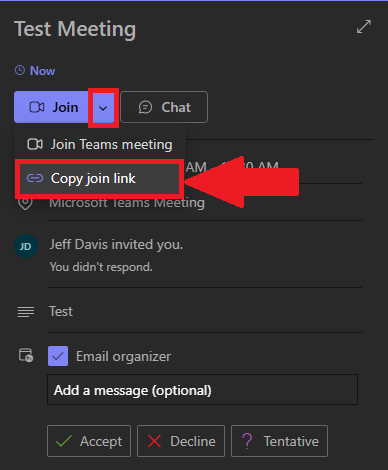
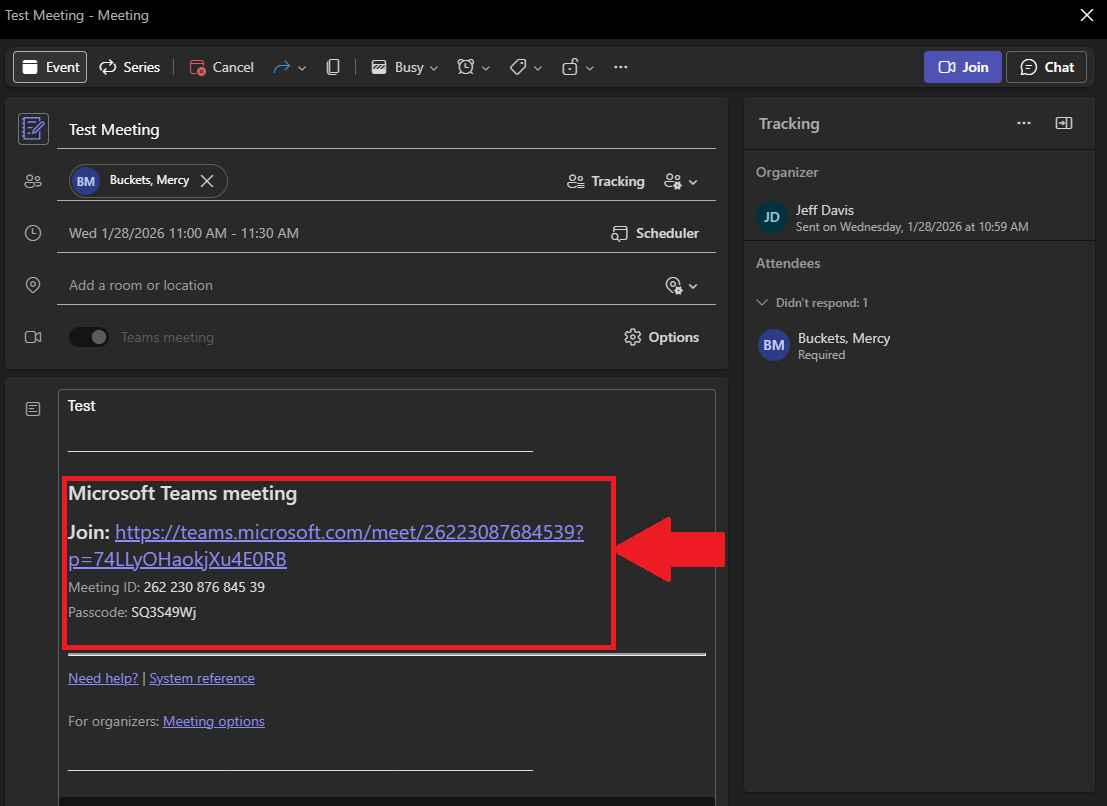
- You can obtain the Meeting Link/URL by selecting the Drop-down arrow next to Join Meeting on your Teams Calendar.

- If you Double-Click a meeting on your Calendar, you can see the Meeting ID and Passcode

4. Advanced Options
The following section can only be completed by the host or co-hosts of a Teams Meeting
- Navigate to Teams Calendar, the following options can be performed on New Meetings, before they're created, or afterwards for existing Teams Meetings.
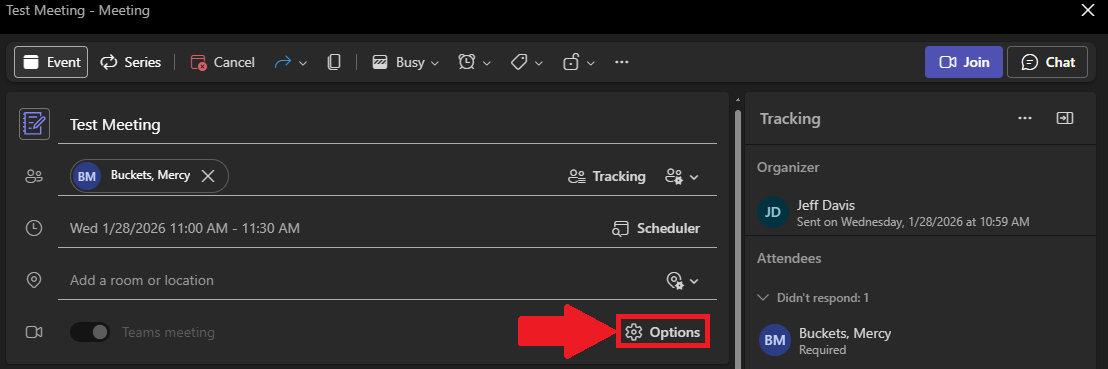
- Select the Options button when editing or creating a Team Meeting

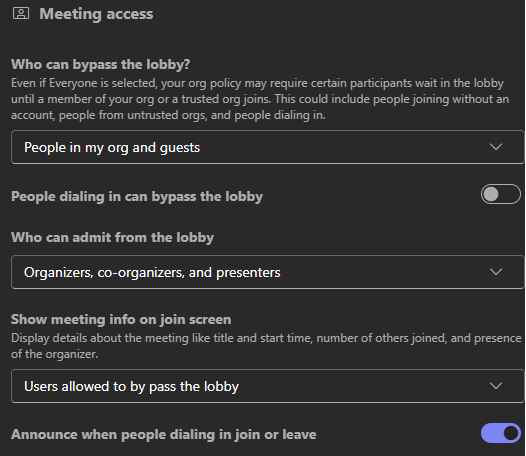
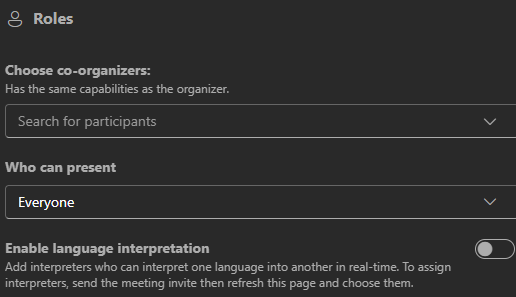
- In this menu, you can manage Meeting Access and Roles
- Meeting Access: Here you can manage the basic permissions of attendees in the meetings.

- Roles: Here you can manage co-hosts and presenting permissions for participants.
- Meeting Access: Here you can manage the basic permissions of attendees in the meetings.