
Scan to Folder
1. Scan to Department Folder/Network Drive
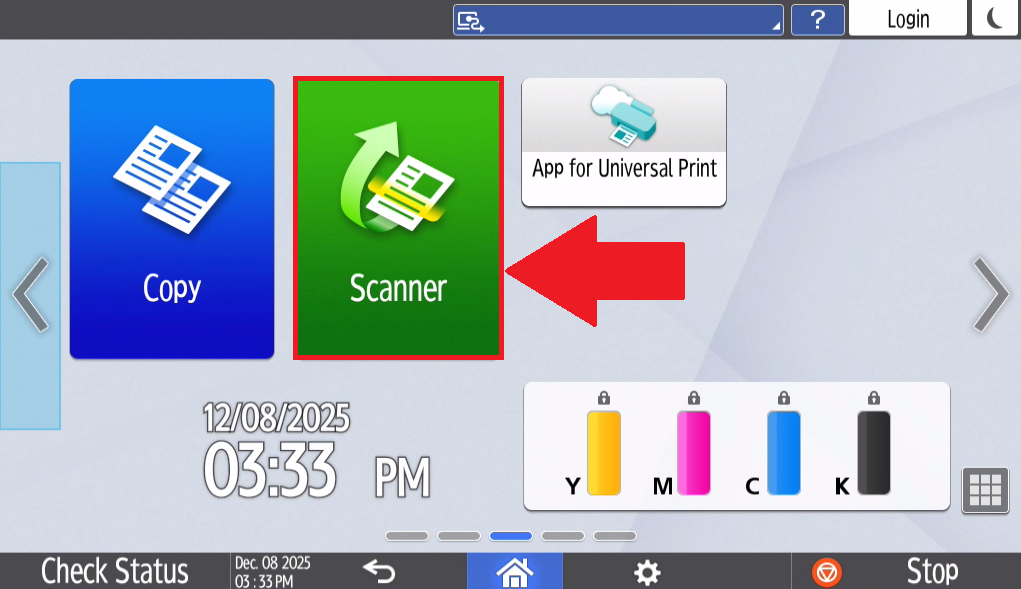
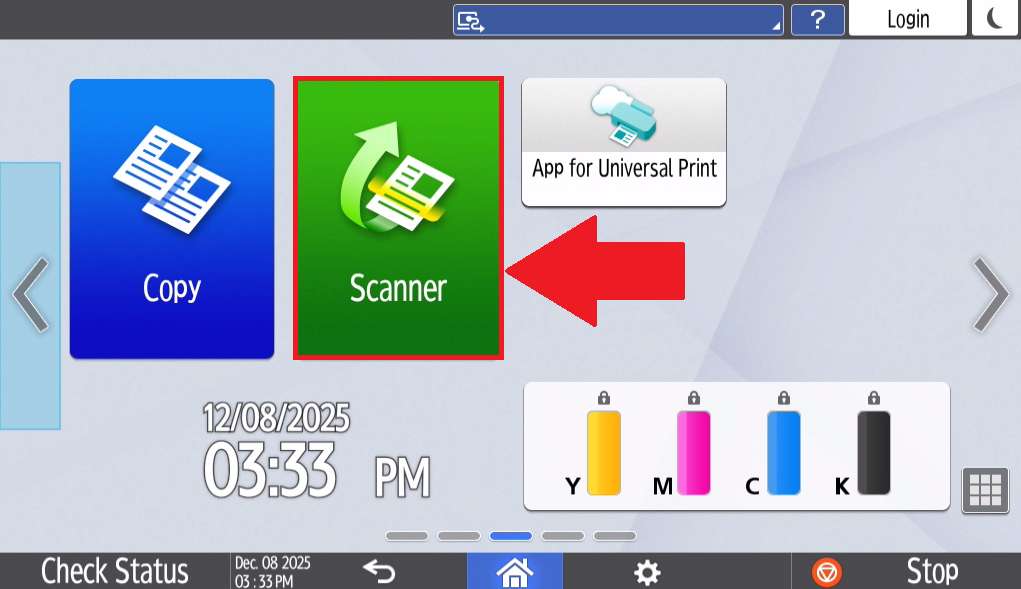
- Select Scanner on the homepage of the printer
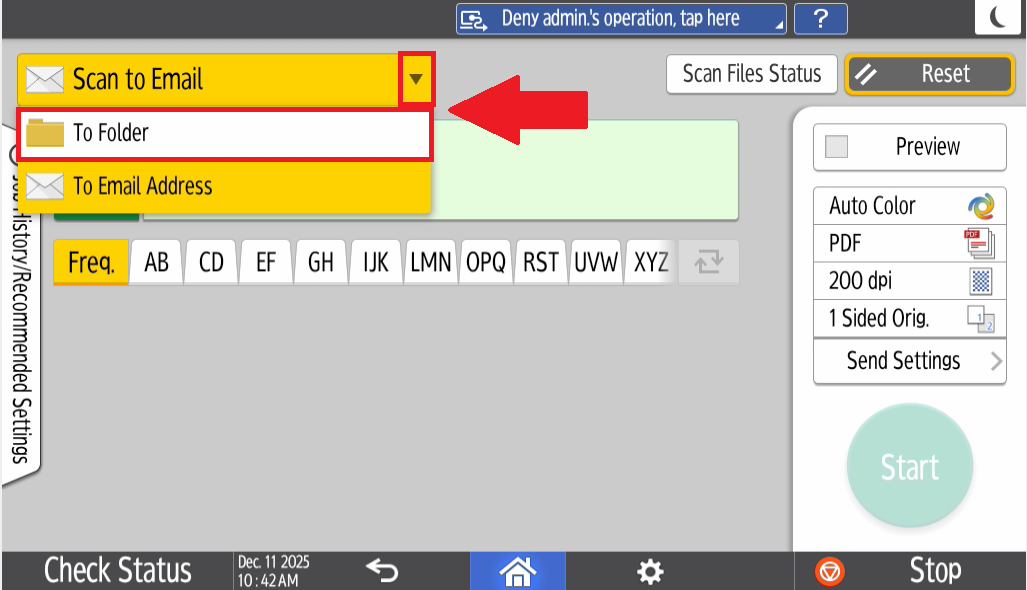
- Select the Drop down next to Scan to Email and select Scan to Folder
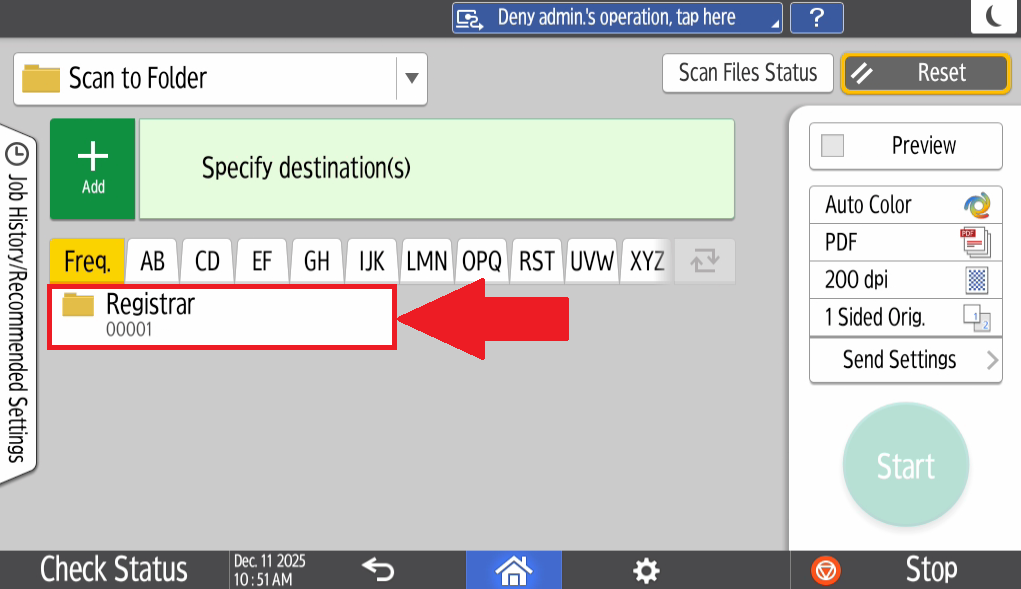
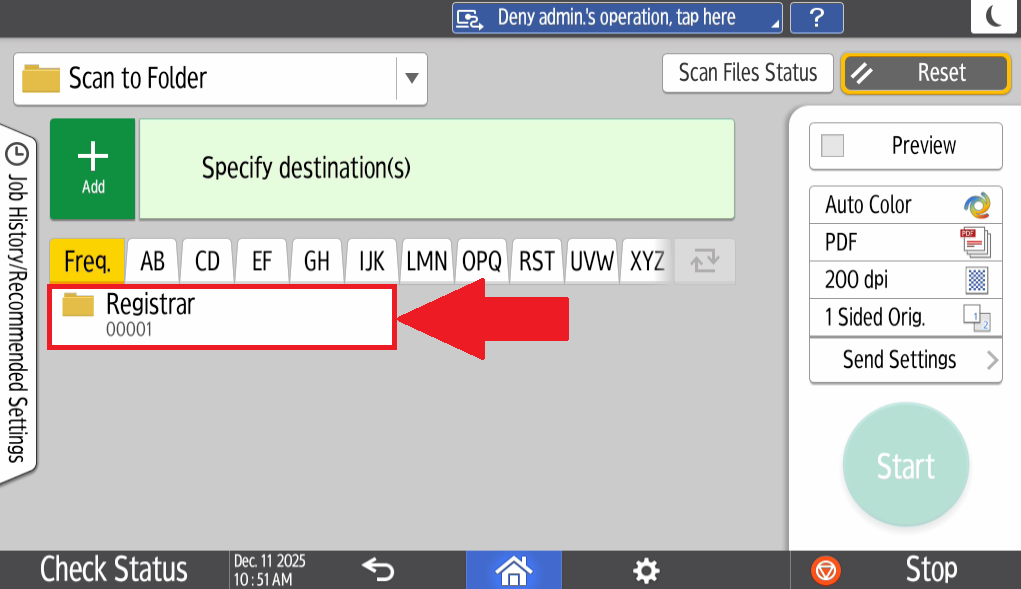
- Select the Folder you would like to scan to, if the folder is missing, please contact IT via a helpdesk ticket so that the folder can be added
- Load the document and Select Start to scan the document to the selected Network Folder

No comments to display
No comments to display