
What network do I join?
1. What Network do I join?
| Network Name | Who Should Use This | Typical Devices | Instructions |
| Lions | Faculty, Staff, and Students | Personal Laptops, Phones, and Tablets | Get Connected - Lions Wi-Fi |
| Lions Guest | Campus visitors and event guests | Any visitor device | |
| Lions Secure | University-owned devices | Work laptops, desktops, and managed devices | Get Connected - Lions Secure |
2.
Don't Connectingforget to Lions Guest
Lions Guest Network connection will expire after 5 days. After this, you will need to re-enroll your device.
How to Connect:
Navigate to the WiFi section of your system settings
Join the Network labeled Lions Guest
A webpage will open, review the TermsRecommended and Conditions, Check the box next to I agree to the Terms & Conditions, should you agree.
Select Start
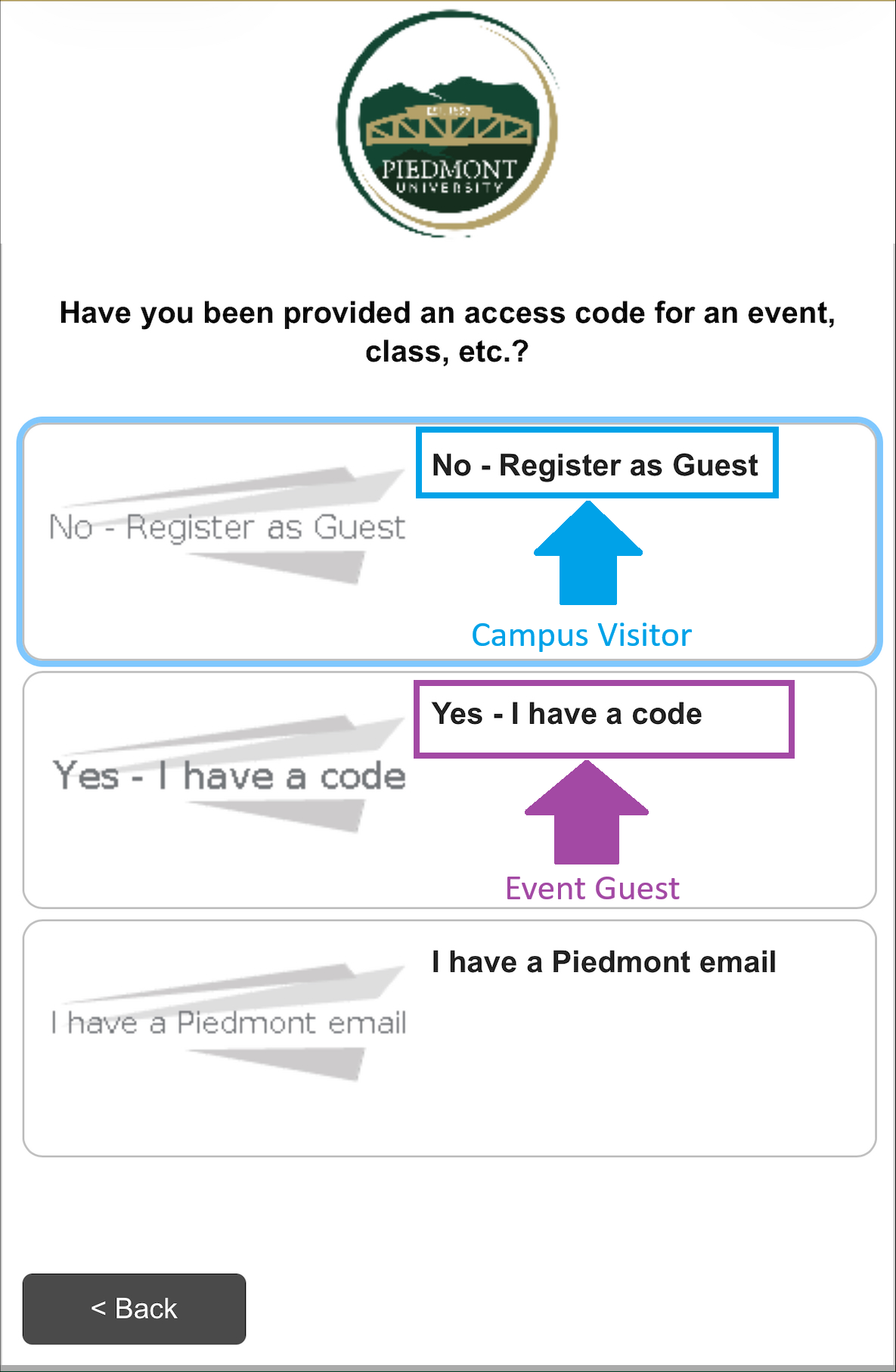
Enter an email address or Phone number where you will receive a security code.
After entering your information, please solve the Captcha
Select Send
Should you leave the webpage, copy the Wireless Verification Code sent to your email or text message, Rejoin the Lions Guest network and select I already have a verification code.
Enter your Wireless Verification Code, solve the Captcha, and select Continue
You will now be connected to Lions Guest
Please review the recommended WiFi settings to disable 'MAC Randomization' after completing these steps. How to disable MAC Randomization
3. Connecting to the Lions Network
If you need WiFi during this process, connect to the Lions Guest network using the instructions above.
You can enroll up to 8 Devices on the Lions Network. If you need to remove/reset the amount of devices that you have, please contact the IT Helpdesk!
Mobile Instructions (iOS/Android)
Whenever you connect, a copy of your WiFi password will be sent to your Piedmont or LIONS email address!
If you do not disable MAC Randomization, you will quickly use your 8 slots for enrolled network devices.
Please review the recommended WiFi settings to disable 'MAC Randomization' after completing these steps. How to disable MAC Randomization
Laptop Instructions (PC/MacOS)
Whenever you connect, a copy of your WiFi password will be sent to your Piedmont or LIONS email address
Console Instructions (Xbox/Playstation/Switch)
4. Lions Secure Network
How to Connect:
💬 Support Contact Info
For any issues or questions regarding Network Connectivity, please contact IT support by submitting a ticket through our helpdesk system.
📞 (706) 894-4205