
OneDrive Backup (MacOS)

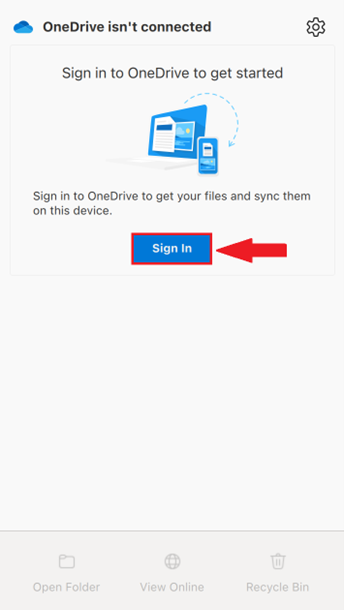
- Open OneDrive from the menu bar, located at the top of the screen

- Select Sign in
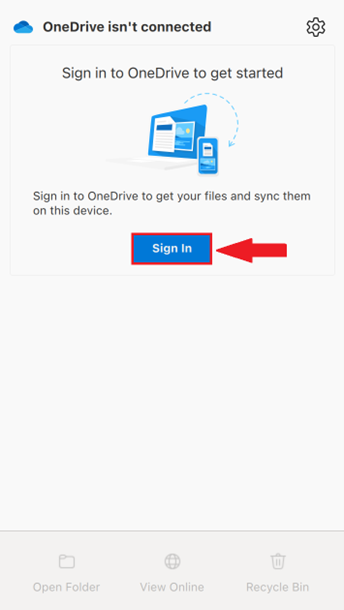
- If you are already signed in, you do not need to proceed
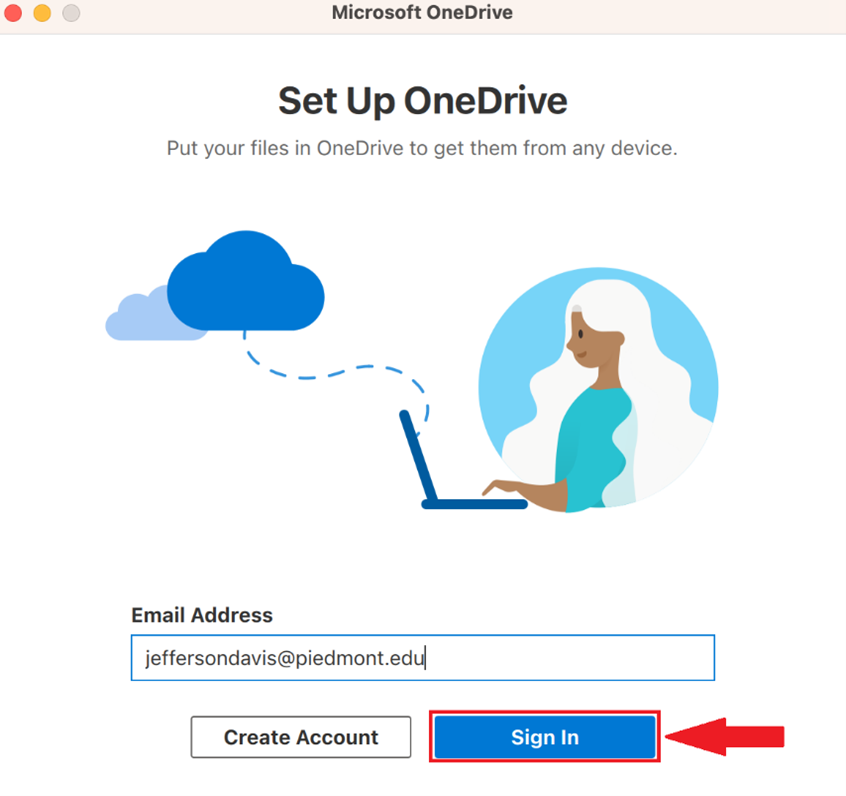
- Enter your full email address and select Sign in
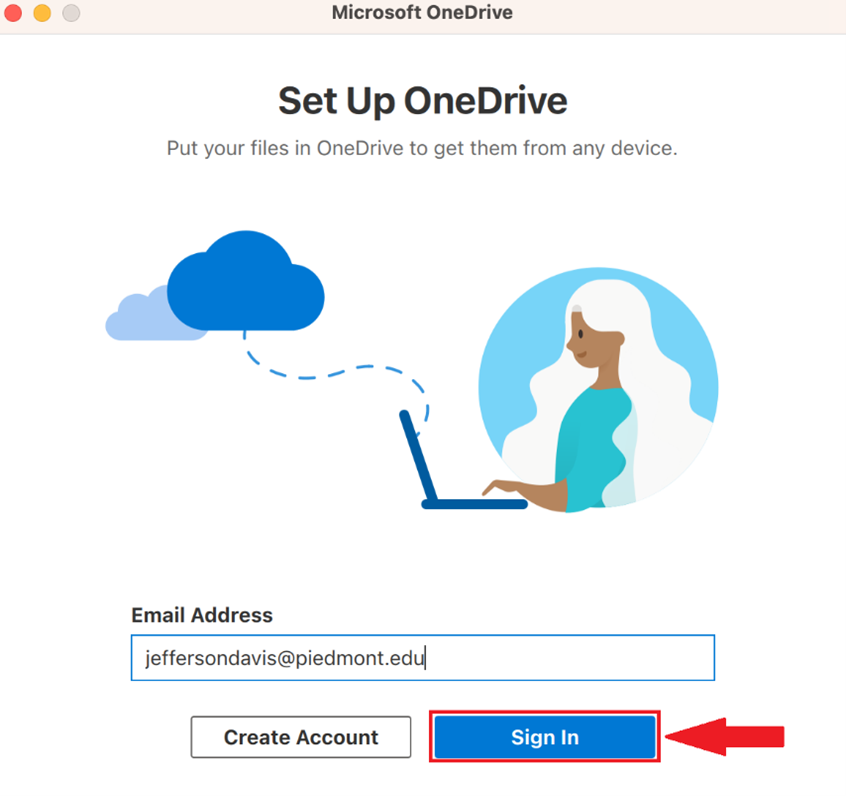
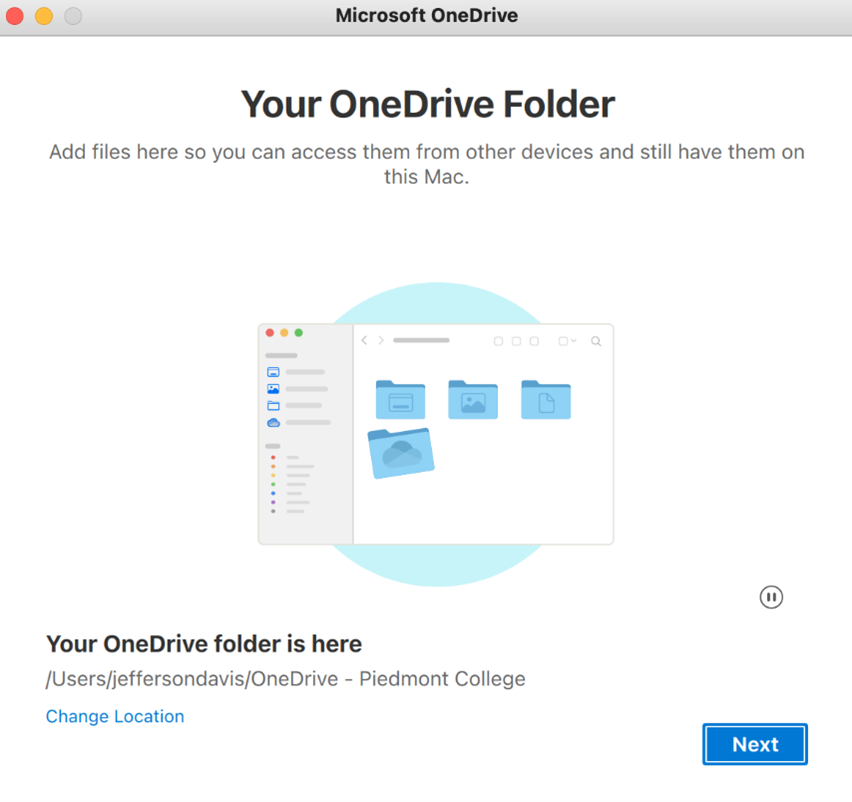
- Follow through the on-screen prompts to finish signing in
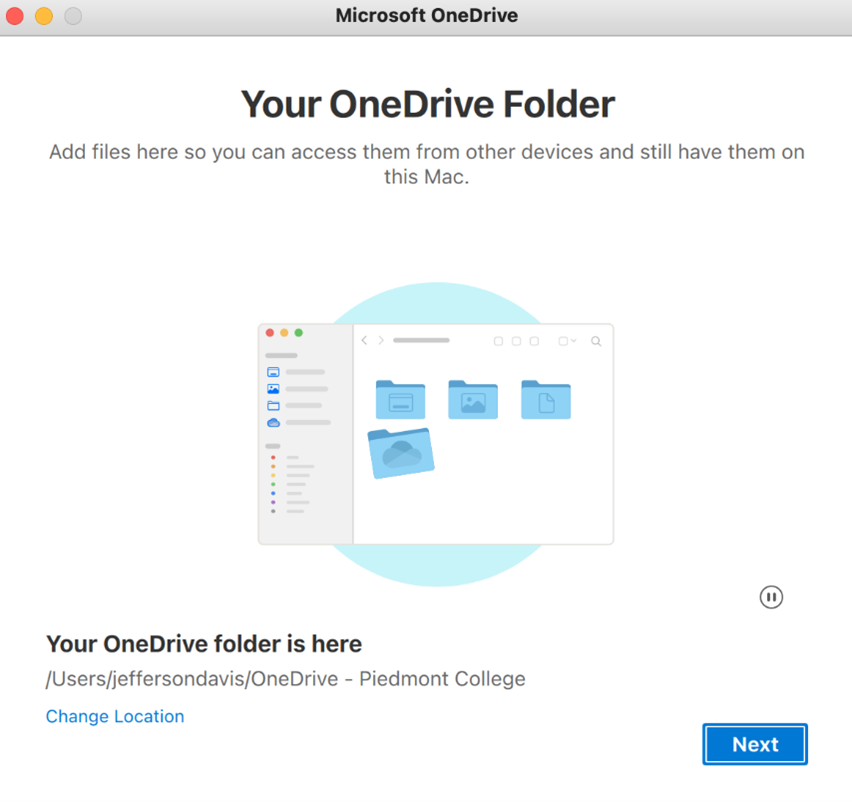
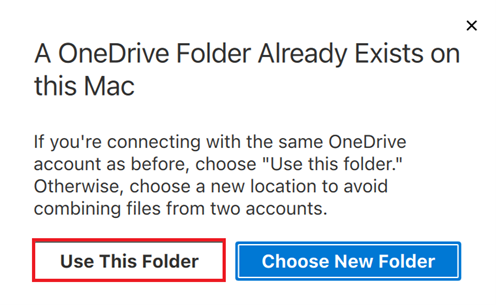
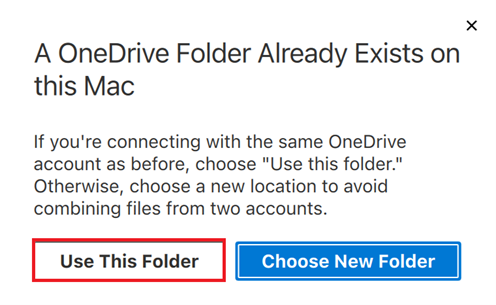
- If prompted that a OneDrive folder already exists, choose ‘Use this Folder’
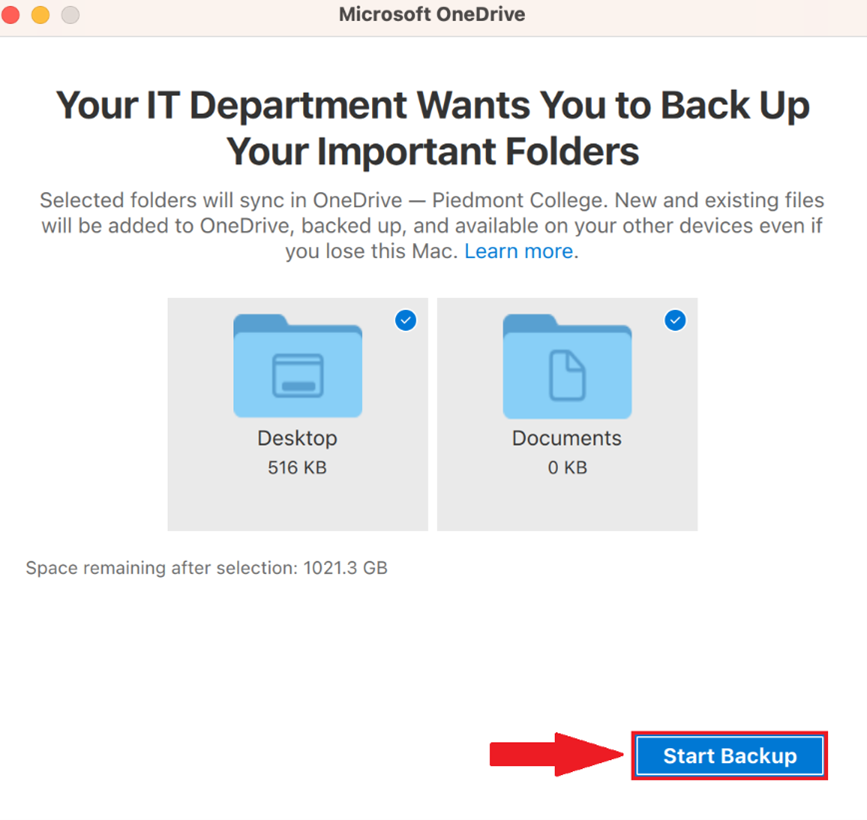
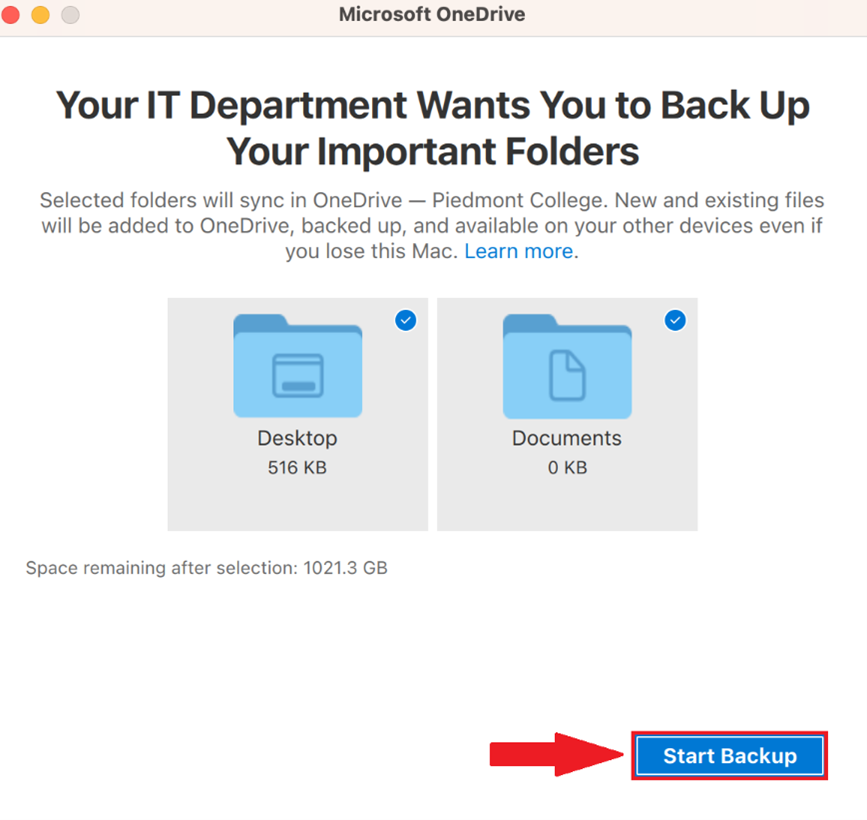
- You will be prompted that Your IT department wants you to back up your important folders, choose Start Backup
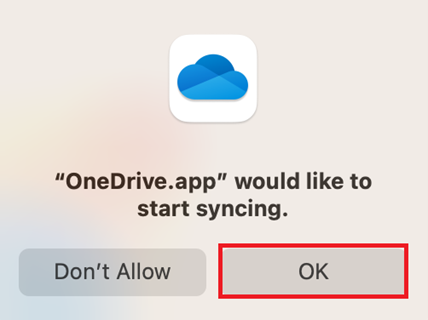
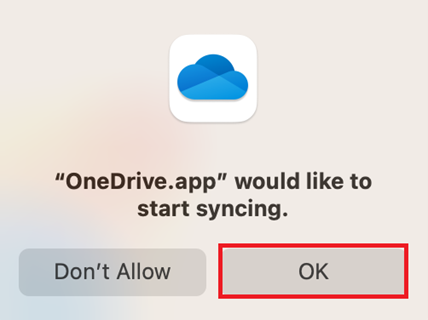
- MacOS may prompt you to allow OneDrive to sync, choose OK
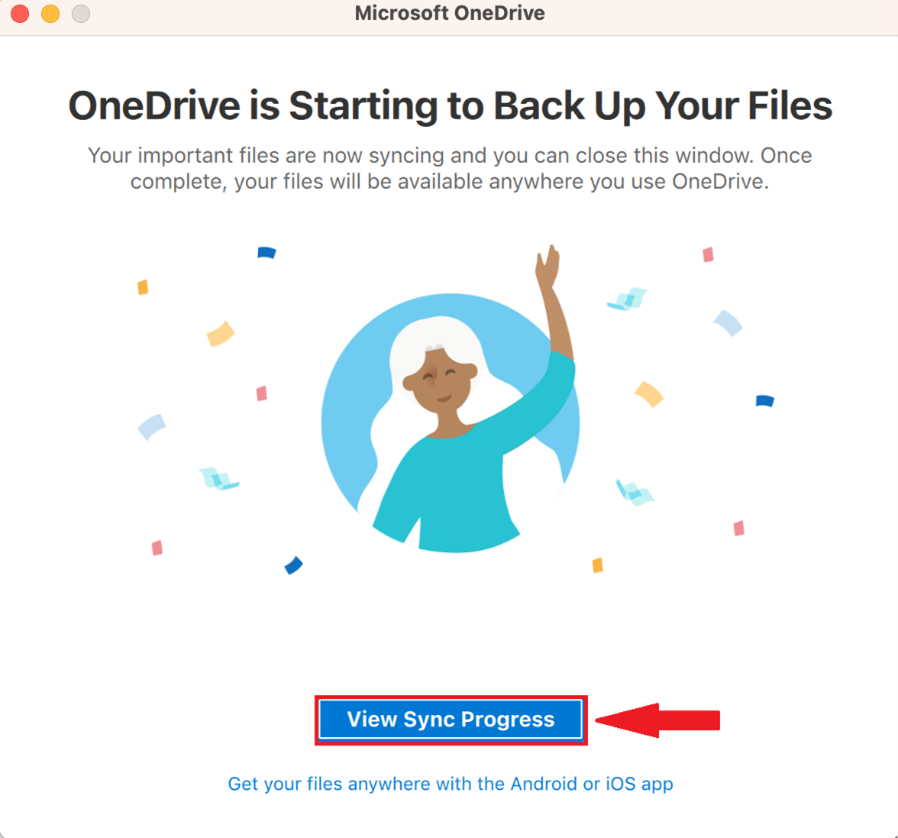
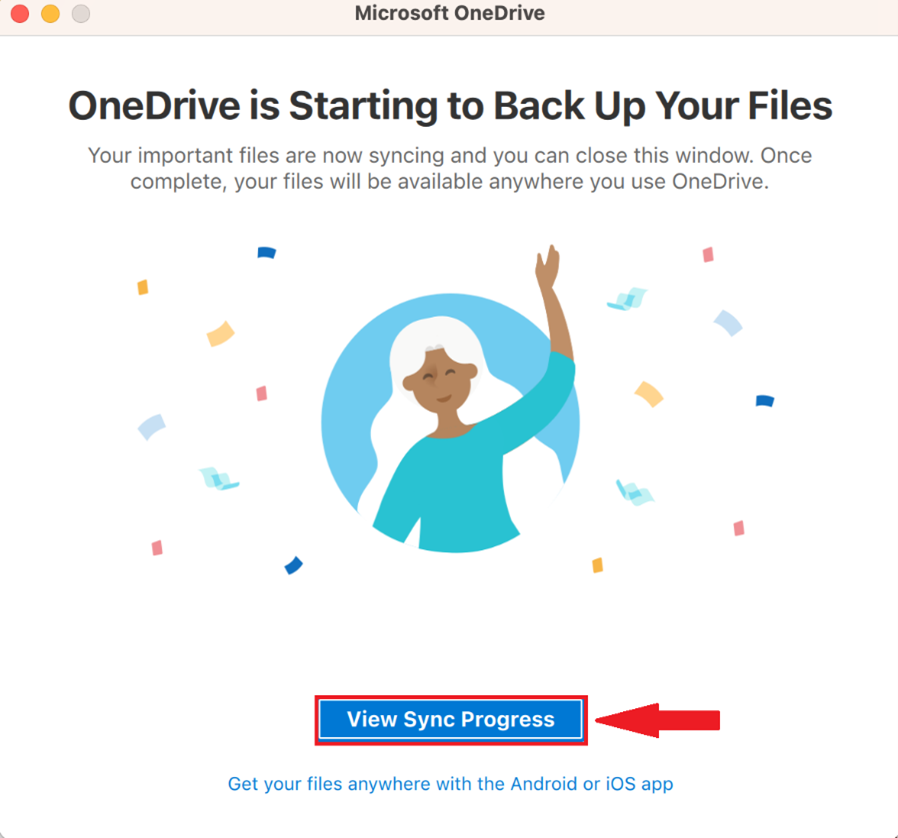
- OneDrive will begin backing up your data, To see the progress select View Sync Progress
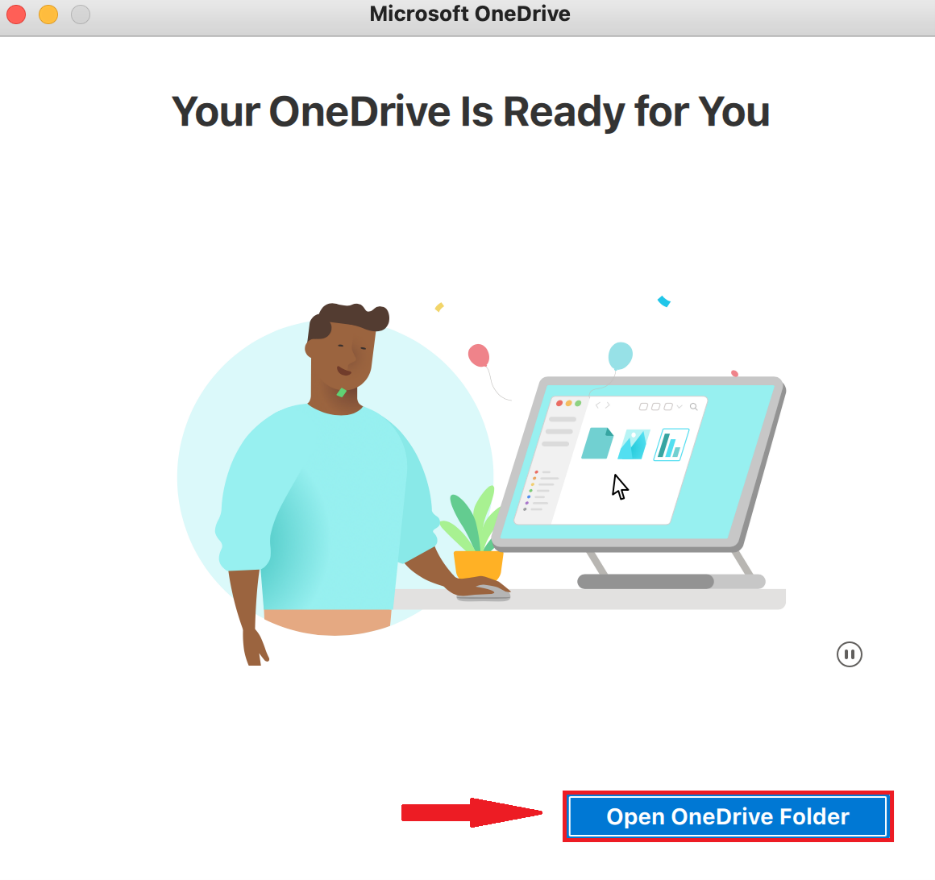
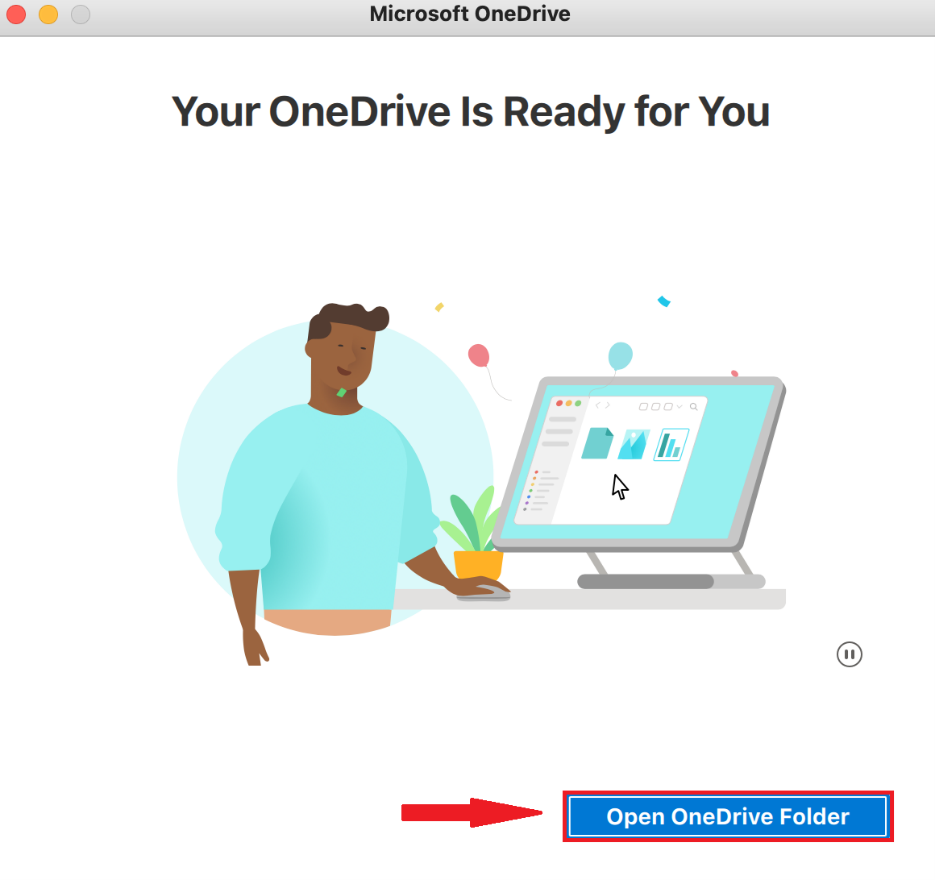
- When OneDrive is ready you will be prompted Your OneDrive is Ready for you, choose Open OneDrive folder to view and manage your files

No comments to display
No comments to display