
Universal Print (Windows)
1. Install a Printer
- Open Settings or press Win + I
- Select Bluetooth & Devices
- Select Printers and Scanners
- Select Add Device
- Select Search for Devices
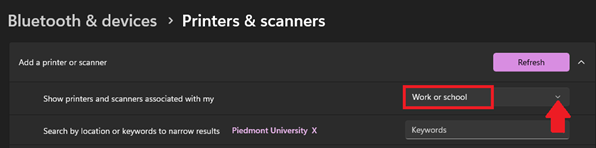
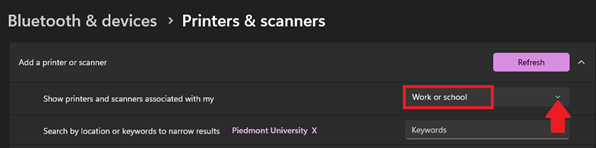
- Select Work or School, located next to 'Show Printer and scanners associated with my'
- If you do not see Work or School, please see the troubleshooting section.
- You may be prompted to login using your Piedmont email.
- Select a printer from the list or use the search box to search for a printer
- It is recommended to search for printers by using the room number
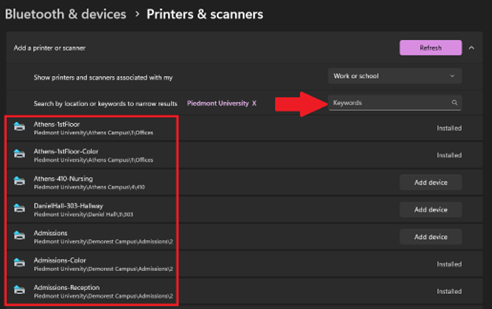
- It is recommended to search for printers by using the room number
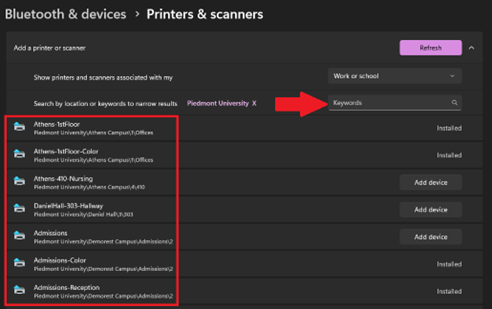
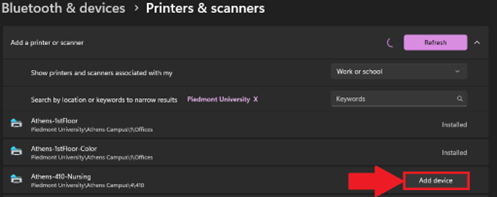 Your computer will take a moment to install the printer.
2. SectionPrinting Header/TitleDocuments
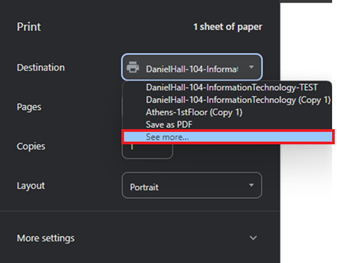
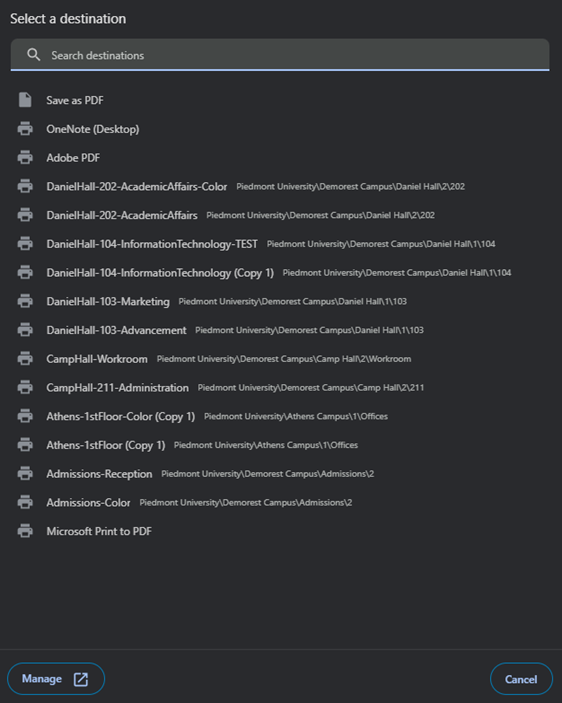
BeginUseInstructionsCTRL + P to printLoremToggleipsumthedolordrop-downsitnextamet,toconsectetur adipiscing elit.Destination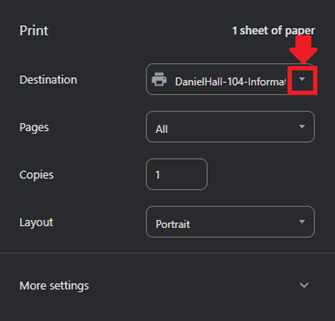
SedSelectdotheeiusmodprintertemporthatincididuntyouutaddedlaboreinetthedolorepreviousmagna aliqua.section.UtIfenimyouaddominimnotveniam,seequisyournostrudprinter,exercitationyouullamcomaylaborisneednisitoutselectaliquipSeeexMoreeafromcommodotheconsequat.drop-downDuis aute irure dolor in reprehenderit in voluptate velit esse cillum dolore eu fugiat nulla pariatur.
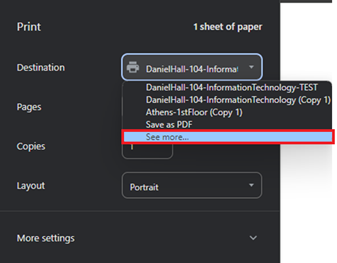
ExcepteurAsintnewoccaecatpagecupidatatwillnonopenproident,containingsuntainfullculpalistquiofofficiaprinters.deseruntmollit- If
animyouiddoestnotlaborum.see your printer, please submit a helpdesk ticket.
3. Troubleshooting
💬 Department Contact Info
For any issues or questions regarding the [Insert Issue],printing, please [Department]contact IT support support.
📞 (706) 778-3000
✉️ Department@piedmont.edu
🔗 https://www.Piedmont.edu