
Universal Print (Windows)
1. SectionInstall Header/Titlea Printer
Important Information
BeginOpenInstructionsSettings or press Win + I
VisitIfwww.ExampleWebsite.com
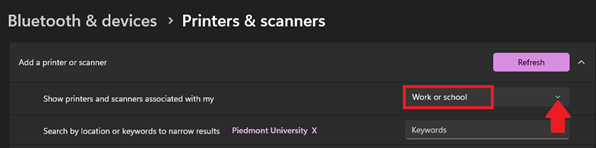
UtItenimisadrecommendedminimtoveniam,searchquisfornostrudprintersexercitationbyullamcousinglaboristhenisiroomut aliquip ex ea commodo consequat.Duis aute irure dolor in reprehenderit in voluptate velit esse cillum dolore eu fugiat nulla pariatur.number
2. Section Header/Title
- Begin Instructions
- Lorem ipsum dolor sit amet, consectetur adipiscing elit.
- Sed do eiusmod tempor incididunt ut labore et dolore magna aliqua.
- Ut enim ad minim veniam, quis nostrud exercitation ullamco laboris nisi ut aliquip ex ea commodo consequat.
- Duis aute irure dolor in reprehenderit in voluptate velit esse cillum dolore eu fugiat nulla pariatur.
- Ut enim ad minim veniam, quis nostrud exercitation ullamco laboris nisi ut aliquip ex ea commodo consequat.
- Excepteur sint occaecat cupidatat non proident, sunt in culpa qui officia deserunt mollit anim id est laborum.
💬 Department Contact Info
For any issues or questions regarding the [Insert Issue], please [Department] support
📞 (706) 778-3000
✉️ Department@piedmont.edu
🔗 https://www.Piedmont.edu