Get Connected - Lions Wi-Fi
1. Personal Wi-Fi Password
If you need WiFi during this process, connect to the Lions Guest network using the instructions above.
You can enroll up to 8 Devices on the Lions Network. If you need to remove/reset the amount of devices that you have, please contact the IT Helpdesk!
Mobile Instructions (iOS/Android)
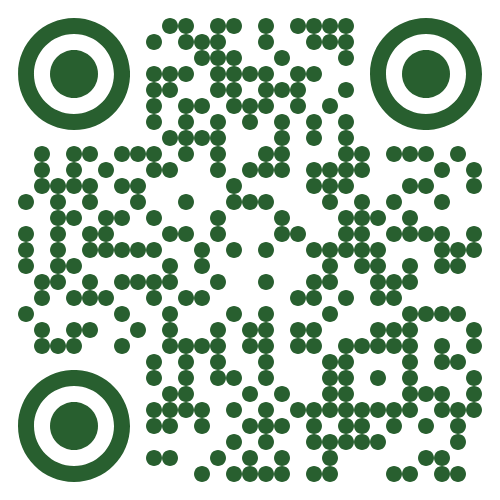
Scan the QR Code OR Open a Web browser and visit https://cloudpath.piedmont.edu/
Review the Terms and Conditions, Check the box next to I agree to the Terms & Conditions, should you agree.
Select Start
Login using your @piedmont.edu or @lions.piedmont.edu credentials
A QR Code will be displayed, long press the QR code and scroll to select Join Network
You may also use the Personal WiFi Password as the Network password in the Network Settings section of your device.
Your phone will now be connect to Lions
Whenever you connect, a copy of your WiFi password will be sent to your Piedmont or LIONS email address
If you do not disable MAC Randomization, you will quickly use your 8 slots for enrolled network devices.
Please review the recommended WiFi settings to disable 'MAC Randomization' after completing these steps.
How to disable MAC Randomization
Laptop Instructions (PC/MacOS)
Open a Web browser and visit https://cloudpath.piedmont.edu/ (you may do this from your phone/tablet as well)
Review the Terms and Conditions, Check the box next to I agree to the Terms & Conditions, should you agree.
Select Start
Login using your @piedmont.edu or @lions.piedmont.edu credentials
Underneath the QR code that is displayed, you will be provided a Personal WiFi Password
Open the Network Settings on your Mac or PC device; Select the Lions network, and enter your Personal WiFi Password
Press Connect/Join, you will now be connected to Lions
Whenever you connect, a copy of your WiFi password will be sent to your Piedmont or LIONS email address
Console Instructions (Xbox/Playstation/Switch)
Open the Network Settings on your console
Complete the steps above to obtain your Personal WiFi Password
Enter your Personal WiFi Password as the network password.
You will now be connected to Lions on your console.