
Password Reset
1. Microsoft Account
https://myaccount.microsoft.com/
1.
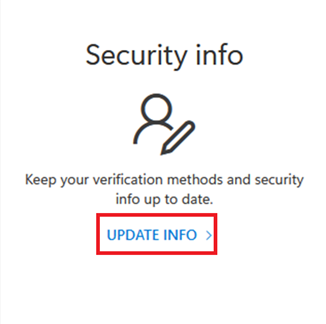
3.
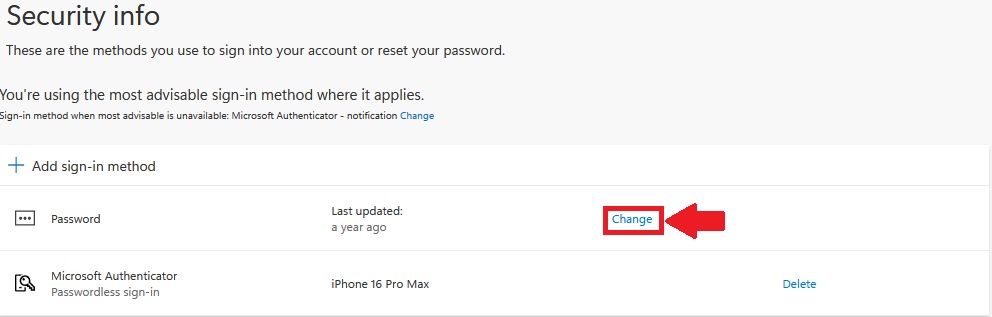
Select Submit to change your password
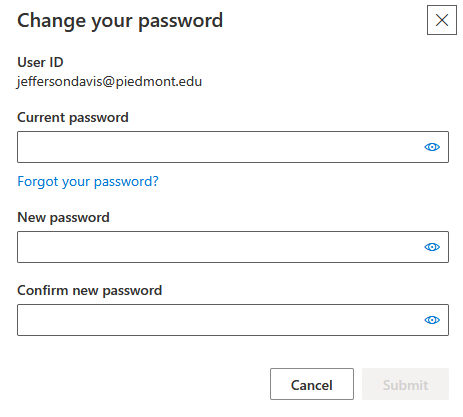
**Password Requirements**Requirements: Must be at least 12 characters long. Must have at least one capital letter. Must have at least one lower case letter. Must have at least one number. Special characters are optional. (Example - !, @, #, $, %, ^) Must have a minimum age of 1 day before it can be changed. Users cannot use the last 24 passwords they have used. Passwords are non-expiring.
7.
Need Help?
💬If Supportyou Contactencounter InfoForan any issueserror or questionsneed regardingassistance yourwith accountthis password,guide, please contact the IT supportDepartment byand submittinginclude a ticketscreenshot throughwith oura helpdeskbrief system.description of the issue.📞
Contact (706)the 894-4205✉️IT ITSupport@piedmont.edu🔗Department