OneDrive Backup (MacOS)
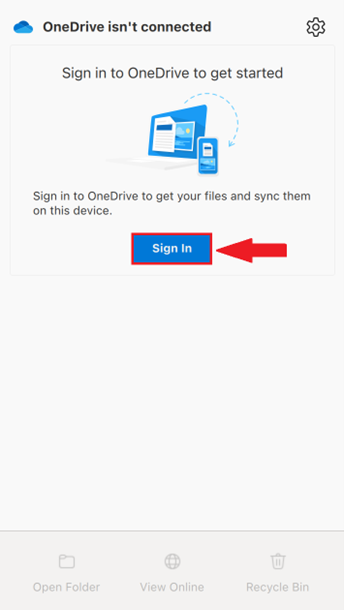
- Open OneDrive from the menu bar, located at the top of the screen

- Select Sign in
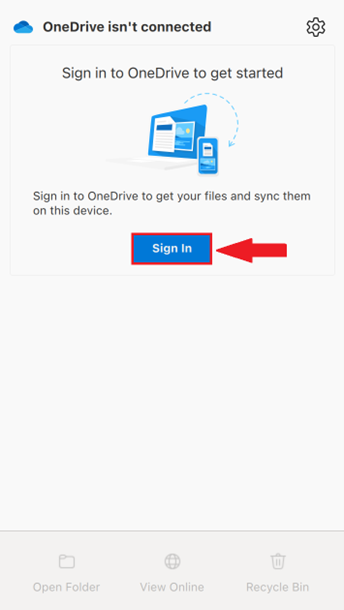
- If you are already signed in, you do not need to proceed
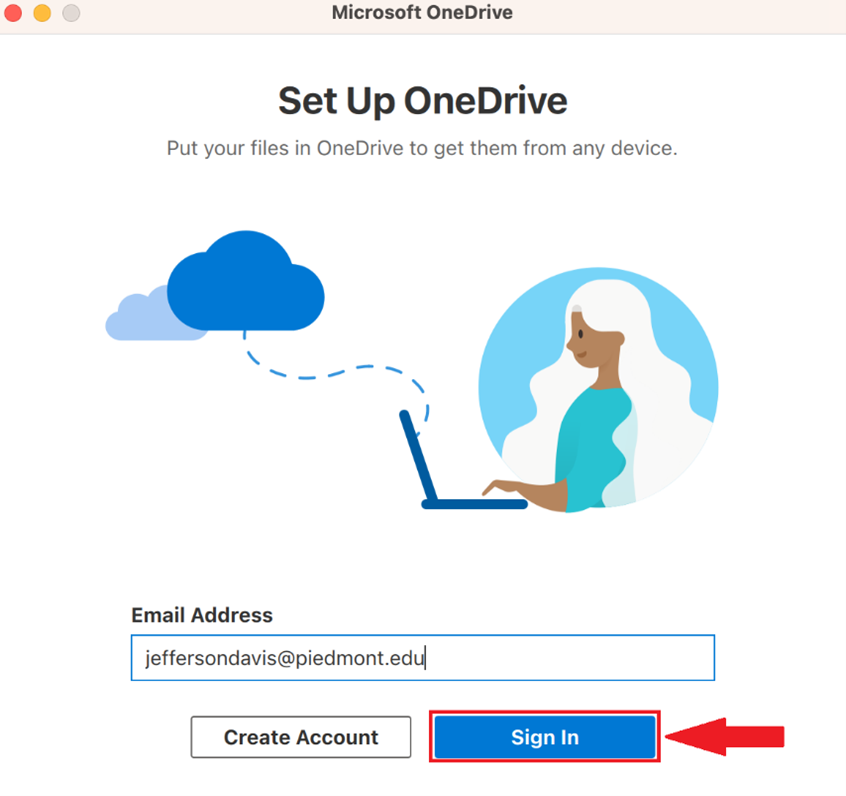
- Enter your full email address and select Sign in
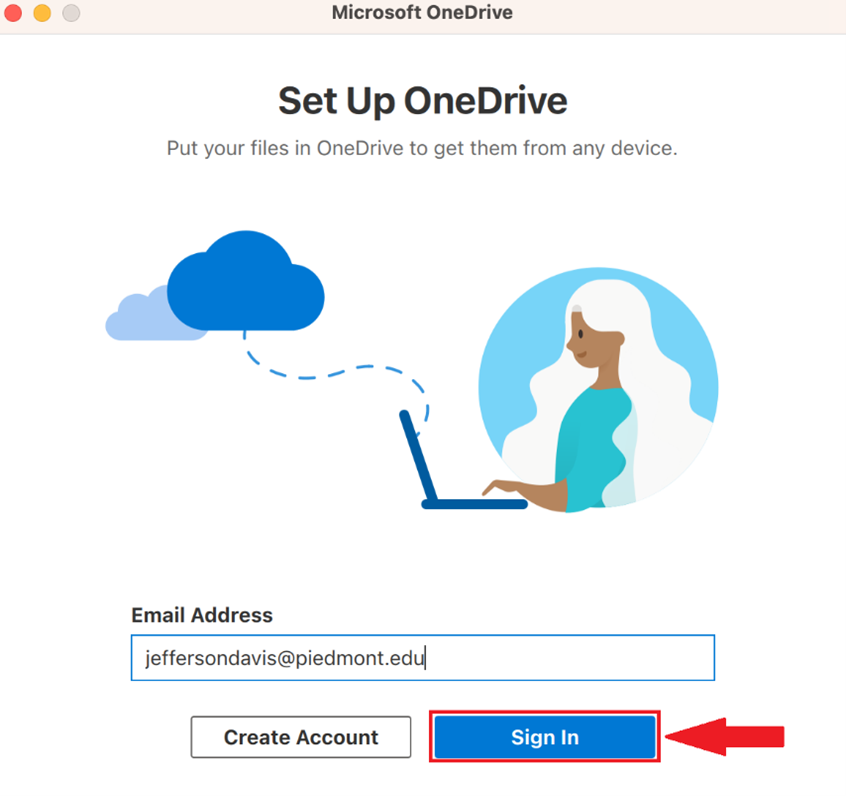
- Follow through the on-screen prompts to finish signing in
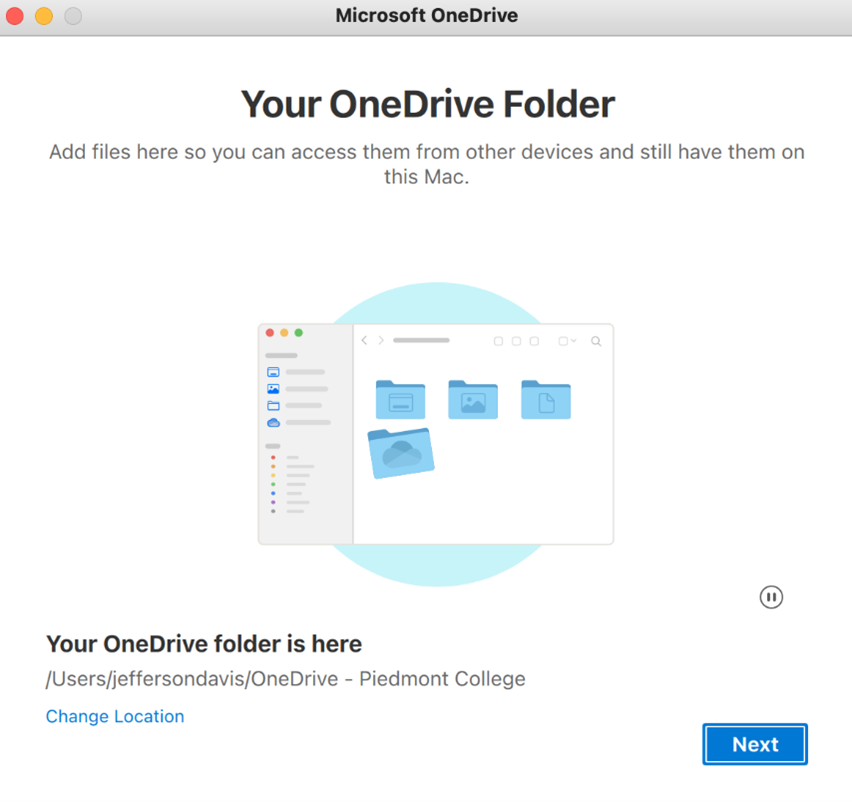
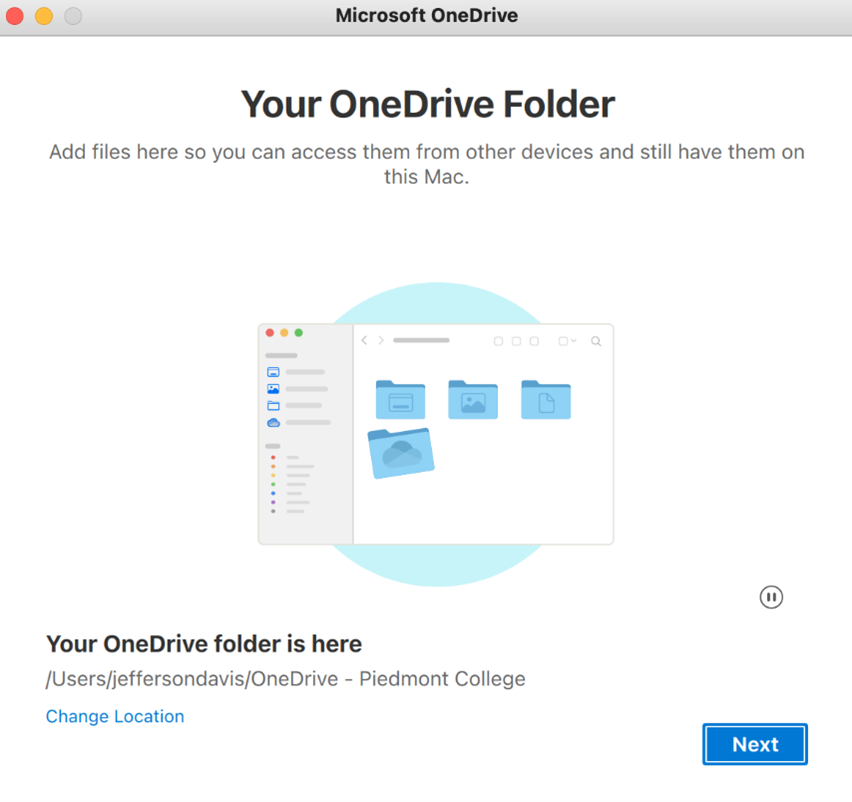
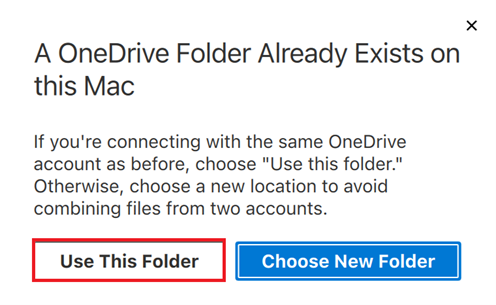
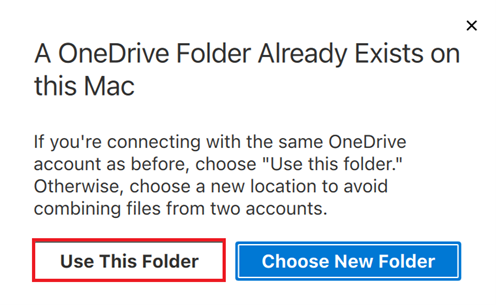
- If prompted that a OneDrive folder already exists, choose ‘Use this Folder’
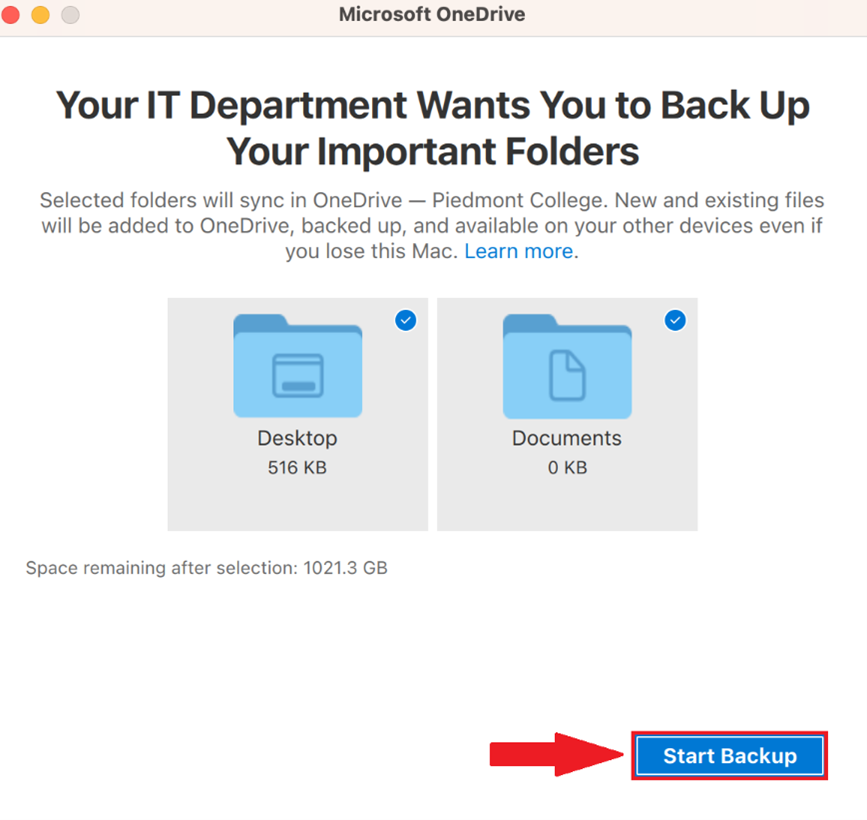
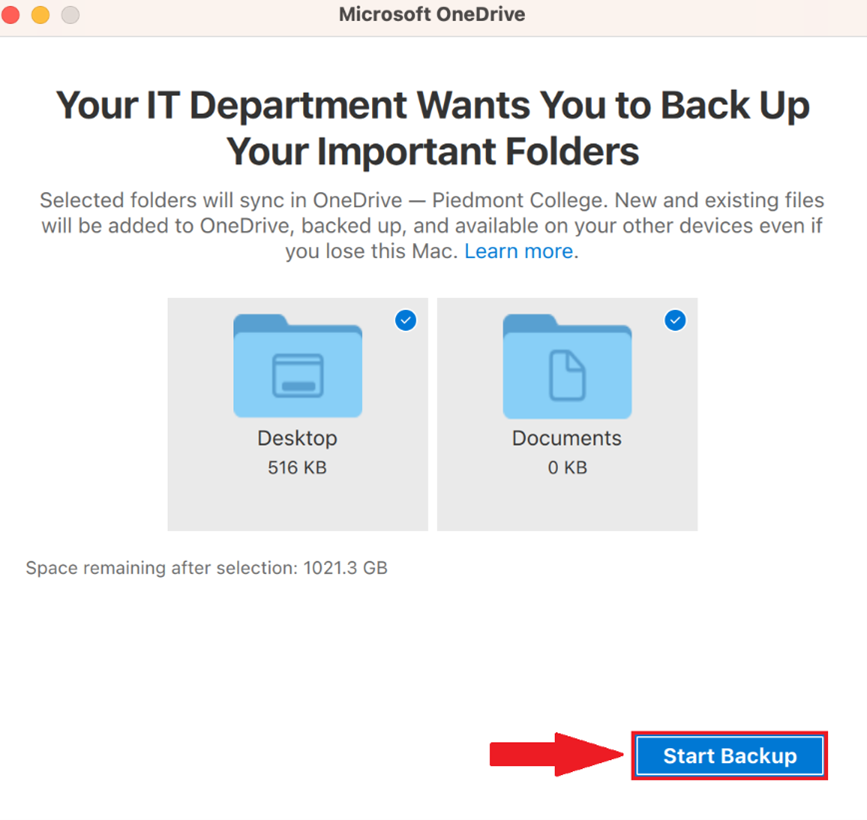
- You will be prompted that Your IT department wants you to back up your important folders, choose Start Backup
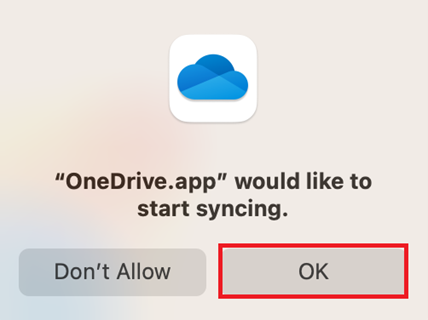
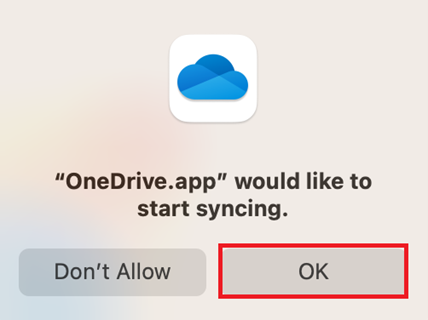
- MacOS may prompt you to allow OneDrive to sync, choose OK
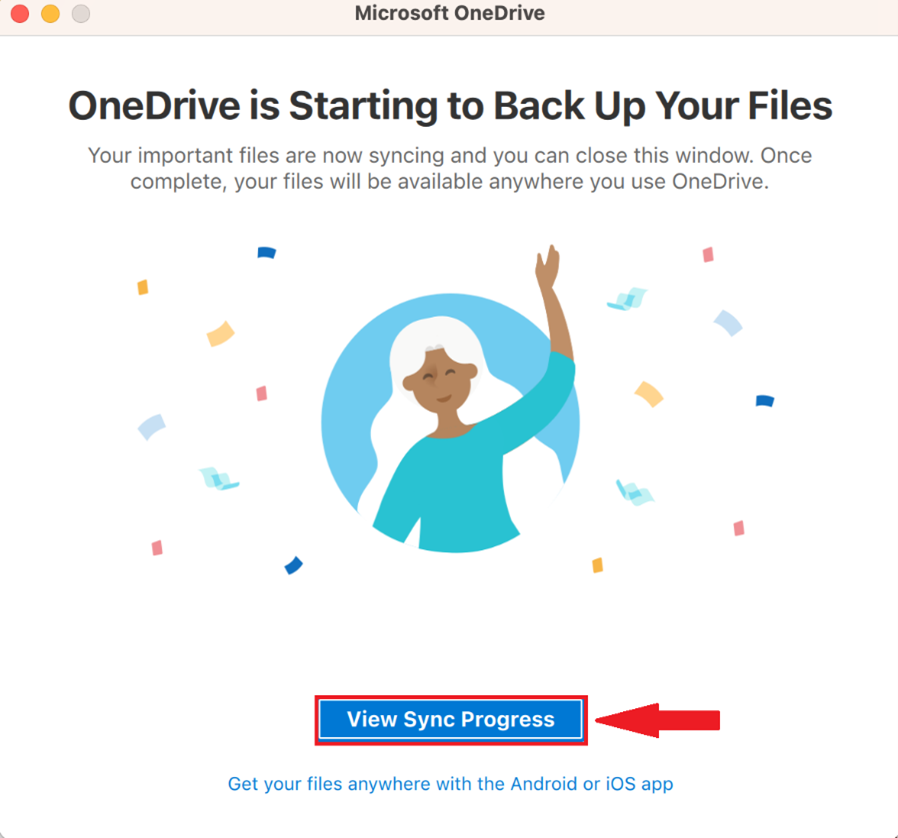
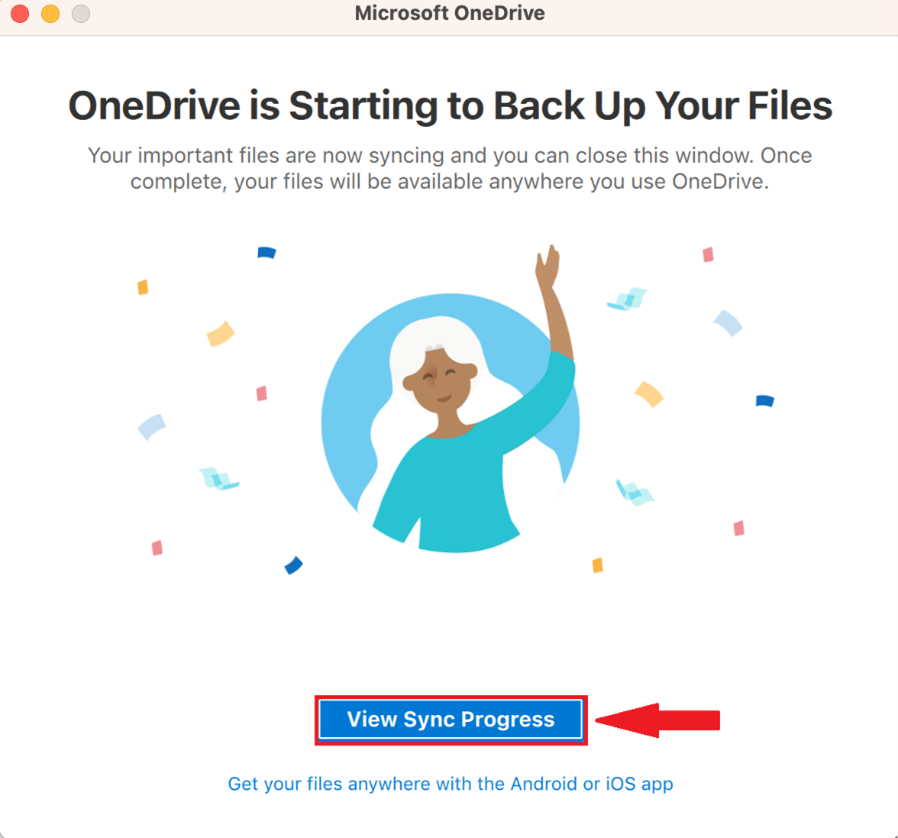
- OneDrive will begin backing up your data, To see the progress select View Sync Progress
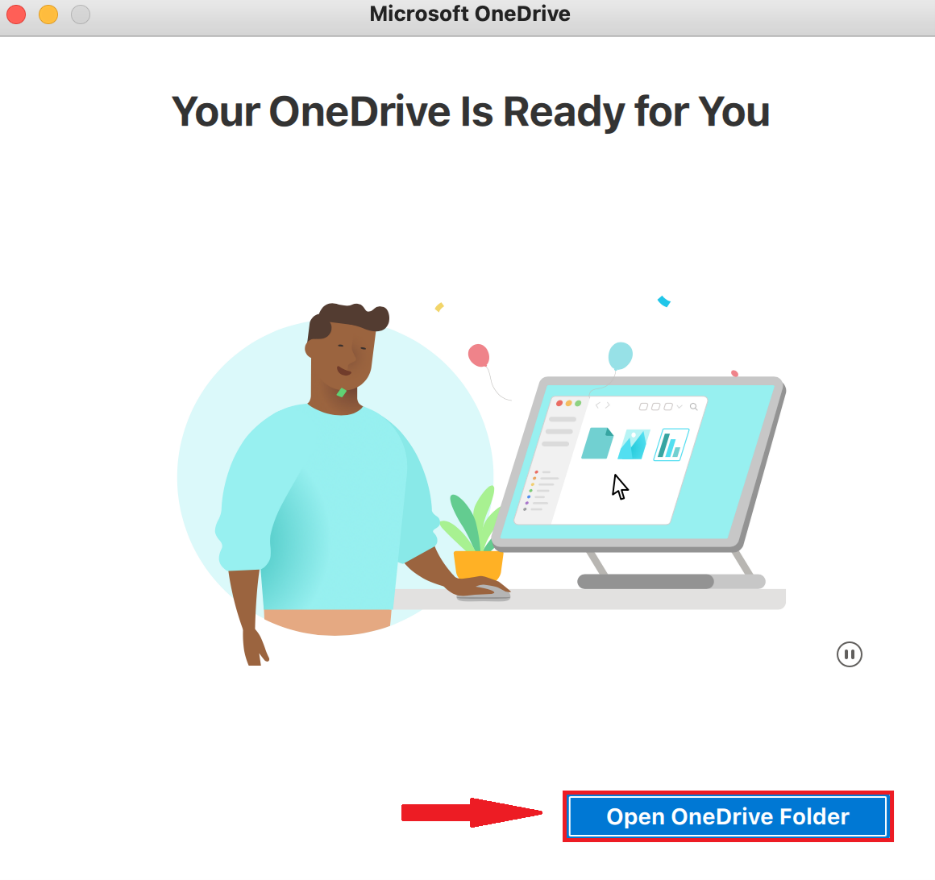
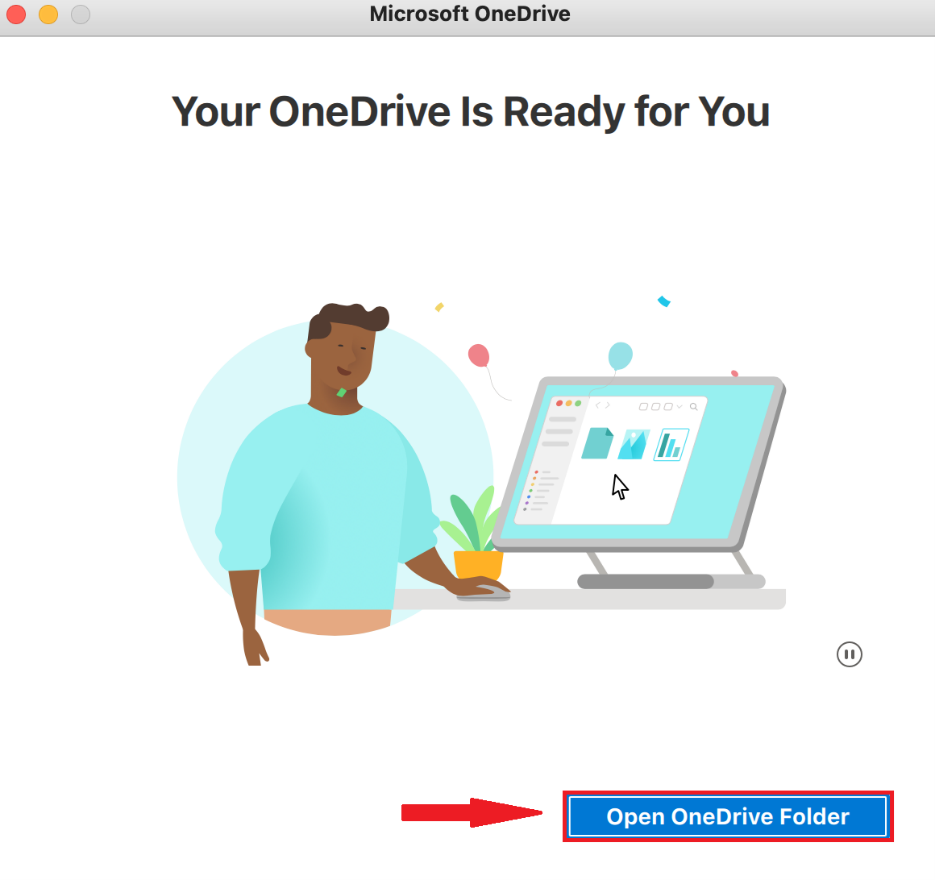
- When OneDrive is ready you will be prompted Your OneDrive is Ready for you, choose Open OneDrive folder to view and manage your files