
Password Reset
1. Change your Password
VisitManage your Piedmont email by visiting https://myaccount.microsoft.comcom/
1.
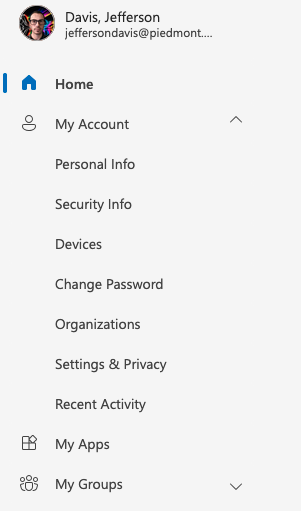
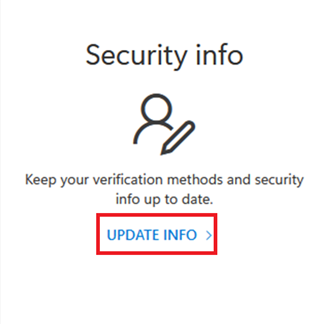
3.
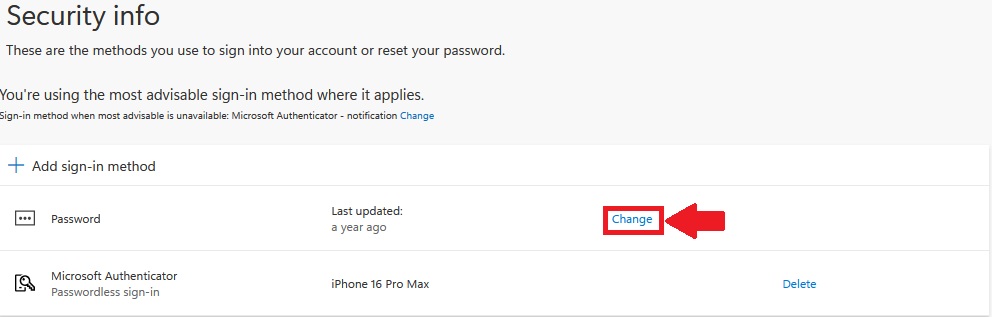
4. Enter your Old Password
5. Enter your new password
6. Confirm your new password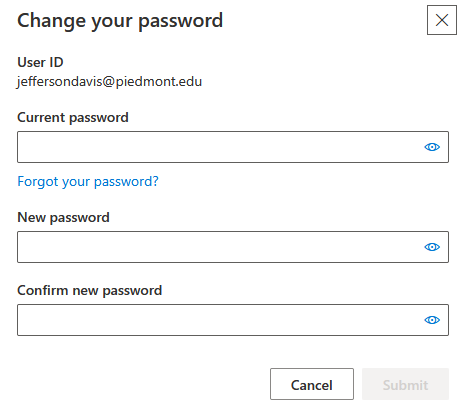
7. Select Submit to change your password
When creating a password you may receive an error about Password Complexity Requirements. This means your password does not meat one of the below requirements:
Password Requirements
Must be at least 12 characters long.
Must have at least one capital letter.
Must have at least one lower case letter.
Must have at least one number.
Special characters are optional. (Example - !, @, #, $, %, ^)
Must have a minimum age of 1 day before it can be changed.
Users cannot use the last 24 passwords they have used.
Passwords are non-expiring.
7. Select Submit to change your password