
Manage Teams Meetings
1. Create a Teams Meeting
- Open a Web Browser and navigate to https://teams.microsoft.com/
- You can also use the Desktop App version of Microsoft Teams
- Login using your @lions.piedmont.edu credentials
- Navigate to the Calendar column

- Select New

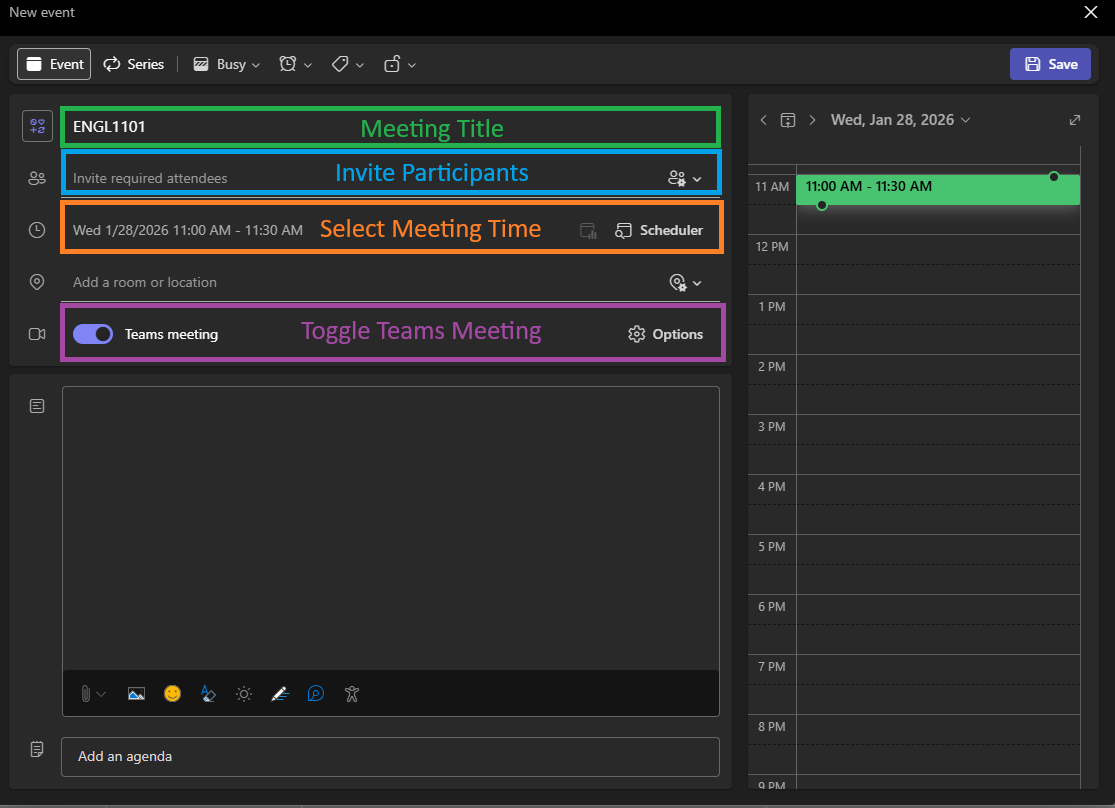
- The New Event popup appears, Fill out the fields for Add Title, Invite Required Attendees, and be sure to Toggle Teams Meeting
- The Event Title will generally be the name of the Class .
- For the Invite Required Attendees field, type in the student's Lions email address to add them to the meeting.
- For the Scheduler Field, select the Date & Time for when the meeting will take place.
- [OPTIONAL]: Add a meeting room/location if you're hosting a hybrid meeting of in-person and online guests. (Example: DanielHall-310)
- Be sure to Toggle Teams Meeting, so that a URL for the meeting is created.
- Finally, select Save in the top-right corner to create the meeting
- A Meeting will be created and invites will be sent to the participants.


2. Join a Teams Meeting
A meeting created with Attendees will send an email invite to the participant's Outlook but you can also view the invite on the Teams Calendar
- Open a Web Browser and navigate to https://teams.microsoft.com/
- You can also use the Desktop App version of Microsoft Teams
- Login using your @lions.piedmont.edu credentials
- Navigate to the Calendar column
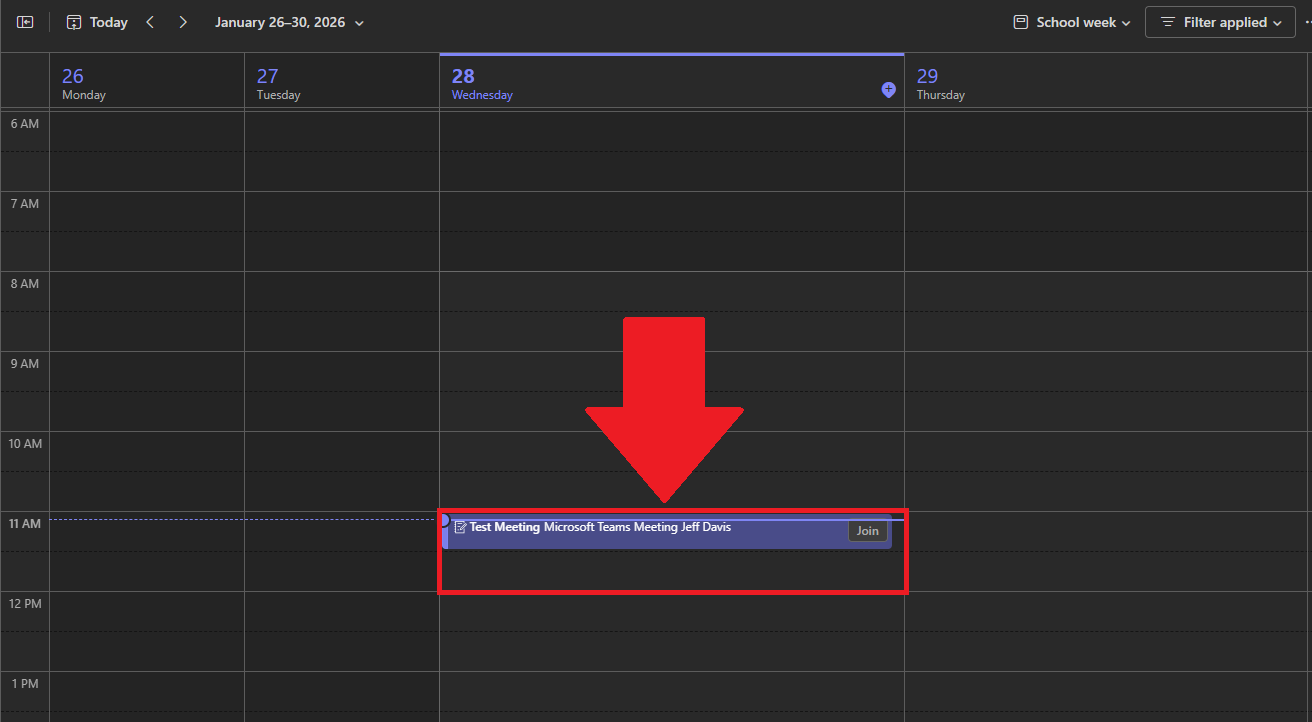
- Scroll to the Date/Time that the Teams Meeting would take place, you should see the meeting on your Teams Calendar.
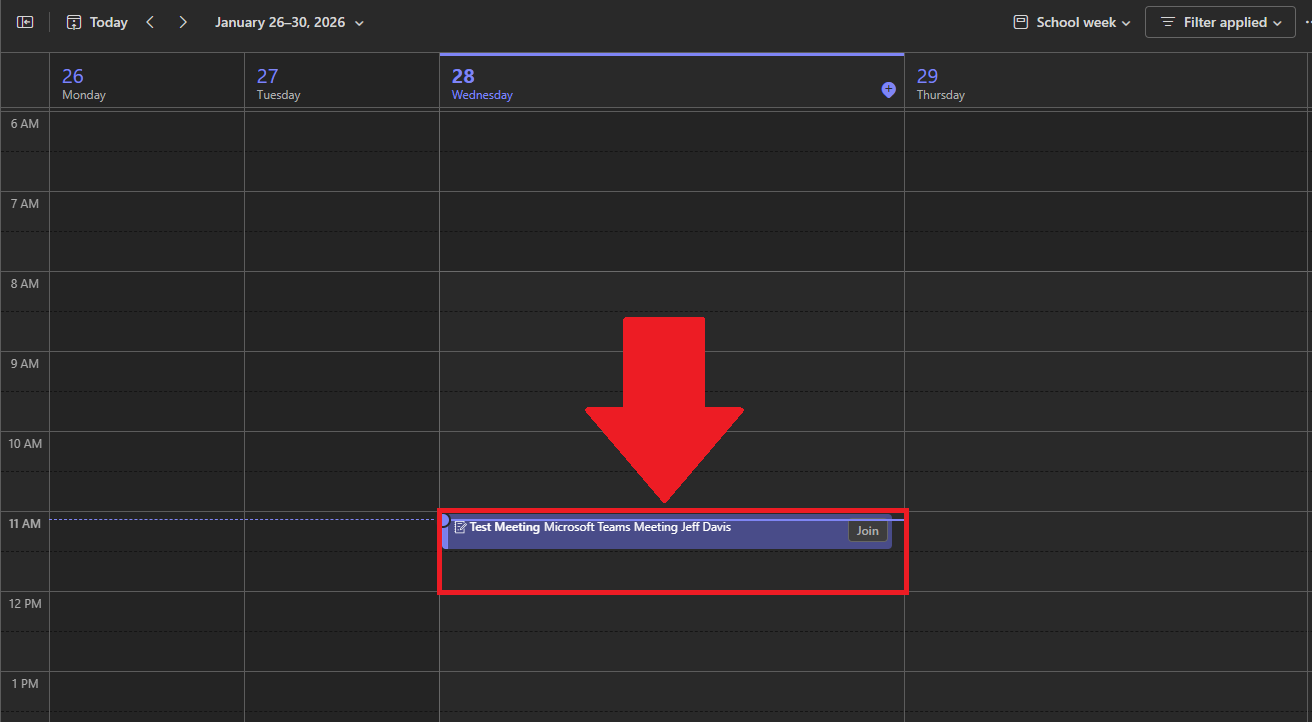
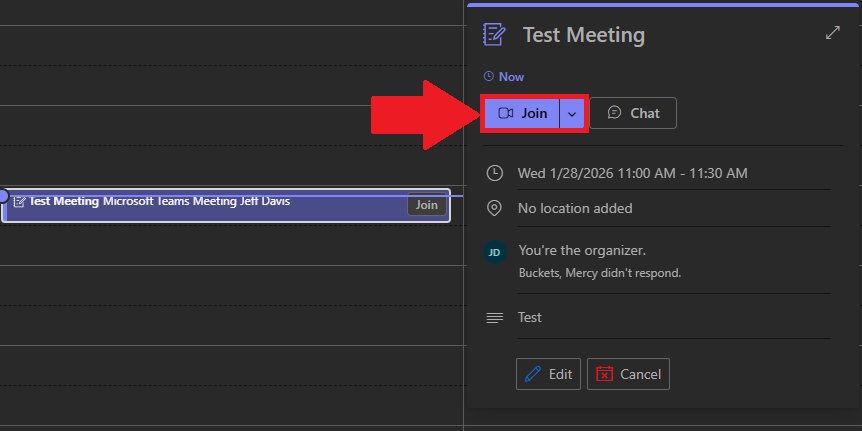
- Select the Meeting, and select Join
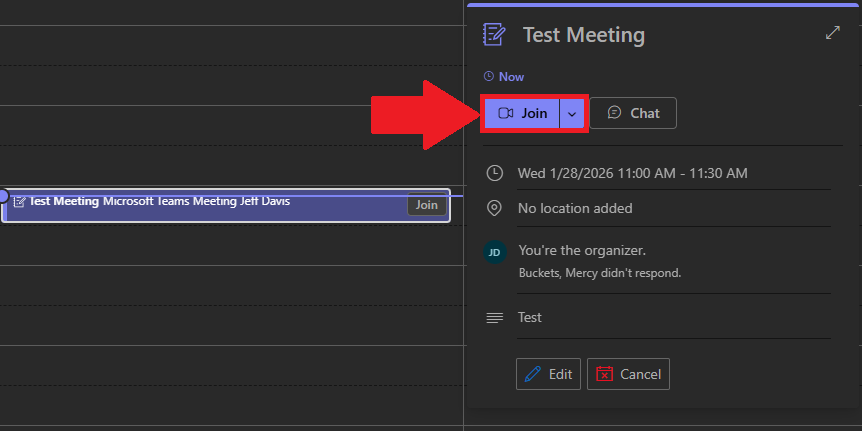
- Follow through the on-screen prompts to select your Audio and Video equipment as you would normally do so if you were using Zoom.
3. Meeting ID and Passcode
You can complete the following as either a host or attendee
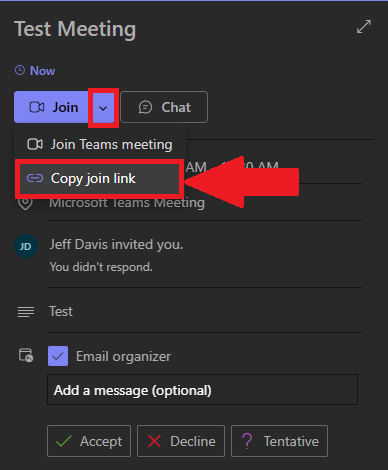
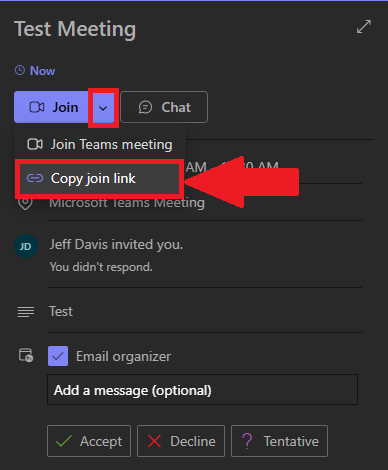
- You can obtain the Meeting Link/URL by selecting the Drop-down arrow next to Join Meeting on your Teams Calendar.
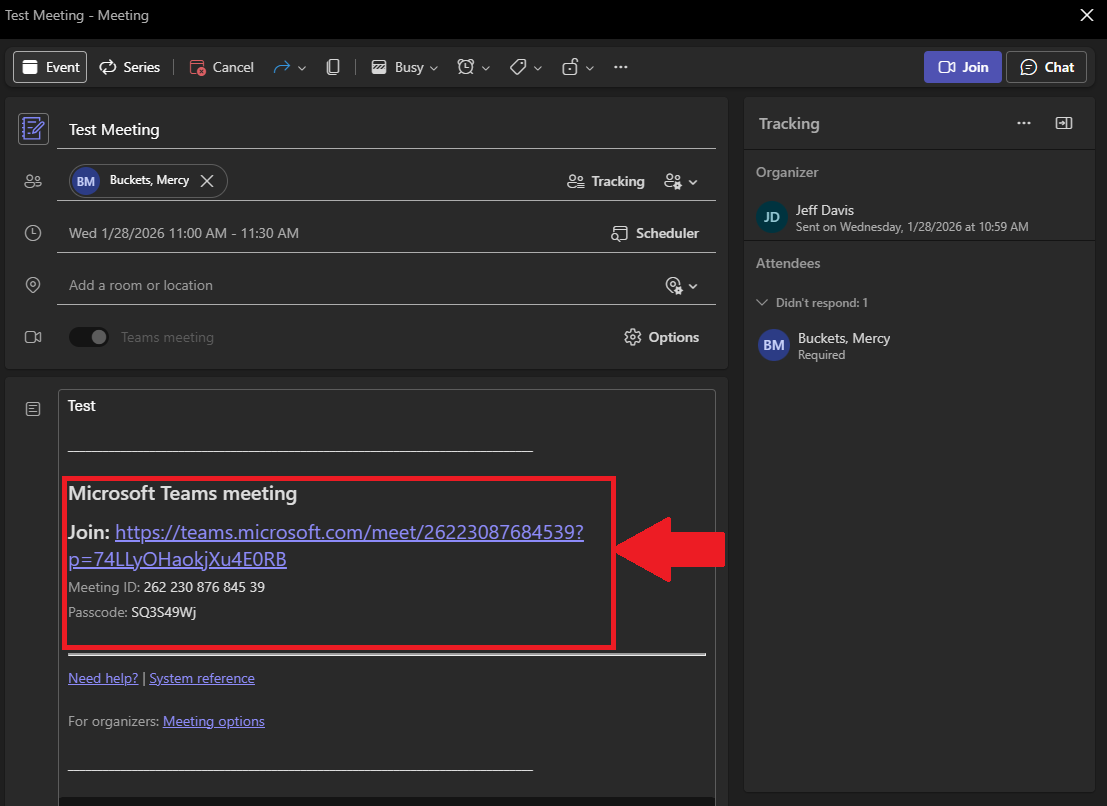
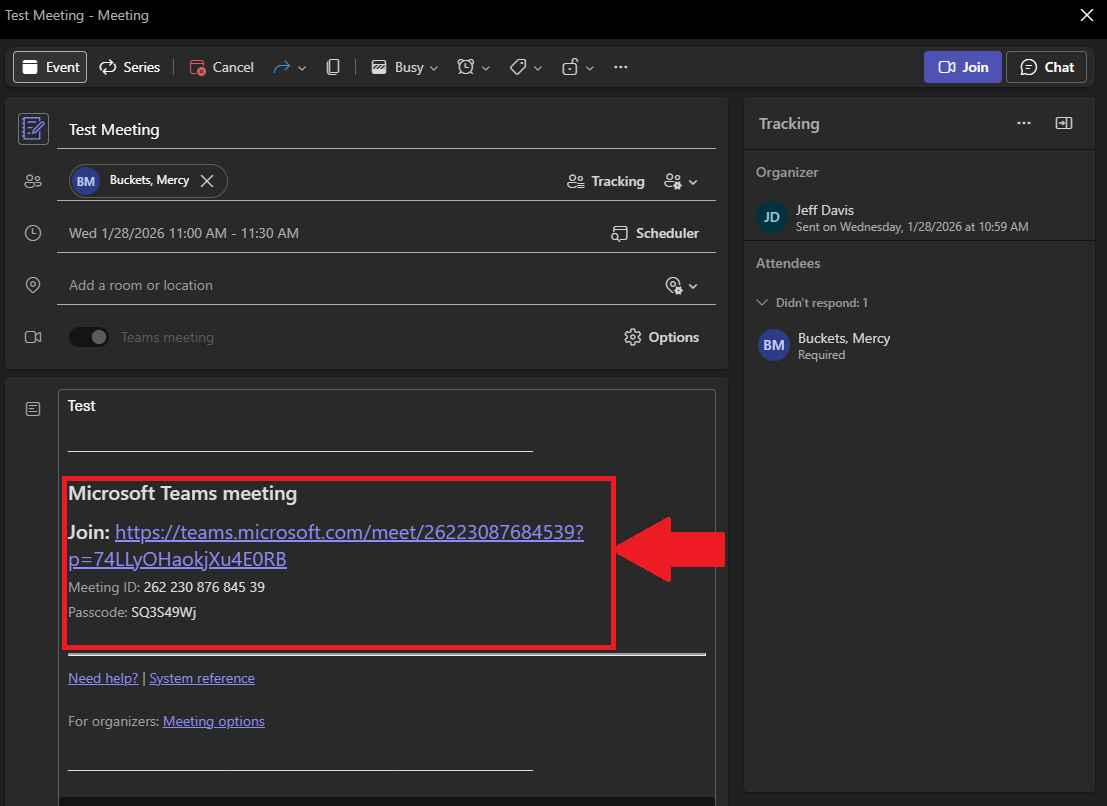
- If you Double-Click a meeting on your Calendar, you can see the Meeting ID and Passcode
4. Advanced Options
The following section can only be completed by the host or co-hosts of a Teams Meeting
- Navigate to Teams Calendar, the following options can be performed on New Meetings, before they're created, or afterwards for existing Teams Meetings.
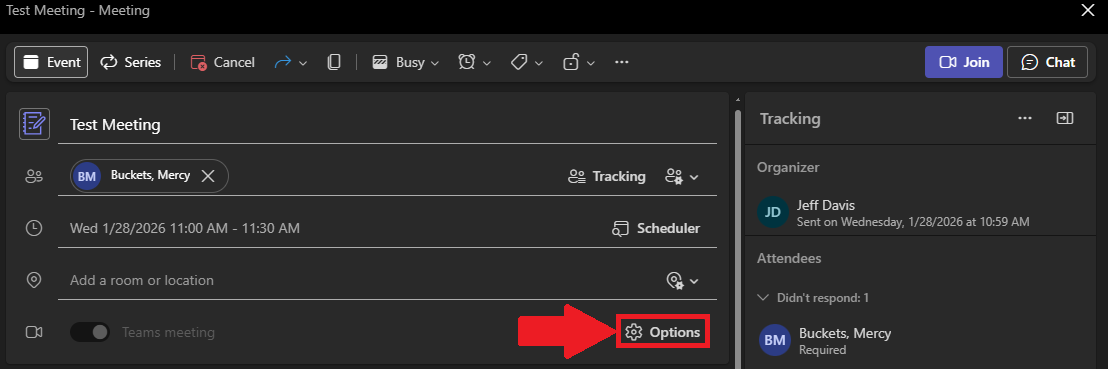
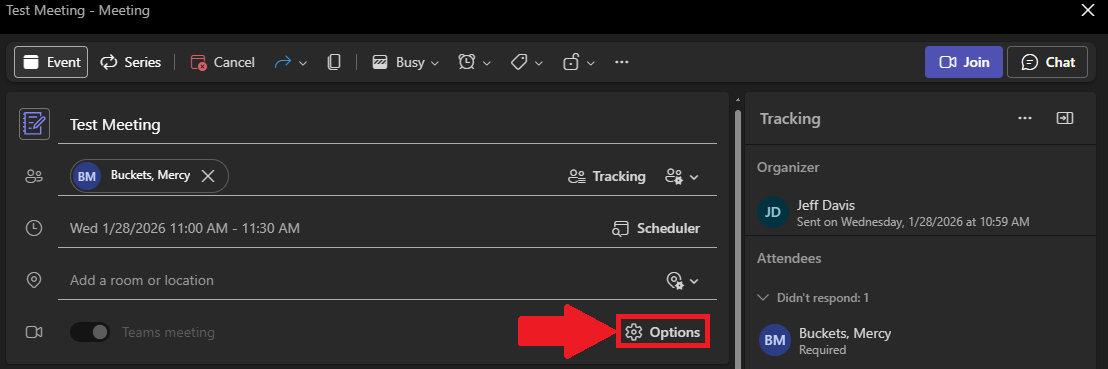
- Select the Options button when editing or creating a Team Meeting
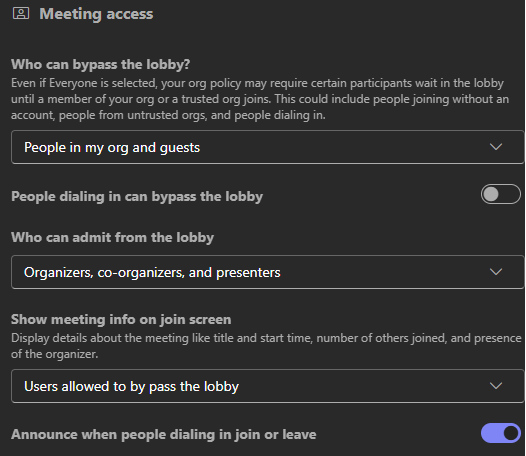
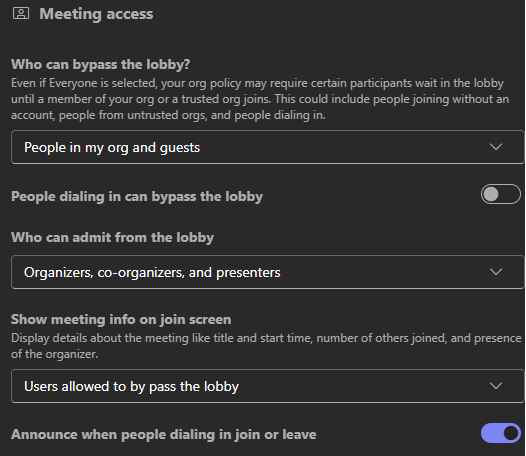
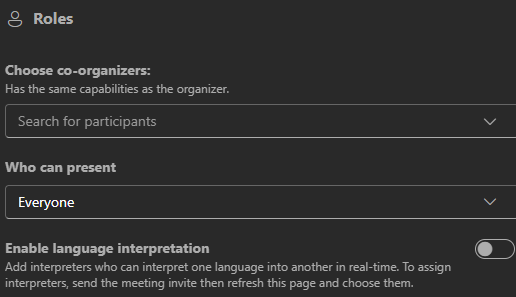
- In this menu, you can manage Meeting Access and Roles
- Meeting Access: Here you can manage the basic permissions of attendees in the meetings.
- Roles: Here you can manage co-hosts and presenting permissions for participants.
- Meeting Access: Here you can manage the basic permissions of attendees in the meetings.
💬 Department Contact Info
For any issues or questions regarding Microsoft Teams, please contact IT Helpdesk support
📞 (706) 778-3000
✉️ Department@piedmont.edu
🔗 https://ellucian.service-now.com