
Manage Teams Meetings
1. AccessCreate Microsofta Teams Meeting
- Open a Web Browser and navigate to https://teams.microsoft.com/
- You can also use the Desktop App version of Microsoft Teams
- Login using your @lions.piedmont.edu credentials
- Navigate to the Calendar column

 The New Event popup appears, Fill out the fields for Add Title, Invite Required Attendees, and be sure to Toggle Teams Meeting
Be sure to Toggle Teams Meeting, so that a URL for the meeting is created. Finally, select Save in the top-right corner to create the meeting
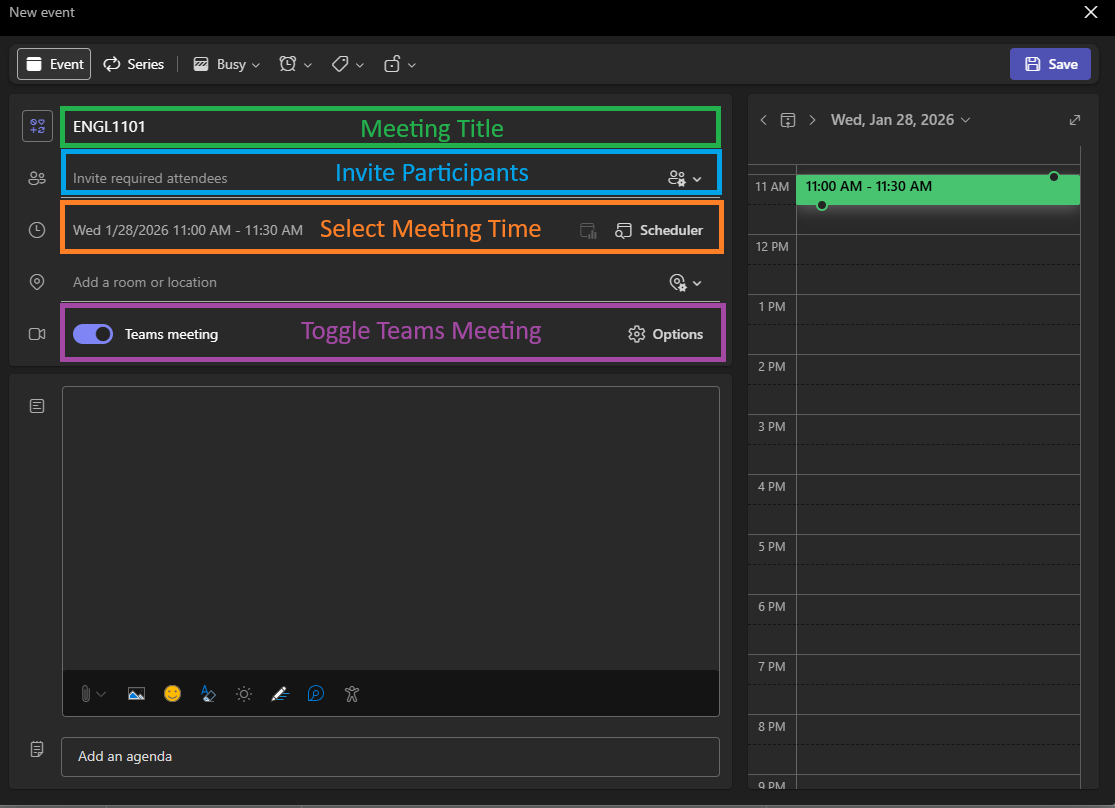 A Meeting will be created and invites will be sent to the participants.
2. SectionJoin Header/Titlea Teams Meeting
A meeting created with Attendees will send an email invite to the participant's Outlook but you can also view the invite on the Teams Calendar
BeginOpenInstructions
UtYouenimcanadalsominimuseveniam,thequisDesktopnostrudAppexercitationversionullamcooflaborisMicrosoftnisi ut aliquip ex ea commodo consequat.Duis aute irure dolor in reprehenderit in voluptate velit esse cillum dolore eu fugiat nulla pariatur.

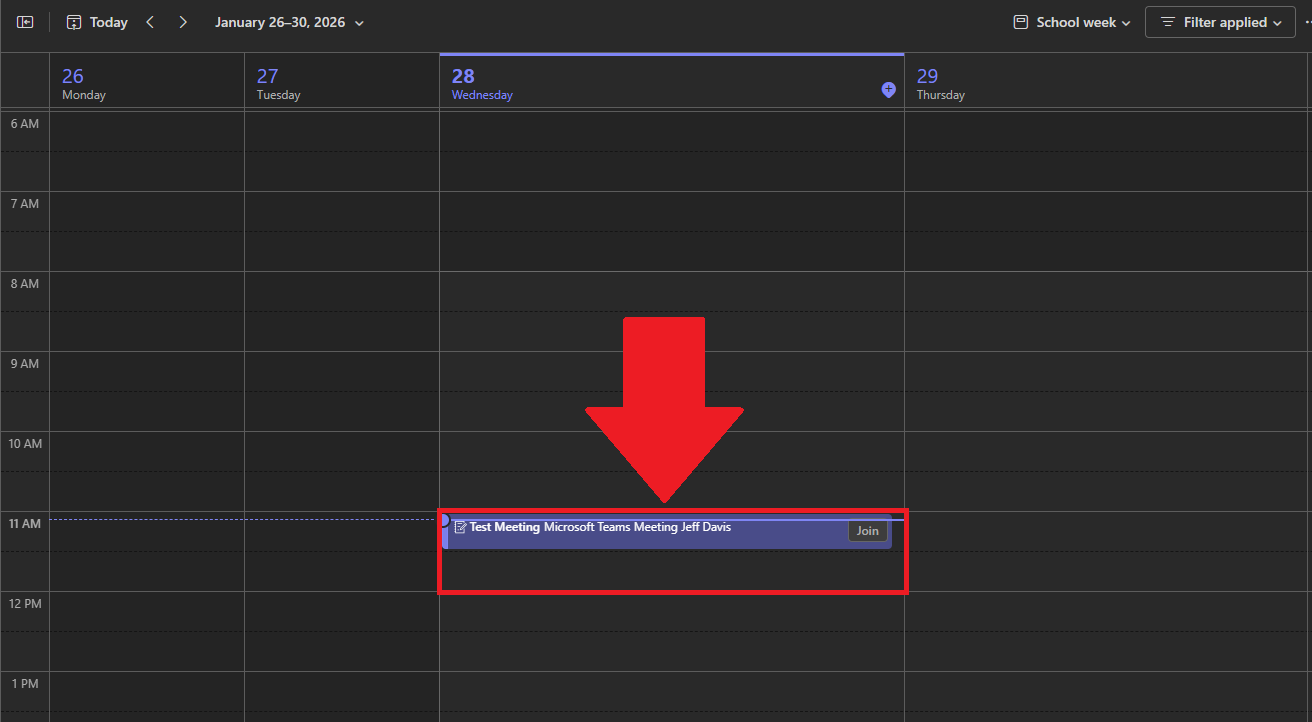
Select the Meeting, and select Join
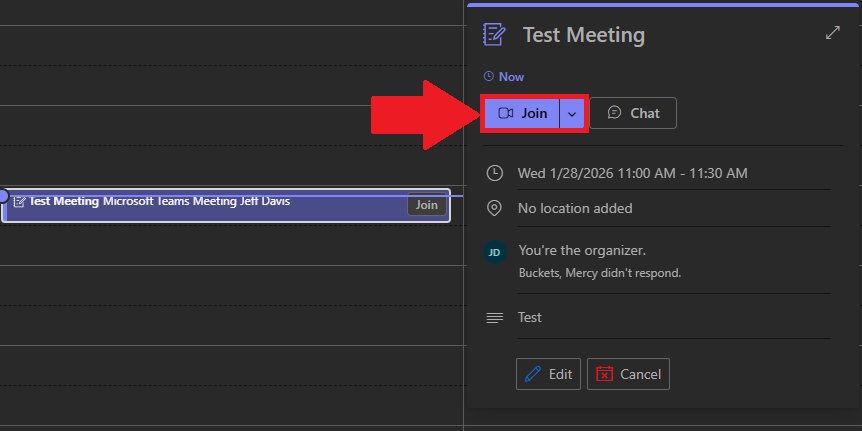
Follow through the on-screen prompts to select your Audio and Video equipment as you would normally do so if you were using Zoom.
3. Meeting ID and Passcode
You can complete the following as either a host or attendee
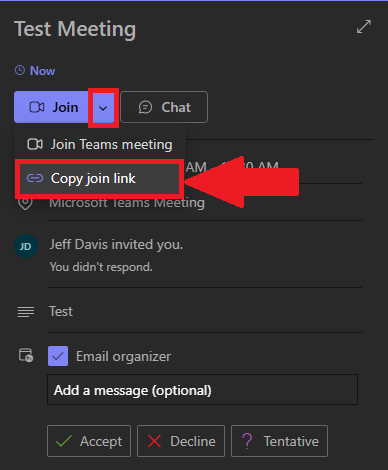
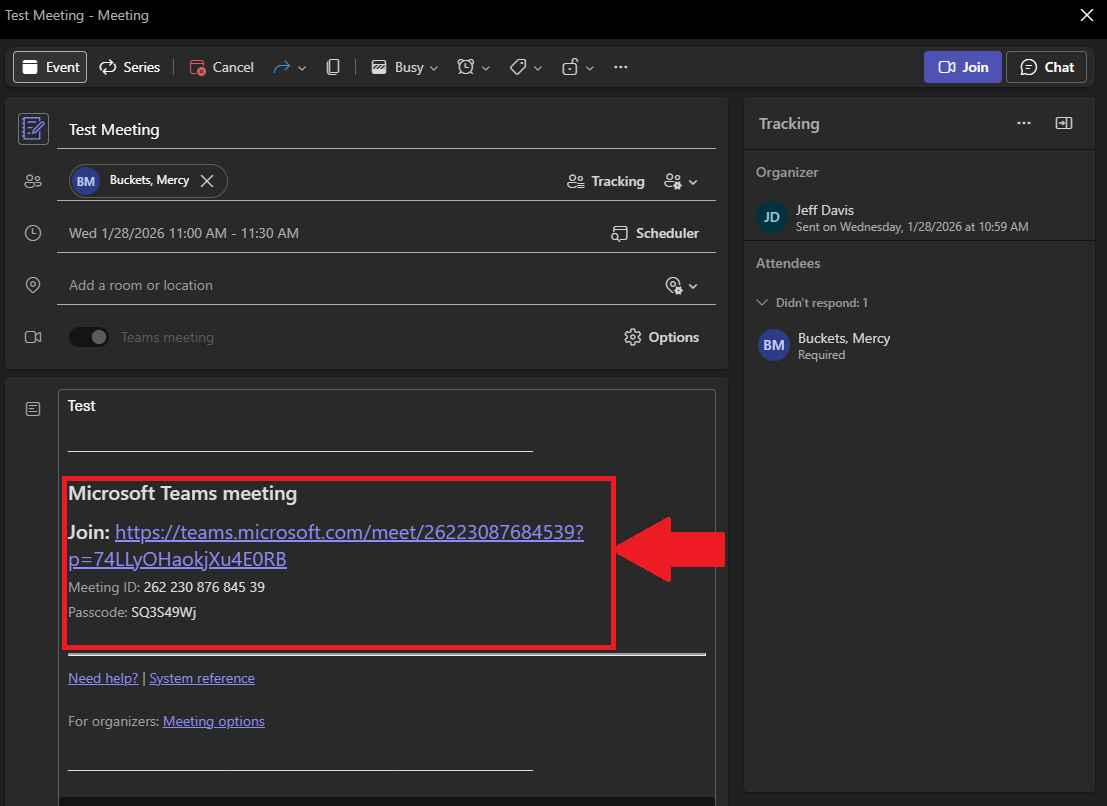
If you Double-Click a meeting on your Calendar, you can see the Meeting ID and Passcode
4. Advanced Options
The following section can only be completed by the host or co-hosts of a Teams Meeting
Navigate to Teams Calendar, the following options can be performed on New Meetings, before they're created, or afterwards for existing Teams Meetings. Select the Options button when editing or creating a Team Meeting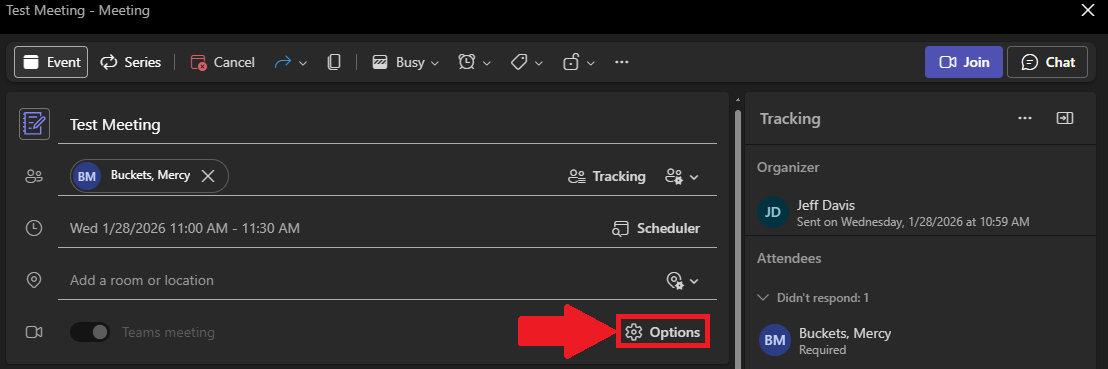 In this menu, you can manage Meeting Access and Roles
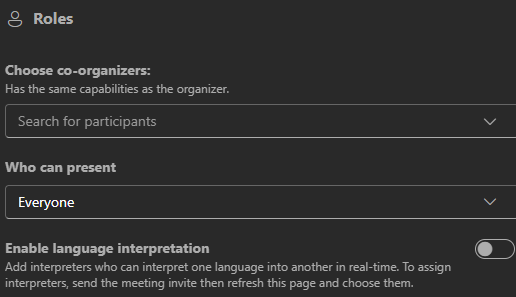
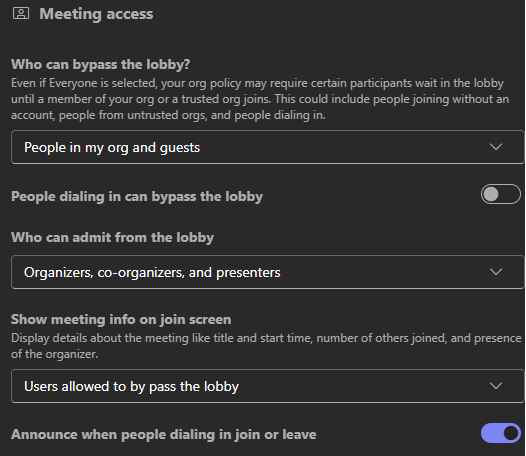 Roles: Here you can manage co-hosts and presenting permissions for participants.
💬 Department Contact Info
For any issues or questions regarding theMicrosoft [Insert Issue],Teams, please [Department]contact IT Helpdesk support
📞 (706) 778-3000
✉️ Department@piedmont.edu
🔗 https://www.Piedmont.eduellucian.service-now.com