
Manage Printer Address Book
1. Add new user to Address Book
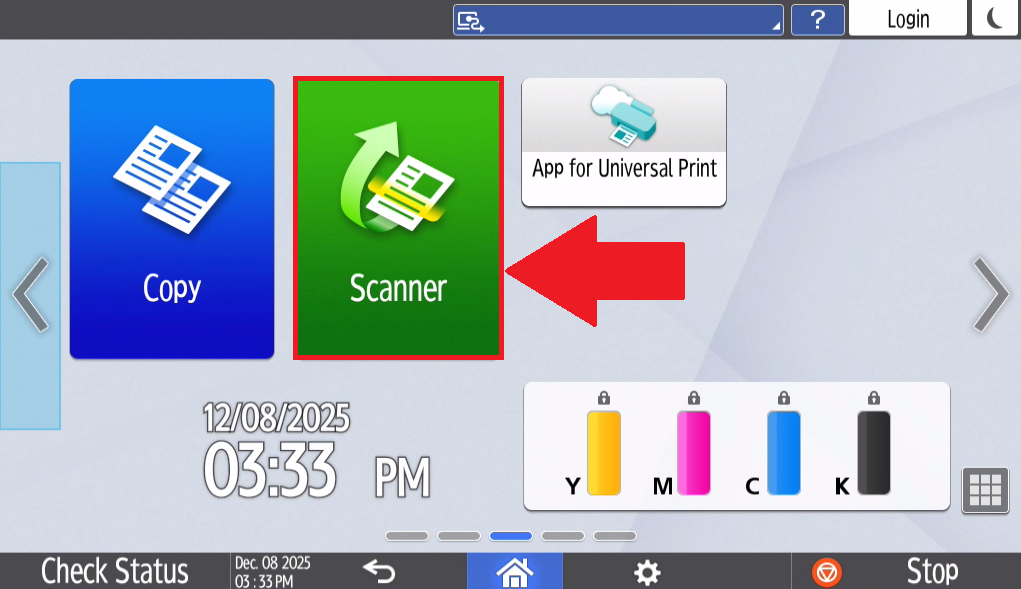
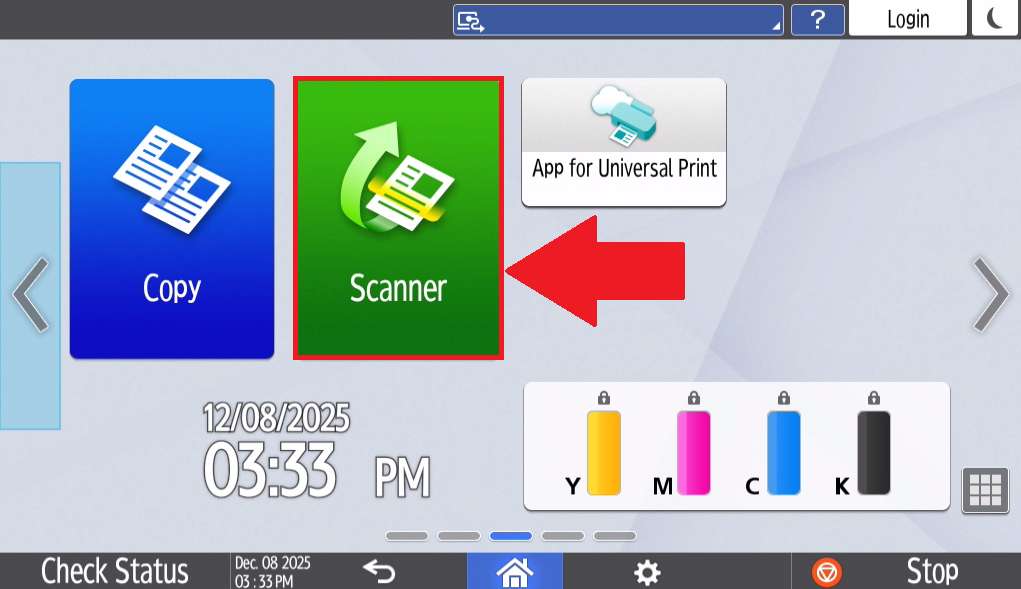
- Select Scanner on the home page of the printer's touchscreen tablet.
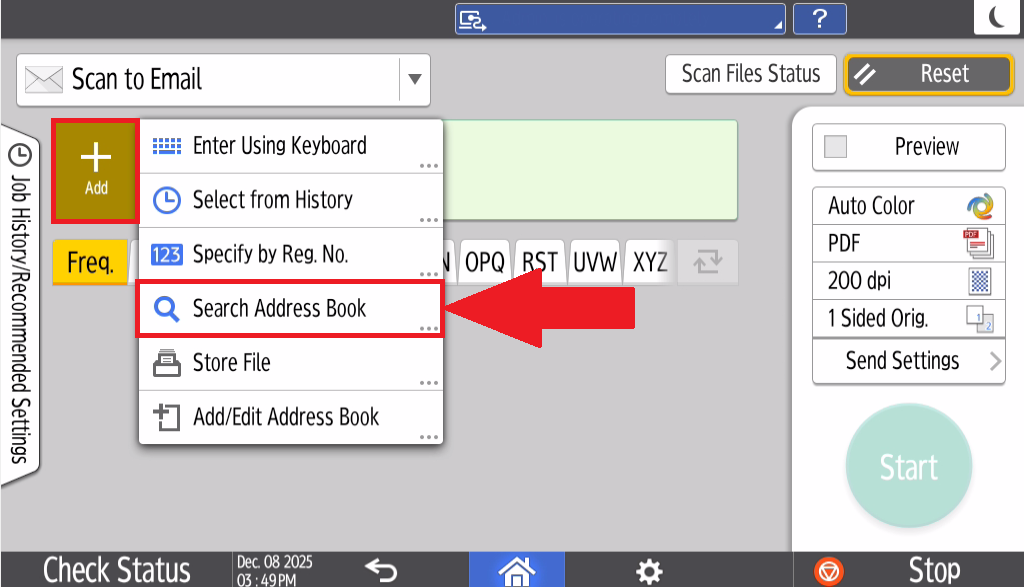
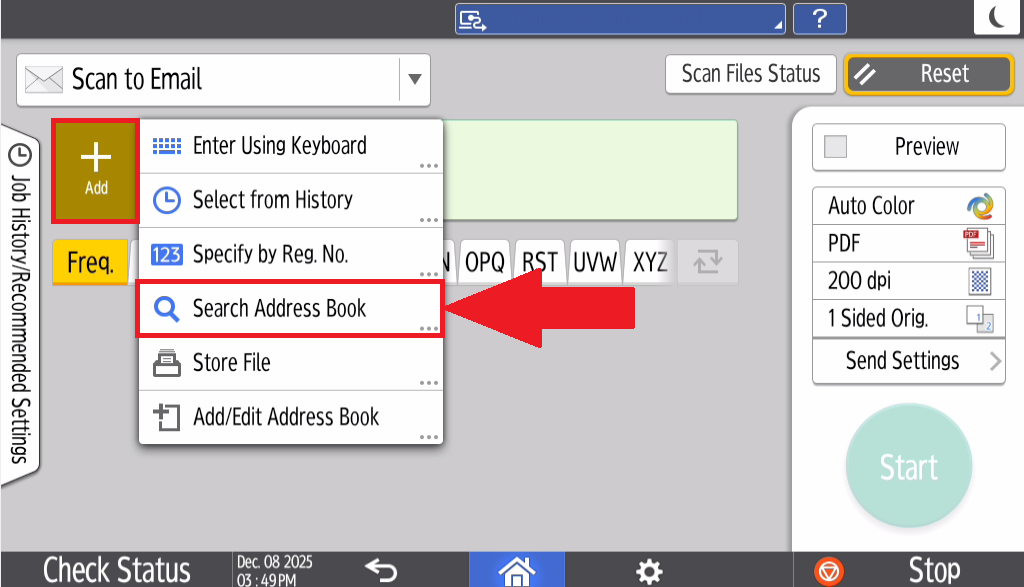
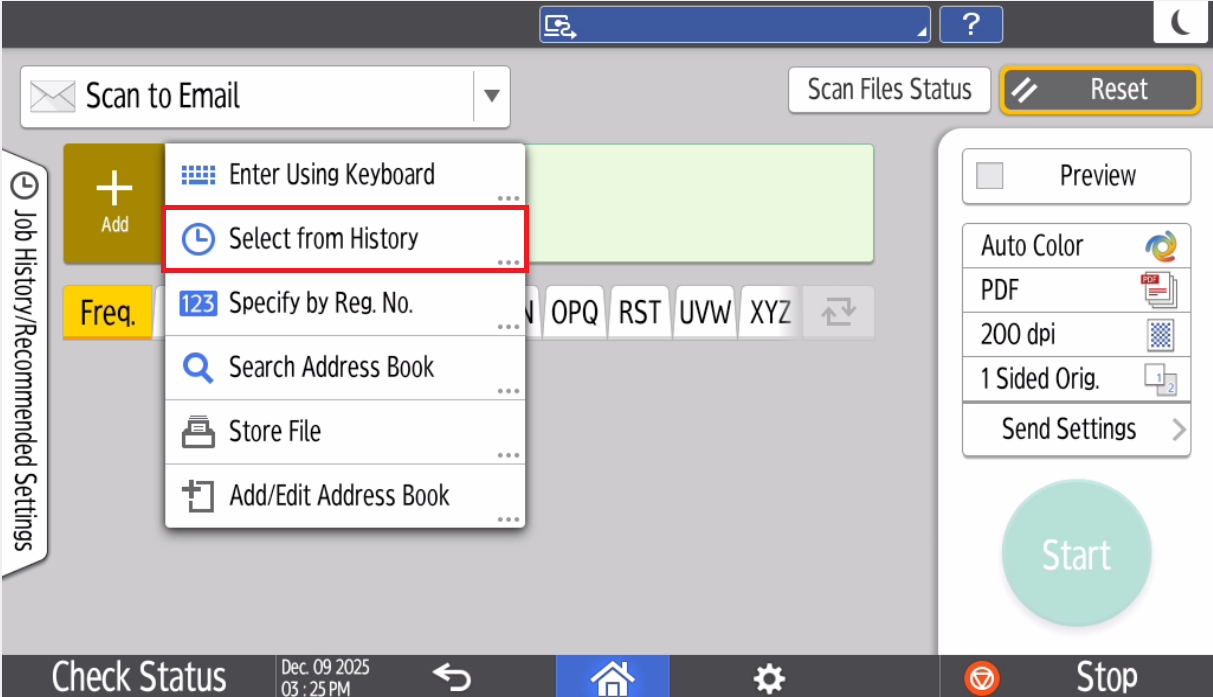
- Select Add and select Search Address Book
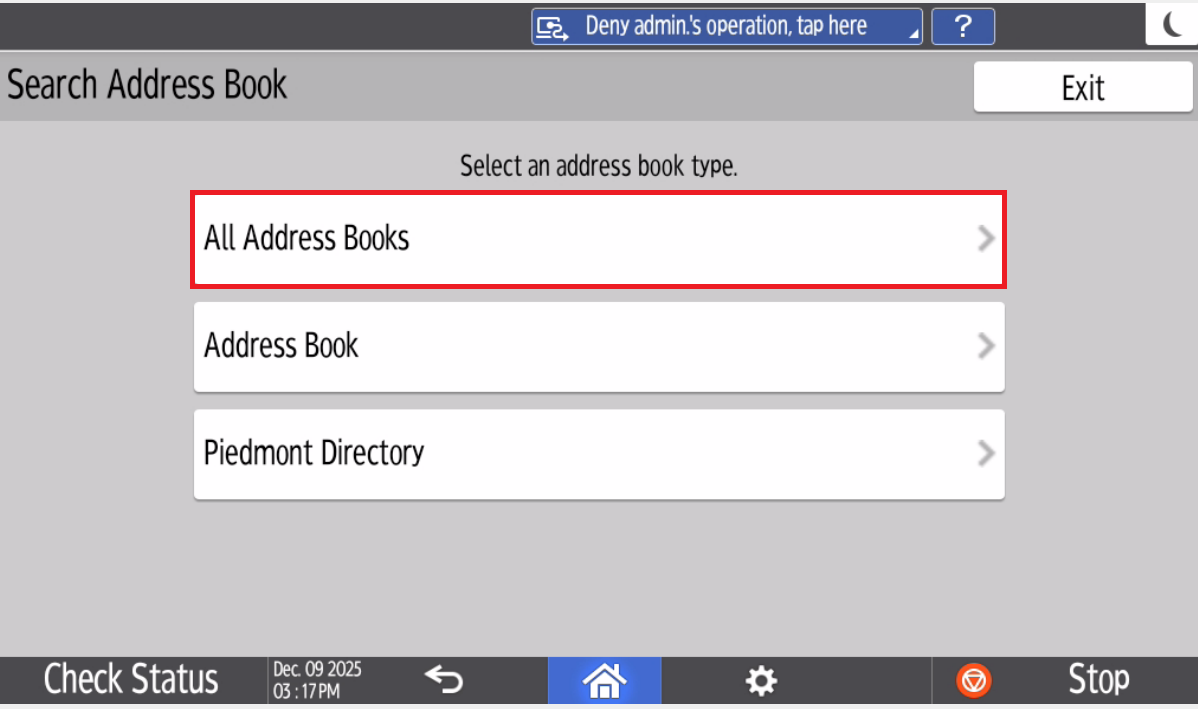
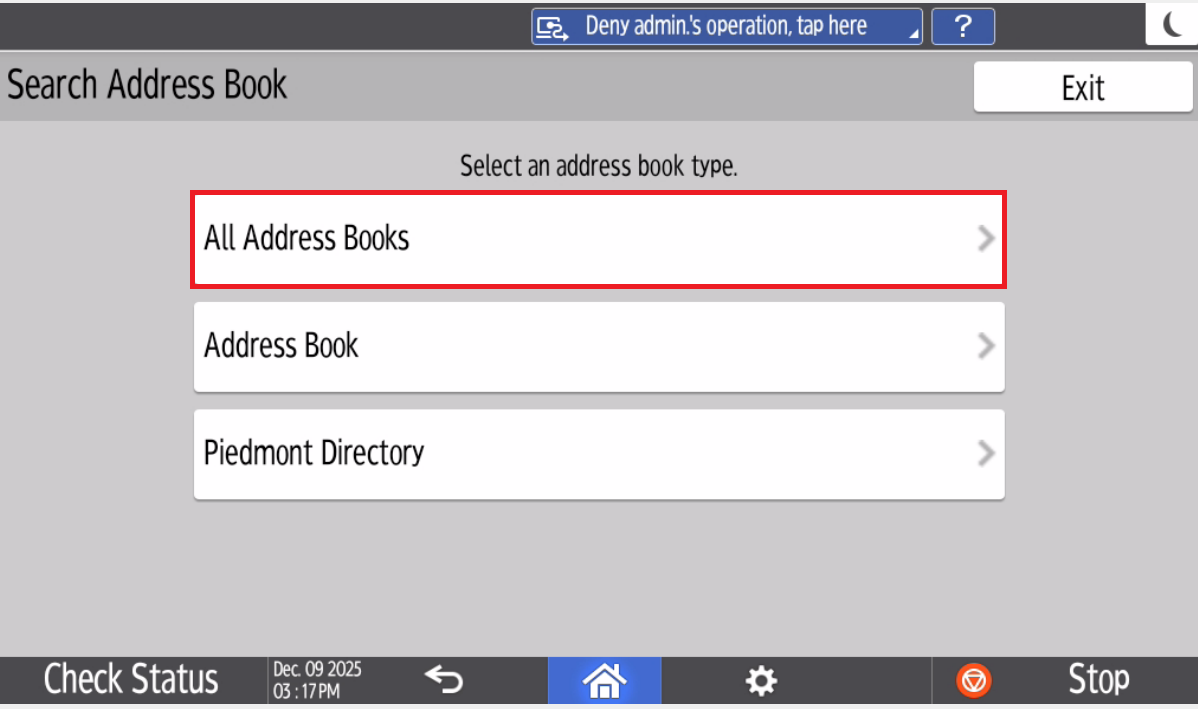
- Select All Address Books
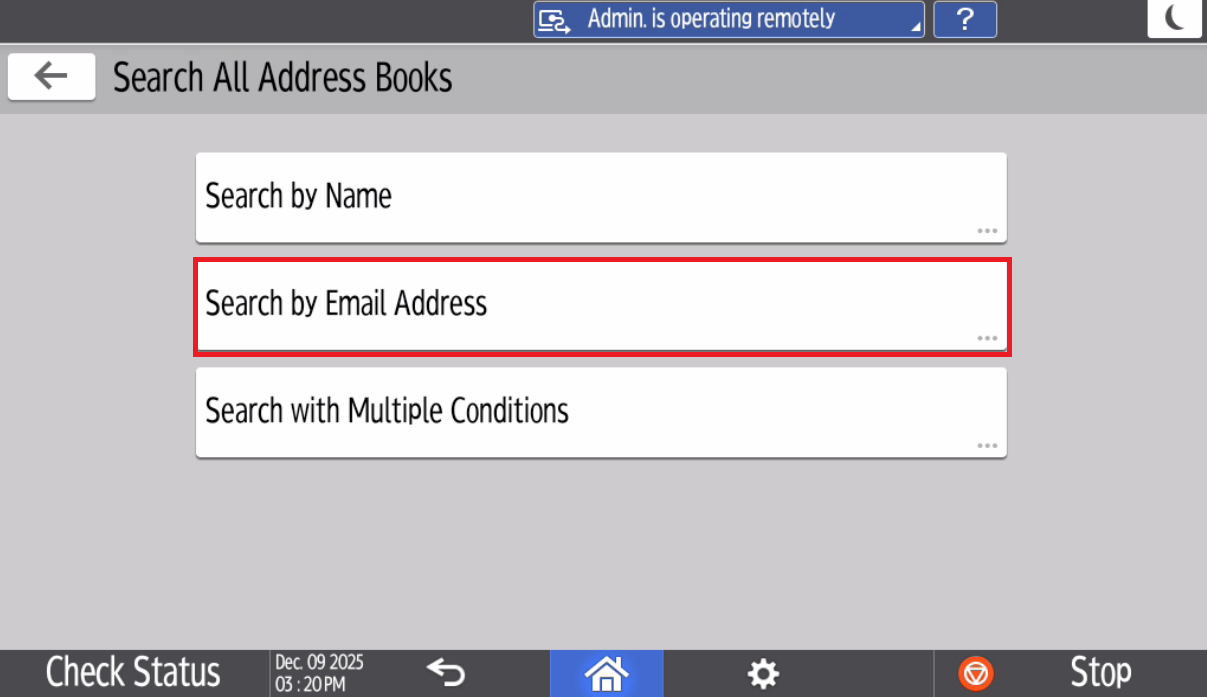
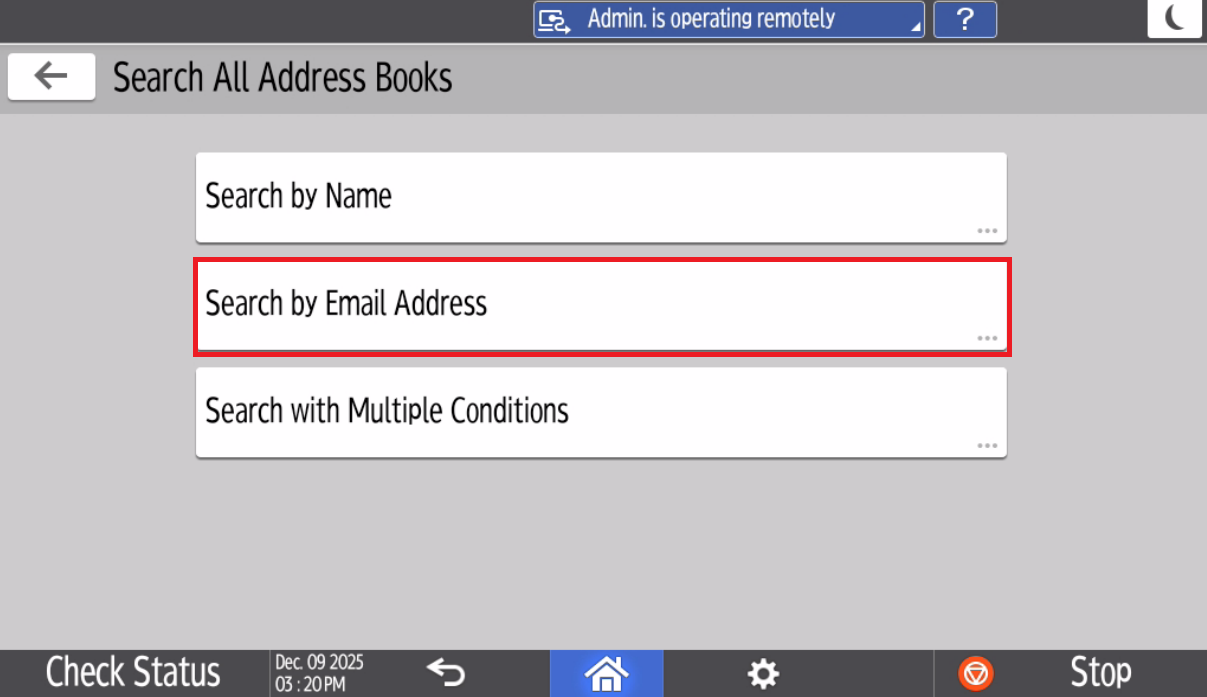
- Select Search by Email Address
- Type in your Email address and select Search
- The Printer will take a moment to search for the email address.
- Select your email Address and Select Add
- Your Piedmont account is now added to the Printer's Address Book
Once you've added yourself to the address book, You can select Select from History
💬 Department Contact Info
For any issues or questions regarding Printing, please contact IT support
📞 (706) 778-3000
✉️ ITHelpdesk@piedmont.edu
🔗 https://www.https://ellucian.service-now.com/Piedmont.edu