OneDrive Backup (Windows)
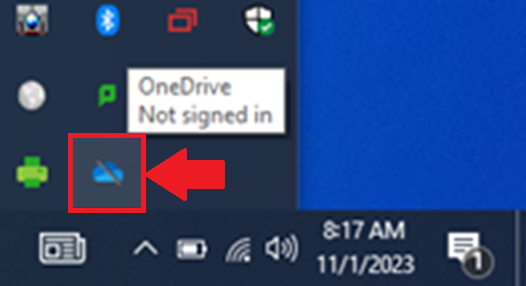
- Open OneDrive from the Shortcuts toolbar, located in the bottom right corner, next to the date & time
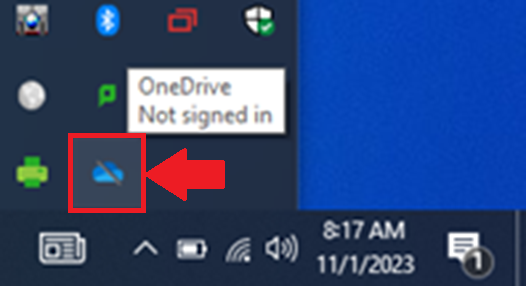
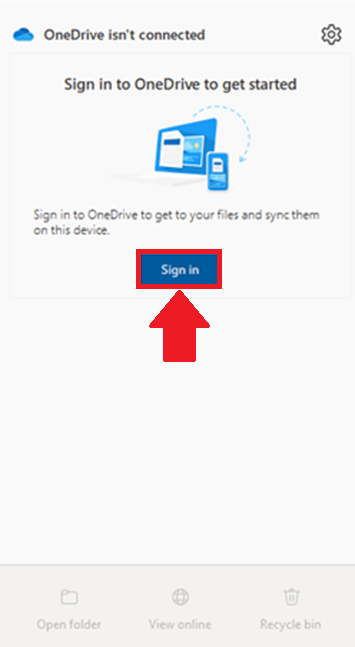
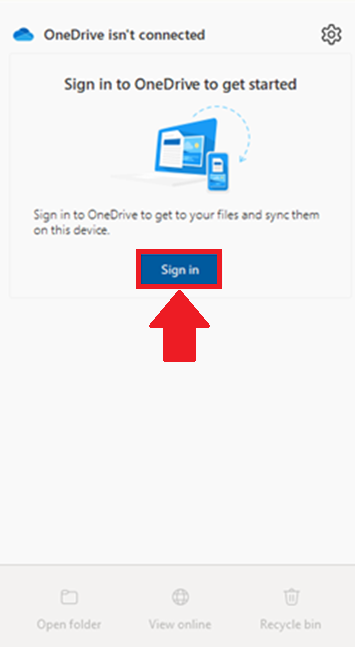
- Select Sign in
- If you are already signed in, please proceed to the next section
- Enter your full email address and select Sign in

- Follow through the on-screen prompts to finish signing in
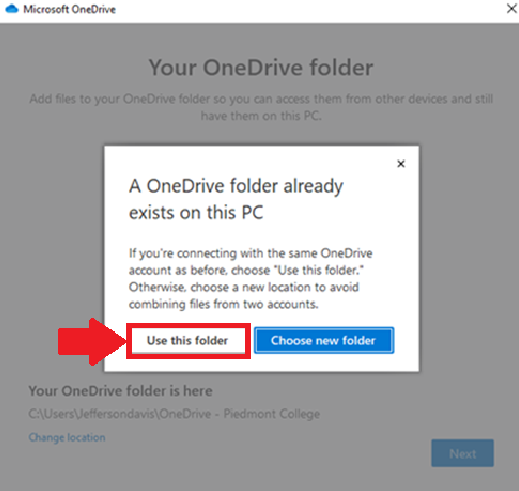
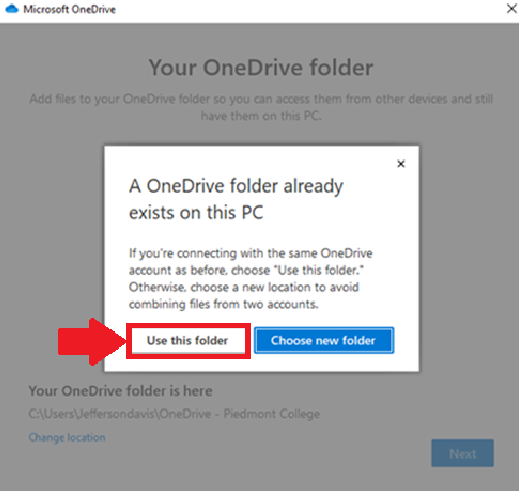
- If prompted that a OneDrive folder already exists, choose ‘Use this folder’ (Figure 5)
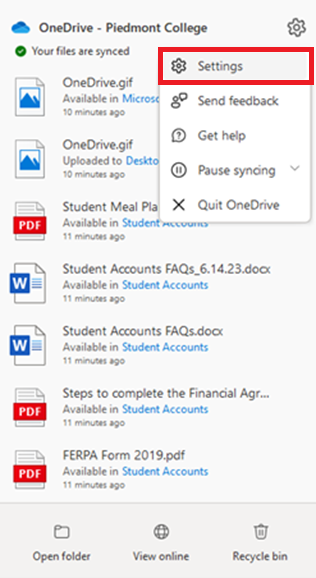
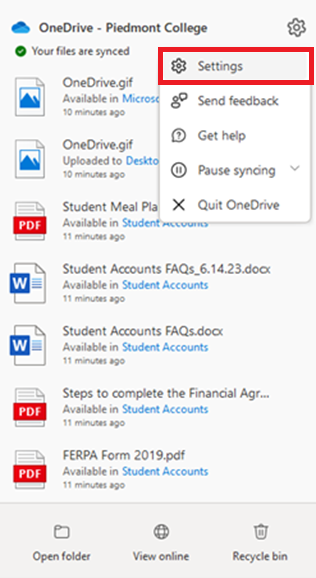
- Open OneDrive from the Shortcuts toolbar
- Select the Gear icon in the top right corner
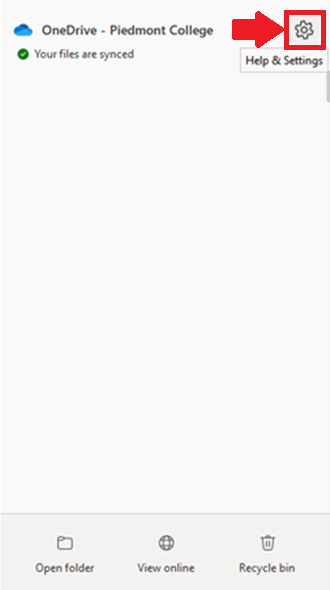
- Choose Settings from the dropdown menu
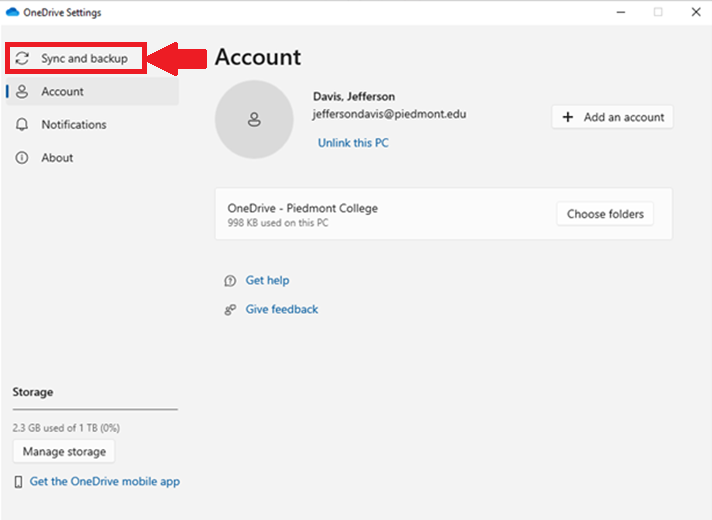
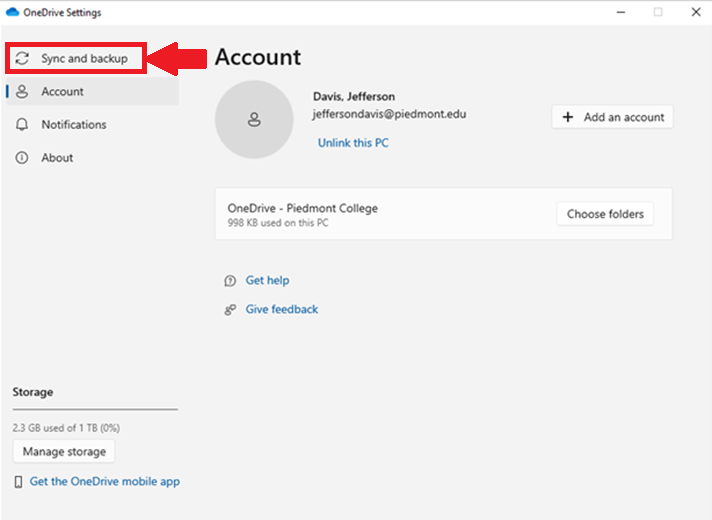
- Choose Sync and Backup
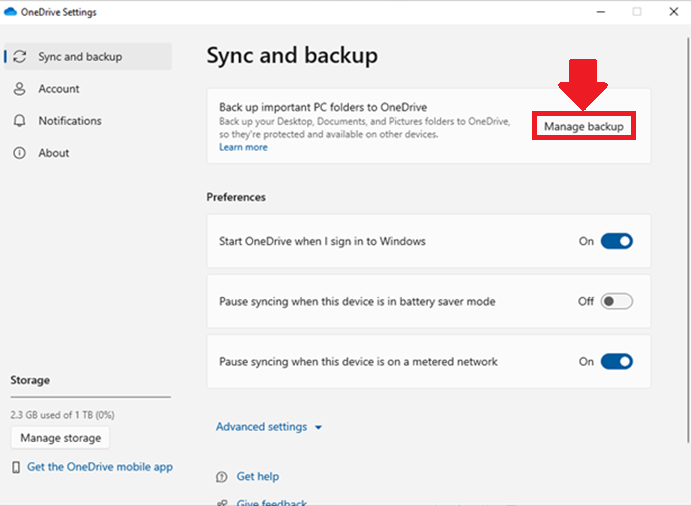
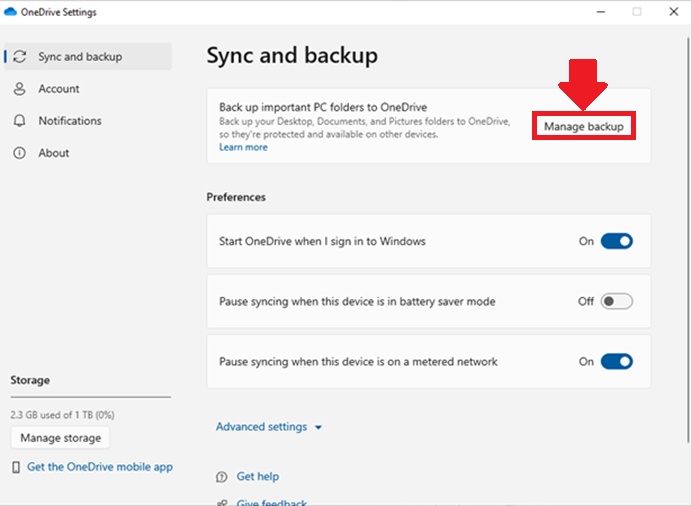
- Select Manage Backup
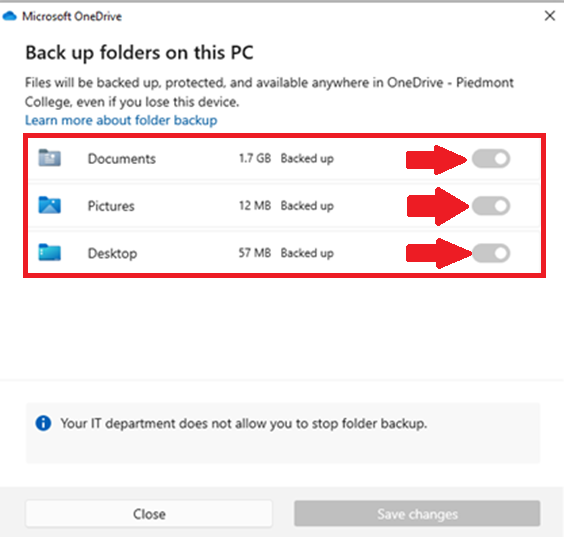
- Toggle the sliders on for Documents, Pictures, and Desktop
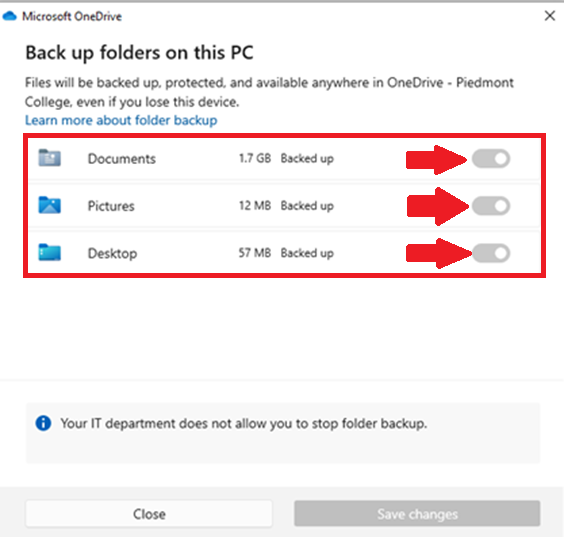
- If these options are already enabled, then that data is being backed up — you do not need to proceed
- Select Save Changes
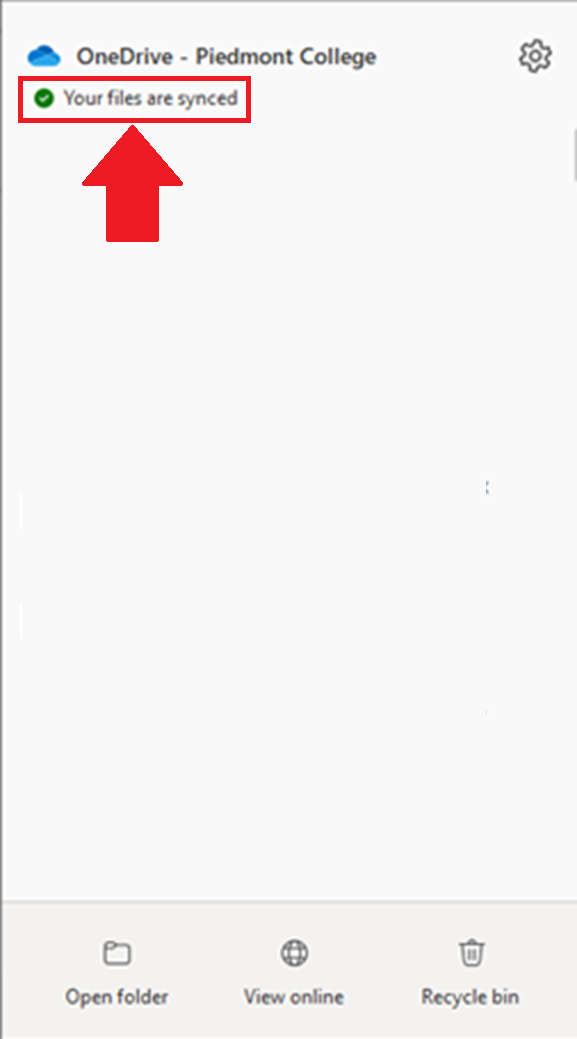
- When OneDrive is finished backing up you will see a green checkmark