***Lions*** ***Guest*** Network connection will expire after 5 days. After this, you will need to re-enroll your device.
##### How to Connect: 1. Navigate to the WiFi section of your system settings 2. Join the Network labeled ***Lions Guest*** 3. A webpage will open, review the **Terms and Conditions,** Check the box next to **I agree to the Terms & Conditions**, should you agree. 4. Select **Start** 5. The next screen will prompt, **Have you been provided an access code for an event, class, etc.?** - **No - Register as Guest** - Type in the WiFi password you were given in the **Voucher** field and select **Continue** - You will now be connected to ***Lions Guest*** - **Yes - I have a code** - Proceed to step 6 - **I have a Piedmont Email** - Proceed to Section 3 - *Connecting to the Lions Network* **[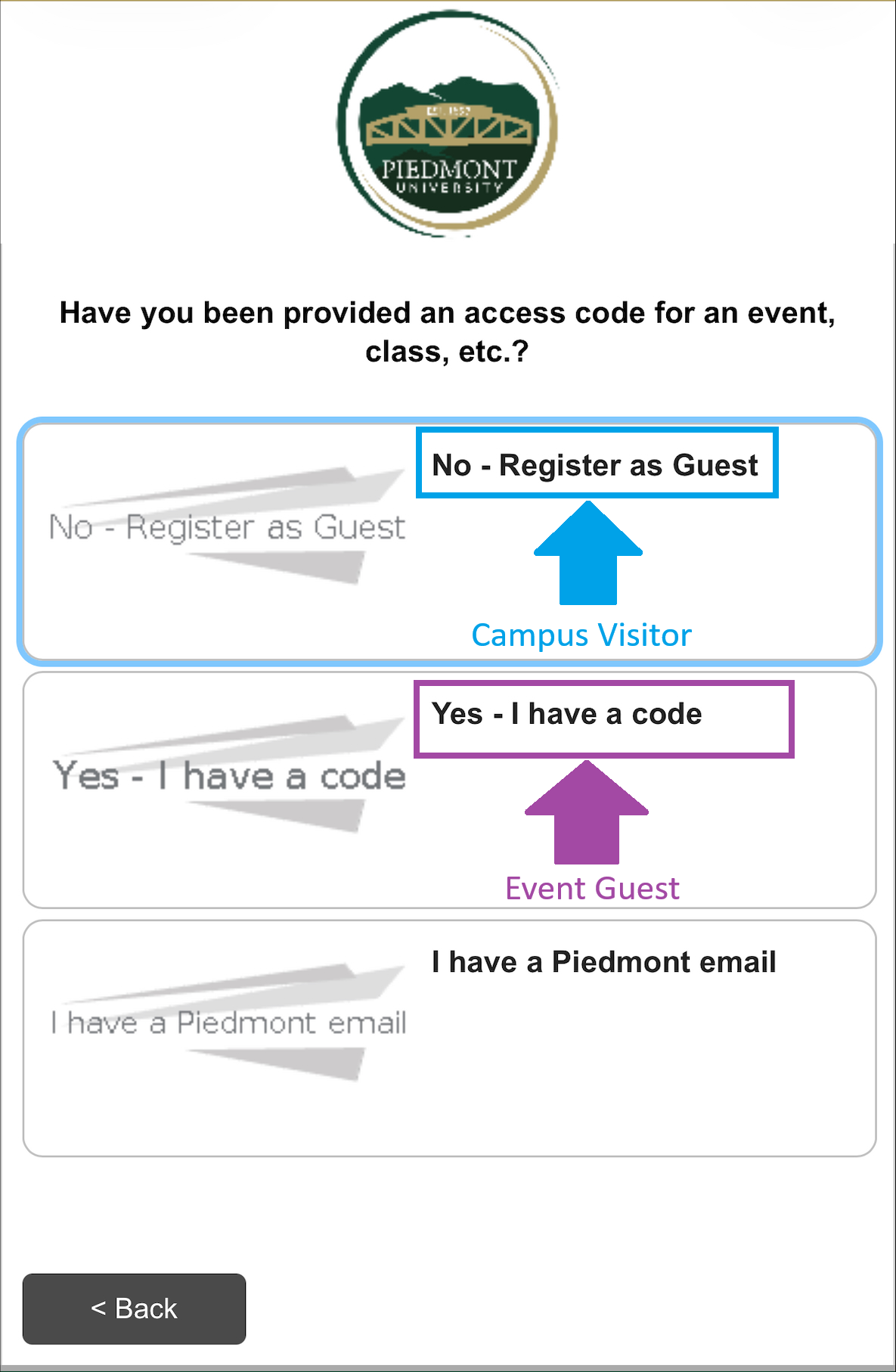](https://wiki.piedmont.edu/uploads/images/gallery/2026-02/zlhRetPU2BFGDKHs-guestwifiaccess.png)** 6. Enter an email address or Phone number where you will receive a security code. 7. After entering your information, please solve the **Captcha** 8. Select **Send**Should you leave the webpage, copy the **Wireless Verification Code** sent to your email or text message, Rejoin the ***Lions Guest*** network and select **I already have a verification code**.
9. Enter your **Wireless Verification Code,** solve the **Captcha**, and select **Continue** 10. You will now be connected to ***Lions Guest***Please review the recommended WiFi settings to disable 'MAC Randomization' after completing these steps. [How to disable MAC Randomization](https://wiki.piedmont.edu/books/student-resources/page/recommended-wifi-settings)
---