# Exiting Windows S Mode
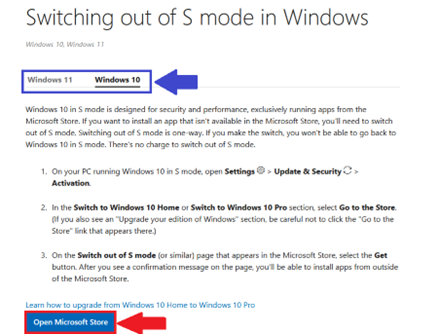
1. Open a Web Browser and visit [https://support.microsoft.com/en-US/Windows/Experience/Platform-variants/switching-out-of-s-mode-in-windows](https://support.microsoft.com/en-US/Windows/Experience/Platform-variants/switching-out-of-s-mode-in-windows)
2. Choose your **Operating System** (Windows 10/Windows 11)
3. Select **Open Microsoft Store
[](https://wiki.piedmont.edu/uploads/images/gallery/2025-06/b9s6POKyPDsbAWK9-windowssmodeintro.png)**
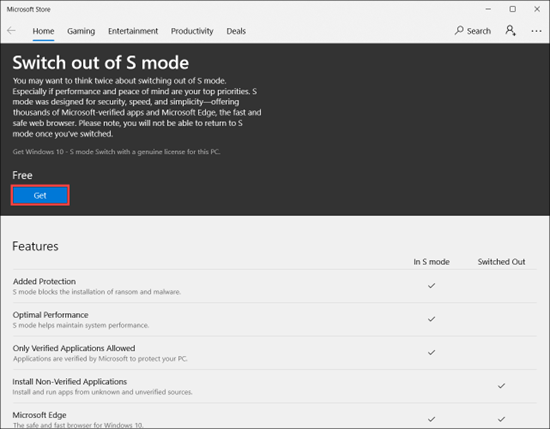
4. Select **Get** to switch out of Windows S mode
[](https://wiki.piedmont.edu/uploads/images/gallery/2025-06/Xz8CDEiyrIbuyjhs-exitwindowsmode.png)
---
## **Need Help?**
If you encounter an error or need assistance with this guide, please contact the IT Department and include a screenshot with a brief description of the issue.
[**Contact the IT Department Here**](https://wiki.piedmont.edu/books/student-resources/chapter/contact-it "Contact IT!")