Computer Lab Instructions
1. Logging in - Guest Account
Any files or changes made to this computer will be deleted at logoff. Please make sure you are logged in and saving your files to OneDrive.
- When using the Lab computers at Piedmont University, you will need to login using the Guest account.
2. Accessing your Files - OneDrive
You must login to OneDrive to save your files!
Windows Instructions
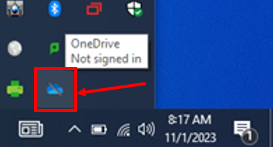
- Open OneDrive from the Shortcuts toolbar, located in the bottom right corner, next to the date & time.

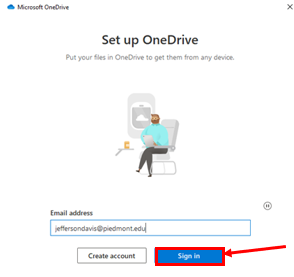
- Select Sign in

- Enter your full Lions email address and select Sign in
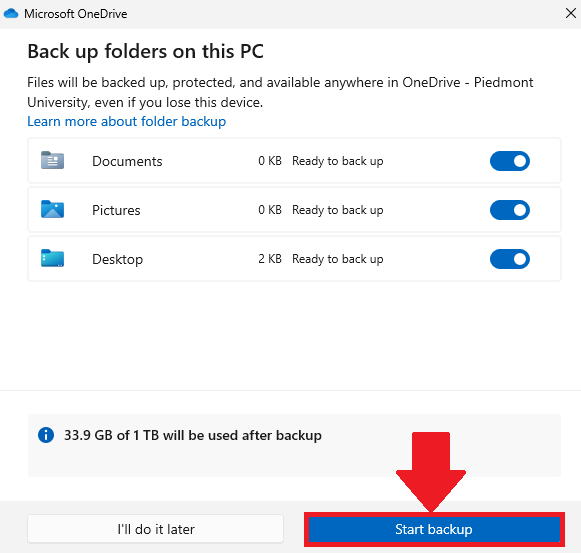
- Follow through the on-screen prompts to finish signing in , Select Start Backup to complete the process
- This ensures that you can access your files and that any files created on the lab computer will be saved.

- This ensures that you can access your files and that any files created on the lab computer will be saved.
MacOS Instructions
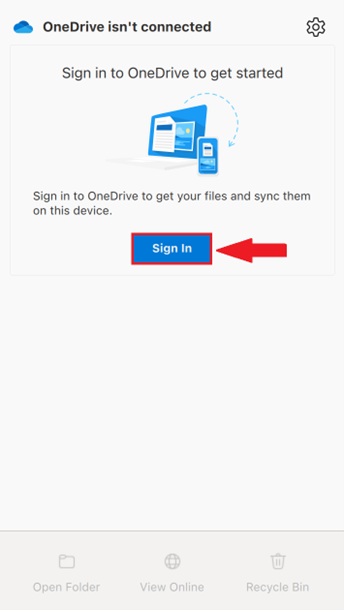
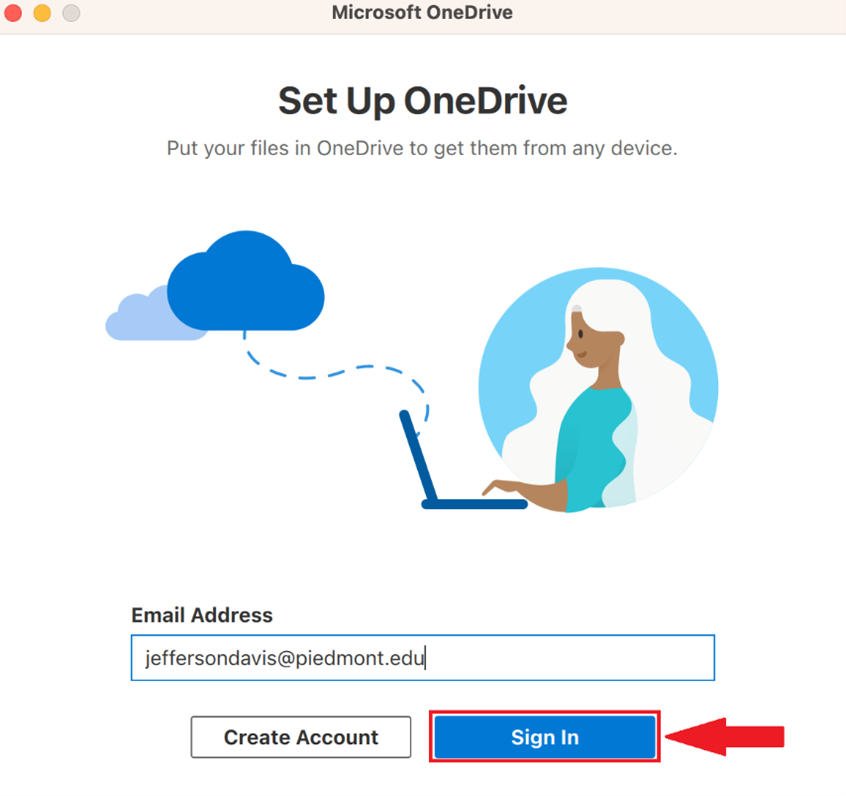
- Open OneDrive from the menu bar, located at the top of the screen

- Select Sign in

- Enter your full Lions email address and select Sign in

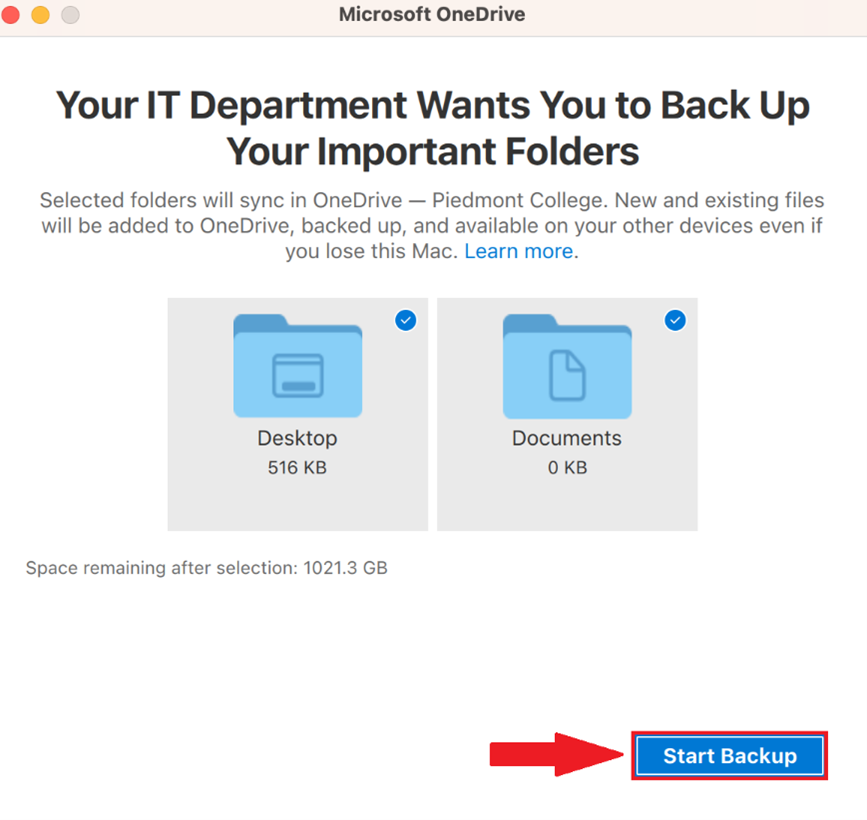
- Follow through the on-screen prompts to finish signing in , Select Start Backup to complete the process
- This ensures that you can access your files and that any files created on the lab computer will be saved.

3. Adobe Applications
Login using your personal email address so that you can access your portfolio after you graduate!
Installing Applications (Photoshop/Lightroom/Etc.)
-
Open the Adobe Creative Cloud Desktop Application


-
Launching Adobe Creative Cloud for the first time will open a web browser page asking you to sign in to Adobe.
-
Please sign in with your personal email address and select Continue
You will need to create an Adobe account using a personal email if it is your first time using Adobe Creative Cloud
-
Return to Adobe Creative Cloud, Select Apps and scroll down to the section Available in your plan.
-
Select the Install button to begin downloading the application.


Accessing your Portfolio
- On a tablet, smartphone, or PC, visit: https://assets.adobe.com/cloud-documents
- Sign in with the same email address you used to sign in to Adobe Creative Cloud.
- In the left column, select Files
- Here you can view and manage the items in your portfolio.
4. Logging Off
- When you are done using the PC, don't forget to sign out of the guest account to remove your files from the lab computer. This prepares the lab computer for the next student and frees up some system resources!