**Note:** Use a personal email address to create a free account with Adobe
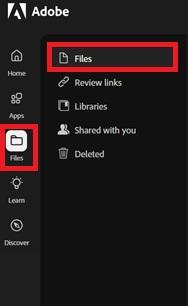
1. On a tablet, smartphone, or PC, visit [https://www.adobe.com/files/cloud-documents](https://www.adobe.com/files/cloud-documents) 2. Sign in with the same email address you used to sign in to Adobe Creative Cloud. 3. In the left column, select **Files**. 4. Here you can view and manage the items in your portfolio.**Note:** We strongly recommend *against* using your student email. This ensures continued access to Adobe Creative Cloud services and projects after leaving the university!
[](https://wiki.piedmont.edu/uploads/images/gallery/2025-06/Ob4uuLYPOF3ntySy-adobe1.jpg) --- ## **Need Help?**If you encounter an error or need assistance with this guide, please contact the IT Department and include a screenshot with a brief description of the issue. [**Contact the IT Department Here**](https://wiki.piedmont.edu/books/student-resources/chapter/contact-it "Contact IT!")