# Student Software

This document provides step-by-step instructions on how to install Office 365 applications on various devices. The guide is designed to make the installation process simple and straightforward, ensuring that all faculty/staff/students can access the necessary tools for their academic work.

# Adobe Portfolio Setup

<p class="callout success">**Note:** Use a personal email address to create a free account with Adobe</p>

1. On a tablet, smartphone, or PC, visit [https://www.adobe.com/files/cloud-documents](https://www.adobe.com/files/cloud-documents)
2. Sign in with the same email address you used to sign in to Adobe Creative Cloud.
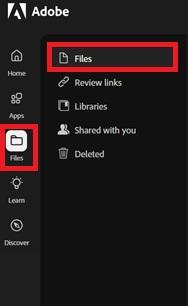
3. In the left column, select **Files**.
4. Here you can view and manage the items in your portfolio.

<p class="callout danger">**Note:** We strongly recommend *against* using your student email. This ensures continued access to Adobe Creative Cloud services and projects after leaving the university!</p>

[![Adobe1.jpg](https://wiki.piedmont.edu/uploads/images/gallery/2025-06/scaled-1680-/Ob4uuLYPOF3ntySy-adobe1.jpg)](https://wiki.piedmont.edu/uploads/images/gallery/2025-06/Ob4uuLYPOF3ntySy-adobe1.jpg)

---

## <span class="s1">**Need Help?**</span>

<p class="callout info">If you encounter an error or need assistance with this guide, please contact the IT Department and include a screenshot with a brief description of the issue.  
  
[**Contact the IT Department Here**](https://wiki.piedmont.edu/books/student-resources/chapter/contact-it "Contact IT!")</p>

# Office365 Install (Windows 11)

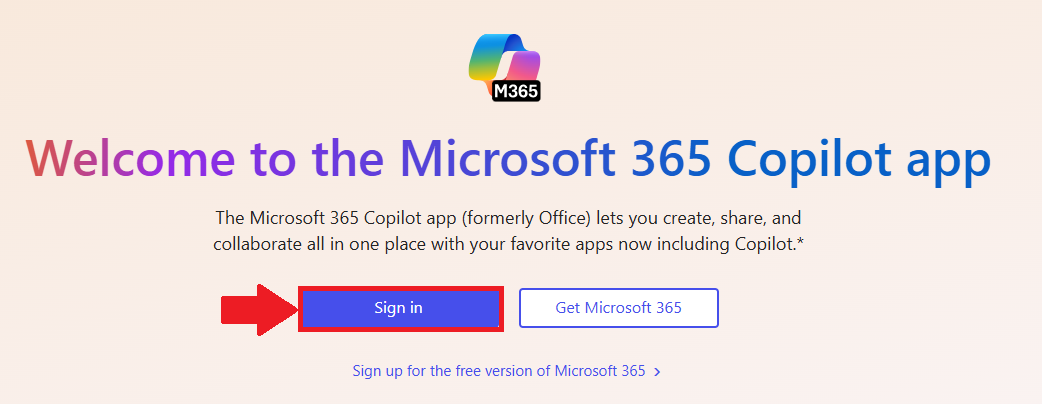
1. In a web browser of your choice, visit `www.office.com`
2. Select **Sign in  
    [![Office365Homepage.png](https://wiki.piedmont.edu/uploads/images/gallery/2025-06/scaled-1680-/7QO6k3bMWswuey4T-office365homepage.png)](https://wiki.piedmont.edu/uploads/images/gallery/2025-06/7QO6k3bMWswuey4T-office365homepage.png)**
3. Login with your `@lions.piedmont.edu` email
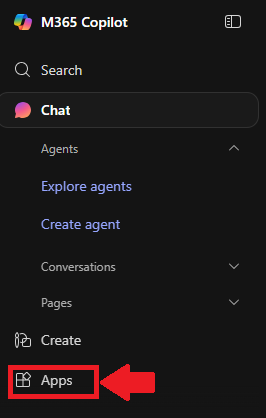
4. Select **Apps** from the column on the left of the screen  
    [![Office365Apps.png](https://wiki.piedmont.edu/uploads/images/gallery/2025-06/scaled-1680-/xJ5FFo2HYeFA3RVM-office365apps.png)](https://wiki.piedmont.edu/uploads/images/gallery/2025-06/xJ5FFo2HYeFA3RVM-office365apps.png)
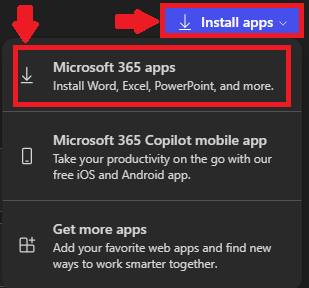
5. In the top-right corner, select **Install Apps**
6. Select **Microsoft 365 Apps  
    [![Office365Install.png](https://wiki.piedmont.edu/uploads/images/gallery/2025-06/scaled-1680-/IpKvaZlSCJtgseO1-office365install.png)](https://wiki.piedmont.edu/uploads/images/gallery/2025-06/IpKvaZlSCJtgseO1-office365install.png)**
7. A new tab will open, select **Install Office  
    [![Office365Download.png](https://wiki.piedmont.edu/uploads/images/gallery/2025-06/scaled-1680-/JgKtZ6VqTSwGsDrm-office365download.png)](https://wiki.piedmont.edu/uploads/images/gallery/2025-06/JgKtZ6VqTSwGsDrm-office365download.png)**
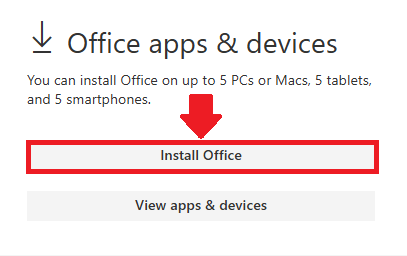
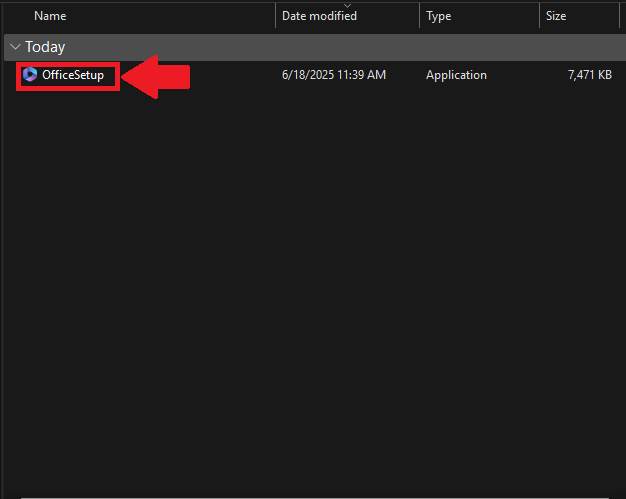
8. Your computer will now download **OfficeSetup.exe**
9. Launch the file from your **Downloads** folder and select **Yes** to any prompts that appear  
    [![Office365Installer.png](https://wiki.piedmont.edu/uploads/images/gallery/2025-06/scaled-1680-/jx21Xr3Odqe7mFGZ-office365installer.png)](https://wiki.piedmont.edu/uploads/images/gallery/2025-06/jx21Xr3Odqe7mFGZ-office365installer.png)
10. Office 365 will now install

# Activating Office365

## 1. Section Header/Title

<p class="callout warning">Important Information</p>

1. Begin Instructions 
    - Visit `www.ExampleWebsite.com`
2. Lorem ipsum dolor sit amet, consectetur adipiscing elit.
3. Sed do eiusmod tempor incididunt ut labore et dolore magna aliqua. 
    - Ut enim ad minim veniam, quis nostrud exercitation ullamco laboris nisi ut aliquip ex ea commodo consequat. 
        - Duis aute irure dolor in reprehenderit in voluptate velit esse cillum dolore eu fugiat nulla pariatur.
4. Excepteur sint occaecat cupidatat non proident, sunt in culpa qui officia deserunt mollit anim id est laborum.

---

## 2. Section Header/Title

1. Begin Instructions
2. Lorem ipsum dolor sit amet, consectetur adipiscing elit.
3. Sed do eiusmod tempor incididunt ut labore et dolore magna aliqua. 
    - Ut enim ad minim veniam, quis nostrud exercitation ullamco laboris nisi ut aliquip ex ea commodo consequat. 
        - Duis aute irure dolor in reprehenderit in voluptate velit esse cillum dolore eu fugiat nulla pariatur.
4. Excepteur sint occaecat cupidatat non proident, sunt in culpa qui officia deserunt mollit anim id est laborum.

---

## <span class="s1">**Need Help?**</span>

<p class="callout info">If you encounter an error or need assistance with this guide, please contact the IT Department and include a screenshot with a brief description of the issue.  
  
[**Contact the IT Department Here**](https://wiki.piedmont.edu/books/student-resources/chapter/contact-it "Contact IT!")</p>