**IMPORTANT NOTE:** You cannot access WebPrint from an off-campus location. Your device must be connected to the Piedmont network.
--- ## 1. Log onto WebPrint - Open any browser (Edge, Chrome, Firefox, etc.) and go to: [webprint.piedmont.edu](https://webprint.piedmont.edu/)If the webpage does not load, you may need to review your [device Wi-Fi settings](https://wiki.piedmont.edu/books/student-resources/page/recommended-wifi-settings "Recommended WiFi Settings")
Printing is not supported from a mobile device.
##### On the Login Page - Choose a Login Method: (Recommended) Click the **“Sign in With Microsoft”** button to use Single-Sign-On using your Piedmont Email. [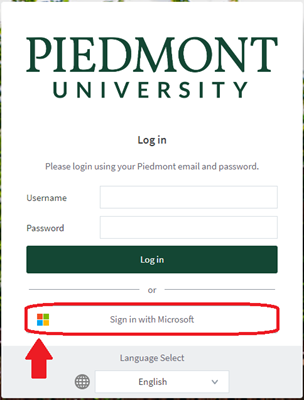](https://wiki.piedmont.edu/uploads/images/gallery/2025-06/n974TYL1dfLwqt3u-webprintlogin.png) - Enter your full `@lions.piedmont.edu` email address and password*Once you log in, your home screen will be displayed. On the home screen, the left-side navigation panel contains six links. The links are:* **Summary**: Lists summary statistics for your account **Transfers**: Transfer printing funds to another Piedmont student **Transaction History**: View a detailed list of all transactions **Recent Print Jobs**: View details of all recent print jobs **Jobs Pending Release**: View status of print jobs **Web Print**: Upload a document into the WebPrint queue
--- ## 2. Print a Document - In the Left Column, click the **“Web Print”** link [](https://wiki.piedmont.edu/uploads/images/gallery/2025-06/dTmXpuLewzHphAIV-webprintbutton.png) - Click the **“Submit a job”** button [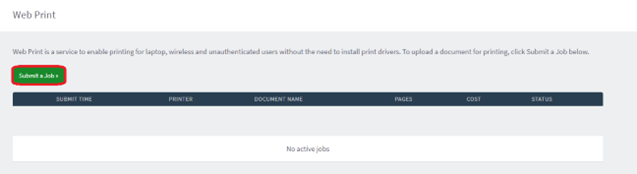](https://wiki.piedmont.edu/uploads/images/gallery/2025-06/xezp2BkGaAEincP7-webprintsubmitjob.png) ##### On the “Select a printer” screen: - Toggle the button next to the printer’s name you want to use If unsure, refer to the informational poster displayed with each student-use printer - Choose based on your printing requirements: - Printers labeled **B&W** are for black-and-white - Printers labeled **Color** are for colorEach semester, Students receive $25 in printing credit: **B&W** = $0.05 per page **Color** = $0.25 per page
- Once you've chosen a printer, click **“Print Options and Account Selection”** [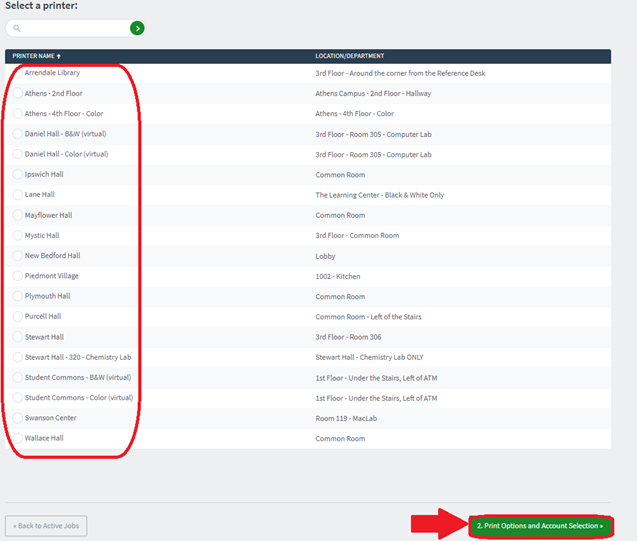](https://wiki.piedmont.edu/uploads/images/gallery/2025-06/2jCXi3LsXxWY0nkY-webprintselectprinter.png) - On the “Options” page - Select number of copies - Click **“Upload Documents”** [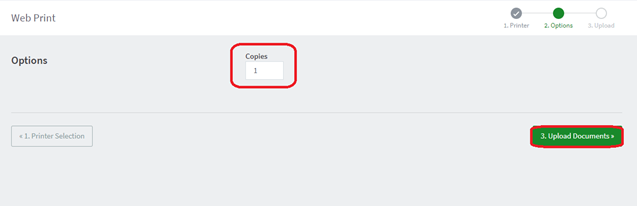](https://wiki.piedmont.edu/uploads/images/gallery/2025-06/ZN2brlqQke5TYkji-webprintupload.png) - On the “Upload” page - Upload a document from your computer - Once upload is complete, the document icon will display - Click **“Upload & Complete” [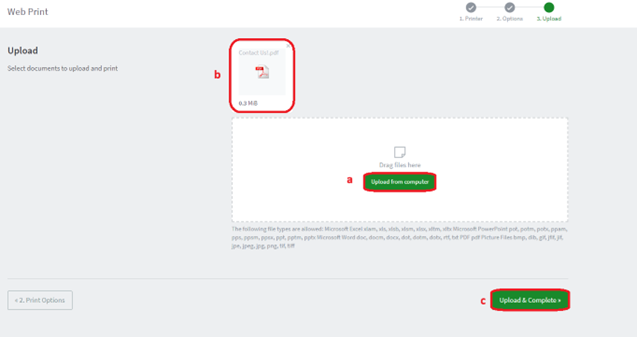](https://wiki.piedmont.edu/uploads/images/gallery/2025-06/SVTQnPVYfwqNsSqN-webprintuploadcomplete.png)** - On the “Web Print” page - Verify print info is correct: printer location, document name, “Held in a queue” - Status will change to **“Queueing” [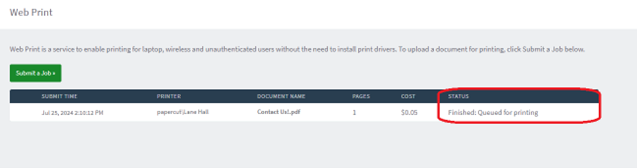](https://wiki.piedmont.edu/uploads/images/gallery/2025-06/ZYuJwfo1fMx9Dl88-webprintqueue.png)** - Once printing is complete, the page will auto-refresh and the print job row will disappear [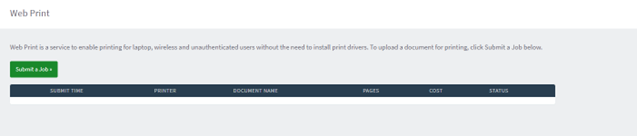](https://wiki.piedmont.edu/uploads/images/gallery/2025-06/IIvqycs2kT21HuTe-webprintcomplete.png) ---At this point, you will have successfully printed your document. You may now log out of your WebPrint account.