| **Network Name** | **Who Should Use This** | **Typical Devices** | **Instructions** |
| **Lions** | Faculty, Staff, and Students | Personal Laptops, Phones, and Tablets | [Get Connected - Lions Wi-Fi](https://wiki.piedmont.edu/books/network-connectivity/page/get-connected-lions-wi-fi "Get Connected - Lions Wi-Fi") |
| **Lions Guest** | Campus visitors and event guests | Any visitor device | [Get Connected - Campus Visitor](https://wiki.piedmont.edu/books/network-connectivity/page/get-connected-campus-visitor "Get Connected - Campus Visitor") [Get Connected - Event Guest](https://wiki.piedmont.edu/books/network-connectivity/page/get-connected-event-guest "Get Connected - Event Guest") |
| **Lions Secure** | University-owned devices | Work laptops, desktops, and managed devices | [Get Connected - Lions Secure](https://wiki.piedmont.edu/books/network-connectivity/page/get-connected-lions-secure "Get Connected - Lions Secure") |
Don't forget to review the [Recommended Wi-Fi Settings](https://wiki.piedmont.edu/books/network-connectivity/page/recommended-wifi-settings "Recommended WiFi Settings")!
--- # Roku TVsAt Piedmont University, we’ve identified Roku TVs as a common source of wireless interference. Roku devices use a feature called **Wi-Fi Direct**, which creates their own wireless signal on the same channel used for internet access. This can disrupt nearby Wi-Fi connections, causing dropped signals, slow speeds, or failed connections.
If instructions for your specific Roku model are not listed please refer to user manuals or the vendor website of your Roku TV.
#### Disable Wi-Fi Direct 1. Press the **Home** button (House icon) on your Roku remote [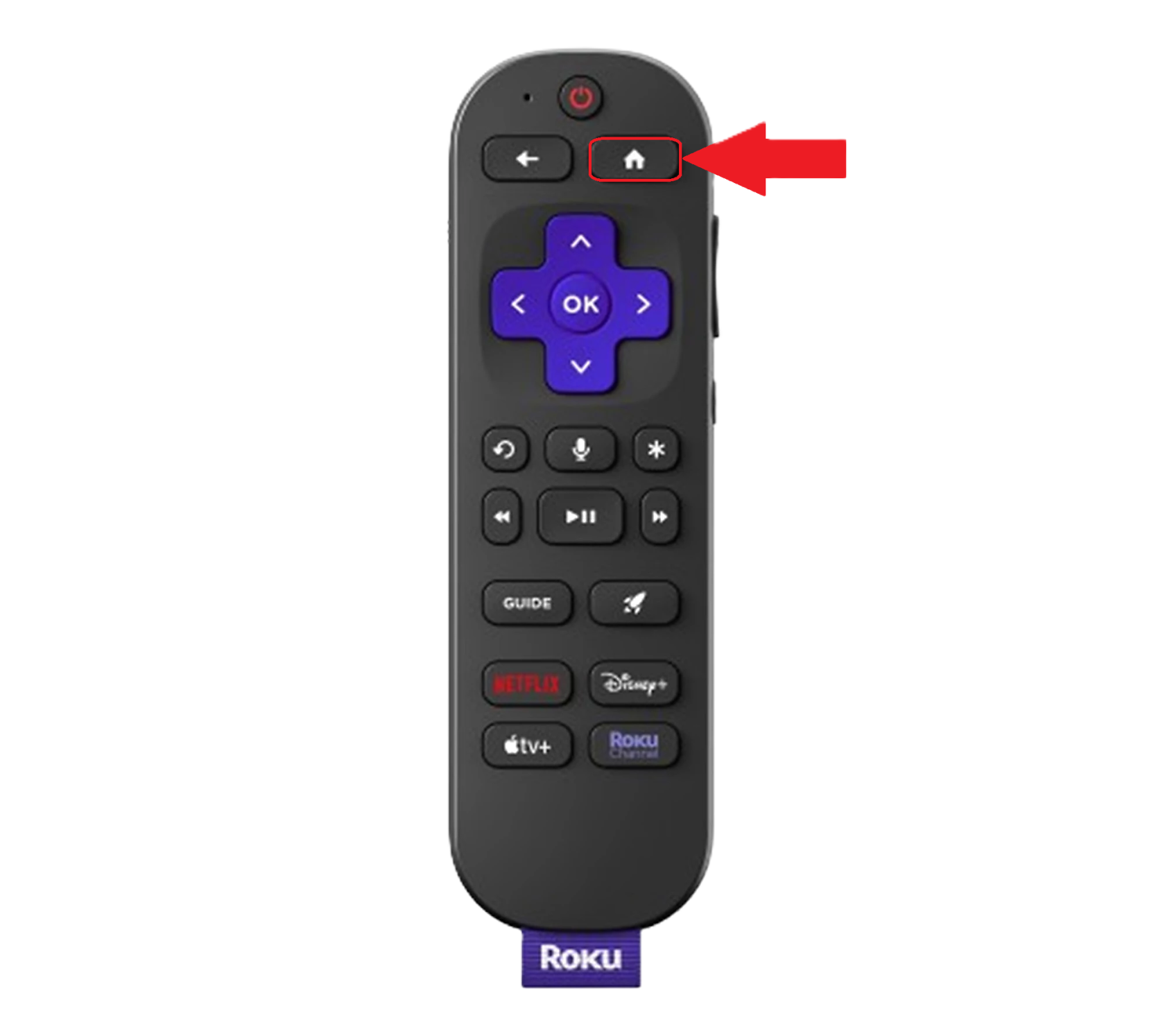](https://wiki.piedmont.edu/uploads/images/gallery/2025-08/GFfiaSN0IoAusYjs-rokuremote.png) 2. Navigate to **Settings** 3. Select **System** 4. Select **Advanced System Settings** 5. Choose **Device Connect** 6. Select the option to **Disable Device Connect** **[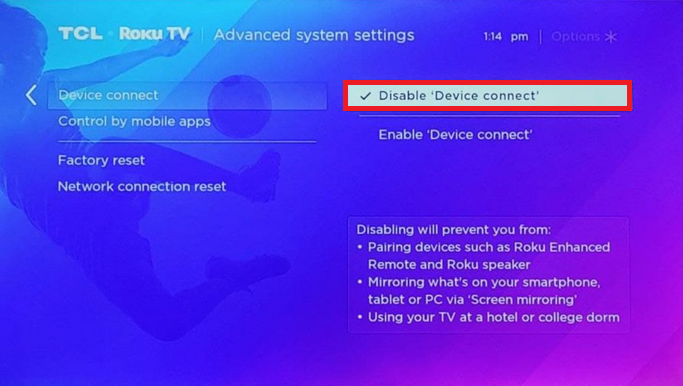](https://wiki.piedmont.edu/uploads/images/gallery/2025-08/4nQcCfxNi5vTm57Z-rokudisabledeviceconnect.png)**When you disable this setting, Roku displays a warning *"Disabling will prevent you from using your TV at a college or Dorm"* **Disabling this setting will NOT prevent your Roku from connecting to the campus network**
#### Disable Wi-Fi Direct (Newer Roku) 1. From the Roku Home screen, open **Settings** 2. Select **Network** 3. Select **Wi-Fi > Wi-Fi Direct** 4. Toggle **Wi-Fi Direct** to **Disabled** --- #### What Changes when Disabled? - Screen mirroring from phones, tablets, or PCs will be disabled - You can still use an HDMI cable to screen mirror - The Roku TV will no longer generate a Wi-Fi signal but will still be able to connect to Wi-Fi - This prevents interference with the campus Wi-Fi network. - Some Roku Enhanced Remotes (the ones with voice search or TV volume buttons) will no longer function after this setting is turned off. - You can still control your Roku with the free Roku mobile app or by using a Roku Simple Remote (Infared) which are inexpensive and widely available. --- ##### Reference/Links [https://td.usd.edu/TDClient/33/Portal/KB/ArticleDet?ID=5519](https://td.usd.edu/TDClient/33/Portal/KB/ArticleDet?ID=5519 "Article - How to Disable Wi-Fi Direct... (usd.edu)") # Recommended WiFi SettingsRandomized MAC addresses are a privacy feature designed to prevent device tracking across networks. While this is useful in public or unsecured networks, it creates problems on campus networks like Piedmont University's. Please complete this on your Mac or PC and iPhone or Android before joining the network.
## 1. Disable MAC Randomization (iOS) 1. Open Settings 2. Connect to the desired Wi-Fi network, then tap the info i icon next PC-WiFi 3. Select Private Wi-Fi Address and select the OFF option. 4. Additionally, Limit IP Address Tracking should be OFF. - This disables Apple’s Private Relay for the Lions network specifically.If 'Limit IP Address Tracking' is enabled, the WebPrint website will not load.
[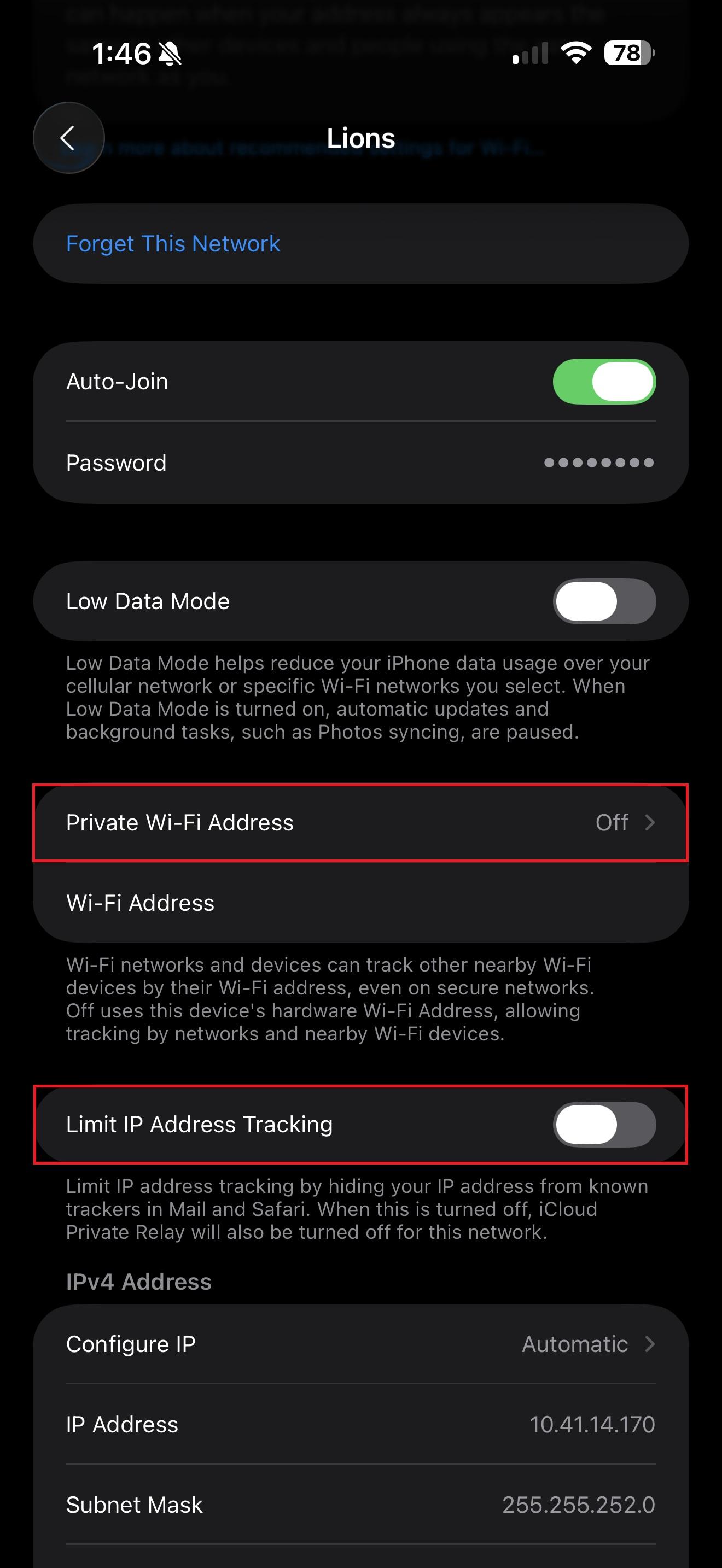](https://wiki.piedmont.edu/uploads/images/gallery/2026-03/8V7bB82hRZmSEwLw-wifisettingsiphone.jpg) - --- ## 2. Disable MAC Randomization (Android) 1. Open Settings 2. Connect to the desired Wi-Fi network, then tap the settings gear icon next to PC-WiFi 3. Select the dropdown menu next to Advanced 4. Under MAC Address type, ensure **Device MAC** or Tablet MAC is selected. [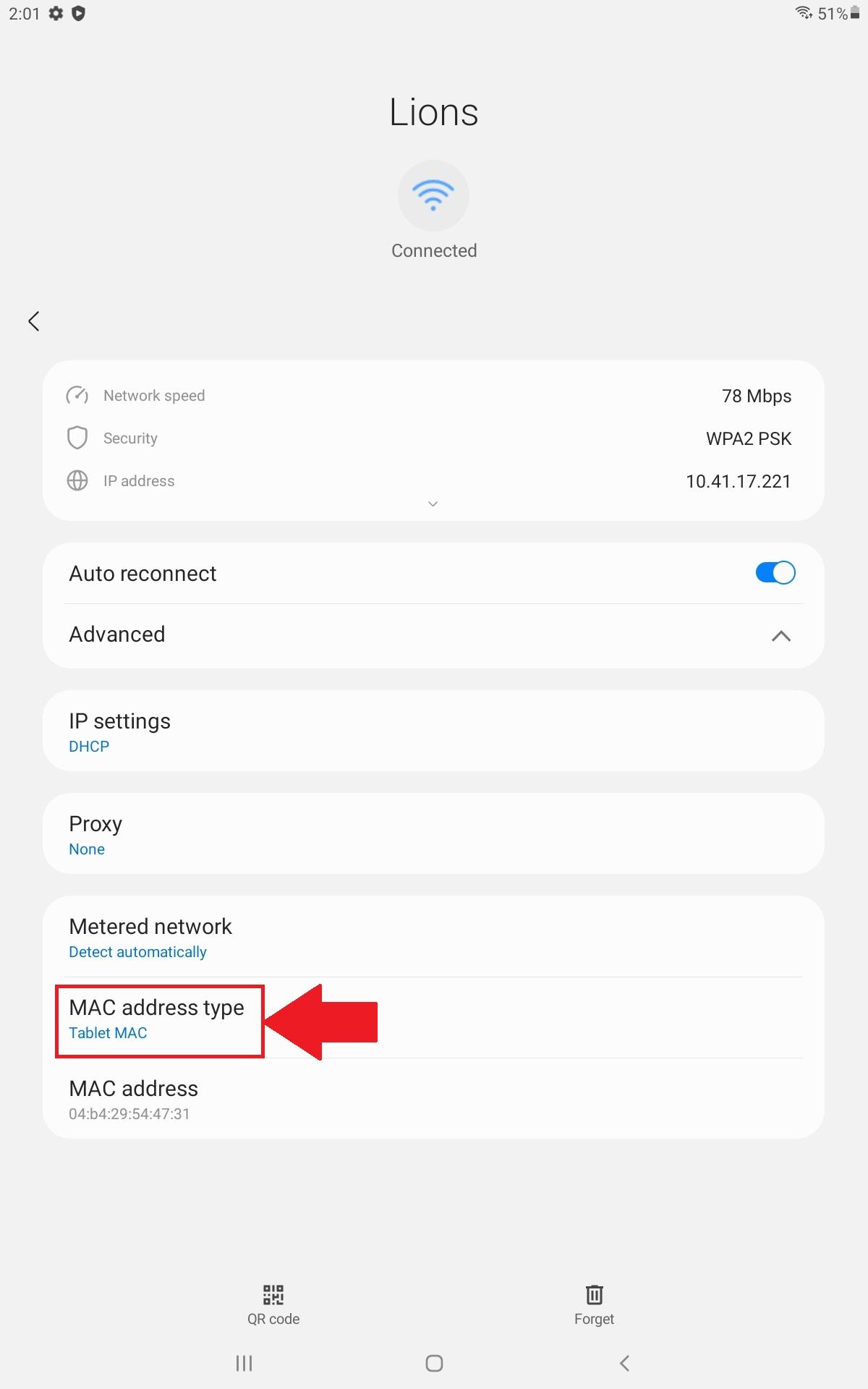](https://wiki.piedmont.edu/uploads/images/gallery/2026-03/KHz19FyS8UFwPIHy-androidwifisettings.jpg) --- ## 3. Disable Rotating Mac Address (MacOS) 1. Open **Settings** 2. Select **WiFi** 3. Connect to the desired Wi-Fi network, then tap the info 'i' icon next to ***Lions*** 4. Select **Private Wi-Fi Address** 5. Toggle to **OFF [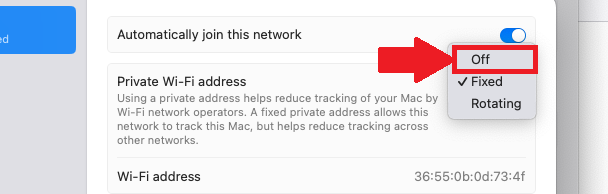](https://wiki.piedmont.edu/uploads/images/gallery/2026-03/vx4SFNuGIXyHvgTx-disable-private-mac-address.png)** --- ## 4. Disable Private Wi-Fi Address (Windows) 1. Open **Settings** 2. Select **Network & Internet** 3. Select **Wi-Fi** 4. Select ***Lions*** 5. Ensure the Drop-down next to **Random Hardware** **Addresses** is set to **OFF [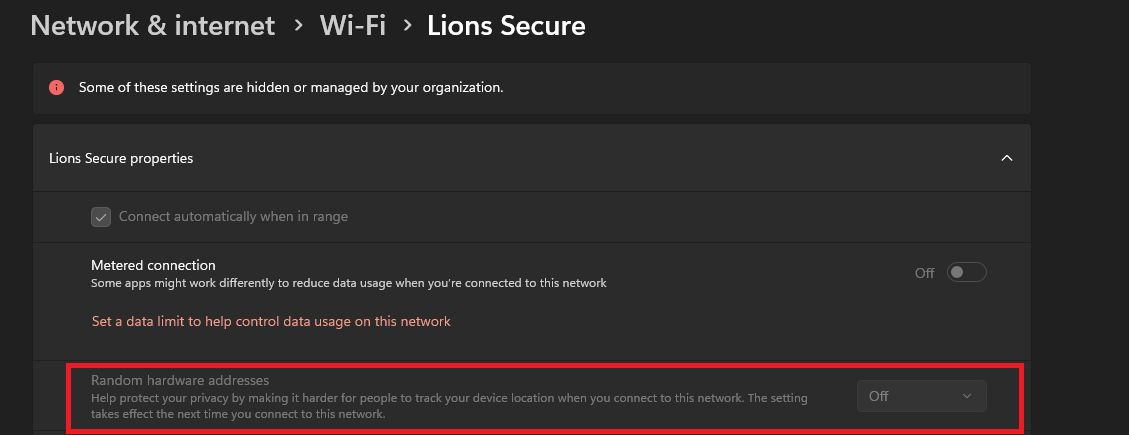](https://wiki.piedmont.edu/uploads/images/gallery/2026-03/ftq12I2ZBNJVScs1-disable-private-wifi.png)** --- # iPhone VPN SettingsIf you're experiencing connectivity issues, it may be due to personal hotspots or VPNs interfering with our network. Follow these simple steps to disable your VPN on iOS and Android devices to restore seamless access to campus Wi-Fi.
[](https://wiki.piedmont.edu/uploads/images/gallery/2025-08/f0iW6MIkETWrNVcD-applelogo.png) 1. Open **Settings** 2. Under **VPN**, toggle the active VPN connection to **OFF** [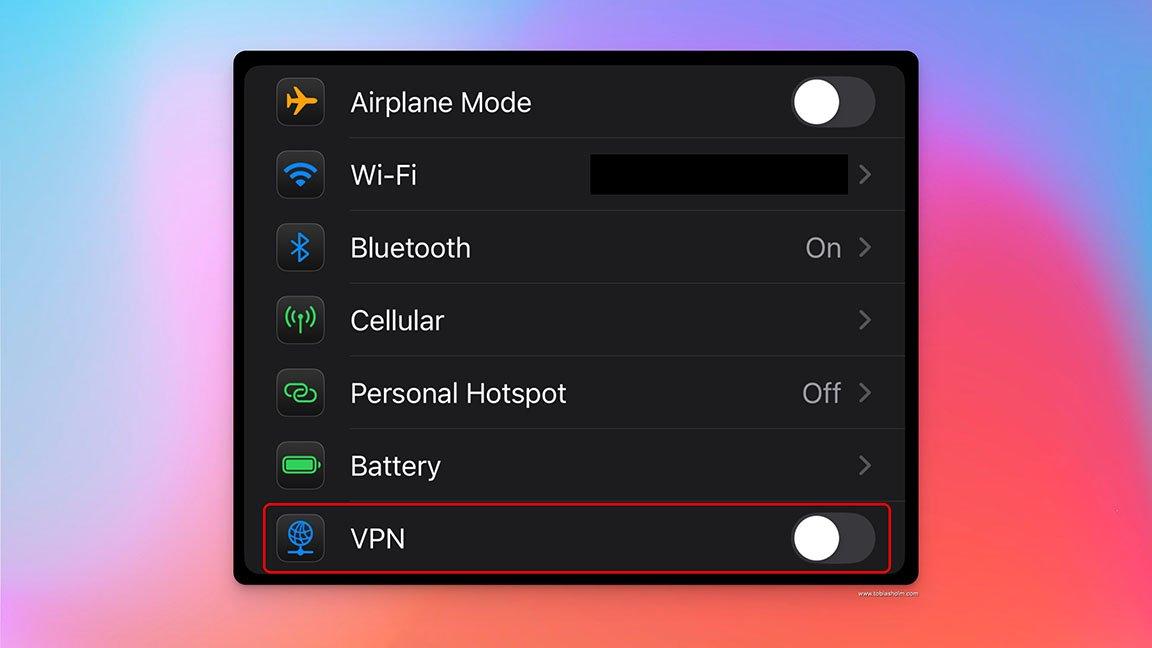](https://wiki.piedmont.edu/uploads/images/gallery/2025-08/fL9KrAXg2VJqkmng-iphonevpn.jpg) # iPhone Hotspot SettingsAt Piedmont University, we utilize a Wireless Intrusion Prevention System (WIPS) to ensure secure and reliable Wi-Fi connectivity across campus. If you're experiencing connectivity issues, it may be due to personal hotspots or VPNs interfering with our network. Follow these simple steps to disable your hotspot on iOS and Android devices to restore seamless access to campus Wi-Fi.
[](https://wiki.piedmont.edu/uploads/images/gallery/2025-08/f0iW6MIkETWrNVcD-applelogo.png) 1. Open **Settings** 2. Tap **Personal Hotspot** 3. Toggle **Allow Others to Join** switch to **OFF** **[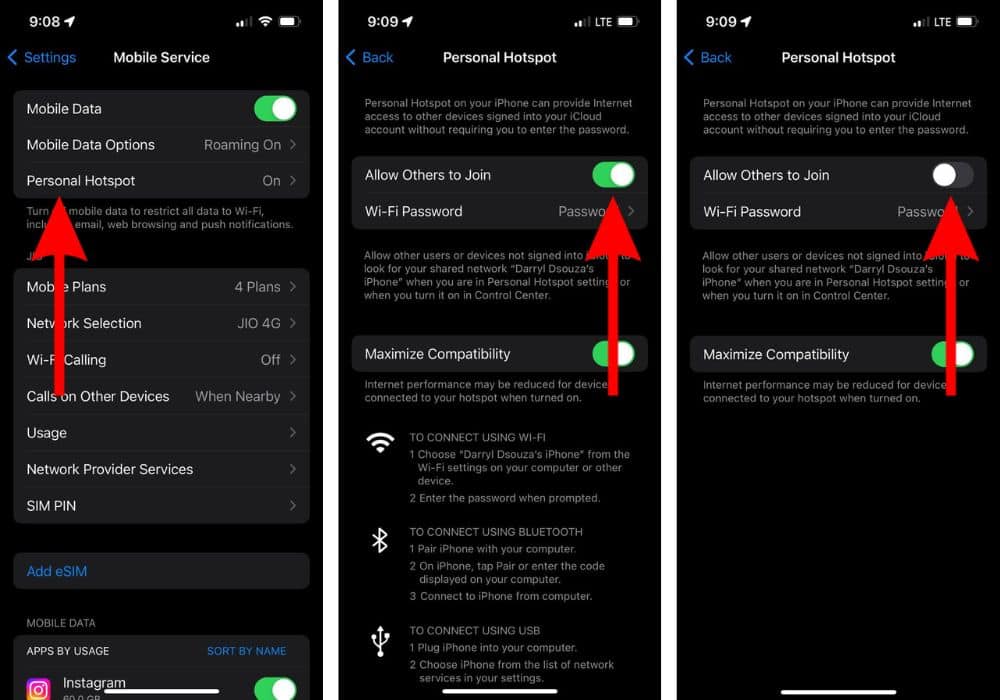](https://wiki.piedmont.edu/uploads/images/gallery/2025-08/CLVgaBAhjiBoF9u7-iphonehotspot.jpg)** # Get Connected - Lions Wi-Fi ## 1. Personal Wi-Fi PasswordIf you need WiFi during this process, connect to the ***Lions Guest*** network using the instructions above.
You can enroll up to 8 Devices on the ***Lions*** Network. If you need to remove/reset the amount of devices that you have, please contact the IT Helpdesk!
##### Mobile Instructions (iOS/Android) 1. Scan the QR Code OR Open a Web browser and visit [https://cloudpath.piedmont.edu/](https://cloudpath.piedmont.edu/) 2. Review the **Terms and Conditions,** Check the box next to **I agree to the Terms & Conditions**, should you agree. 3. Select **Start** 4. Login using your @piedmont.edu or @lions.piedmont.edu credentials 5. The **Personal WiFi Password** is shown on the next page, you can use this WiFi password as the Network password in the Network Settings section of your device. 6. Your phone will now be connect to **Lions**Whenever you connect, a copy of your WiFi password will be sent to your Piedmont or LIONS email address
If you do not disable MAC Randomization, you will quickly use your 8 slots for enrolled network devices.
Please review the recommended WiFi settings to disable 'MAC Randomization' after completing these steps. [How to disable MAC Randomization](https://wiki.piedmont.edu/books/student-resources/page/recommended-wifi-settings)
##### Laptop Instructions (PC/MacOS) 1. Open a Web browser and visit [https://cloudpath.piedmont.edu/](https://cloudpath.piedmont.edu/) (you may do this from your phone/tablet as well) 2. Review the **Terms and Conditions,** Check the box next to **I agree to the Terms & Conditions**, should you agree. 3. Select **Start** 4. Login using your @piedmont.edu or @lions.piedmont.edu credentials 5. Underneath the QR code that is displayed, you will be provided a **Personal WiFi Password** 6. Open the Network Settings on your Mac or PC device; Select the ***Lions*** network, and enter your **Personal WiFi Password** 7. Press **Connect/Join,** you will now be connected to **Lions**Whenever you connect, a copy of your WiFi password will be sent to your Piedmont or LIONS email address
##### Console Instructions (Xbox/Playstation/Switch) 1. Open the Network Settings on your console 2. Complete the steps above to obtain your **Personal WiFi Password** 3. Enter your **Personal WiFi Password** as the network password. 4. You will now be connected to ***Lions*** on your console. --- # Get Connected - Lions Secure ## ***Lions Secure*** Network ##### How to Connect: - Your Piedmont issued device will automatically be connected to ***Lions Secure.*** Should your device not connect, please contact the IT Department. --- # Get Connected - Event Guest ## Lions Guest - Event Guest***Lions*** ***Guest*** Network connection will expire after 5 days. After this, you will need to re-enroll your device.
##### How to Connect: 1. Navigate to the WiFi section of your system settings 2. Join the Network labeled ***Lions Guest*** 3. A webpage will open, review the **Terms and Conditions,** Check the box next to **I agree to the Terms & Conditions**, should you agree. 4. Select **Start** 5. The next screen will prompt, **Have you been provided an access code for an event, class, etc.?** - **No - Register as Guest** - Type in the WiFi password you were given in the **Voucher** field and select **Continue** - You will now be connected to ***Lions Guest*** - **Yes - I have a code** - Proceed to step 6 - **I have a Piedmont Email** - Proceed to Section 3 - *Connecting to the Lions Network* **[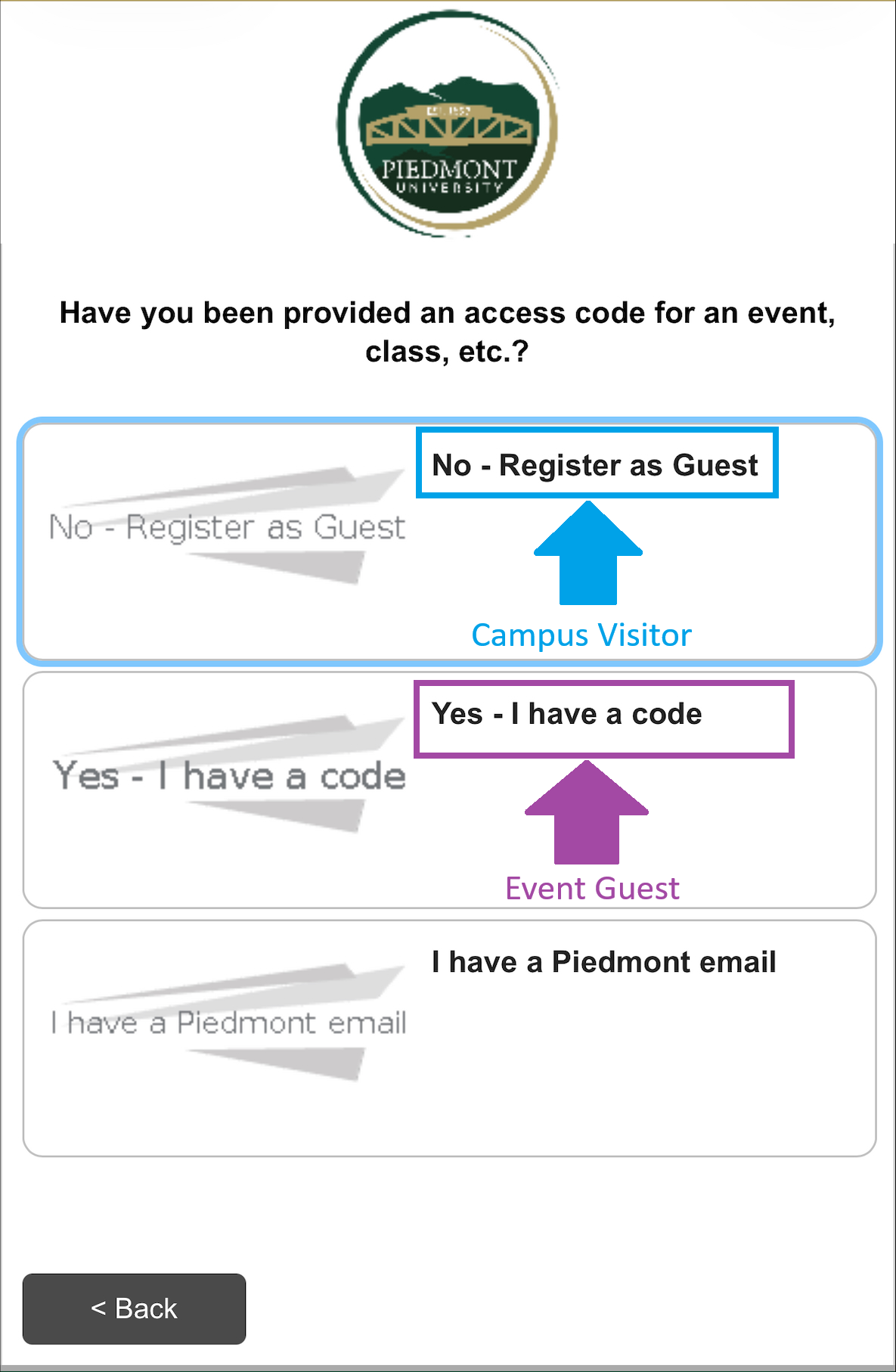](https://wiki.piedmont.edu/uploads/images/gallery/2026-02/zlhRetPU2BFGDKHs-guestwifiaccess.png)** 6. Enter an email address or Phone number where you will receive a security code. 7. After entering your information, please solve the **Captcha** 8. Select **Send**Should you leave the webpage, copy the **Wireless Verification Code** sent to your email or text message, Rejoin the ***Lions Guest*** network and select **I already have a verification code**.
9. Enter your **Wireless Verification Code,** solve the **Captcha**, and select **Continue** 10. You will now be connected to ***Lions Guest***Please review the recommended WiFi settings to disable 'MAC Randomization' after completing these steps. [How to disable MAC Randomization](https://wiki.piedmont.edu/books/student-resources/page/recommended-wifi-settings)
--- # Get Connected - Campus Visitor ## Lions Guest - Visitor Access***Lions*** ***Guest*** Network connection will expire after 24 hours. After this, you will need to re-enroll your device.
##### How to Connect: 1. Navigate to the WiFi section of your system settings 2. Join the Network labeled ***Lions Guest*** 3. A webpage will open, review the **Terms and Conditions,** Check the box next to **I agree to the Terms & Conditions**, should you agree. 4. Select **Start** 5. Enter an email address where you will receive a security code. 6. After entering your information, please solve the **Captcha** 7. Select **Send**Should you leave the webpage, copy the **Wireless Verification Code** sent to your email, Rejoin the ***Lions Guest*** network and select **I already have a verification code**.
8. Enter your **Wireless Verification Code,** solve the **Captcha**, and select **Continue** 9. You will now be connected to ***Lions Guest***Please review the recommended WiFi settings to disable 'MAC Randomization' after completing these steps. [How to disable MAC Randomization](https://wiki.piedmont.edu/books/student-resources/page/recommended-wifi-settings)
--- # Android VPN SettingsIf you're experiencing connectivity issues, it may be due to personal hotspots or VPNs interfering with our network. Follow these simple steps to disable your VPN on iOS and Android devices to restore seamless access to campus Wi-Fi.
[](https://wiki.piedmont.edu/uploads/images/gallery/2025-08/SSnodqyUDc4xAWS2-androidlogo.png) 1. Open **Settings** 2. Tap **Connections** or **Network & Internet** 3. Select **VPN** (Or go to **Advanced > VPN**) 4. Tap the active VPN connection and select **Disconnect** or toggle it to **OFF** [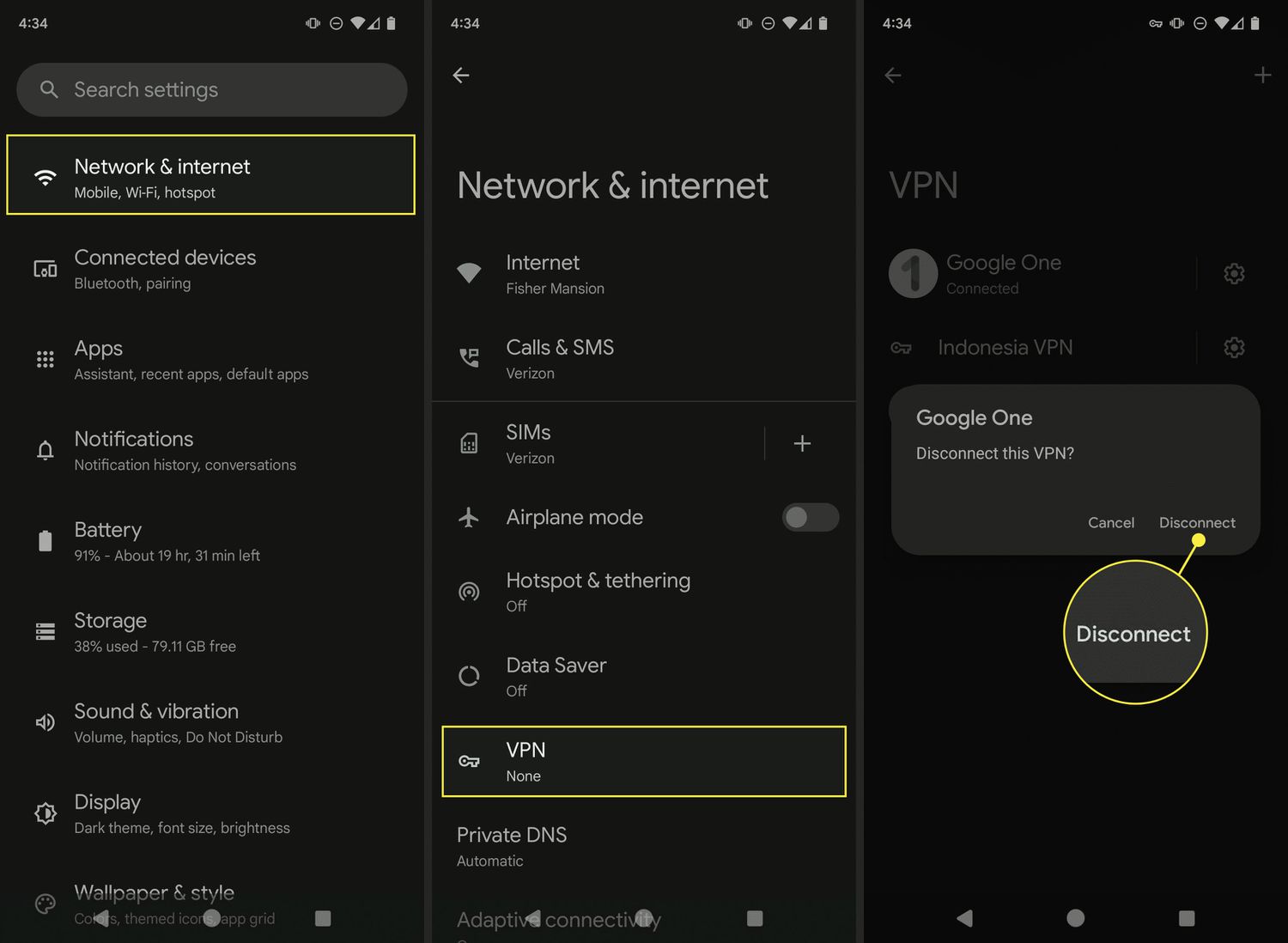](https://wiki.piedmont.edu/uploads/images/gallery/2025-08/MRCk9BkXXEpjiNYi-androidvpn.jpg) # Android Hotspot SettingsAt Piedmont University, we utilize a Wireless Intrusion Prevention System (WIPS) to ensure secure and reliable Wi-Fi connectivity across campus. If you're experiencing connectivity issues, it may be due to personal hotspots or VPNs interfering with our network. Follow these simple steps to disable your hotspot on iOS and Android devices to restore seamless access to campus Wi-Fi.
[](https://wiki.piedmont.edu/uploads/images/gallery/2025-08/SSnodqyUDc4xAWS2-androidlogo.png) 1. Open **Settings** 2. Tap **Connections** or **Network & Internet** (Varies by device) 3. Select **Mobile Hotspot and Tethering** 4. Toggle **Mobile Hotspot** to **OFF** [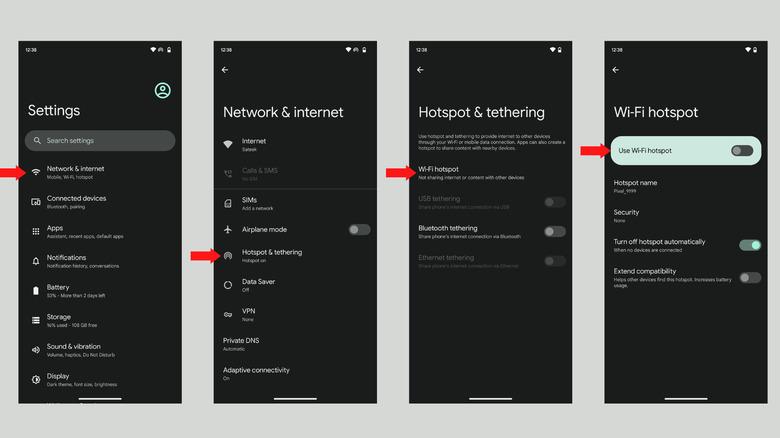](https://wiki.piedmont.edu/uploads/images/gallery/2025-08/1XVVUqYZdyn5G7N6-androidhotspot.jpg)