Installing Office365
This document provides step-by-step instructions on how to install Office 365 applications on various devices. The guide is designed to make the installation process simple and straightforward, ensuring that all faculty/staff/students can access the necessary tools for their academic work.
Office365 (Windows 11)
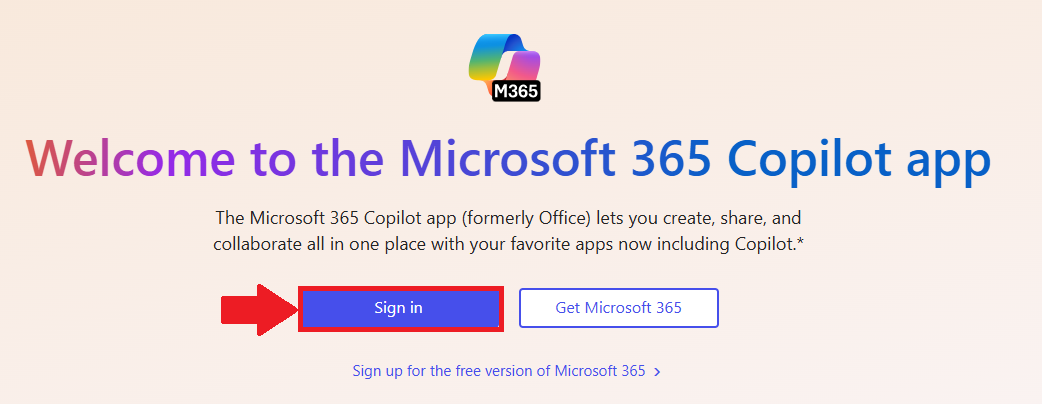
- In a web browser of your choice, visit
www.office.com - Select Sign in

- Login with your
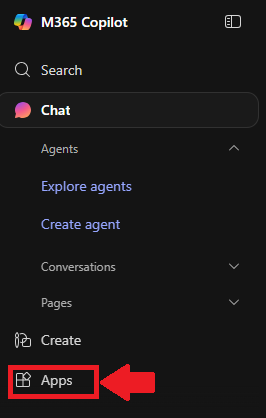
@lions.piedmont.eduemail - Select Apps from the column on the left of the screen

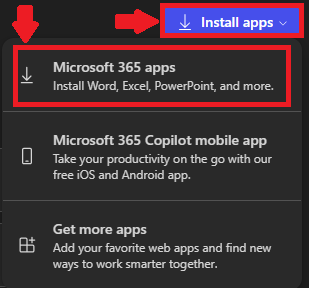
- In the top-right corner, select Install Apps
- Select Microsoft 365 Apps

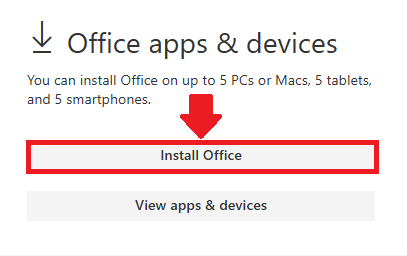
- A new tab will open, select Install Office

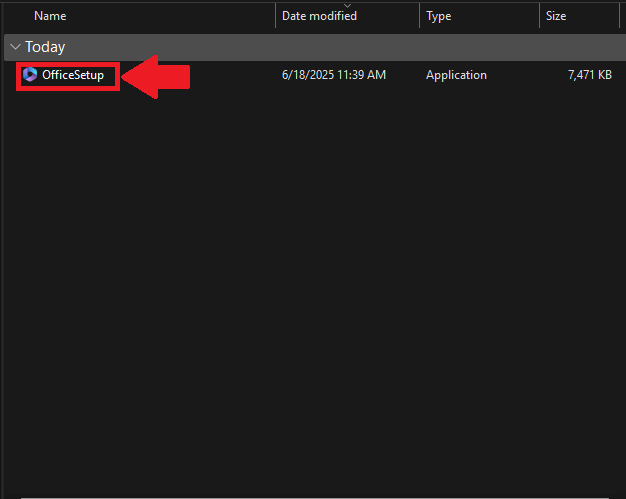
- Your computer will now download OfficeSetup.exe
- Launch the file from your Downloads folder and select Yes to any prompts that appear

- Office 365 will now install