Change your Password
This user-friendly guide provides step-by-step instructions for resetting your Piedmont University password through Microsoft's platform. Whether you've forgotten your password or simply need to update it, this guide will walk you through the process effortlessly, ensuring seamless access to all University services and resources.
Password Reset
Visit https://myaccount.microsoft.com/
1. Sign in with your LIONS Piedmont Email Address
2. Select Update Info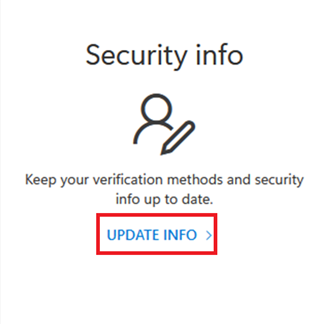
3. Select Change next to Password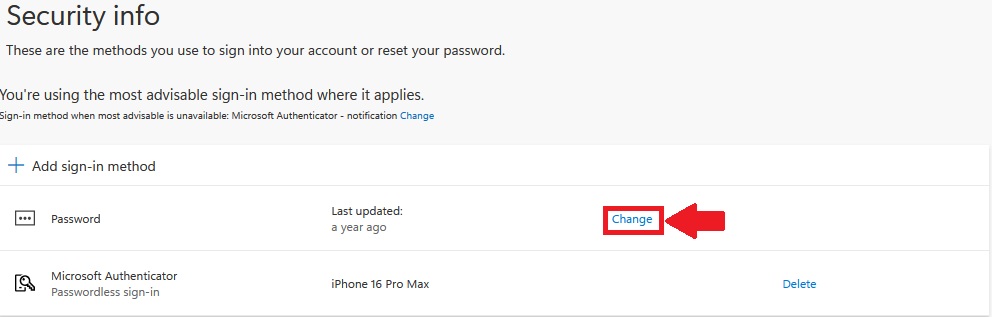
4. Enter your Old Password
5. Enter your new password
6. Confirm your new password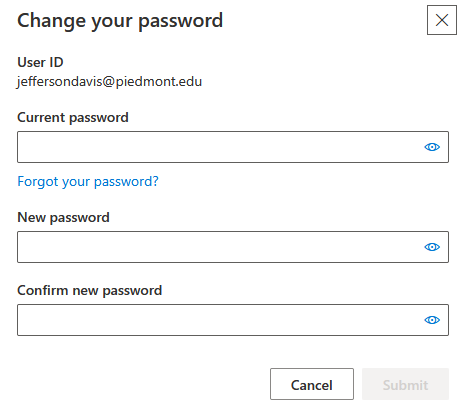
When creating a password you may receive an error about Password Complexity Requirements. This means your password does not meat one of the below requirements:
Password Requirements
Must be at least 12 characters long.
Must have at least one capital letter.
Must have at least one lower case letter.
Must have at least one number.
Special characters are optional. (Example - !, @, #, $, %, ^)
Must have a minimum age of 1 day before it can be changed.
Users cannot use the last 24 passwords they have used.
Passwords are non-expiring.
7. Select Submit to change your password