**These steps require you to be connected to the wired network in the building you are attempting to add the printer.**
**WiFi will NOT show the printers for the building.**
1. Open **Settings** or press **Win + I** 2. Select **Bluetooth & Devices** 3. Select **Printers and Scanners** 4. Select **Add** Device 5. Select **Search for Devices** 6. Select **USB or Network,** located next to '**Show Printer and scanners associated with my'** 7. Select a printer from the list or use the search box to search for a printer - It is recommended to search for printers by using the room number 8. Once you've located the printer you wish to use, select **Add Device** 9. Your computer will take a moment to install the printer - IMPORTANT: Do not navigate away or click anything else until the printer says ready. --- ## 2. Printing Documents 1. 1. Use **CTRL + P** to print 2. Toggle the drop-down next to **Destination [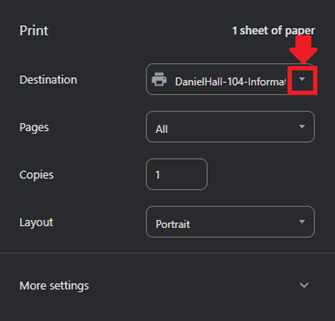](https://wiki.piedmont.edu/uploads/images/gallery/2025-09/x9FEPC9WqYs9q3Ma-universalprintdestination.png)** 3. Select the printer that you added in the previous section. - If you do not see your printer, you may need to select **See More** from the drop-down menu [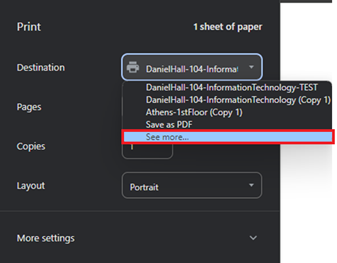](https://wiki.piedmont.edu/uploads/images/gallery/2025-09/dNgxpNHwtQrxre7S-universalprintseemore.png) 4. A new page will open containing a full list of printers. - If you do not see your printer, please submit a helpdesk ticket. [](https://wiki.piedmont.edu/uploads/images/gallery/2025-09/pxOyfmL6wXaVaO5o-universalprintprinterlist.png) 5. Once you've selected your printer, select **Print** to send the document to the printer. --- ## 3. Troubleshooting 1. 1. If you are having issues printing, try removing and re-adding the printer. 1. Open **Settings** or press **Win + I** 2. Select **Bluetooth & Devices** 3. Select **Printers and Scanners** 4. Select the printer that you are attempting to print from. 5. Click "Remove." [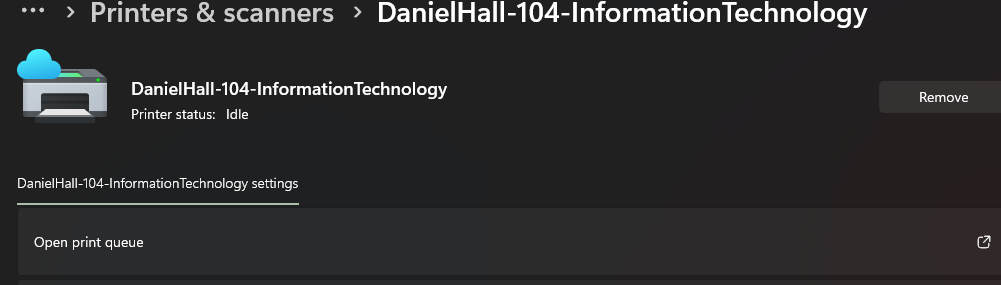](https://wiki.piedmont.edu/uploads/images/gallery/2025-12/iWWjLKF4ZYPYOqUh-image.png) 6. To reinstall the printer, follow the instructions above in section "I. Install a printer." 2. For all other issues please submit a helpdesk ticket ---