Scan to Email/Folder
Manage Printer Address Book
1. Add new user to Address Book
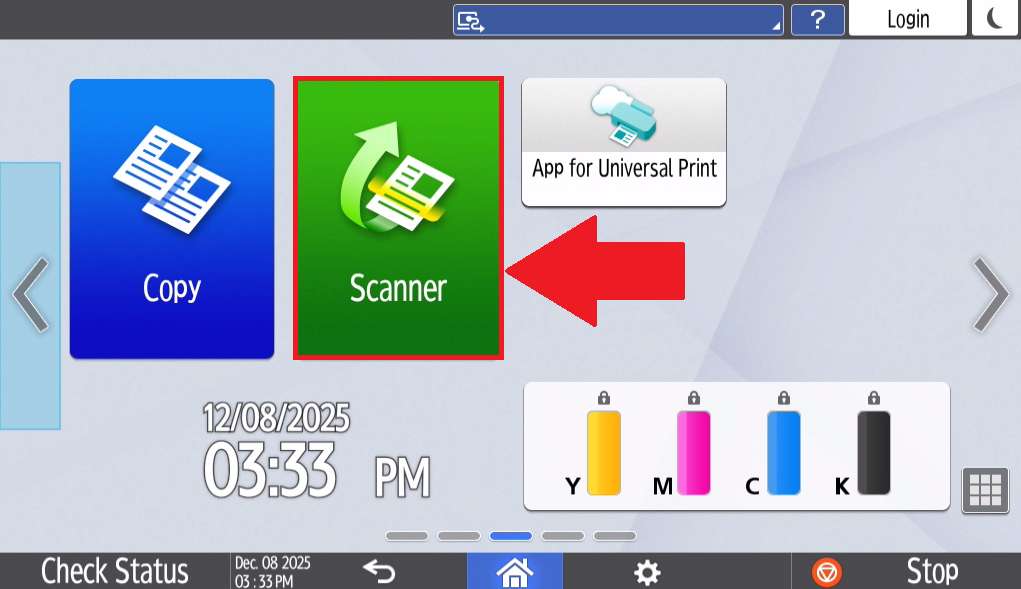
- Select Scanner on the home page of the printer's touchscreen tablet.

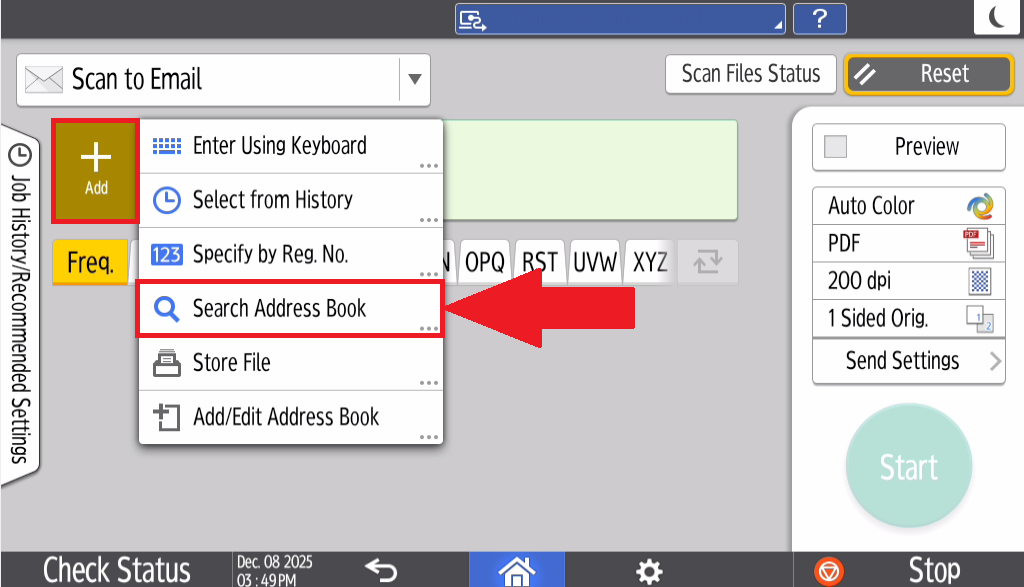
- Select Add and select Search Address Book

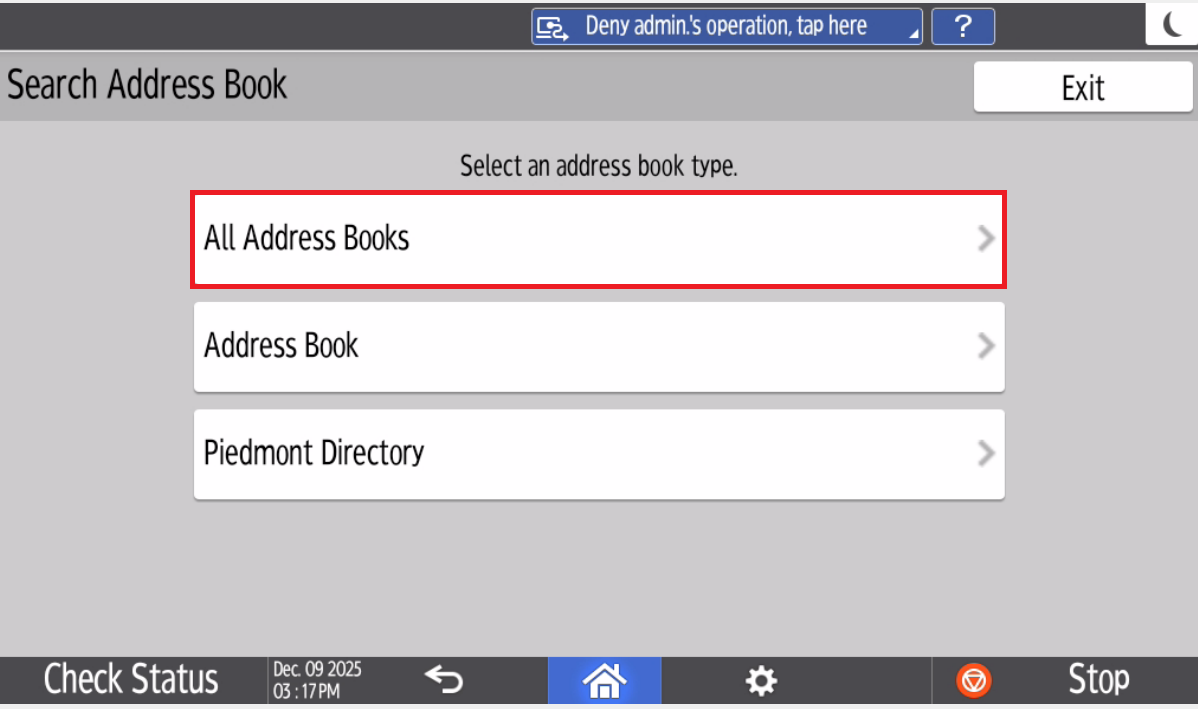
- Select All Address Books

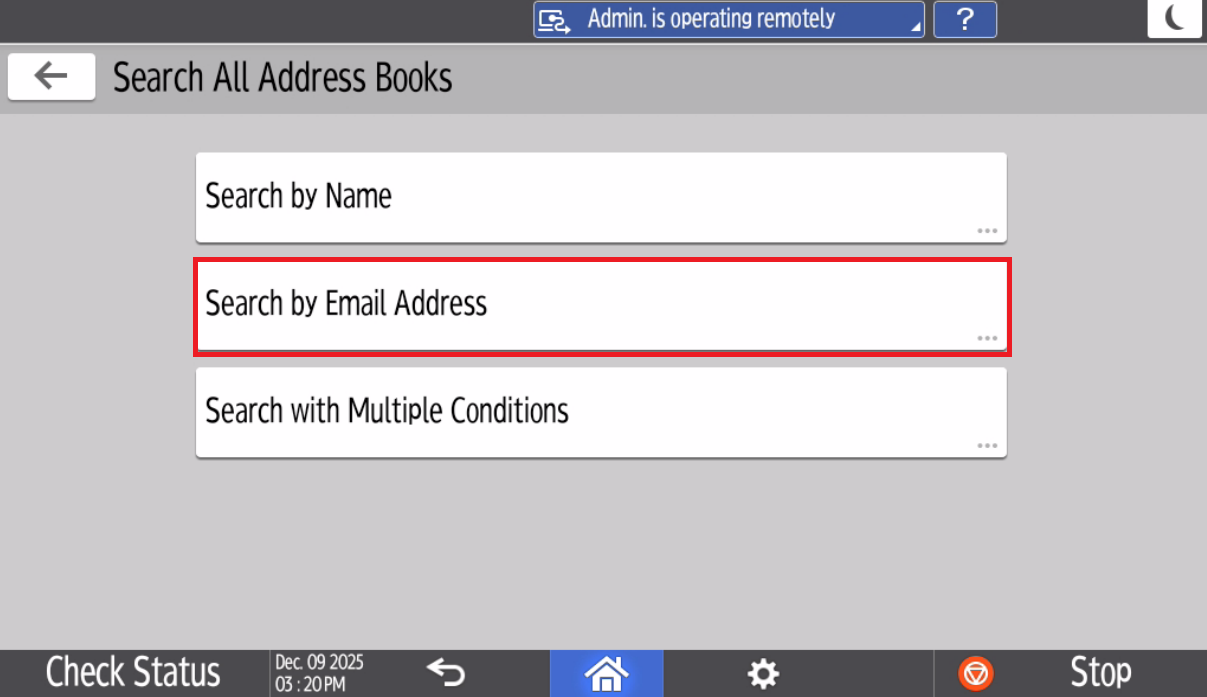
- Select Search by Email Address

- Type in your Email address and select Search
- The Printer will take a moment to search for the email address.
- Select your email Address and Select Add
- Your Piedmont account is now added to the Printer's Address Book
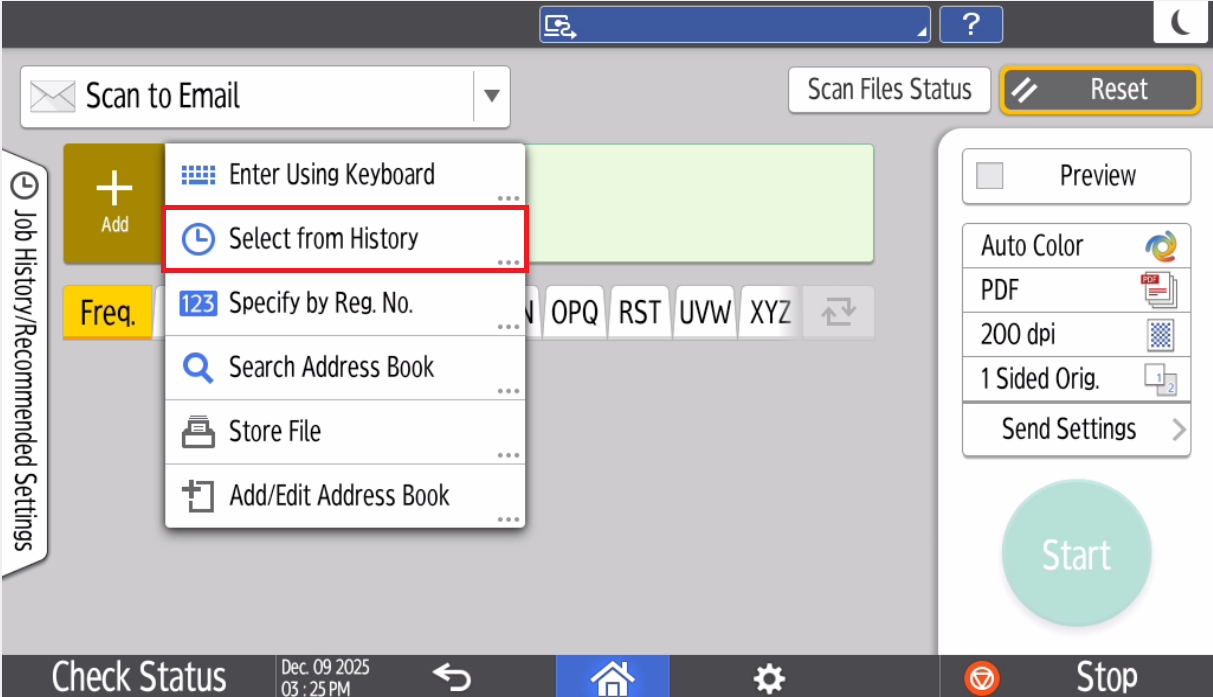
Once you've completed your first scan, You can select Select from History to quickly scan to your email.
Scan to Folder
1. Scan to Department Folder/Network Drive
- Select Scanner on the homepage of the printer
- Select the Drop down next to Scan to Email and select Scan to Folder

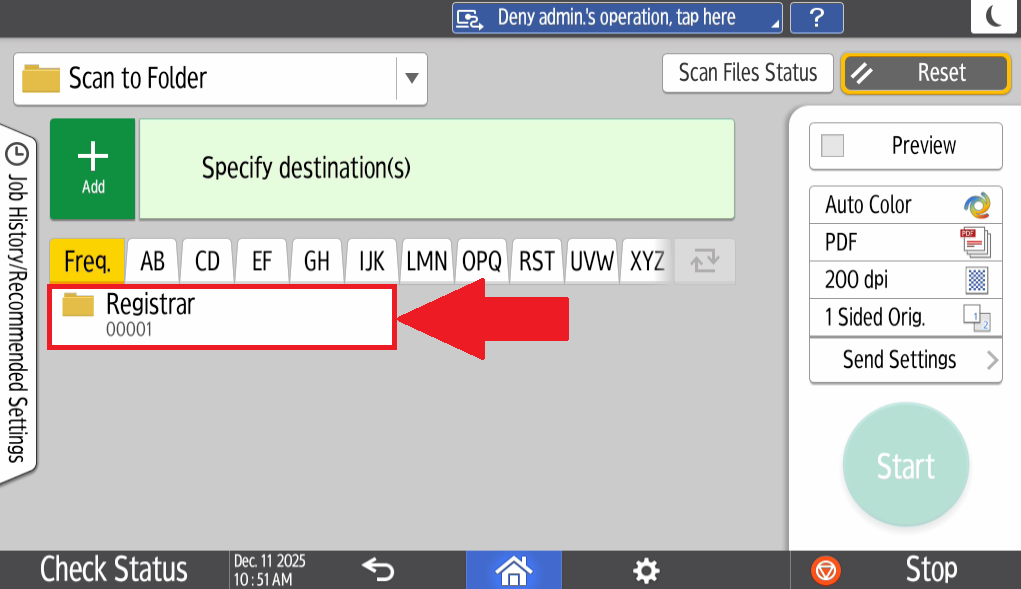
- Select the Folder you would like to scan to, if the folder is missing, please contact IT via a helpdesk ticket so that the folder can be added

- Load the document and Select Start to scan the document to the selected Network Folder