At Piedmont University, we utilize a Wireless Intrusion Prevention System (WIPS) to ensure secure and reliable Wi-Fi connectivity across campus. If you're experiencing connectivity issues, it may be due to personal hotspots or VPNs interfering with our network. Follow these simple steps to disable your hotspot on iOS and Android devices to restore seamless access to campus Wi-Fi.
[](https://wiki.piedmont.edu/uploads/images/gallery/2025-06/81adm9nwojmka63y-applelogo.png) 1. Open **Settings** 2. Tap **Personal Hotspot** 3. Toggle **Allow Others to Join** switch to **OFF** **[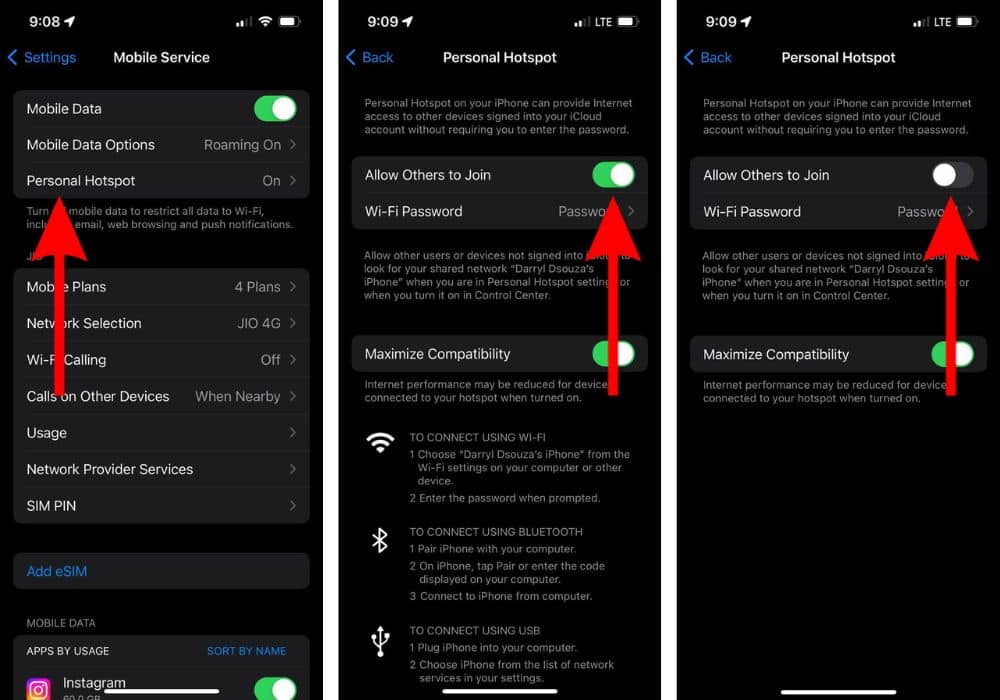](https://wiki.piedmont.edu/uploads/images/gallery/2025-06/UZvpJAv4xC61iXtm-iphonehotspot.jpg)** --- ## **Need Help?**If you encounter an error or need assistance with this guide, please contact the IT Department and include a screenshot with a brief description of the issue. [**Contact the IT Department Here**](https://wiki.piedmont.edu/books/student-resources/chapter/contact-it "Contact IT!")