Piedmont Wi-Fi
This knowledge base article provides step-by-step instructions for connecting personal and university-issued devices to Piedmont University's WiFi network.
- What network do I join?
- Recommended WiFi Settings
- iPhone VPN Settings
- iPhone Hotspot Settings
- Get Connected - Lions Wi-Fi
- Get Connected - Event Guest
- Get Connected - Campus Visitor
- Android VPN Settings
- Android Hotspot Settings
What network do I join?
1. What Network do I join?
| Network Name | Who Should Use This | Typical Devices | Instructions |
| Lions | Faculty, Staff, and Students | Personal Laptops, Phones, and Tablets | Get Connected - Lions Wi-Fi |
| Lions Guest | Campus visitors and event guests | Any visitor device | |
| Lions Secure | University-owned devices | Work laptops, desktops, and managed devices | Get Connected - Lions Secure |
Don't forget to review the Recommended Wi-Fi Settings!
Recommended WiFi Settings
Randomized MAC addresses are a privacy feature designed to prevent device tracking across networks. While this is useful in public or unsecured networks, it creates problems on campus networks like Piedmont University's. Please complete this on your Mac or PC and iPhone or Android before joining the network.
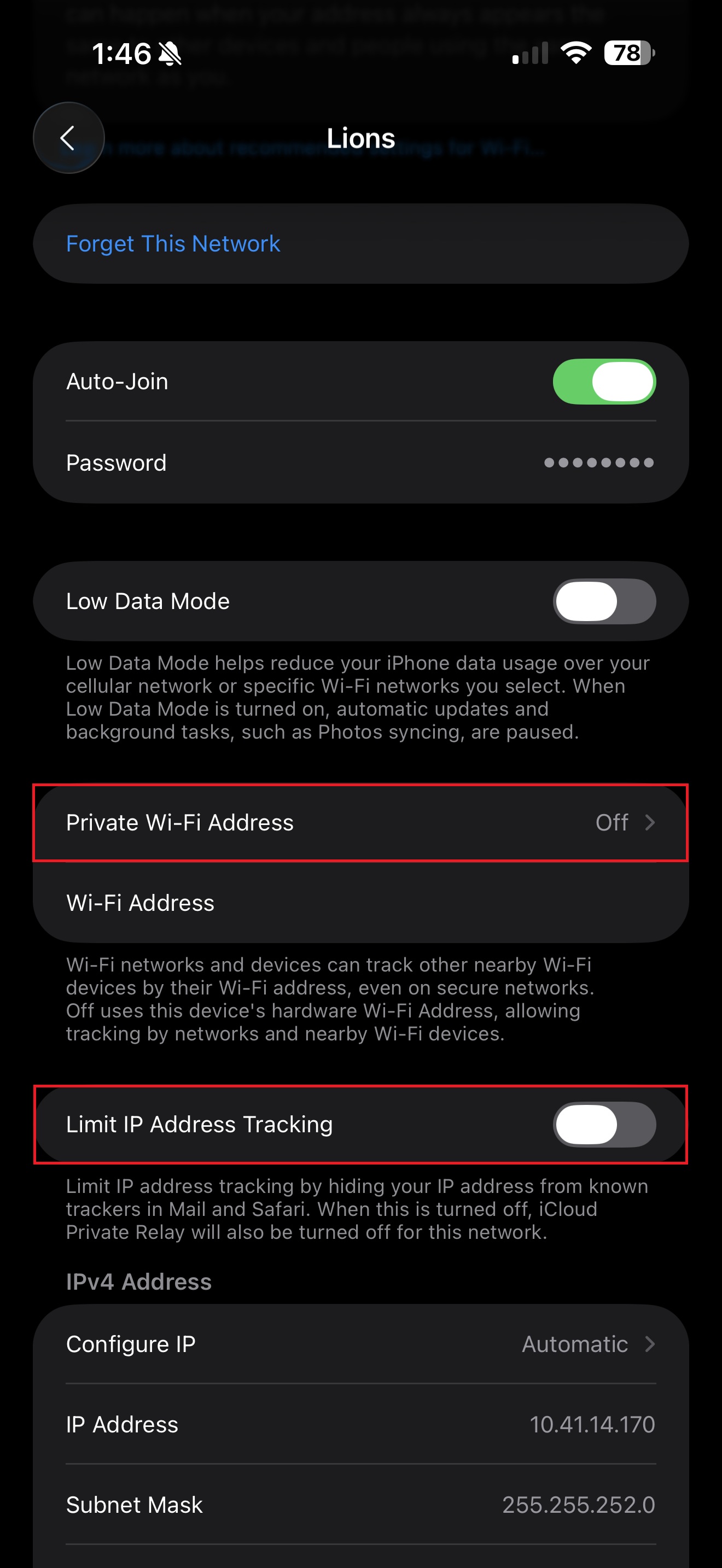
1. Disable MAC Randomization (iOS)
- Open Settings
- Connect to the desired Wi-Fi network, then tap the info i icon next PC-WiFi
- Select Private Wi-Fi Address and select the OFF option.
- Additionally, Limit IP Address Tracking should be OFF.
- This disables Apple’s Private Relay for the Lions network specifically.
If 'Limit IP Address Tracking' is enabled, the WebPrint website will not load.

- This disables Apple’s Private Relay for the Lions network specifically.
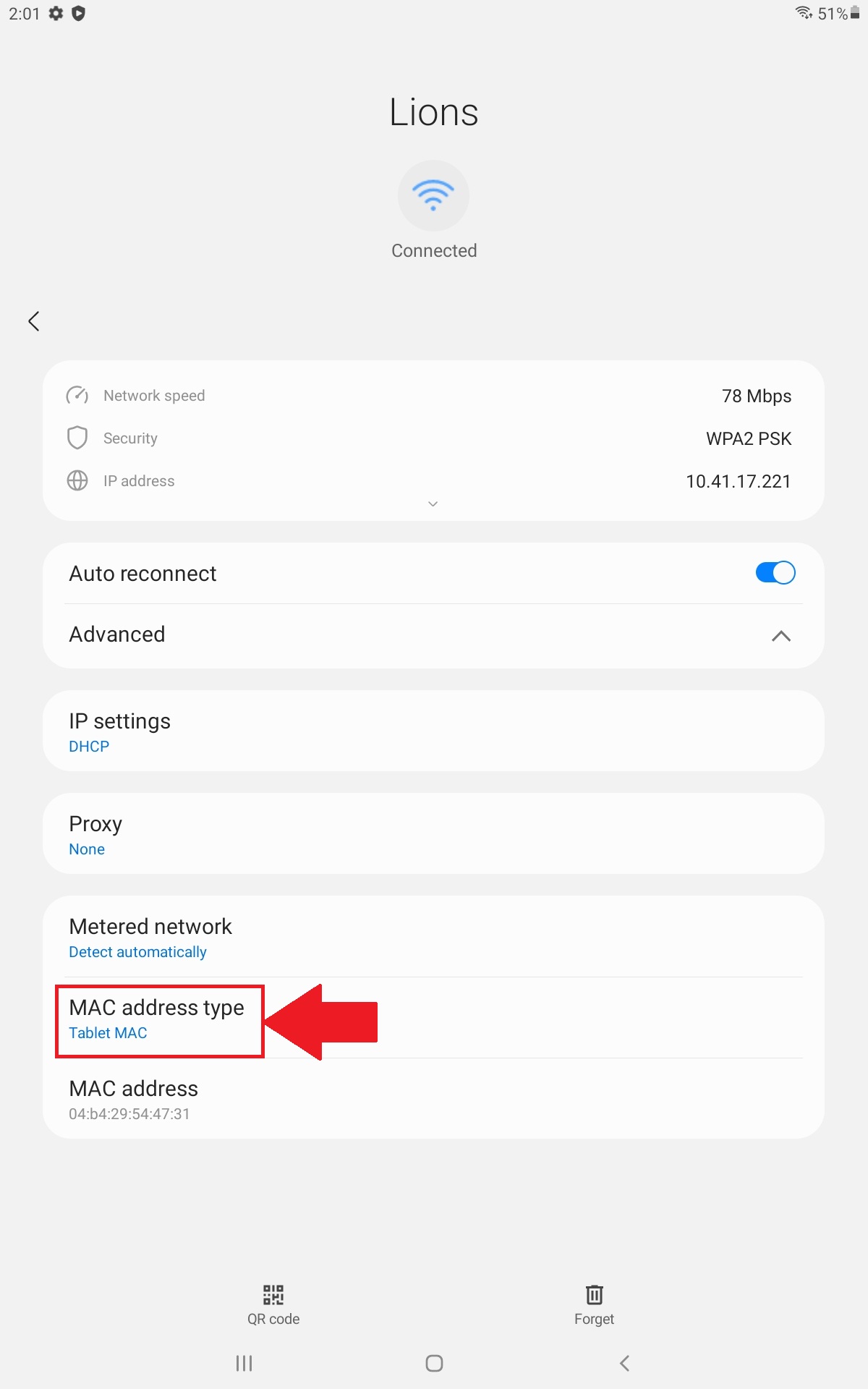
2. Disable MAC Randomization (Android)
- Open Settings
- Connect to the desired Wi-Fi network, then tap the settings gear icon next to PC-WiFi
- Select the dropdown menu next to Advanced
- Under MAC Address type, ensure Device MAC or Tablet MAC is selected.

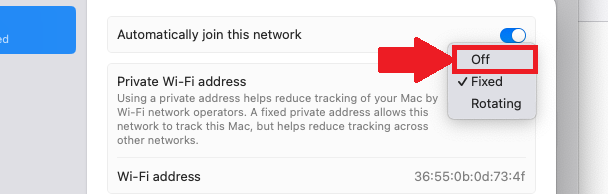
3. Disable Rotating Mac Address (MacOS)
- Open Settings
- Select WiFi
- Connect to the desired Wi-Fi network, then tap the info 'i' icon next to Lions
- Select Private Wi-Fi Address
- Toggle to OFF

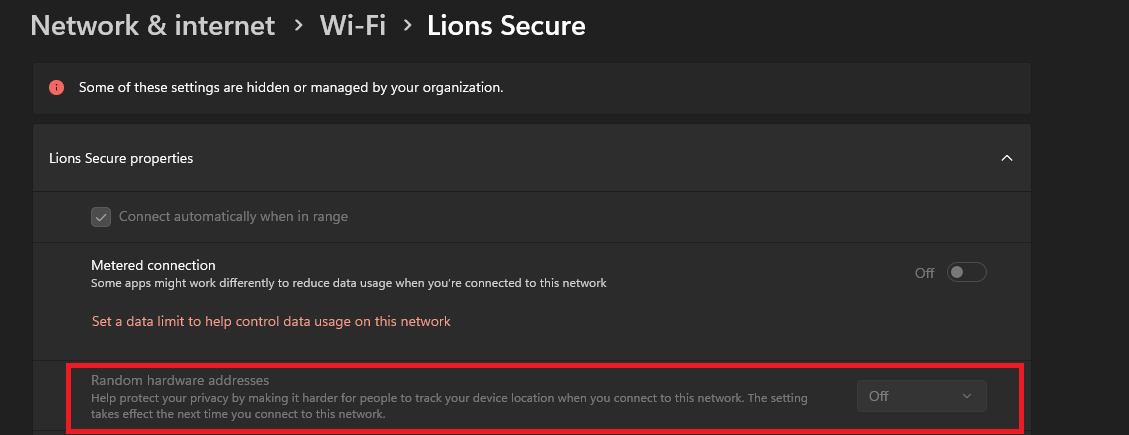
4. Disable Private Wi-Fi Address (Windows)
- Open Settings
- Select Network & Internet
- Select Wi-Fi
- Select Lions
- Ensure the Drop-down next to Random Hardware Addresses is set to OFF

Need Help?
If you encounter an error or need assistance with this guide, please contact the IT Department and include a screenshot with a brief description of the issue.
Contact the IT Department Here
iPhone VPN Settings
If you're experiencing connectivity issues, it may be due to personal hotspots or VPNs interfering with our network. Follow these simple steps to disable your VPN on iOS and Android devices to restore seamless access to campus Wi-Fi.

- Open Settings
- Under VPN, toggle the active VPN connection to OFF

Need Help?
If you encounter an error or need assistance with this guide, please contact the IT Department and include a screenshot with a brief description of the issue.
Contact the IT Department Here
iPhone Hotspot Settings
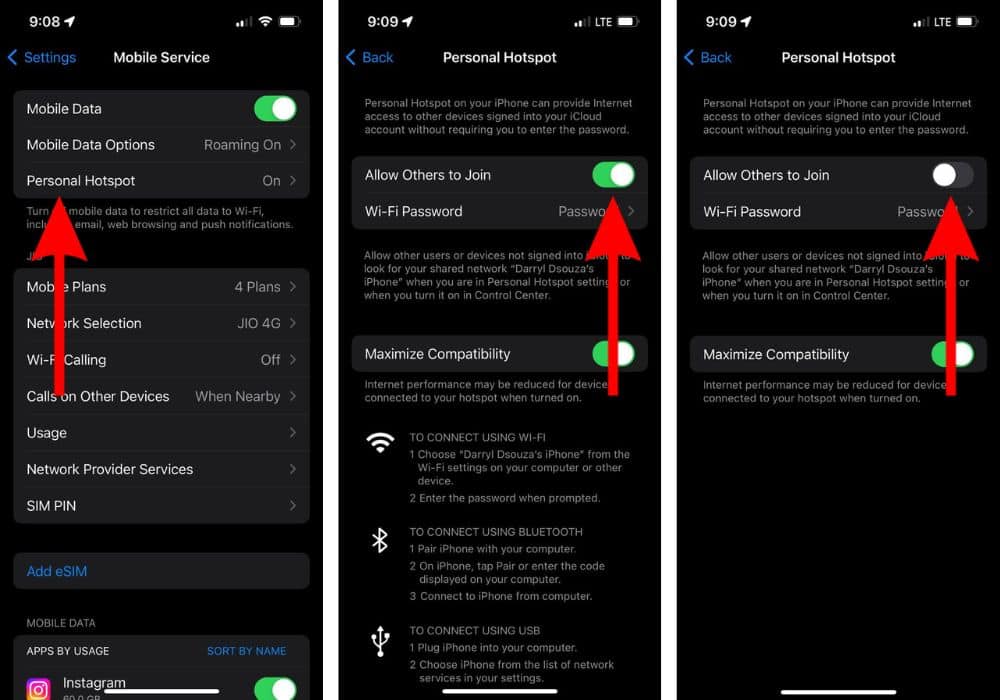
At Piedmont University, we utilize a Wireless Intrusion Prevention System (WIPS) to ensure secure and reliable Wi-Fi connectivity across campus. If you're experiencing connectivity issues, it may be due to personal hotspots or VPNs interfering with our network. Follow these simple steps to disable your hotspot on iOS and Android devices to restore seamless access to campus Wi-Fi.
- Open Settings
- Tap Personal Hotspot
- Toggle Allow Others to Join switch to OFF
Need Help?
If you encounter an error or need assistance with this guide, please contact the IT Department and include a screenshot with a brief description of the issue.
Contact the IT Department Here
Get Connected - Lions Wi-Fi
1. Personal Wi-Fi Password
If you need WiFi during this process, connect to the Lions Guest network using the instructions above.
You can enroll up to 8 Devices on the Lions Network. If you need to remove/reset the amount of devices that you have, please contact the IT Helpdesk!
Mobile Instructions (iOS/Android)
- Scan the QR Code OR Open a Web browser and visit https://cloudpath.piedmont.edu/
- Review the Terms and Conditions, Check the box next to I agree to the Terms & Conditions, should you agree.
- Select Start
- Login using your @piedmont.edu or @lions.piedmont.edu credentials
- The Personal WiFi Password is shown on the next page, you can use this WiFi password as the Network password in the Network Settings section of your device.
- Your phone will now be connect to Lions
Whenever you connect, a copy of your WiFi password will be sent to your Piedmont or LIONS email address
If you do not disable MAC Randomization, you will quickly use your 8 slots for enrolled network devices.
Please review the recommended WiFi settings to disable 'MAC Randomization' after completing these steps.
How to disable MAC Randomization
Laptop Instructions (PC/MacOS)
- Open a Web browser and visit https://cloudpath.piedmont.edu/ (you may do this from your phone/tablet as well)
- Review the Terms and Conditions, Check the box next to I agree to the Terms & Conditions, should you agree.
- Select Start
- Login using your @piedmont.edu or @lions.piedmont.edu credentials
- Underneath the QR code that is displayed, you will be provided a Personal WiFi Password
- Open the Network Settings on your Mac or PC device; Select the Lions network, and enter your Personal WiFi Password
- Press Connect/Join, you will now be connected to Lions
Whenever you connect, a copy of your WiFi password will be sent to your Piedmont or LIONS email address
Console Instructions (Xbox/Playstation/Switch)
- Open the Network Settings on your console
- Complete the steps above to obtain your Personal WiFi Password
- Enter your Personal WiFi Password as the network password.
- You will now be connected to Lions on your console.
Need Help?
If you encounter an error or need assistance with this guide, please contact the IT Department and include a screenshot with a brief description of the issue.
Contact the IT Department Here
Get Connected - Event Guest
Lions Guest - Event Guest
Lions Guest Network connection will expire after 5 days. After this, you will need to re-enroll your device.
How to Connect:
-
Navigate to the WiFi section of your system settings
-
Join the Network labeled Lions Guest
-
A webpage will open, review the Terms and Conditions, Check the box next to I agree to the Terms & Conditions, should you agree.
-
Select Start
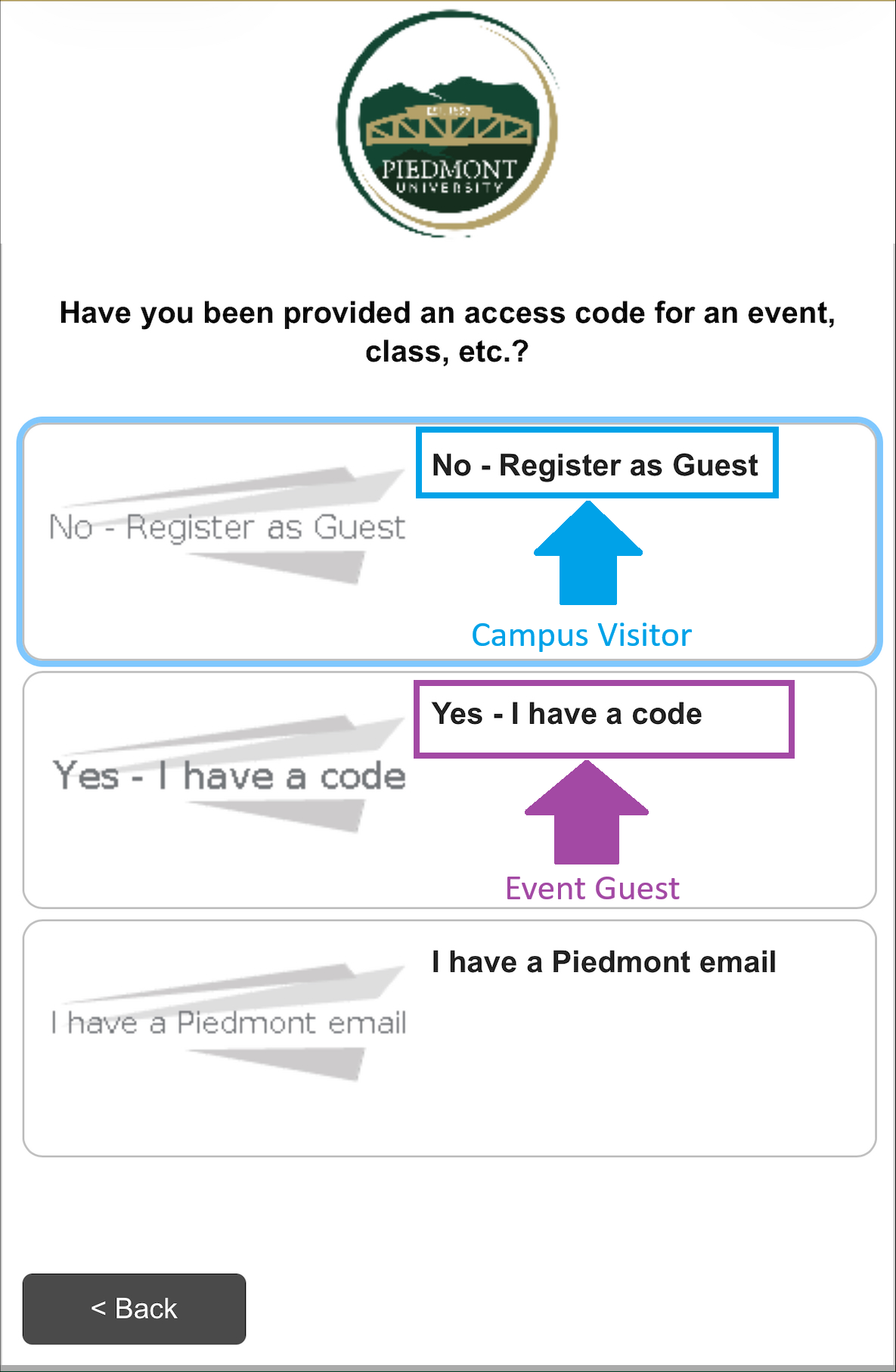
- The next screen will prompt, Have you been provided an access code for an event, class, etc.?
- No - Register as Guest
- Type in the WiFi password you were given in the Voucher field and select Continue
- You will now be connected to Lions Guest
- Yes - I have a code
- Proceed to step 6
- I have a Piedmont Email
- Proceed to Section 3 - Connecting to the Lions Network

- Proceed to Section 3 - Connecting to the Lions Network
- No - Register as Guest
-
Enter an email address or Phone number where you will receive a security code.
-
After entering your information, please solve the Captcha
-
Select Send
Should you leave the webpage, copy the Wireless Verification Code sent to your email or text message, Rejoin the Lions Guest network and select I already have a verification code.
-
Enter your Wireless Verification Code, solve the Captcha, and select Continue
-
You will now be connected to Lions Guest
Please review the recommended WiFi settings to disable 'MAC Randomization' after completing these steps.
How to disable MAC Randomization
Get Connected - Campus Visitor
Lions Guest - Visitor Access
Lions Guest Network connection will expire after 24 hours. After this, you will need to re-enroll your device.
How to Connect:
Android VPN Settings
If you're experiencing connectivity issues, it may be due to personal hotspots or VPNs interfering with our network. Follow these simple steps to disable your VPN on iOS and Android devices to restore seamless access to campus Wi-Fi.

- Open Settings
- Tap Connections or Network & Internet
- Select VPN (Or go to Advanced > VPN)
- Tap the active VPN connection and select Disconnect or toggle it to OFF

Android Hotspot Settings
At Piedmont University, we utilize a Wireless Intrusion Prevention System (WIPS) to ensure secure and reliable Wi-Fi connectivity across campus. If you're experiencing connectivity issues, it may be due to personal hotspots or VPNs interfering with our network. Follow these simple steps to disable your hotspot on iOS and Android devices to restore seamless access to campus Wi-Fi.
- Open Settings
- Tap Connections or Network & Internet (Varies by device)
- Select Mobile Hotspot and Tethering
- Toggle Mobile Hotspot to OFF
