**I think I've received a Phishing email! What should I do!?"**
-Do not click on links or open attachments
-Avoid interacting with any content in the email
-Verify the Sender
-Contact the organization directly using official contact details that are not provided in the email.
-Report the Email
-Use the Report Phishing button in Outlook to Report phishing emails to the IT Department.
-Delete the Email
-Remove the phishing email from your inbox and trash folders after reporting it to IT.
--- ## Report Phishing (Outlook Classic)You must report a Phishing email using a PC or Mac
- Navigate to **Inbox** - Select the email you wish to report, and ensure the email is highlighted. - Under the **Home** tab, in the far-right corner, select **Phish Alert Report** - The email is reported to the IT Department for review. [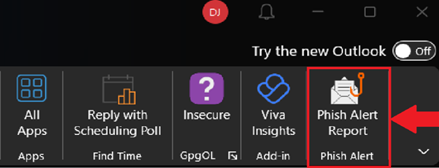](https://wiki.piedmont.edu/uploads/images/gallery/2025-10/ZPz38rqzZBUblCO4-phishalert.png) --- ## Report Phishing (Outlook New)These instructions also work for the Outlook Web Application (OWA)
- Navigate to **Inbox** - Select the email you wish to report, and ensure the email is highlighted. - Select the **Home** tab - Use the **Report** button (Located next to **Reply**) to report the email. - A popup will appear asking if you're sure you'd like to report the email. Select **Report.** - The email is reported to the IT Department for review [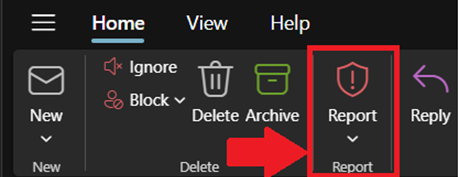](https://wiki.piedmont.edu/uploads/images/gallery/2025-10/cKlajNfuSE1KwweN-phishreport.png) ---