*Phishing emails are malicious attempts to obtain sensitive information such as usernames, passwords, and credit card details by disguising themselves as trustworthy entities. This guide will help you identify phishing emails and protect your personal information.*
## [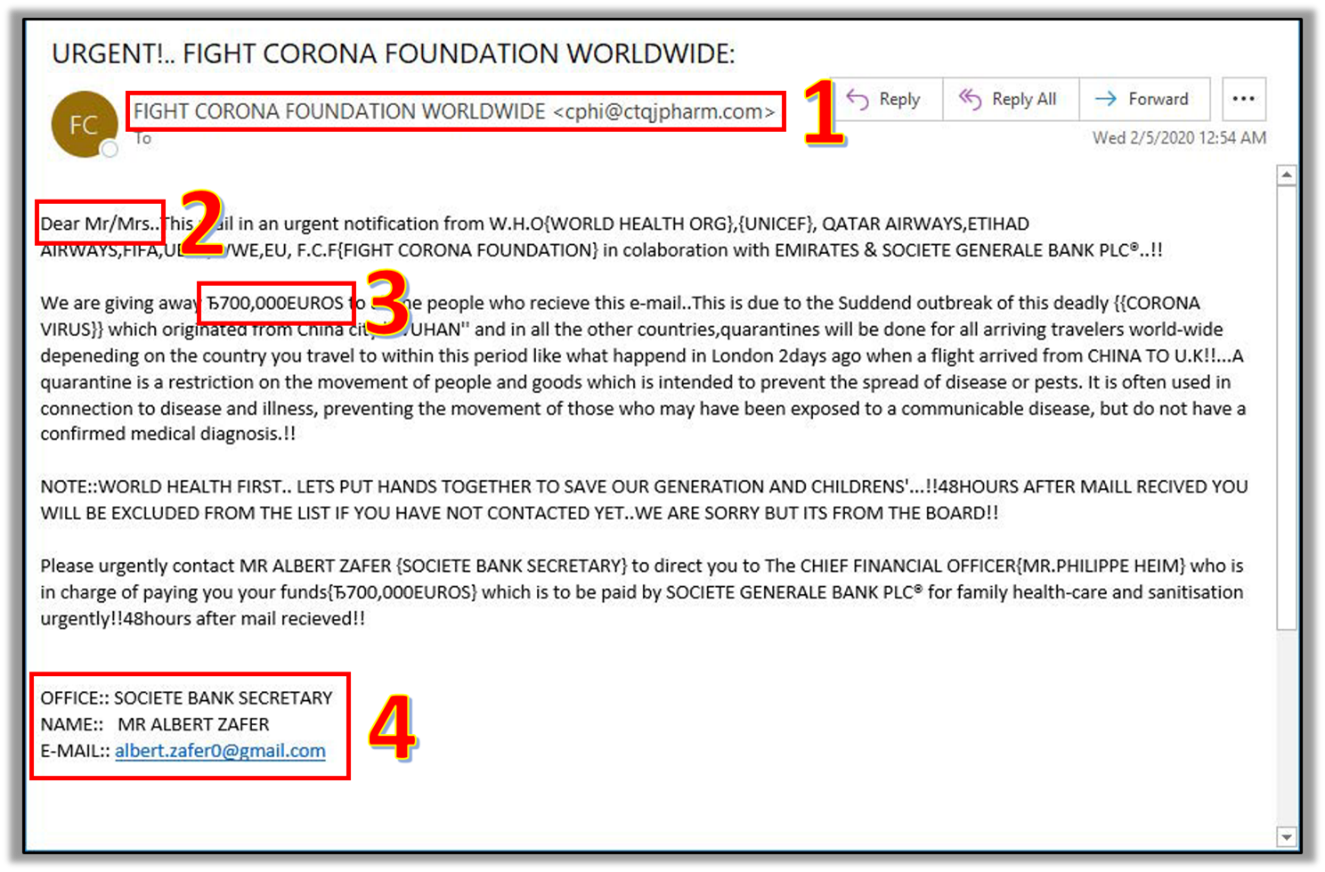](https://wiki.piedmont.edu/uploads/images/gallery/2025-10/GH9YDBsrCqVkvx8V-phishingemail.png) ## 1. Suspicious Senders - Always check the Sender's email address - Look for subtle misspellings or unusual domain names. --- ## 2. Generic Greetings - Be cautious of generic greetings like "Dear Customer" instead of your actual name. --- ## 3. Urgent or Threatening Language - Beware of emails that create a sense of urgency or fear. - Phrases like "Your account will be suspended," or "Immediate action required" or "URGENT" - Phishing emails may also promise rewards of some kind. --- ## 4. Mismatched URLs - Ensure the URLs in the email match the legitimate website. - Hover over the links to see the actual URL. --- [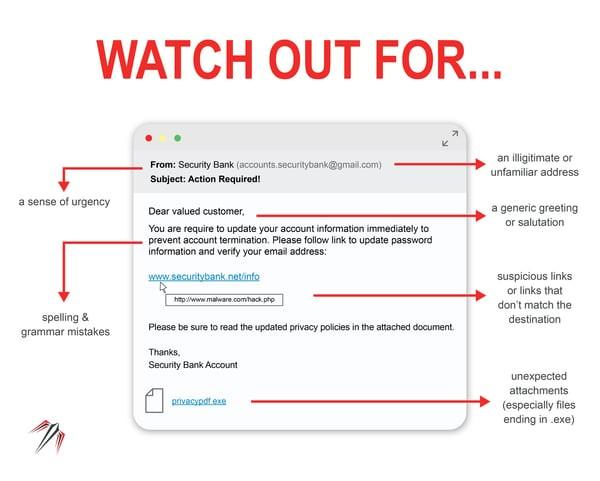](https://wiki.piedmont.edu/uploads/images/gallery/2025-10/FGNOywmRQN7zc95y-preventphishing.jpg) ## 5. Poor Grammar and Spelling - Look for spelling and grammatical errors - Phishing emails often contain typos and awkward phrasing - This is often due to attackers using Google Translate to translate to English. --- ## 6. Unexpected Attachments or Links - Do not open unexpected attachments or click on suspicious links - A link might say 'www.yourbank.com' but could actually lead to a different website - Do not open an attachment if it is an .exe (windows) or .dmg (MacOS) --- ## 7. Request for Personal Information - Legitimate organizations generally do not ask for sensitive information via email. - Emails asking for passwords, social security numbers, or credit card details are likely phishing attempts. --- # Report Phishing Emails**I think I've received a Phishing email! What should I do!?"**
-Do not click on links or open attachments
-Avoid interacting with any content in the email
-Verify the Sender
-Contact the organization directly using official contact details that are not provided in the email.
-Report the Email
-Use the Report Phishing button in Outlook to Report phishing emails to the IT Department.
-Delete the Email
-Remove the phishing email from your inbox and trash folders after reporting it to IT.
--- ## Report Phishing (Outlook Classic)You must report a Phishing email using a PC or Mac
- Navigate to **Inbox** - Select the email you wish to report, and ensure the email is highlighted. - Under the **Home** tab, in the far-right corner, select **Phish Alert Report** - The email is reported to the IT Department for review. [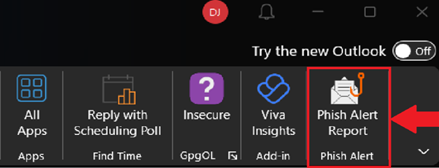](https://wiki.piedmont.edu/uploads/images/gallery/2025-10/ZPz38rqzZBUblCO4-phishalert.png) --- ## Report Phishing (Outlook New)These instructions also work for the Outlook Web Application (OWA)
- Navigate to **Inbox** - Select the email you wish to report, and ensure the email is highlighted. - Select the **Home** tab - Use the **Report** button (Located next to **Reply**) to report the email. - A popup will appear asking if you're sure you'd like to report the email. Select **Report.** - The email is reported to the IT Department for review [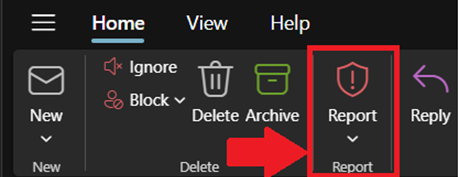](https://wiki.piedmont.edu/uploads/images/gallery/2025-10/cKlajNfuSE1KwweN-phishreport.png) ---