Roku TVs
At Piedmont University, we’ve identified Roku TVs as a common source of wireless interference. Roku devices use a feature called Wi-Fi Direct, which creates their own wireless signal on the same channel used for internet access. This can disrupt nearby Wi-Fi connections, causing dropped signals, slow speeds, or failed connections.
If instructions for your specific Roku model are not listed please refer to user manuals or the vendor website of your Roku TV.
Disable Wi-Fi Direct
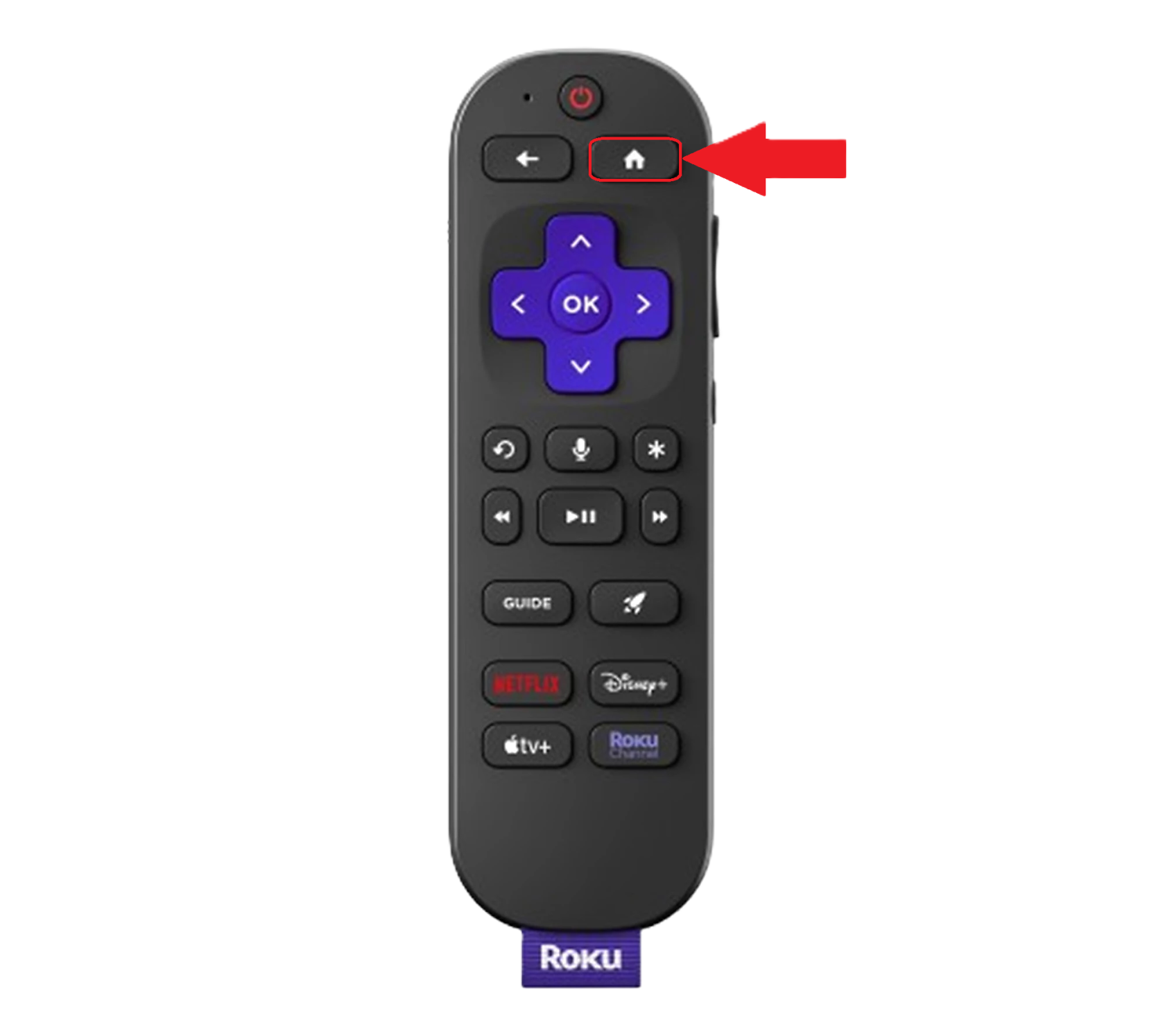
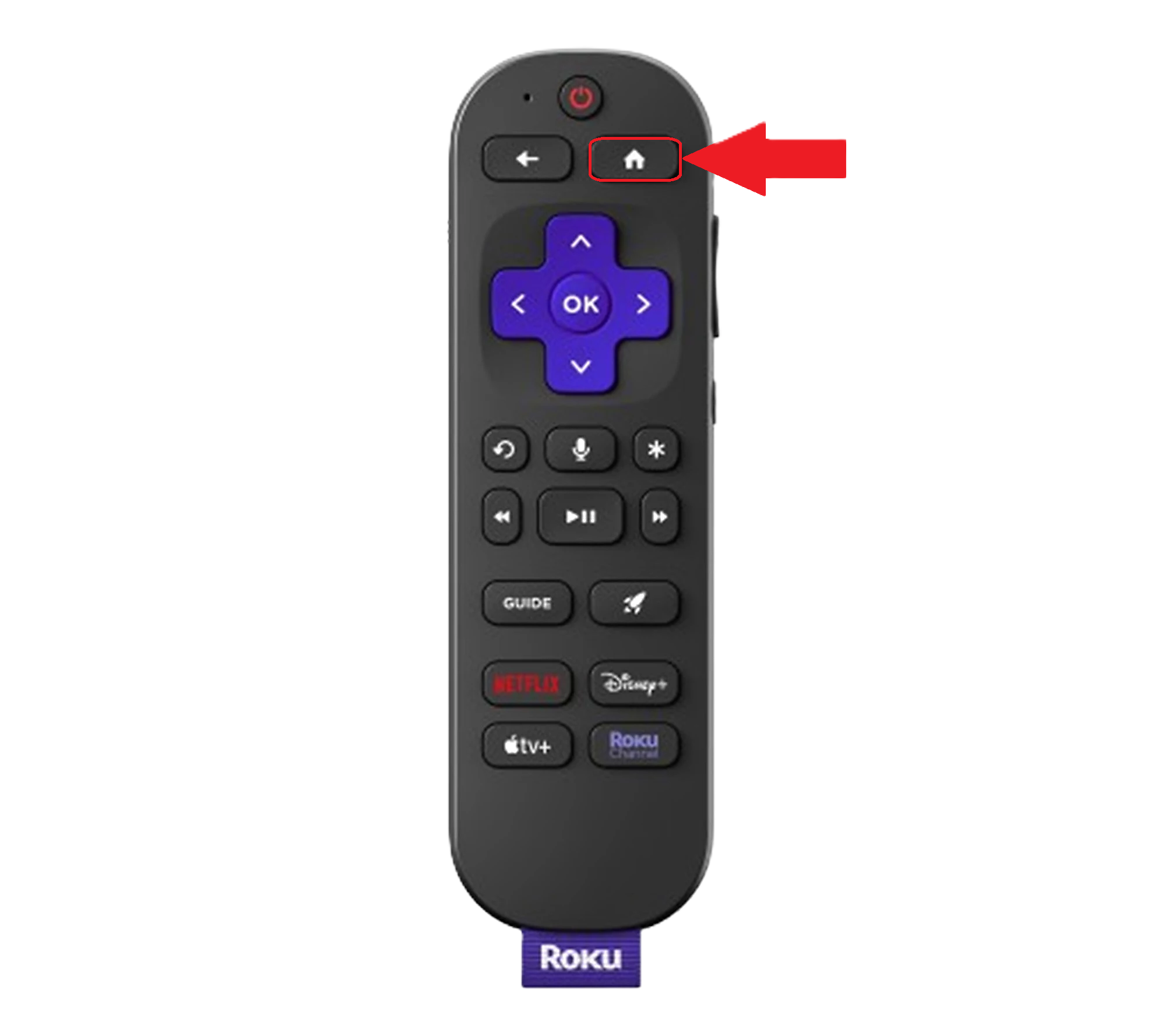
- Press the Home button (House icon) on your Roku remote
- Navigate to Settings
- Select System
- Select Advanced System Settings
- Choose Device Connect
- Select the option to Disable Device Connect
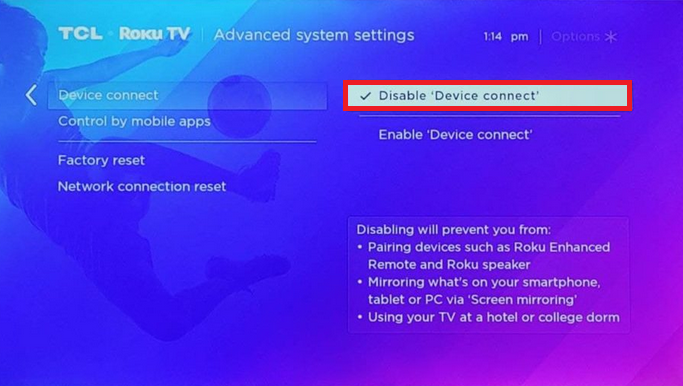
When you disable this setting, Roku displays a warning "Disabling will prevent you from using your TV at a college or Dorm"
Disabling this setting will NOT prevent your Roku from connecting to the campus network
Disable Wi-Fi Direct (Newer Roku)
- From the Roku Home screen, open Settings
- Select Network
- Select Wi-Fi > Wi-Fi Direct
- Toggle Wi-Fi Direct to Disabled
What Changes when Disabled?
- Screen mirroring from phones, tablets, or PCs will be disabled
- You can still use an HDMI cable to screen mirror
- The Roku TV will no longer generate a Wi-Fi signal but will still be able to connect to Wi-Fi
- This prevents interference with the campus Wi-Fi network.
- Some Roku Enhanced Remotes (the ones with voice search or TV volume buttons) will no longer function after this setting is turned off.
- You can still control your Roku with the free Roku mobile app or by using a Roku Simple Remote (Infared) which are inexpensive and widely available.