IT Help & Support
When to call IT, how to submit a ticket, and stay protected from threats.
Contact IT!
This guide provides instructions for submitting an IT ticket to the university's IT Help Desk. It includes steps for accessing the Help Desk portal, logging in, submitting a ticket, and providing detailed information. The guide also outlines alternative contact methods and how to check the status of submitted tickets, helping users efficiently communicate their IT support needs.
By Email

- Send an email explaining your issue to ITSupport@piedmont.edu
- Please provide a very detailed description of the issue.
- If possible, please include screenshots.
By Phone

- Our hours are Monday-Thursday 8AM-5PM and Fridays 8AM-2PM.
- Call us at (706) 894-4205
- Account/Login related issues MUST call the Helpdesk
- You cannot submit Account/Login related issues on behalf of someone else
- Please be prepared to provide personal/contact information
By Web

- Open a web browser and visit: https://itsupport.piedmont.edu
- Enter your full @Piedmont.edu or @Lions.Piedmont.edu email and password
- Scroll to the bottom of the page
- Select Submit a ticket
- Please enter your contact information and issue description
Desk Power Issues
Due to recurring power fluctuations across campus — particularly overnight or following storms — docking stations may occasionally fail to detect monitors, keyboards, or other peripherals when you return to your desk. This is often caused by brief power surges interrupting the dock's normal function.
Restarting the Docking Station
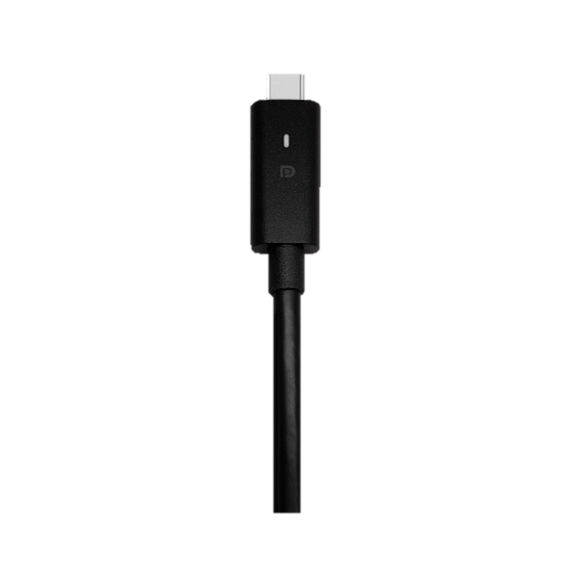
Check the USB-C Cable
- If the LED light on the USB-C cable is not illuminated, the docking station does not receive power.

Restart the Docking Station
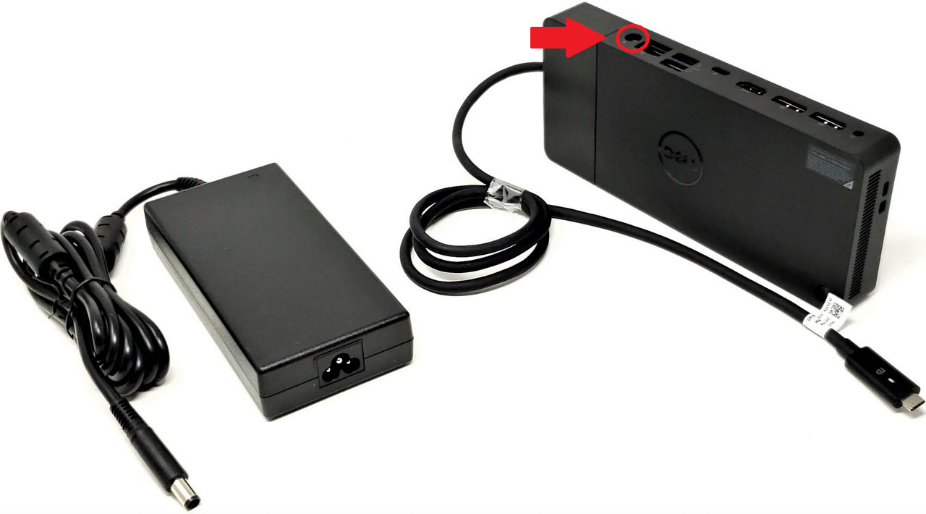
- If the LED light is off, unplug the power cable to your docking station (shown below) and immediately plug it back in.
- Please allow 10 seconds for the docking station to power on.
- Should your monitors and other peripherals continue to experience power issues, please contact the IT Helpdesk!

Work From Home
Piedmont University’s standard process for working remotely, including the equipment provided by IT, how to set up your workstation at home, and how to connect securely using VPN. It also clarifies what additional equipment may be considered optional and how those requests should be handled. The goal is to ensure a consistent, secure, and reliable remote work experience for faculty and staff.
How to Work Remotely
1. Equipment Checklist
The Piedmont University IT Department provides the following for at-home workstations:
- Piedmont Laptop
- Laptop Charger
- VPN Connectivity
These Items are sufficient to perform work from home.
Additional equipment such as docking stations, monitors, keyboards, etc. is considered optional convenience equipment and is not provided by IT by default. Requests for additional equipment should follow the official accommodation process via Piedmont OARS or be approved and funded by the requesting department.
2. Workstation Setup
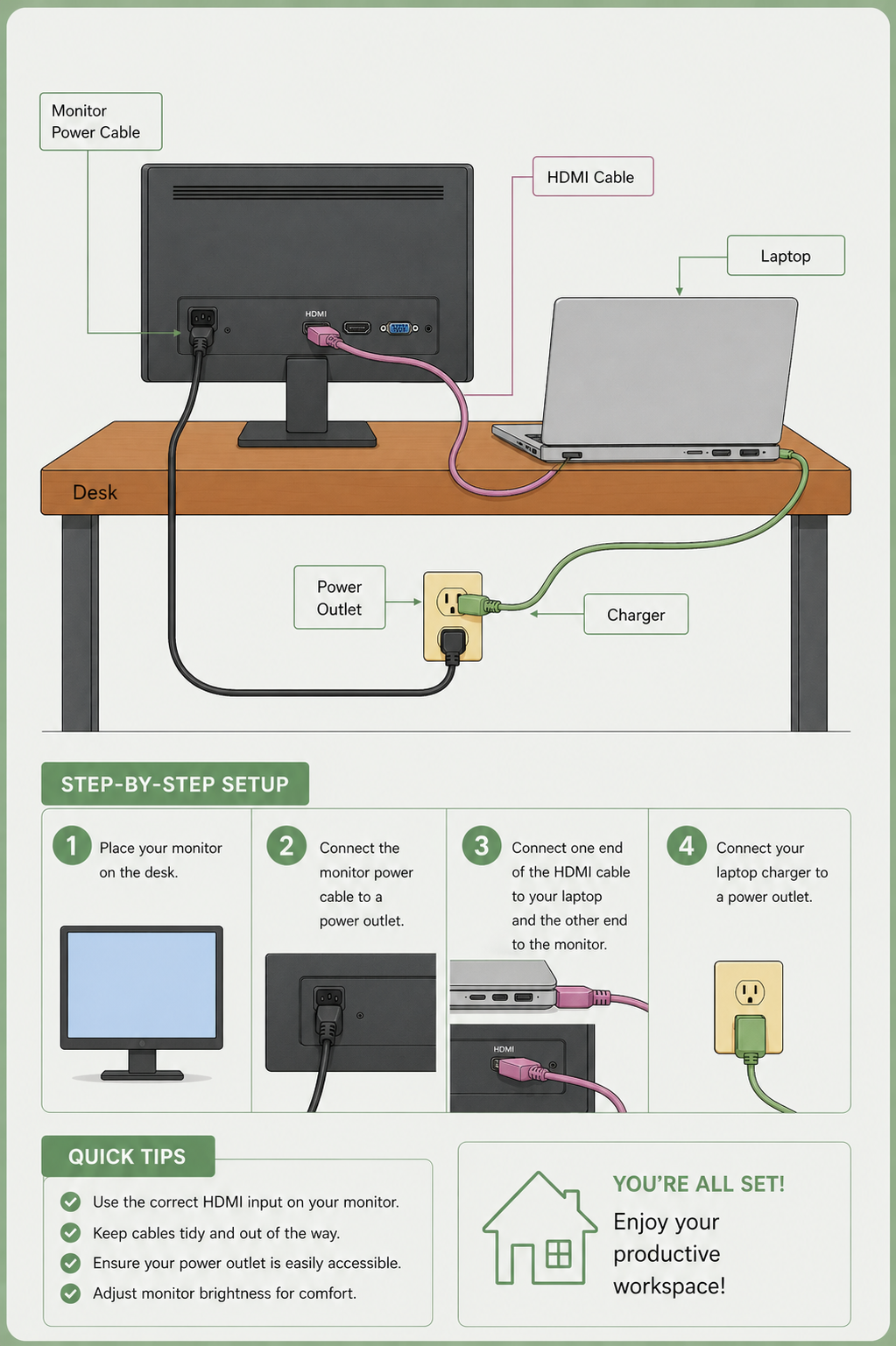
- Connect your Piedmont Laptop to power via the charging cable.
- Power on the laptop and sign-in using your Piedmont account.
- Connect the laptop to your home network by selecting your network and typing in the password.
- Connect your device to the GlobalProtect VPN.
- You can find instructions for connecting to VPN here: GlobalProtect Instructions
- Once connected to VPN, You should be able to access Piedmont resources as you normally would on-campus.
💬 Department Contact Info
For any issues or questions regarding remote work, please contact IT Helpdesk support
📞 (706) 894-4205
✉️ ITSupport@piedmont.edu
🔗 https://itsupport.piedmont.edu/
Remote Workstation Equipment
1. Remote Equipment
- Monitor - $89.99
- Mouse / Keyboard - $21.59