# Password Reset
## 1. Microsoft Account
1. Visit [https://myaccount.microsoft.com/](https://myaccount.microsoft.com/)
2. Sign in with your Piedmont Email Address
3. Select **Update Info[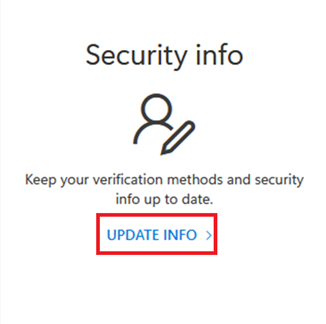](https://wiki.piedmont.edu/uploads/images/gallery/2025-06/tCaIhKxRzJN2bjY5-updateinfo.png)**
4. **Select Change next to Password
[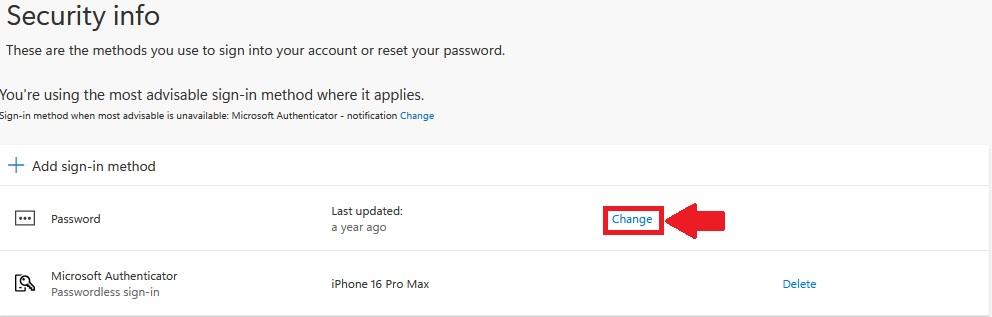](https://wiki.piedmont.edu/uploads/images/gallery/2025-06/liHQ15kvB36P3Eej-passwordchange.jpg)**
5. Enter your **Old Password**
6. Enter your **new password**
7. Confirm your **new password**
8. **Select Submit to change your password**
[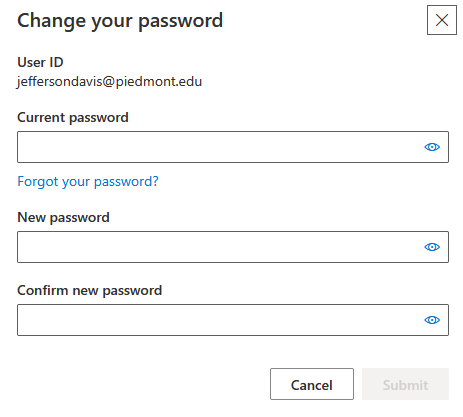](https://wiki.piedmont.edu/uploads/images/gallery/2025-06/Oujk6oSnsiimlZou-passwordupdate.png)
**Password Requirements:** Must be at least 12 characters long. Must have at least one capital letter. Must have at least one lower case letter. Must have at least one number. Special characters are optional. (Example - !, @, #, $, %, ^) Must have a minimum age of 1 day before it can be changed. Users cannot use the last 24 passwords they have used. Passwords are non-expiring.
---
## **Need Help?**
If you encounter an error or need assistance with this guide, please contact the IT Department and include a screenshot with a brief description of the issue.
[**Contact the IT Department Here**](https://wiki.piedmont.edu/books/student-resources/chapter/contact-it "Contact IT!")