MFA Passkeys
1. What is a Passkey?
A passkey is a modern, phishing-resistant way to sign in without using a password!
- Instead of something you know (like a password), a passkey uses something you have (your phone or device) and something you are (Face ID, Fingerprint, or device PIN)
- The credential is stored securely on your device and is never shared with the website or service that you're signing into. Because of this, passkeys can't be reused, stolen by fake websites, or guessed.
- Passkeys are based on industry security standards (FIDO2). Your device proves to Microsoft that it's really you, without ever sending a password across the internet.
- If the site is not legitimate, the passkey simply won't work, and there's nothing for the attacker to steal.
- Your device becomes your key, and your identity stays locked inside it!
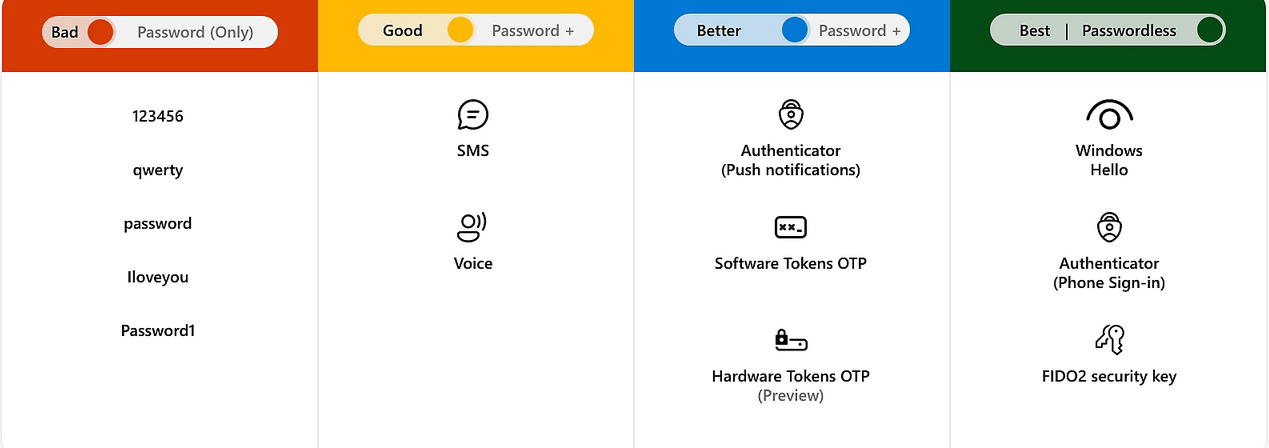
- Did you know that passwords are the weakest link in modern security? They are often:
- Reused
- Phished
- Leaked in breaches
- Guessed
- Microsoft's goal with passwordless sign-in is to:
- Eliminate passwords as an attack target - No passwords means nothing to phish, reuse, or brute-force.
- Reduce account takeovers and phishing - Passkeys only work on the real Microsoft sign-in and approved services. Fake sites can't trick your device into handing over a credential.
- Make sign-ins faster and simpler - Approving with Face ID, fingerprint, or a device PIN is quicker than typing passwords and codes.
- Improve both security and user experience - Stronger security without extra steps, fewer account lockouts.
Passkeys are part of Microsoft's move to a passwordless future where accounts are protected by your device and biometrics instead of passwords that can be stolen, guessed, or phished
2. Create a Passkey
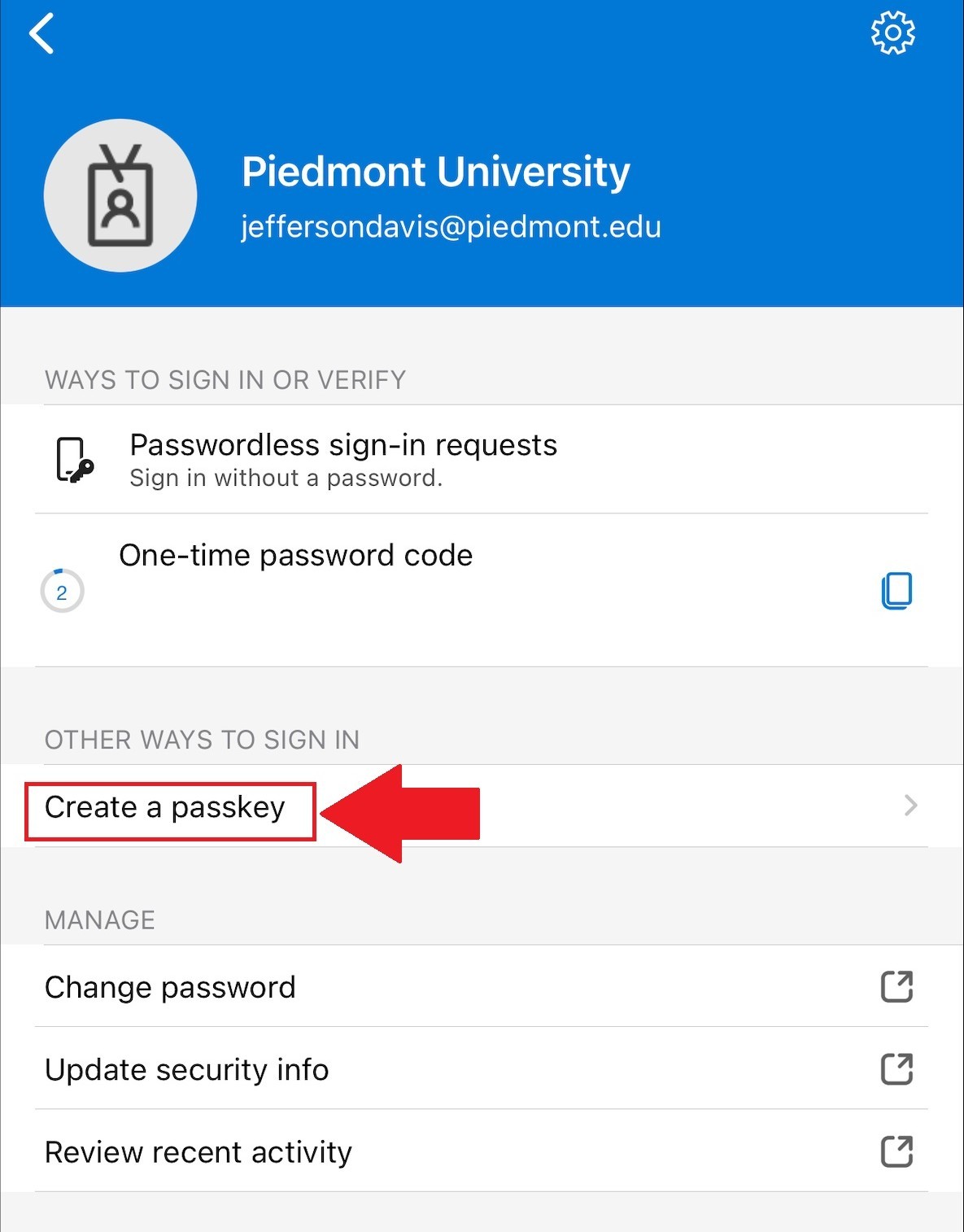
- Open the Microsoft Authenticator app on your mobile device.
- Select your @Piedmont.edu or @lions.piedmont.edu account.
- Under Other ways to Sign in, select Create a Passkey

-
Select Sign in on the next page.
-
Login using your Piedmont credentials.
-
You will be prompted to complete MFA.
-
Once logged in, your Passkey is created.
3. Sign in with Passkey
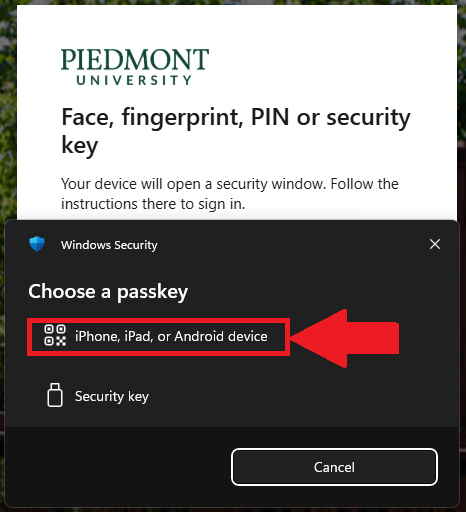
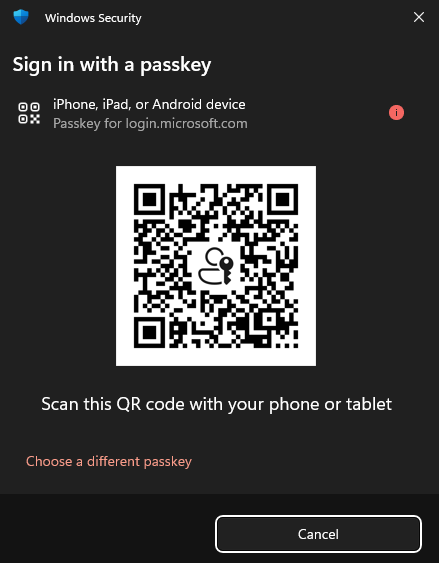
- When you login using your Piedmont credentials, you will receive a new popup window in place of Microsoft Authenticator

- Select iPhone, iPad, or Android device.
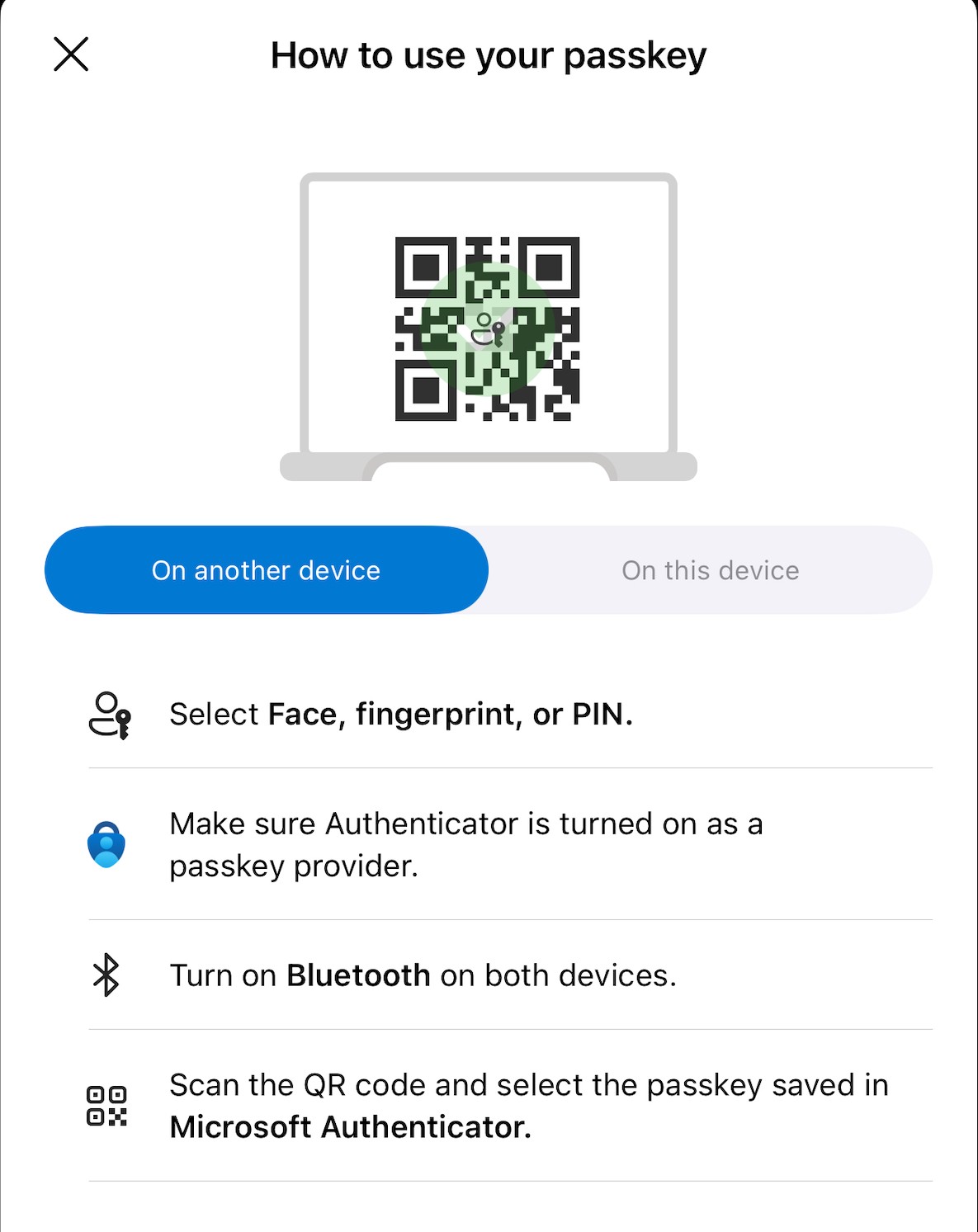
- Use your mobile device to scan the QR Code on your computer, select Sign in with Passkey

- On your mobile device, a message will appear "Sign in to login.microsoft.com" on the other device with your passkey for "@piedmont.edu" saved in "Authenticator" ?
- Choose Use Passkey
- Your mobile device will prompt for Face ID or biometrics.
4. Use Original Authentication method
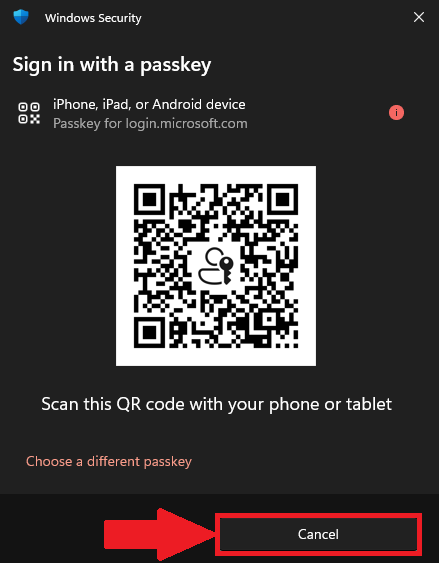
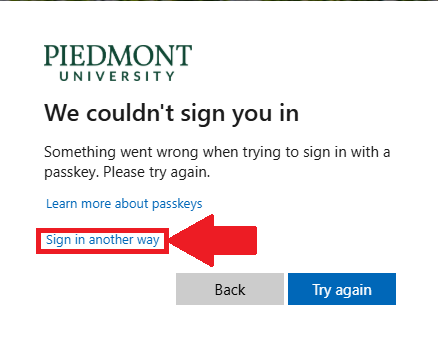
- In some cases you may need to use the original MFA through the Authenticator app, to do so, select the 'X' or 'Cancel' button and select Sign in Another way


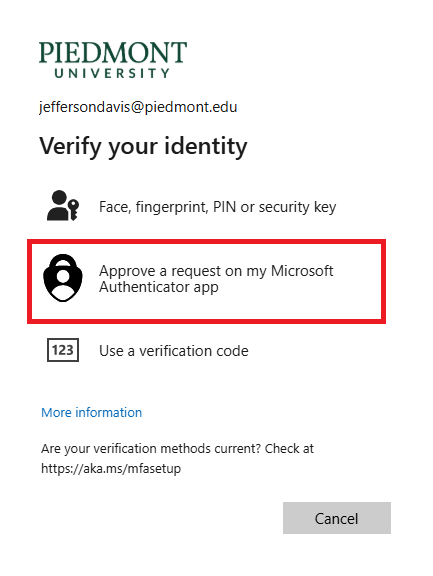
- Select Approve a request on my Microsoft Authenticator app to complete original MFA steps.

- Follow the on-screen instructions to approve the Authenticator request.
💬 Department Contact Info
For any issues or questions regarding MFA, please contact IT Helpdesk support
📞 (706) 894-4205
✉️ ITSupport@piedmont.edu
🔗 https://itsupport.piedmont.edu/