OneDrive
OneDrive is a powerful cloud-based storage service that allows you to access your files and documents from anywhere, making it a vital tool for productivity and collaboration. This document has been prepared to assist you in setting up OneDrive on your PC, ensuring a seamless and efficient experience.
OneDrive Backup (MacOS)

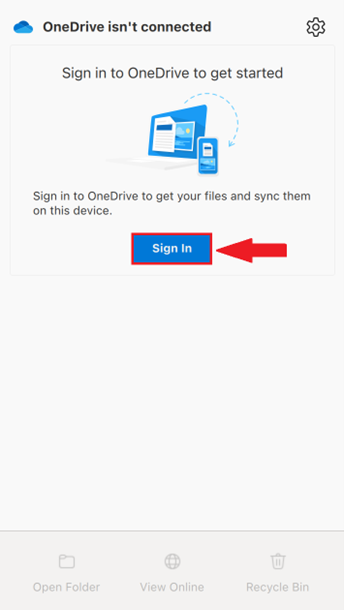
- Open OneDrive from the menu bar, located at the top of the screen

- Select Sign in

- If you are already signed in, you do not need to proceed
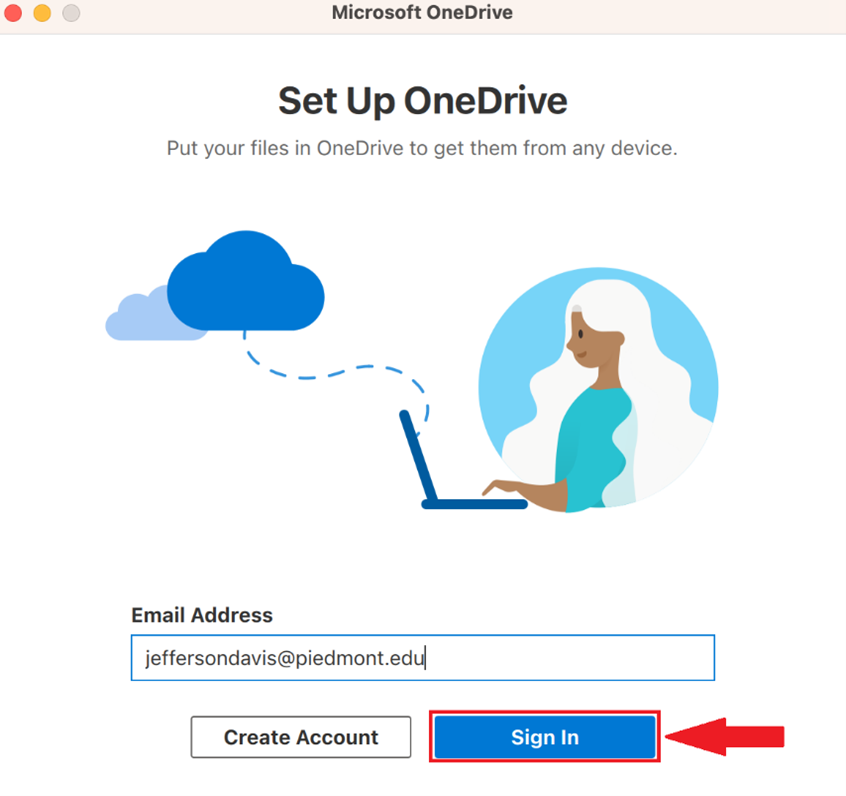
- Enter your full email address and select Sign in

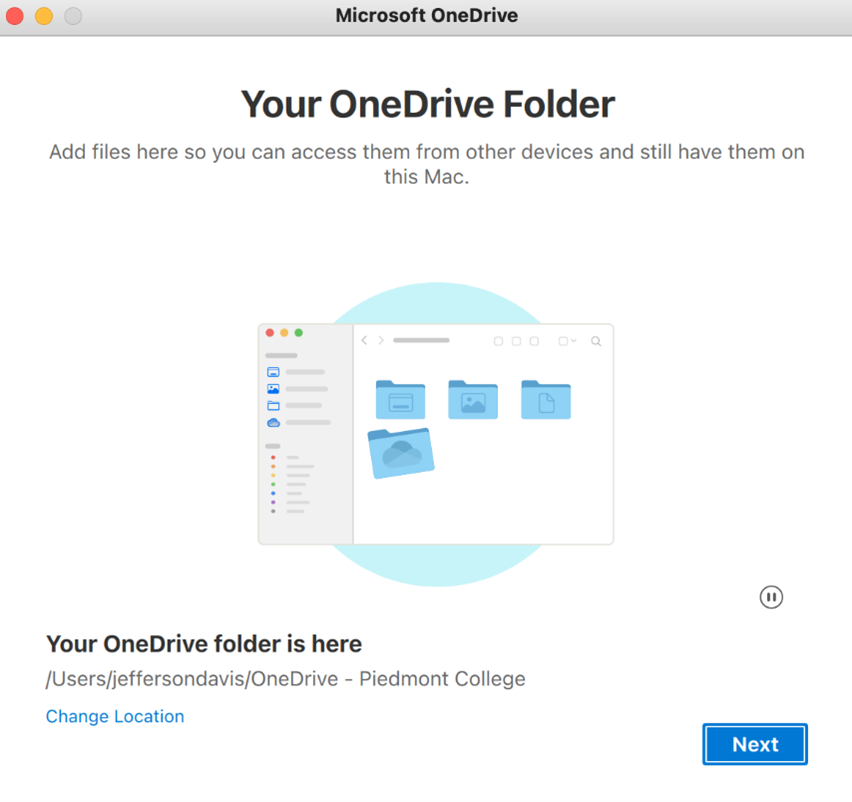
- Follow through the on-screen prompts to finish signing in

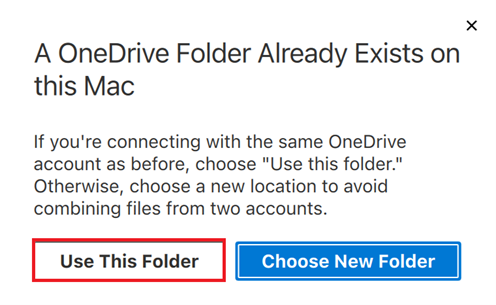
- If prompted that a OneDrive folder already exists, choose ‘Use this Folder’

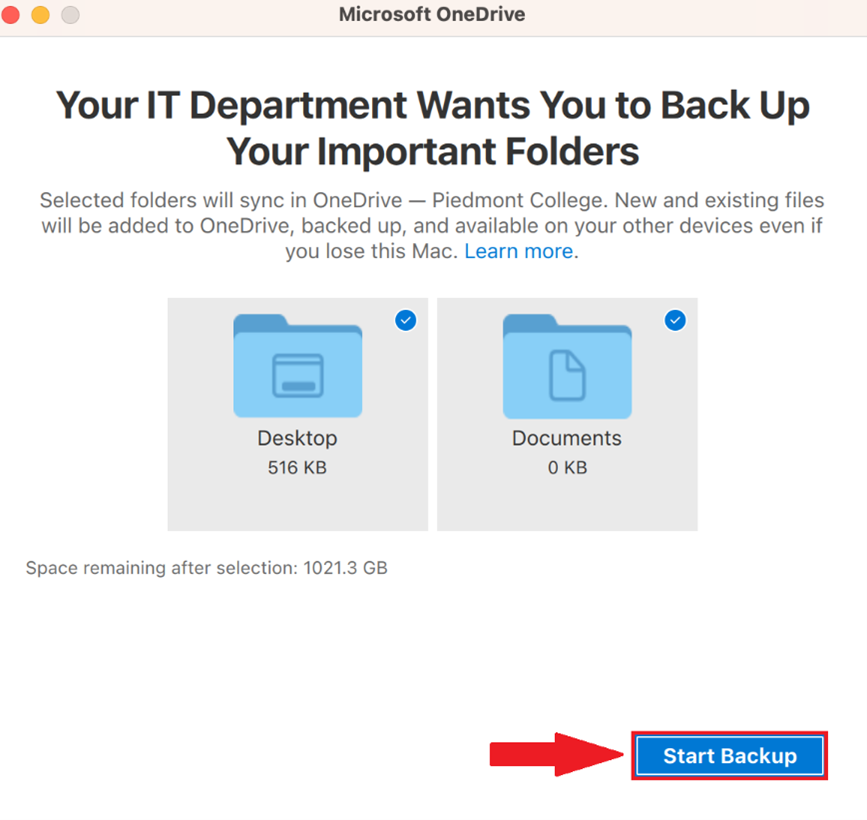
- You will be prompted that Your IT department wants you to back up your important folders, choose Start Backup

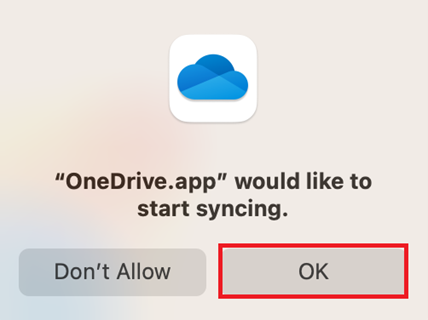
- MacOS may prompt you to allow OneDrive to sync, choose OK

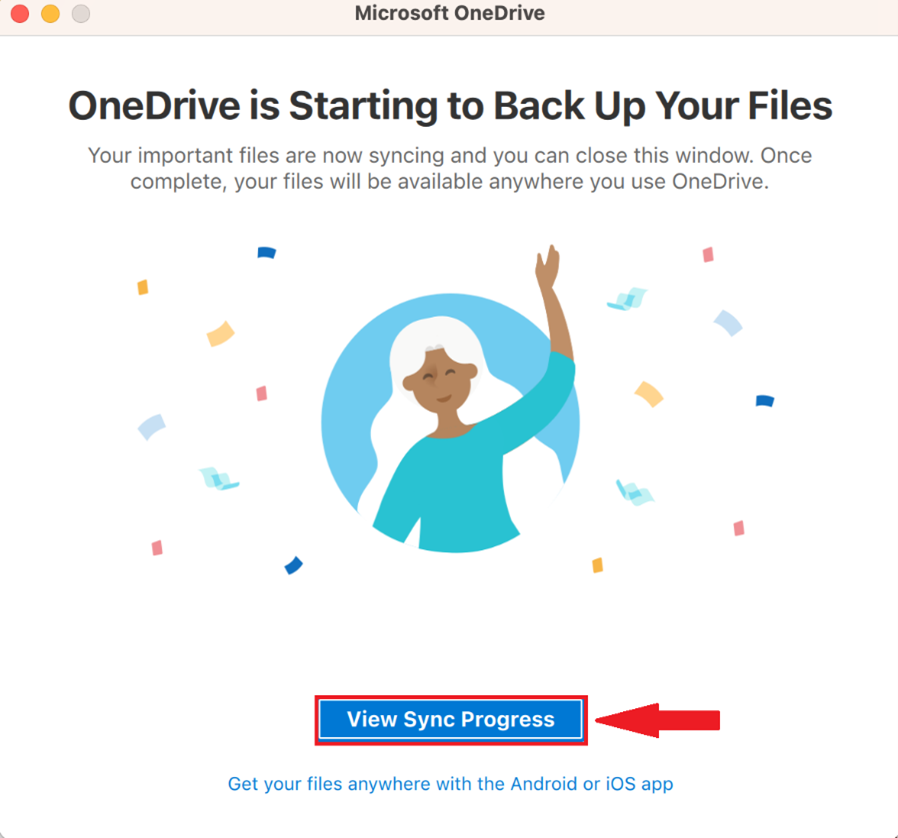
- OneDrive will begin backing up your data, To see the progress select View Sync Progress

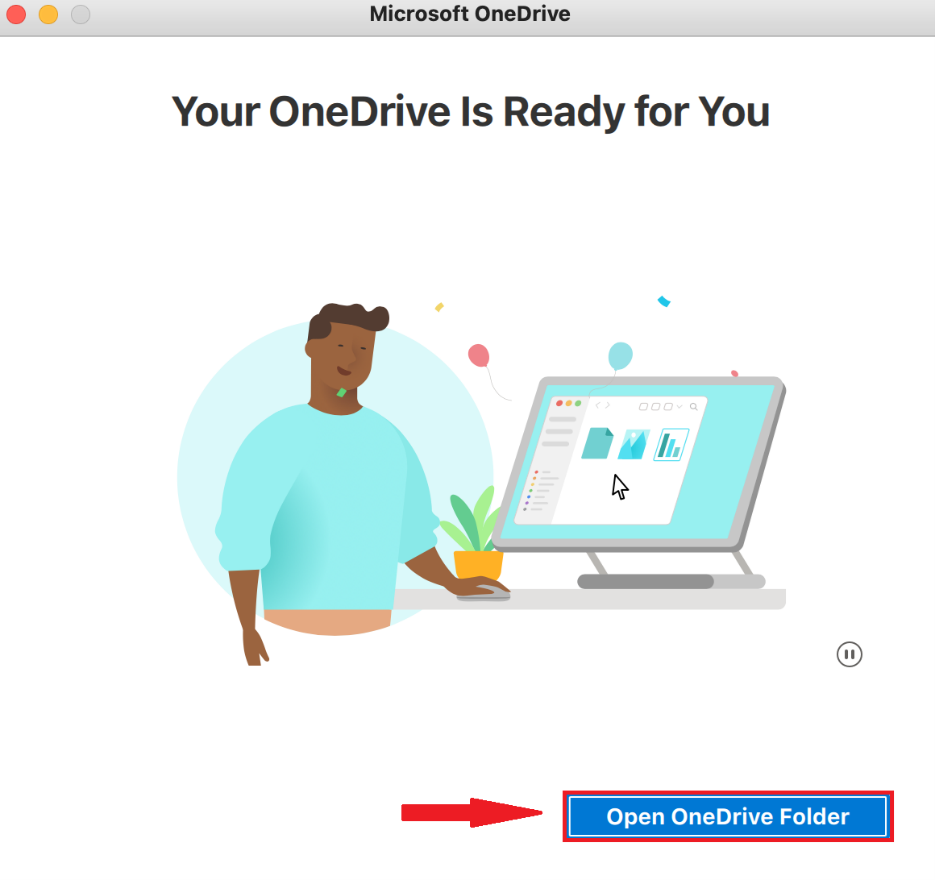
- When OneDrive is ready you will be prompted Your OneDrive is Ready for you, choose Open OneDrive folder to view and manage your files


OneDrive Backup (Windows)
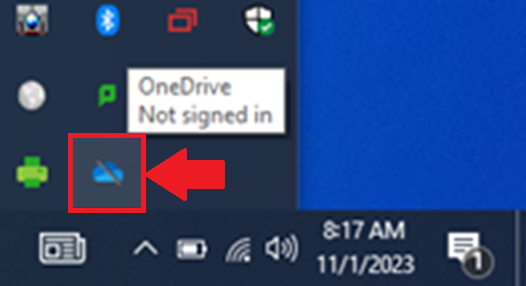
- Open OneDrive from the Shortcuts toolbar, located in the bottom right corner, next to the date & time

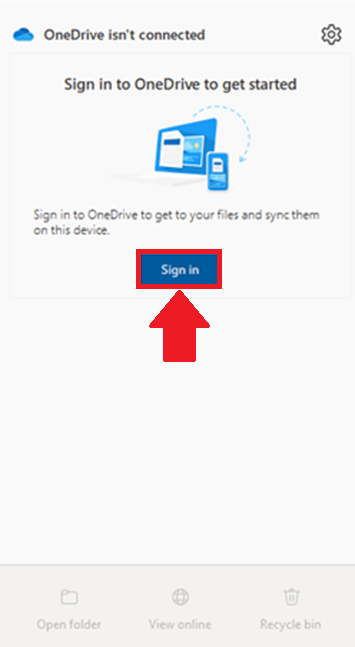
- Select Sign in

- If you are already signed in, please proceed to the next section
- Enter your full email address and select Sign in

- Follow through the on-screen prompts to finish signing in
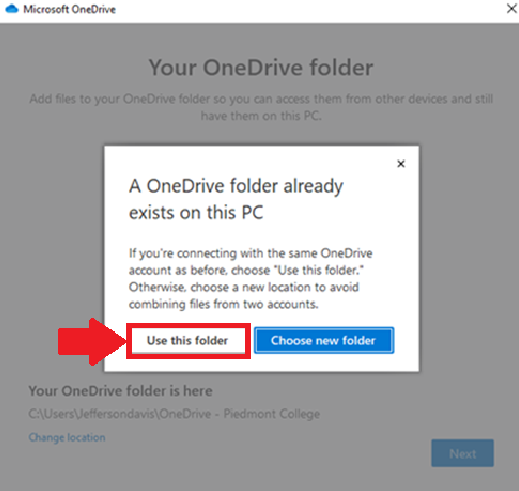
- If prompted that a OneDrive folder already exists, choose ‘Use this folder’ (Figure 5)

- Open OneDrive from the Shortcuts toolbar
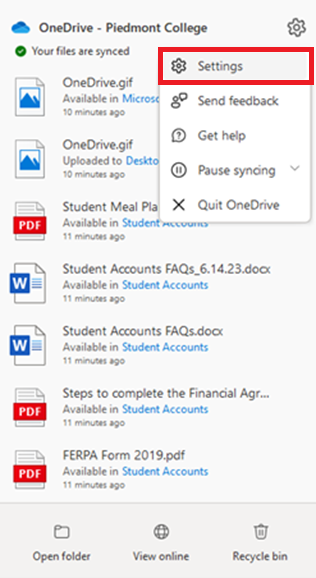
- Select the Gear icon in the top right corner

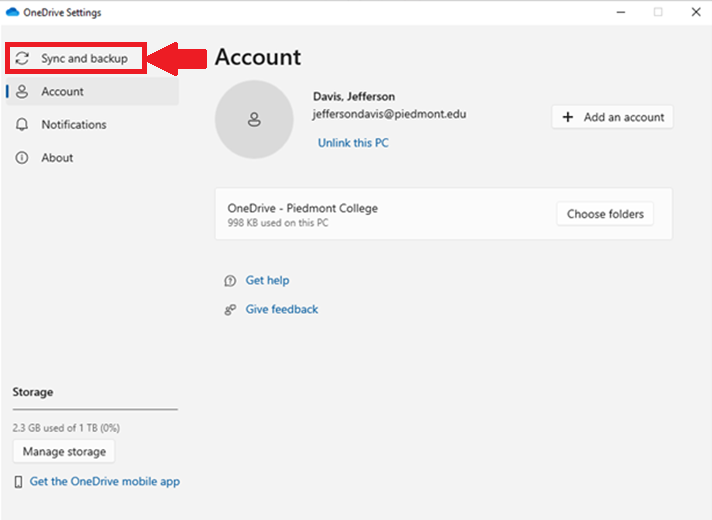
- Choose Settings from the dropdown menu

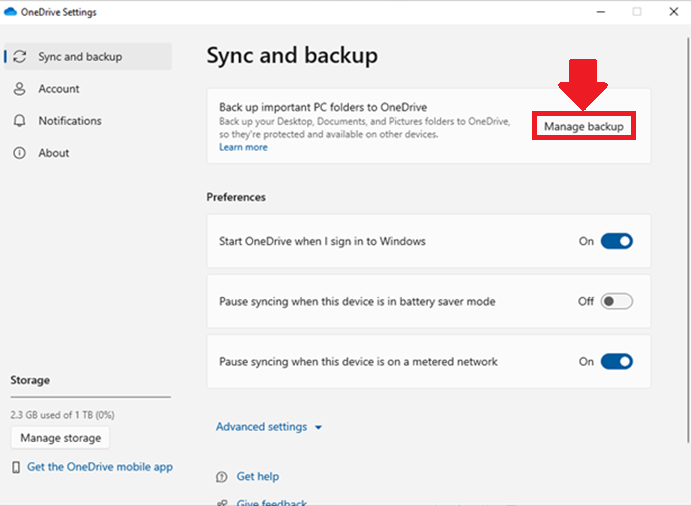
- Choose Sync and Backup

- Select Manage Backup

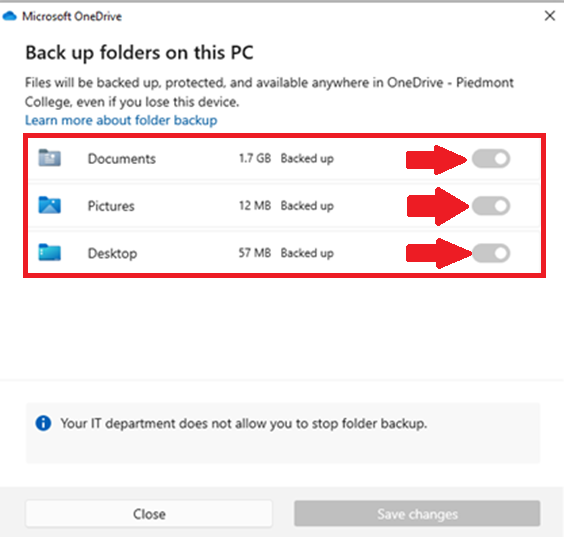
- Toggle the sliders on for Documents, Pictures, and Desktop

- If these options are already enabled, then that data is being backed up — you do not need to proceed
- Select Save Changes
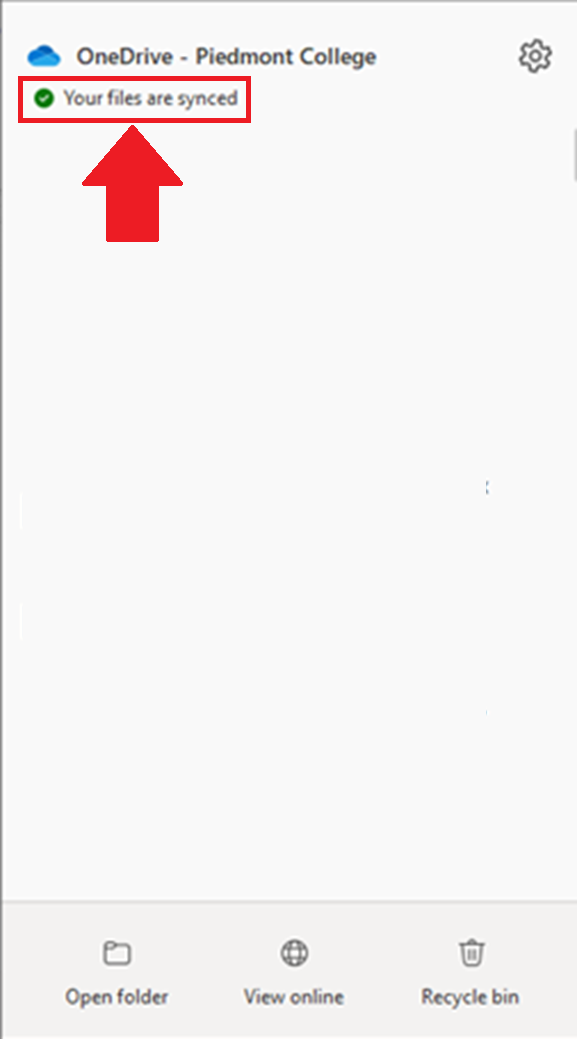
- When OneDrive is finished backing up you will see a green checkmark